
How to capture the GCLID in Squarespace forms
Discover how to capture the GCLID every time someone fills out a form on your Squarespace site, then pass that data into your CRM, marketing tools, and back into Google Ads.

Attributer makes it easy to capture the GCLID in Squarespace. Just add a hidden field to your forms and Attributer will automatically write the GCLID into it when someone submits. It also captures other useful data like UTM parameters, organic search info, and more.
Struggling to figure out which of your Google Ads campaigns are actually generating leads and customers? You're not alone.
Tools like Google Analytics can tell you how many visitors your ads are sending to your website, but they won't show you which of those visitors turned into real leads or paying customers. That makes it hard to know if your ad spend is working and which campaigns you should be investing more into.
The good news? There's a solution.
In this article, I'll show you how to use Attributer to capture the GCLID every time someone submits a form on your Squarespace site, then send that data to your CRM and back to Google Ads as an offline conversion.
3 steps for capturing the GCLID in Squarespace forms
Capturing the GCLID is simple when you use Attributer with Squarespace. Here's how to do it:
1. Install Attributer on your website and add a hidden field

When you sign up for a 14-day free trial of Attributer, you'll get a small snippet of code to add to your website.
To install it on Squarespace, go to Settings, then click on Advanced, and select Code Injection. From there, paste the Attributer code into the Header field.
Next, you'll need to add a hidden field to your Squarespace forms. Just add a new hidden field to your form and called it 'GCLID'. This gives Attributer a place to write the GCLID so it gets captured with every form submission.
2. Attributer writes the GCLID into the hidden field
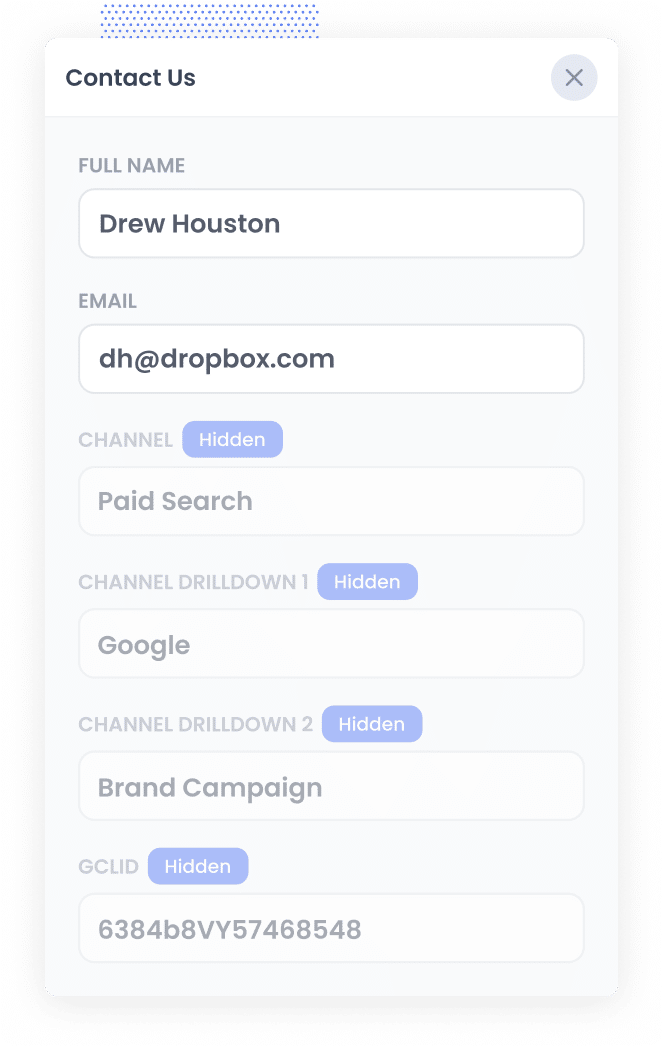
When someone clicks on one of your Google Ads and lands on your site, Attributer grabs the GCLID from the URL and stores it in their browser. That way, even if they browse around for a while before filling out a form (or leave and come back days later), the original GCLID is still there waiting.
Then, when they finally submit a form, Attributer writes the stored GCLID into the hidden field you set up earlier.
3. GCLID is captured with each form submission
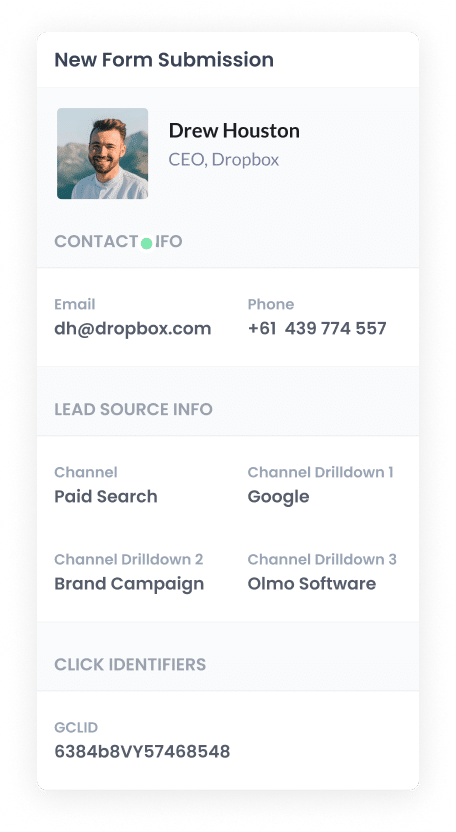
When the form is submitted, Squarespace captures the GCLID along with all other information the lead entered (such as their name, email, and so on). You can even view it on the Contact record in your Squarespace dashboard.
From there, you can send the GCLID to your CRM and other tools using Squarespace's built-in integrations or through a third-party tool like Zapier or Make.
How to send the GCLID back to Google Ads and mark it as an offline conversion
Before you can send the GCLID back to Google Ads, you'll need to set up a new conversion action.
To do this, open your Google Ads account and click on Goals in the sidebar, then go to Conversions. From there, click the button to create a new conversion and choose Offline Conversion from the list of options.
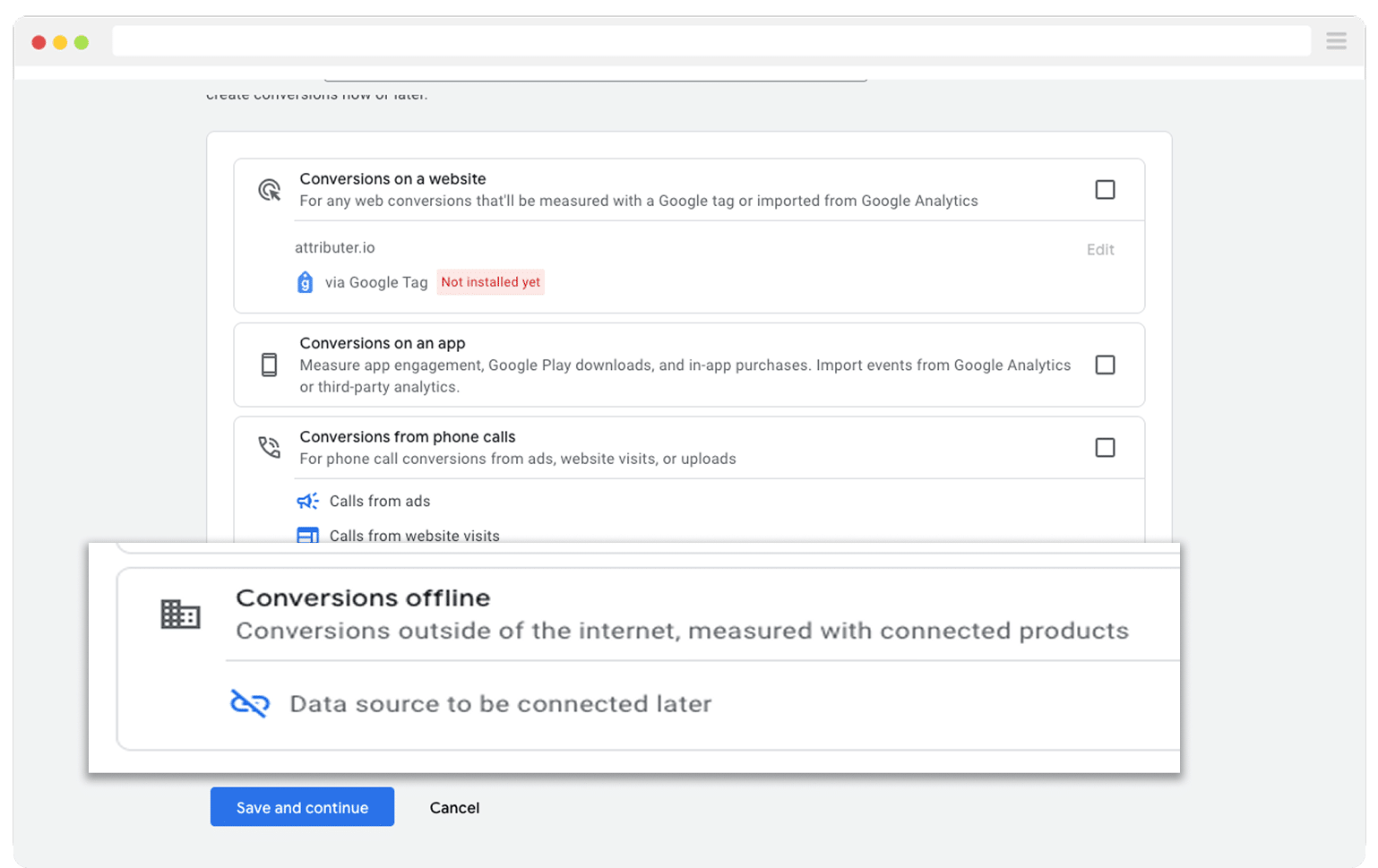
Then, in the final screen when it asks you to add a data source, select the option to ‘Add data source later’.
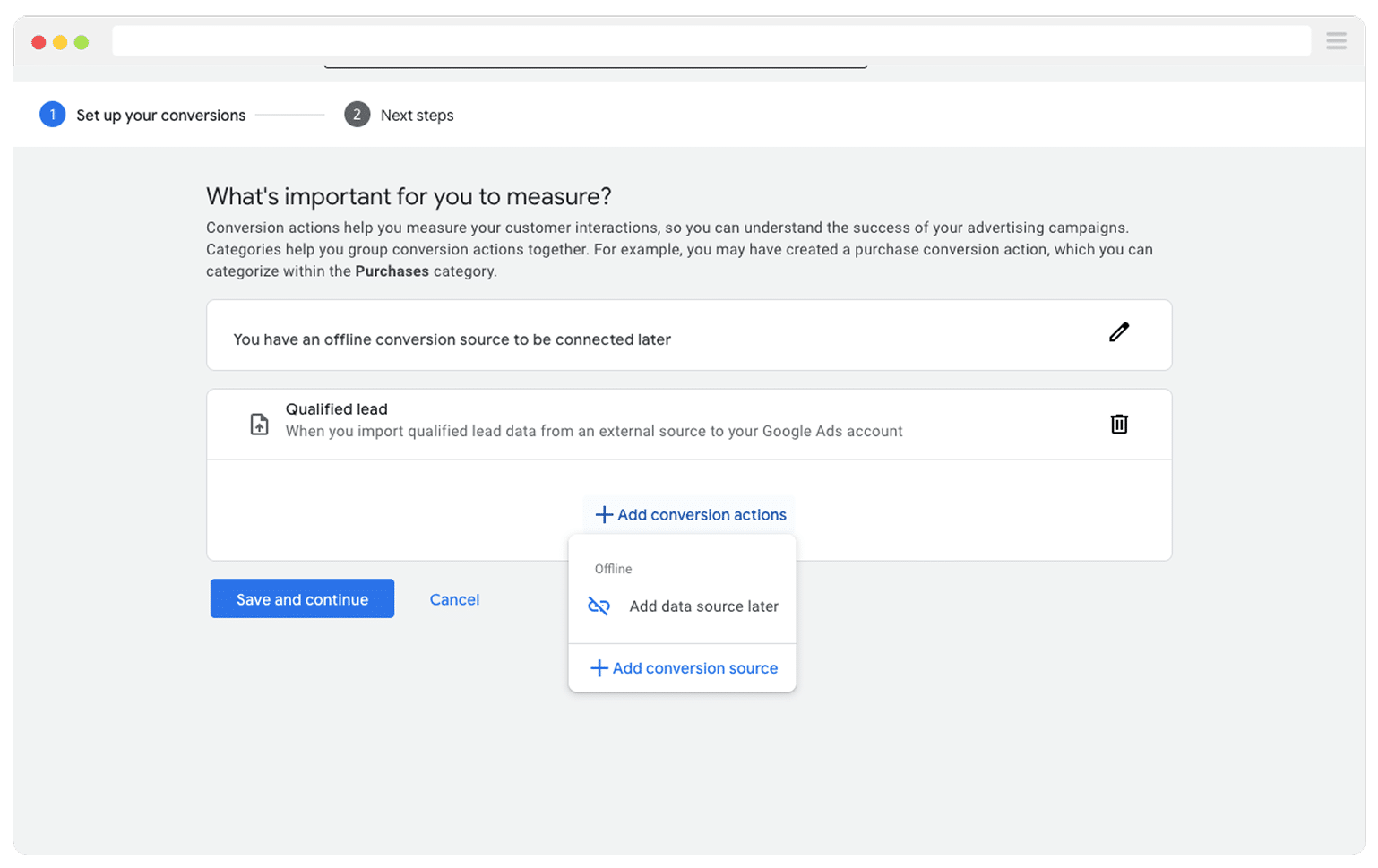
Once your conversion is set up in Google Ads, you need to decide when in your sales process to send the GCLID back to Google. The trick is picking the right moment in your sales process to do this.
Many businesses wait until a deal is fully closed before sending the conversion to Google Ads. That sounds logical, but it can actually work against you. Google's smart bidding strategies (like Maximise Conversions, Maximise Conversion Value, or Target CPA) generally need at least 50 conversions per month to really work well.
If you're not closing 50 deals a month, you're better off tracking an earlier step in the process, like when a new deal gets created in your CRM. That gives Google enough data to actually optimise your campaigns.
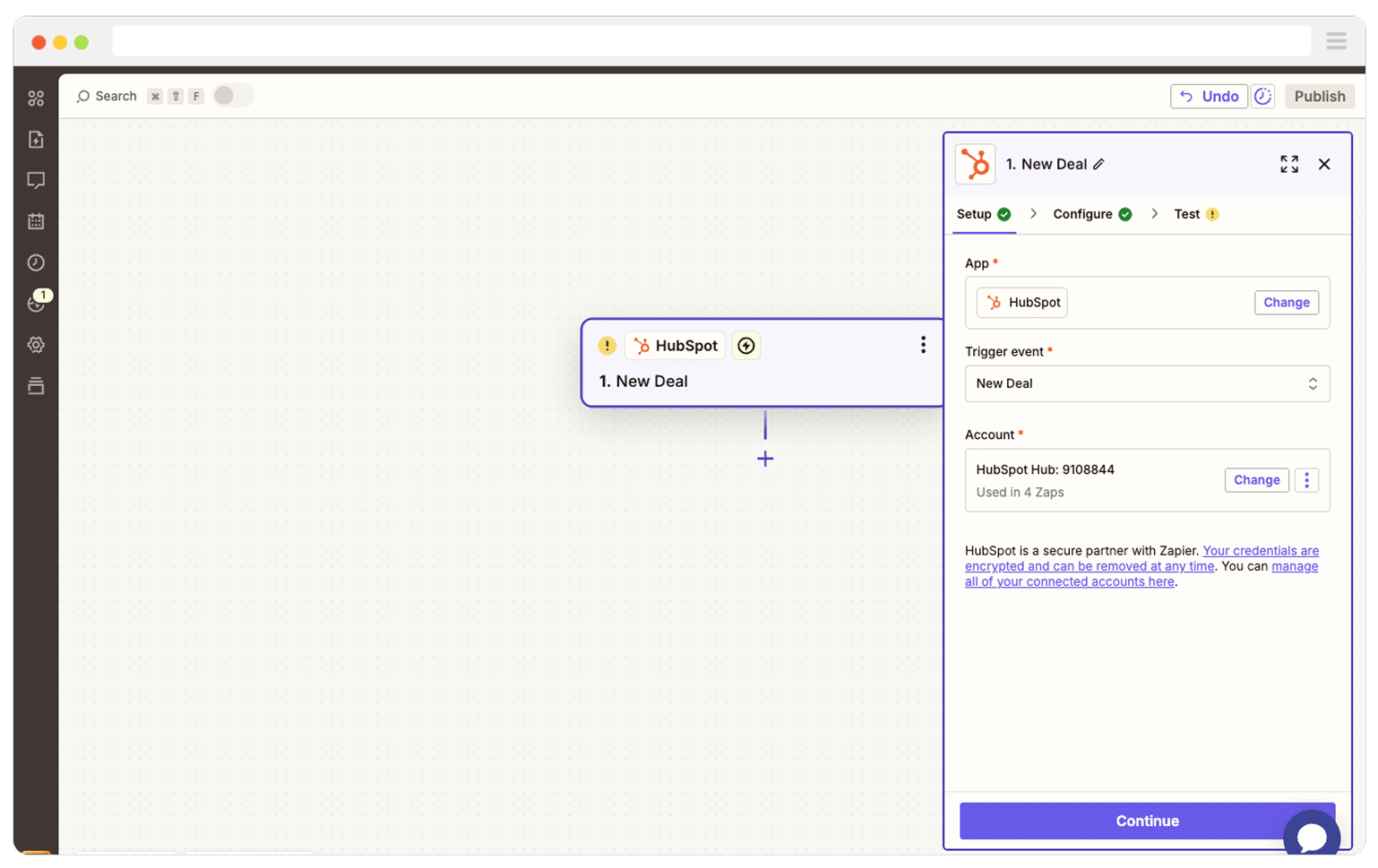
Once you've picked your trigger point, head into Zapier and create a new Zap. Set the trigger to match the moment you chose. For example, if you want to send the offline conversion when a deal is created for a contact, that's what you'd select as your trigger.
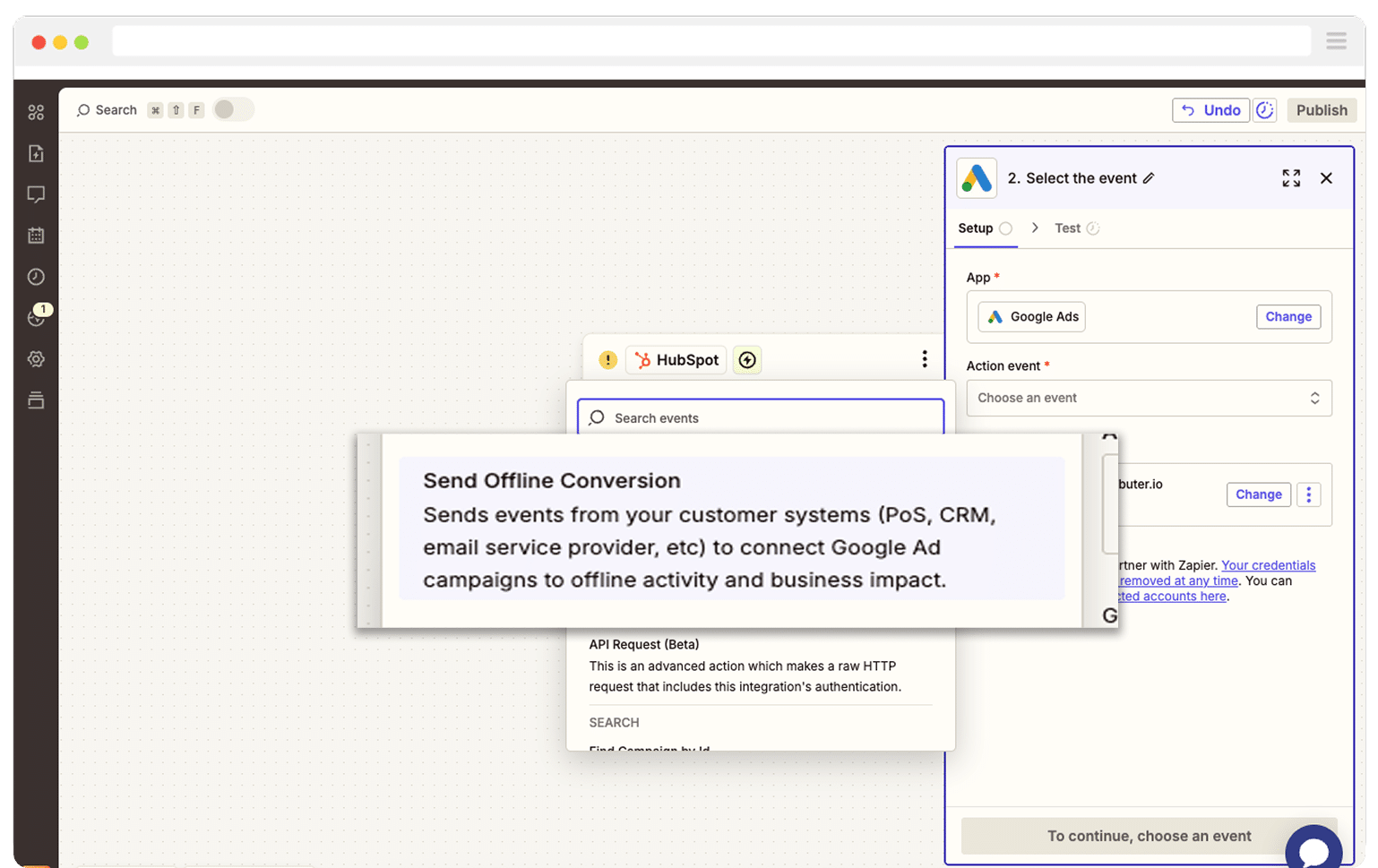
Next, select Google Ads as the Action and then select the ‘Send Offline Conversion’ as the event.
Finally, you just need to map the GCLID from your CRM (or wherever you are storing it) to the correct field in Zapier.
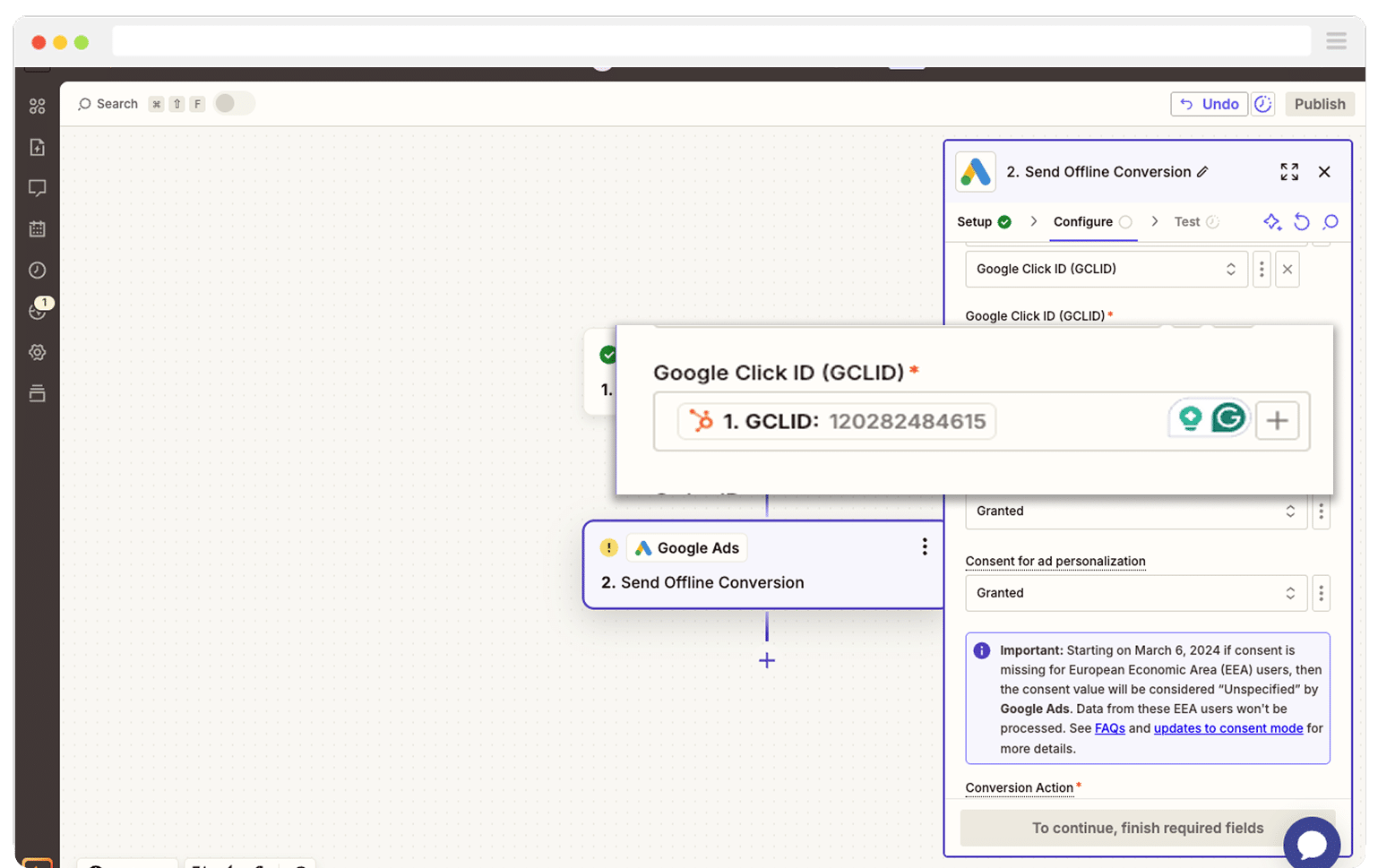
That’s it! You have now set up offline conversions in Google Ads. It’s a good idea to test it’s working before piling money into ads, and you can read more about how to do that here.
Why Attributer is the best way to capture the GCLID in Squarespace forms
There are other ways to capture the GCLID in Squarespace forms, so what makes Attributer the best choice?
Here's why it stands out:
1. Remembers the GCLID as visitors browse your site
Most other methods (including Squarespace's own prefill feature) only capture the GCLID if it's still in the URL when the form is submitted.
That's an issue. Let's say someone clicks your Google Ad, lands on your homepage, then navigates to your Contact Us page to fill out a form. The GCLID disappears from the URL and you lose it completely.
Attributer works differently. It stores the GCLID in the visitor's browser, so it doesn't matter if they browse around your site before completing a form (or even leave and come back a few days later). The GCLID still gets captured every time.
2. Captures UTM parameters as well
Attributer doesn't just capture the GCLID. It also grabs any UTM parameters you've added to your campaigns.
For example, let's say you're running ads for a building company. When someone clicks one of your Google Ads and fills out a form, Attributer would pass this information into Squarespace (based on the UTM parameters behind your ads):
- Channel = Paid Search
- Channel Drilldown 1 = Google
- Channel Drilldown 2 = Home Renovations Campaign
- Channel Drilldown 3 = Kitchen Renovations Sydney
- Channel Drilldown 4 = Free Quote Ad
3. Captures information on users from organic channels
Attributer also captures details on leads who find your site through organic channels like Organic Search, Organic Social, Referral, or Direct Traffic.
Sticking with the building company example, if someone discovers your business through a regular Google search, Attributer can pass through information like:
- Channel = Organic Search
- Channel Drilldown 1 = Google
- Channel Drilldown 2 = www.google.com (or whatever search engine domain they used)
- Channel Drilldown 3 = Kitchen Renovations Sydney (or whatever keyword they searched for, if available)
How Attributer helped Harris Federal Law track which Google Ads are truly generating customers & revenue
Harris Federal Law Firm is a legal practice in Washington D.C that helps federal employees secure their benefits.
They were running Google Ads to attract new customers and tracking website visitors in Google Analytics, but they had no way of knowing how many of those visitors were actually becoming leads and customers.
That's when they started using Attributer.
Now, every time someone submits a form, Attributer automatically writes attribution details (like campaign, ad group, ad, keyword, GCLID, and more) into hidden fields on the form, and that data is captured with the submission.
With this information, the team could finally see which campaigns were driving real leads and customers, not just website visitors who never converted.
They discovered that some of their display campaigns were sending heaps of traffic but barely producing any paying clients. With that insight, they shifted budget into the search campaigns that were actually performing.
The result? More customers with less ad spend.
"With Attributer we can see which campaigns are actually generating customers & revenue, rather than just website visitors. We were able to see that some of our campaigns were driving lots of visitors but few of them converted into leads and customers. Now we’re able to reinvest that budget into other campaigns that we can see are generating revenue."

Nick Child - Director of Marketing, Harris Federal Law Firm
Wrap Up
Want to capture the GCLID in Squarespace and send it to your CRM so you can fire offline conversions back to Google Ads? Attributer makes it simple.
It stores the GCLID as visitors browse your site (even if they leave and come back days later), and automatically includes it with every form submission.
Best of all, it's free to try and you can be up and running in under 10 minutes. Start your 14 day trial today and begin capturing the GCLID in Squarespace right away.
Get Started For Free
Start your 14-day free trial of Attributer today!

About the Author
Aaron Beashel is the founder of Attributer and has over 15 years of experience in marketing & analytics. He is a recognized expert in the subject and has written articles for leading websites such as Hubspot, Zapier, Search Engine Journal, Buffer, Unbounce & more. Learn more about Aaron here.