
How to capture the GCLID in Pipedrive
Learn how to capture the GCLID with each new lead in Pipedrive and send it back to Google Ads as an Offline Conversion

Use Attributer to capture the GCLID in Pipedrive. Simply add hidden fields to your forms, Attributer writes the GCLID into them, and they are sent to Pipedrive via tools like Zapier or Make. It even captures other lead source information (like UTM parameters, leads from organic channels, etc)
Google Ads can be one of the most effective ways to generate new leads for your business.
But without knowing which of those leads go on to become paying customers, you could easily end up spending money on campaigns that aren't actually producing results.
The good news? There's a solution.
In this article, we'll walk you through how to use a tool called Attributer to capture the GCLID in Pipedrive and send it back to Google Ads to track offline conversions.
4 steps for capturing the GCLID in Pipedrive
Capturing the GCLID is simple when you use Attributer. Here’s how it works:
1. Install Attributer on your website and add a hidden field

When you sign up for a 14-day free trial of Attributer, you'll get a small snippet of code to place on your website.
The process for adding it will depend on your website builder (WordPress, Webflow, Squarespace, etc), but in most cases you can do it through your site's settings section. You can also add it via Google Tag Manager if you prefer.
Once the code is installed, you'll also need to add a 'GCLID' hidden field to your website forms. This is where Attributer will write the GCLID each time a lead fills out a form on your site.
2. Attributer captures the GCLID and writes it into the hidden field
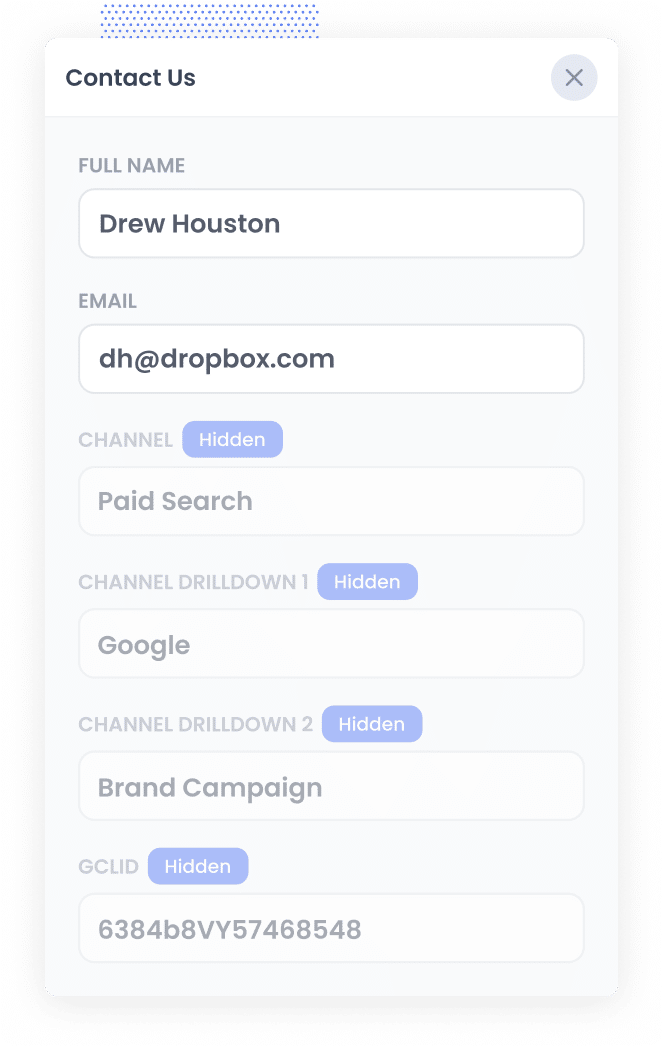
When a visitor lands on your site after clicking one of your Google Ads, Attributer grabs the GCLID from the URL and saves it in the visitor's browser. That way, even if the visitor browses several pages on your site before filling out a form (or leaves and comes back another day), the GCLID from their original click is always retained.
Then, when they go ahead and complete a form on your site, Attributer writes the GCLID into the hidden field you added earlier.
3. GCLID is captured with each form submission
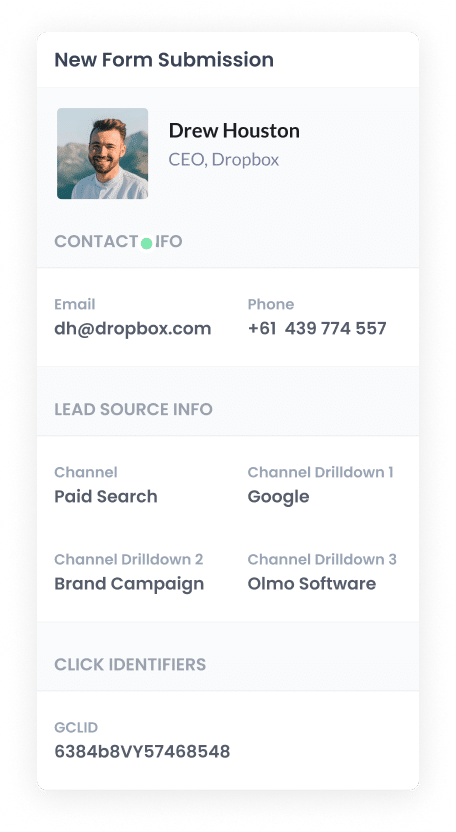
When the form is submitted, the GCLID gets captured by your form tool alongside everything else the lead entered into the form (their name, email, phone number, etc.)
3. GCLID is passed to Pipedrive with each new lead
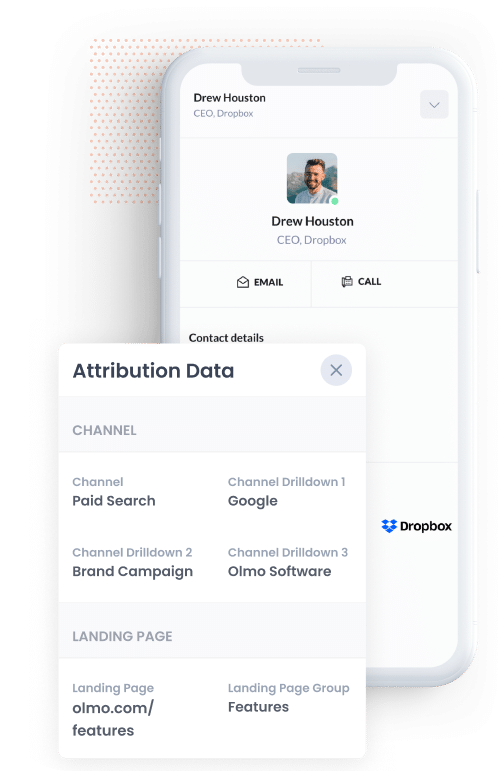
Finally, the GCLID can be sent to Pipedrive along with all the other details the lead entered into the form, like their name, email, phone, etc.
You can do this using your form builder's native integration with Pipedrive, or, if it doesn't have one, you can send the data via third-party integration tools like Zapier or Make.
How to send the GCLID back to Google Ads and mark it as an offline conversion
Before you can send the GCLID back to Google Ads, you'll need to create a new conversion.
To get started, log in to your Google Ads account, click Goals in the sidebar, and then go to Conversions. From there, click the button to add a new Conversion and choose ‘Offline Conversion’.
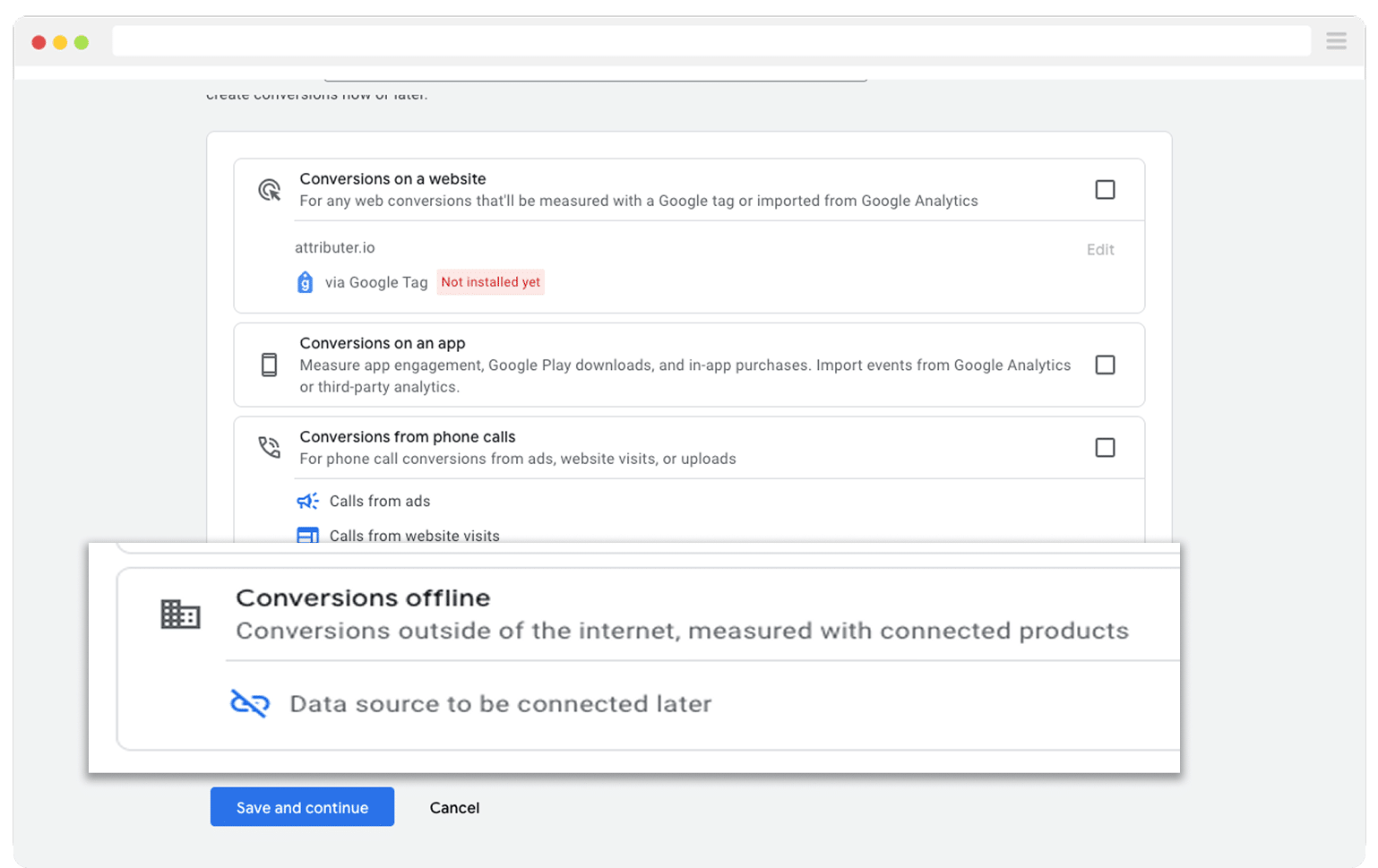
Then, on the final screen where it asks you to add a data source, choose the option to ‘Add data source later’.
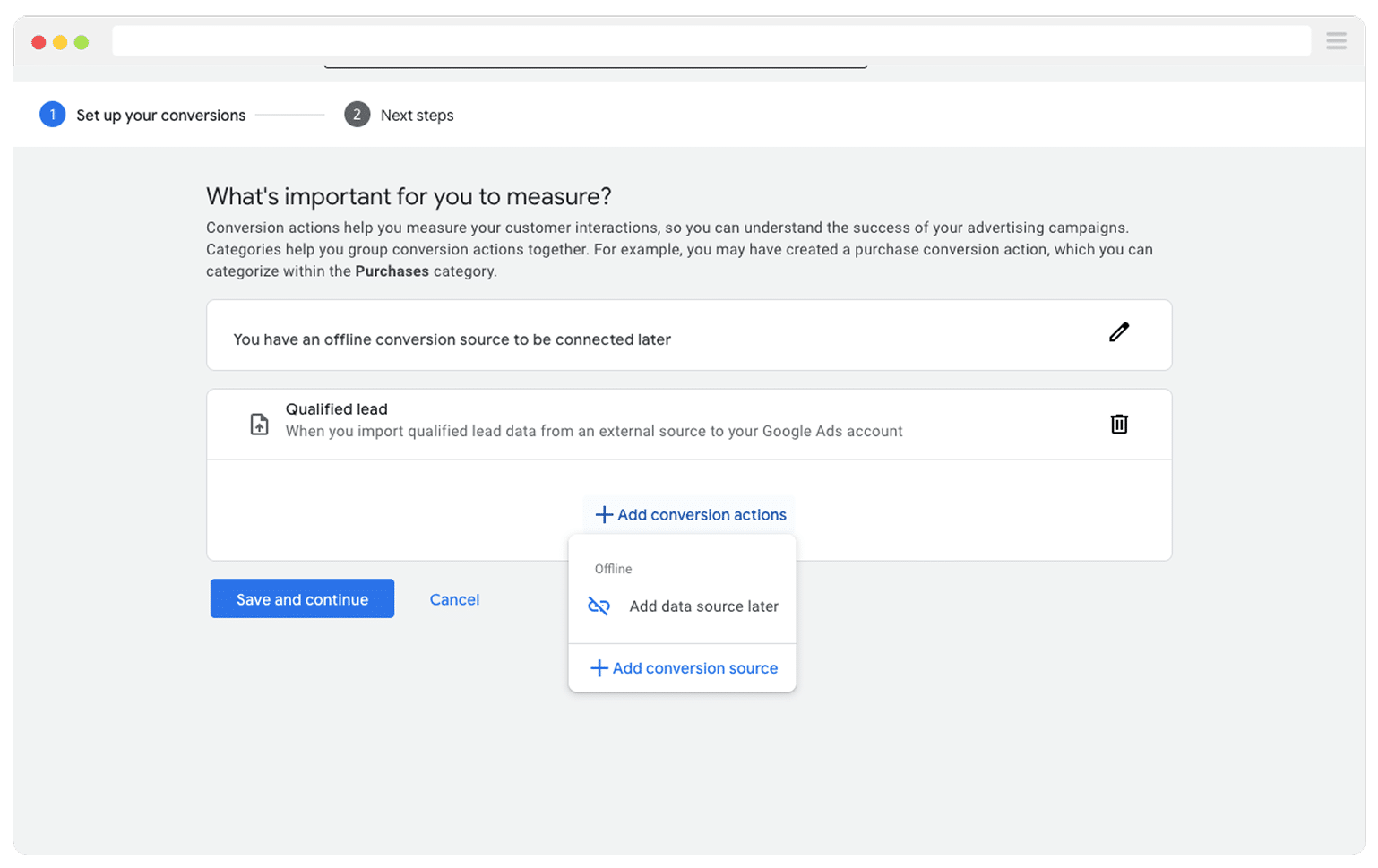
With your conversion created in Google Ads, the next step is to start sending the GCLID back. But first, you'll need to decide which point in your sales process should count as a conversion.
Your first instinct might be to wait until a deal is closed before sending the conversion to Google Ads. That makes sense on the surface, but it can actually hold back your campaign performance. Google's smart bidding strategies (like Maximise Conversions, Maximise Conversion Value, or Target CPA) need at least 50 conversions per month to work properly. So if you're closing fewer than 50 deals a month, it's worth considering an earlier stage in your pipeline (like when a Deal is created in Pipedrive) to give Google enough data to optimise.
Once you've picked your conversion point, head into your Zapier account and create a new Zap. Set the trigger to match whatever conversion point you chose. For instance, if you decided to send the offline conversion when a Deal is created in Pipedrive, you would set that as your trigger.

Next, select Google Ads as the Action and choose ‘Send Offline Conversion’ as the event.

Finally, you just need to map the GCLID from Pipedrive (or wherever you are storing it) to the correct field in Zapier.

That’s it! You’ve now set up offline conversions in Google Ads. Before you start scaling your ad spend, it’s a good idea to test that everything is working properly. You can read more about how to do that here.
Why Attributer is the best way to capture the GCLID in Pipedrive
There are other methods for capturing the GCLID in Pipedrive, so what makes Attributer the best option?
Here are a few key reasons:
1. Remembers the GCLID as visitors browse your site
A lot of form tools offer built-in features for capturing URL parameters, but they only pull whatever is in the URL at the time the form is submitted.
So if someone clicks your Google Ad, arrives on your homepage, and then navigates to your Contact Us page to fill out a form, the GCLID is no longer in the URL at that point and won't get picked up.
Attributer takes a different approach. It saves the GCLID in the visitor’s browser, which means that even if they visit multiple pages before completing a form (or leave your site and return later), the GCLID is always passed through.
2. Captures UTM parameters as well
Attributer does more than just capture the GCLID. It also picks up any UTM parameters you've added to your ads.
For example, imagine you're running marketing for a law firm and someone clicked one of your Google Ads before filling out a form on your site. Attributer could pass through information like this (based on the UTM parameters behind your ads):
- Channel = Paid Search
- Channel Drilldown 1 = Google
- Channel Drilldown 2 = Personal Injury Campaign (or whatever the campaign name is)
- Channel Drilldown 3 = Car Accident Lawyer (or whatever keyword you are bidding on)
- Channel Drilldown 4 = Free Case Review Ad (or whatever ad they clicked)
3. Captures information on users from organic channels
On top of that, Attributer also captures data on leads who arrive at your website through organic channels like Organic Search, Organic Social, Referral, Direct Traffic, and more.
Sticking with the law firm example, if a lead discovered your site through an organic Google search, Attributer would pass through the following details:
- Channel = Organic Search
- Channel Drilldown 1 = Google
- Channel Drilldown 2 = www.google.com (or whatever the search engine domain was)
- Channel Drilldown 3 = Car Accident Lawyer (or whatever keyword they searched for, when available)
Wrap Up
If you want to capture the GCLID in Pipedrive (with the end goal of sending it back to Google Ads as an offline conversion), then Attributer is a great way to make it happen.
It holds onto the GCLID as visitors browse around your site (or even if they leave and come back later) and passes it through every time a lead submits a form. Beyond that, you'll also get a range of extra data on your leads (UTM parameters, organic search data, and more), which means you'll be able to see where ALL your leads and customers are coming from.
Best of all, it's free to get started and usually takes less than 10 minutes to set up. Start your 14-day free trial today!
Get Started For Free
Start your 14-day free trial of Attributer today!

About the Author
Aaron Beashel is the founder of Attributer and has over 15 years of experience in marketing & analytics. He is a recognized expert in the subject and has written articles for leading websites such as Hubspot, Zapier, Search Engine Journal, Buffer, Unbounce & more. Learn more about Aaron here.