
How to capture the GCLID in Acuity Scheduling
Use Attributer to capture the GCLID with every Acuity Scheduling booking and pass it to your CRM (or other tools) and back to Google Ads.

Attributer makes capturing the GCLID in Acuity Scheduling straightforward. Add a few hidden fields to your Acuity form, and Attributer will automatically grab the GCLID and pass it through with every new booking. And as a bonus, it also captures UTM parameters and other attribution data at the same time.
Struggling to work out which of your Google Ads campaigns are actually bringing in leads and customers? You're not alone.
Tools like Google Analytics can tell you how many people clicked your ads and visited your site, but they can't show you which of those visitors went on to book a call or become a paying customer. And without that visibility, it's really hard to know if your ad spend is working or where to put more budget.
The good news? There's a fix.
In this article, we'll show you how to use Attributer to capture the GCLID with every Acuity Scheduling booking, then send that data to your CRM and back to Google Ads as an offline conversion.
3 steps for capturing the GCLID in Acuity Scheduling
Getting the GCLID captured with every Acuity Scheduling booking is simple with Attributer. Here's how to set it up:
1. Install Attributer and add hidden fields to Acuity
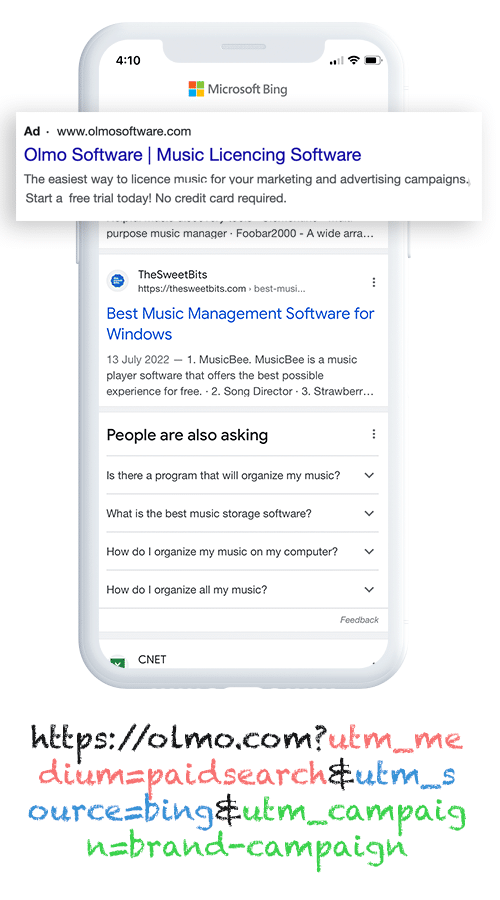
When you sign up for a 14-day free trial of Attributer, you'll receive a small snippet of code to add to your website.
Installing it is quick and easy. The exact process depends on what platform your site is built on (WordPress, Webflow, Squarespace, etc.), but you can typically add it through the settings section of your website builder.
Once the code is on your site, you'll need to add a hidden field to your Acuity Scheduling booking form. Just create a new hidden field and name it "GCLID". This gives Attributer somewhere to write the GCLID so it gets passed through with every new booking.
2. Attributer stores the GCLID and passes it through with each booking
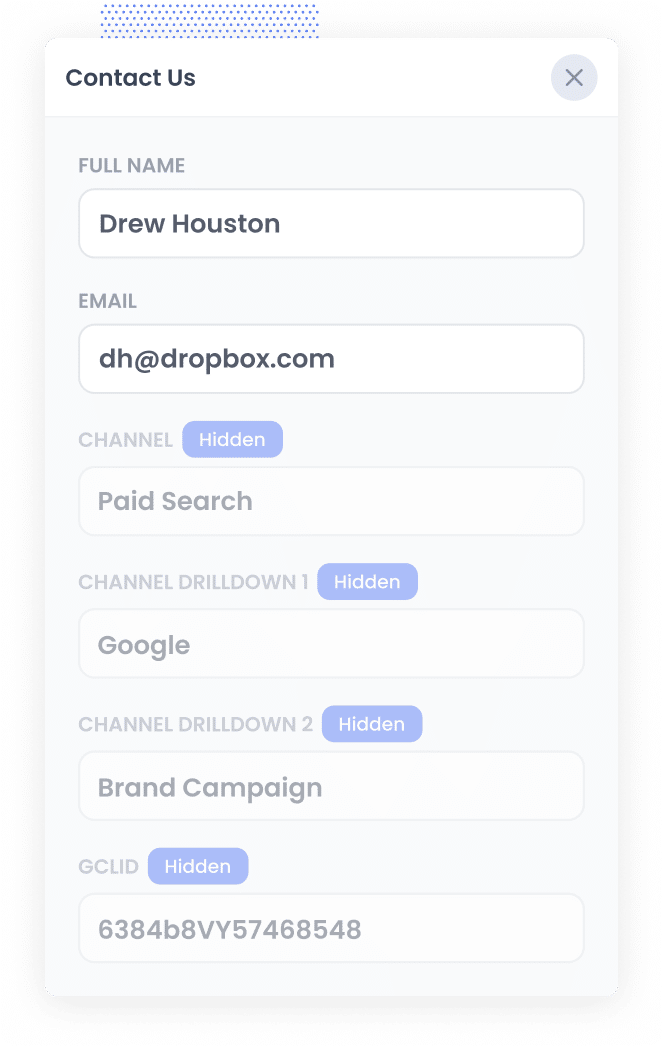
When someone clicks one of your Google Ads and arrives on your site, Attributer pulls the GCLID from the URL and stores it in their browser. This means that even if they browse around for a while, or leave and come back another day, the GCLID is still there waiting.
Then, when they fill out an Acuity Scheduling booking form on your site, Attributer writes the GCLID into the hidden field on your form.
3. GCLID is captured with each form submission
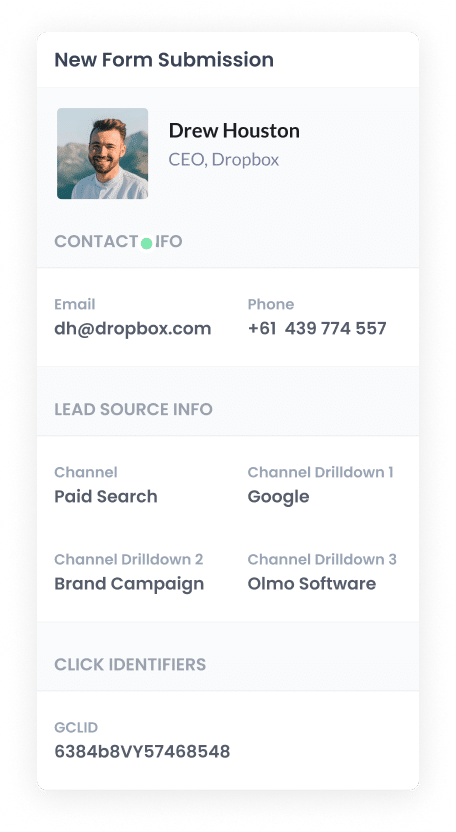
When someone completes a booking, Acuity Scheduling captures the GCLID alongside all the other details they provided, like their name, email, and phone number.
You can then view it in the Appointments section of your Acuity dashboard, and it will show up in any booking notification emails you have set up.
From there, you can use Acuity's built-in integrations or third-party tools like Zapier or Make to send the data to your CRM or any other tools you use.
How to send the GCLID back to Google Ads and mark it as an offline conversion
Before you can send the GCLID back to Google Ads, you'll need to create a new conversion action.
To do this, log into Google Ads and click Goals in the left sidebar, then head to Conversions. From there, hit the button to create a new conversion, select Imported from the options, and choose CRMs, files, or other data sources.
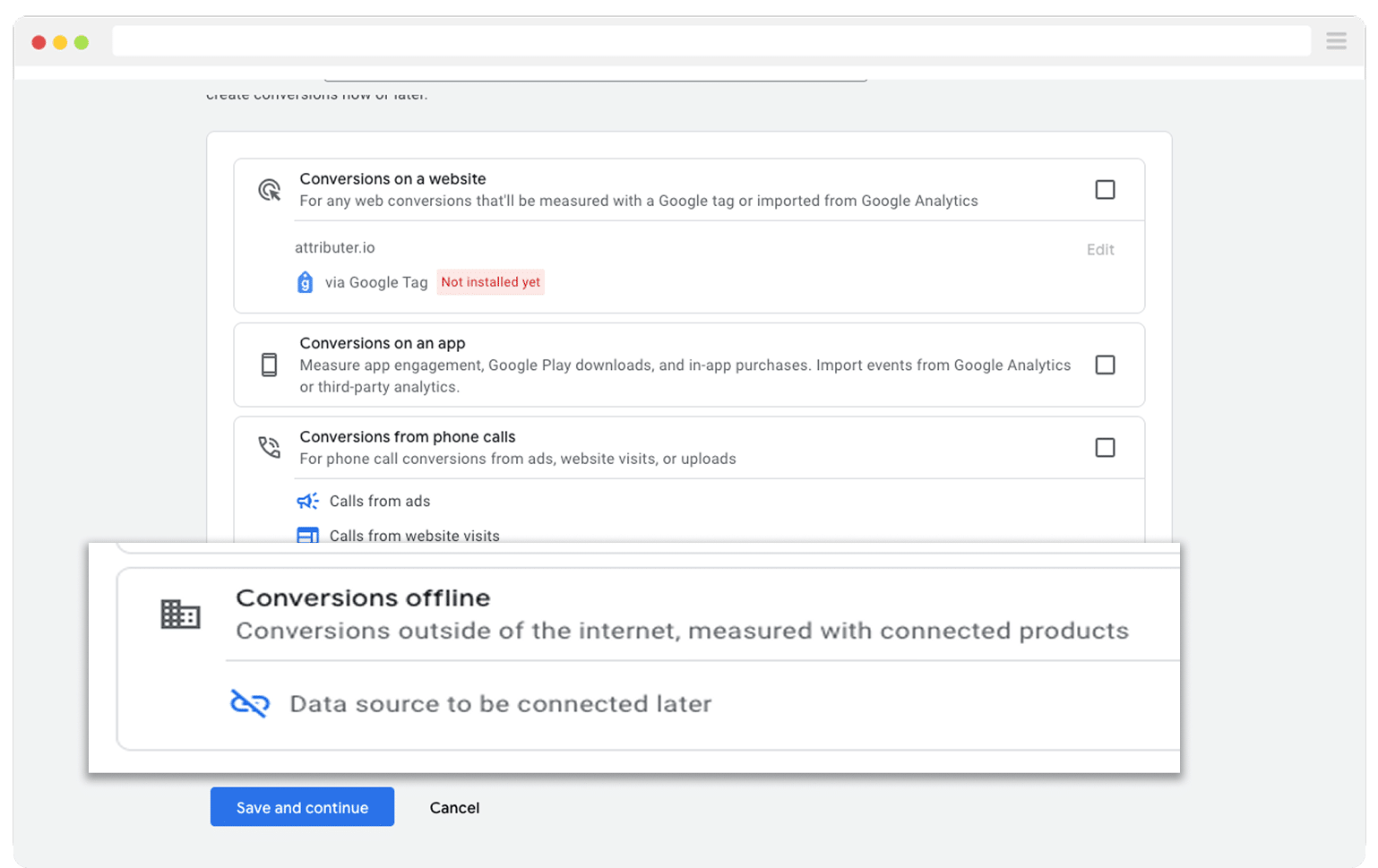
Then, in the final screen when it asks you to add a data source, select the option to ‘Add data source later’.
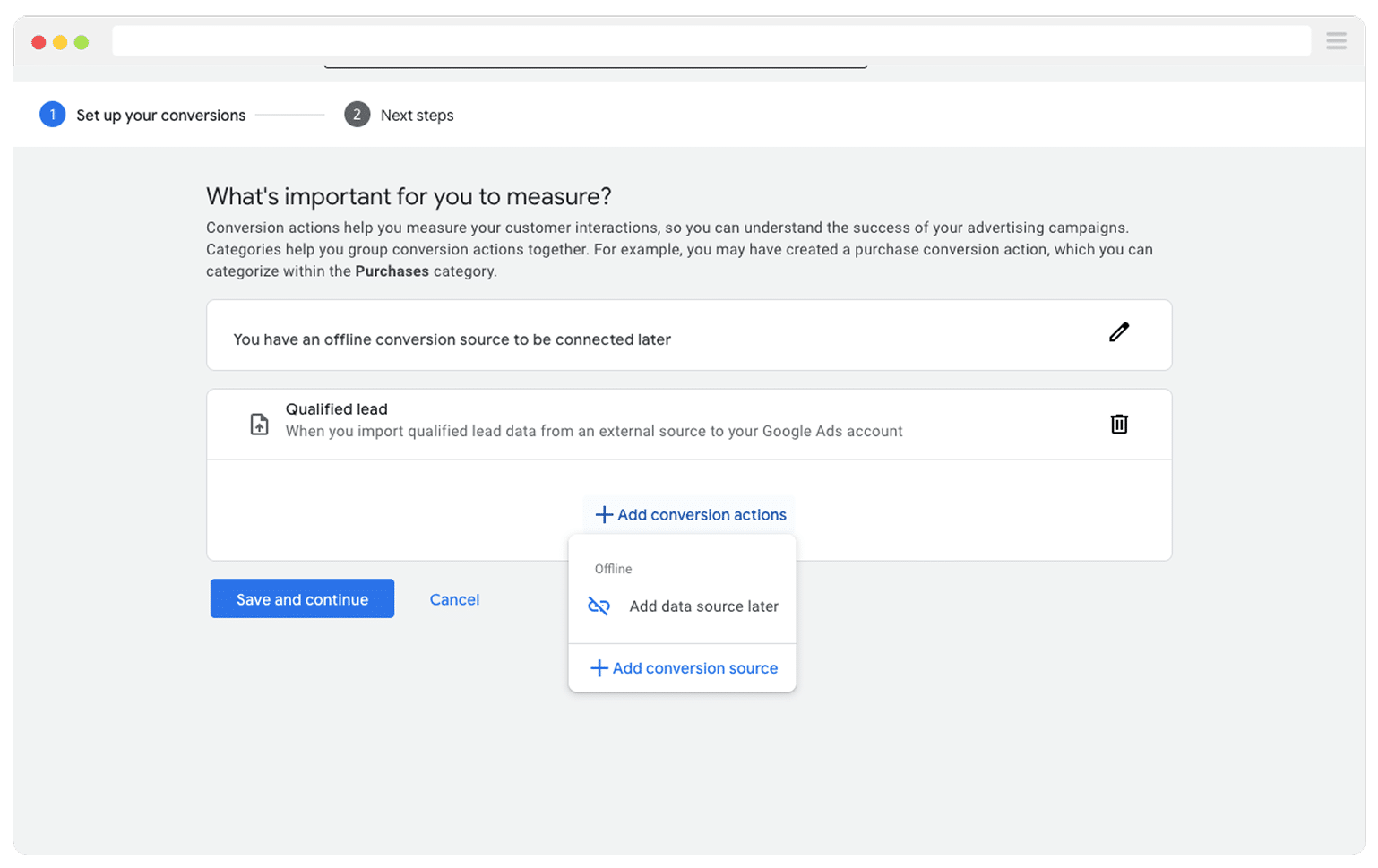
Once your conversion action is set up in Google Ads, the next step is deciding which stage of your sales process should trigger the GCLID being sent back. This decision matters more than most people think.
Many businesses wait until a deal is closed before sending the conversion back to Google. It seems logical, but it can actually work against you. Google's smart bidding strategies (like Maximise Conversions, Maximise Conversion Value, or Target CPA) generally need at least 50 conversions per month to work effectively.
If you're not closing 50 deals a month, you'll likely get better results by triggering the conversion at an earlier pipeline stage, like when a new deal is created in your CRM. That way you're still giving Google a meaningful signal (a lead your sales team has actually qualified) while providing smart bidding with enough data to optimise properly.
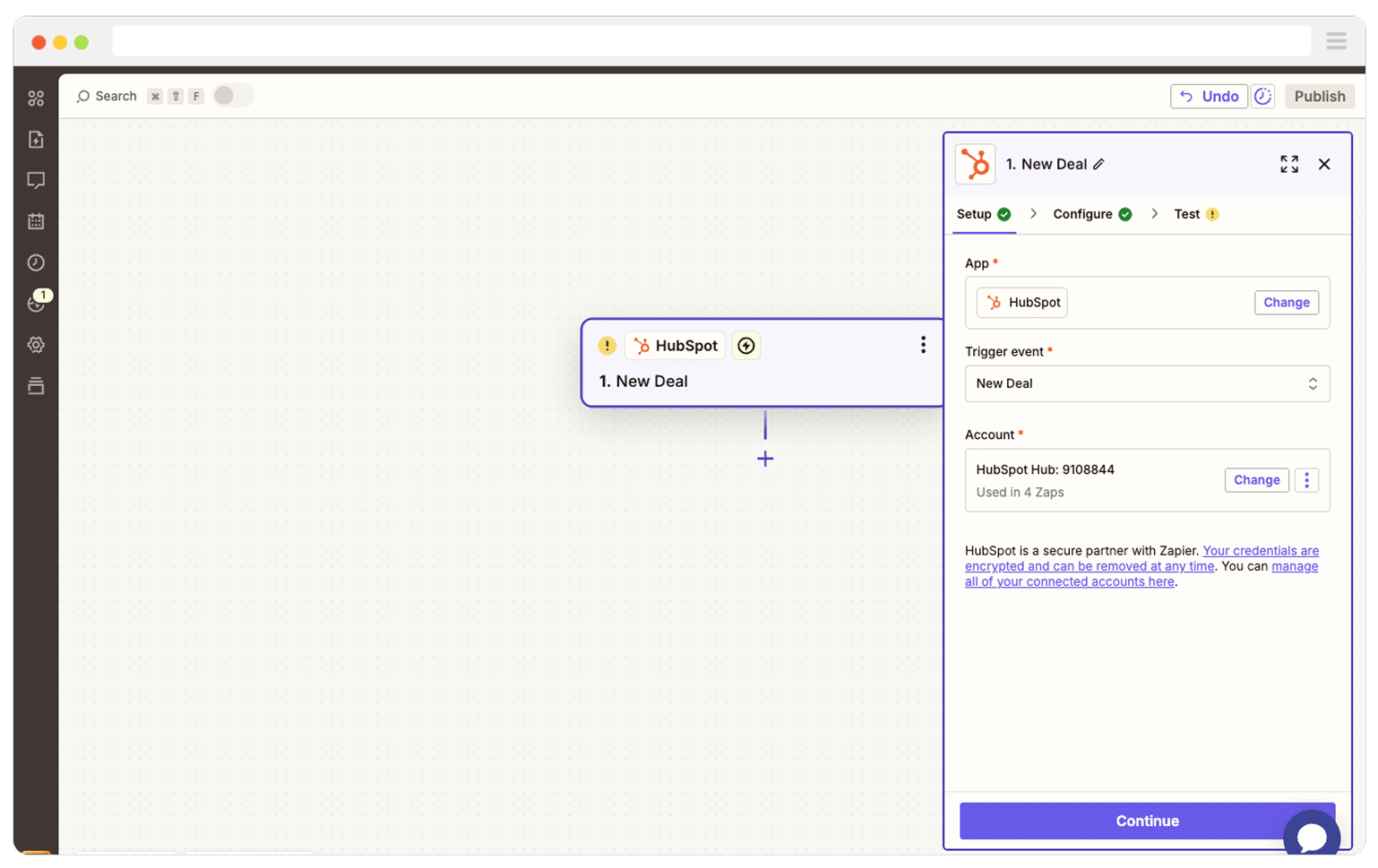
Once you've settled on your trigger point, head into Zapier and create a new Zap. Set the trigger to match the moment you chose. For example, if you want the offline conversion to fire when a new deal is created in your CRM, use that as your trigger event.
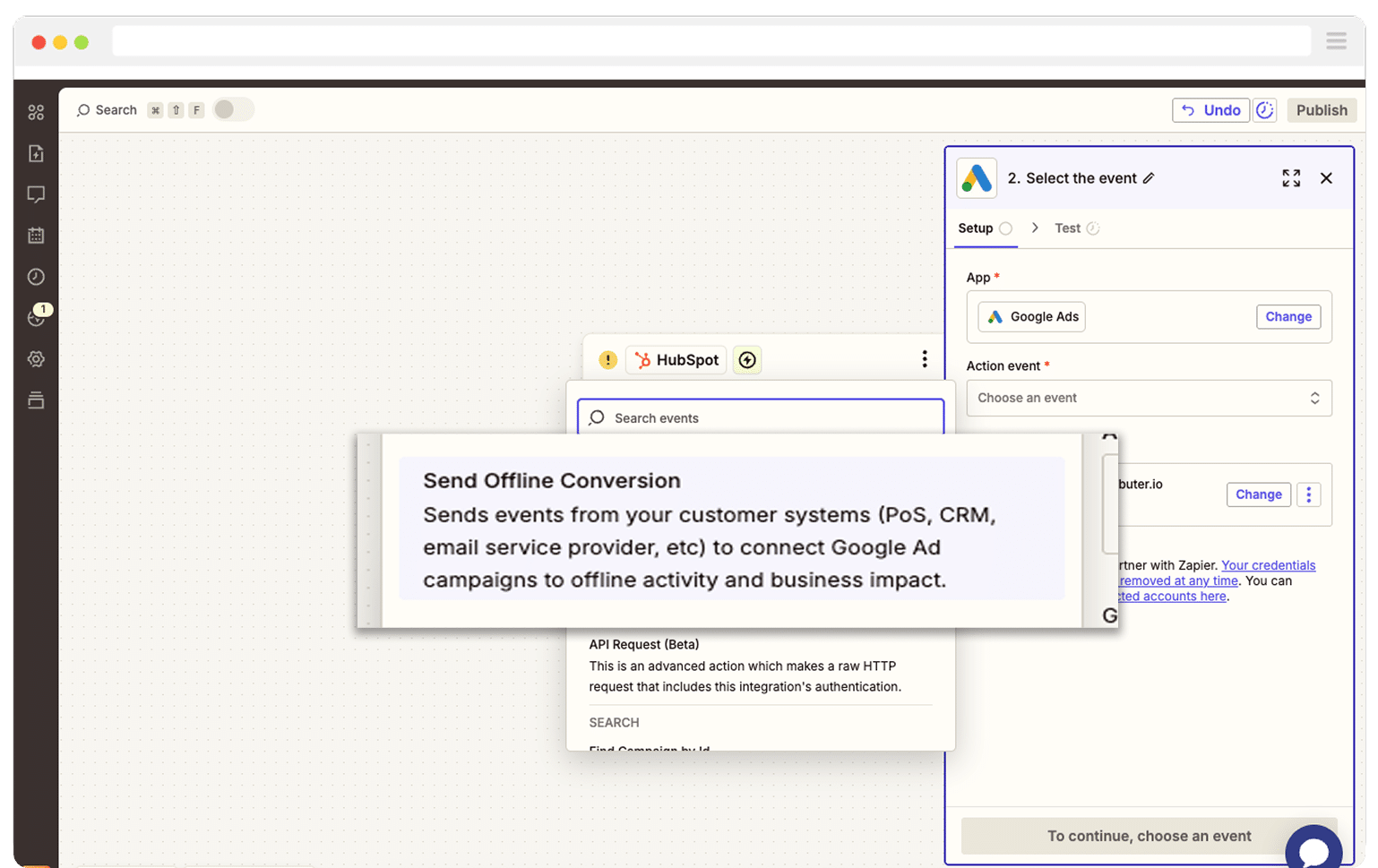
Next, select Google Ads as the Action and then select the ‘Send Offline Conversion’ as the event.
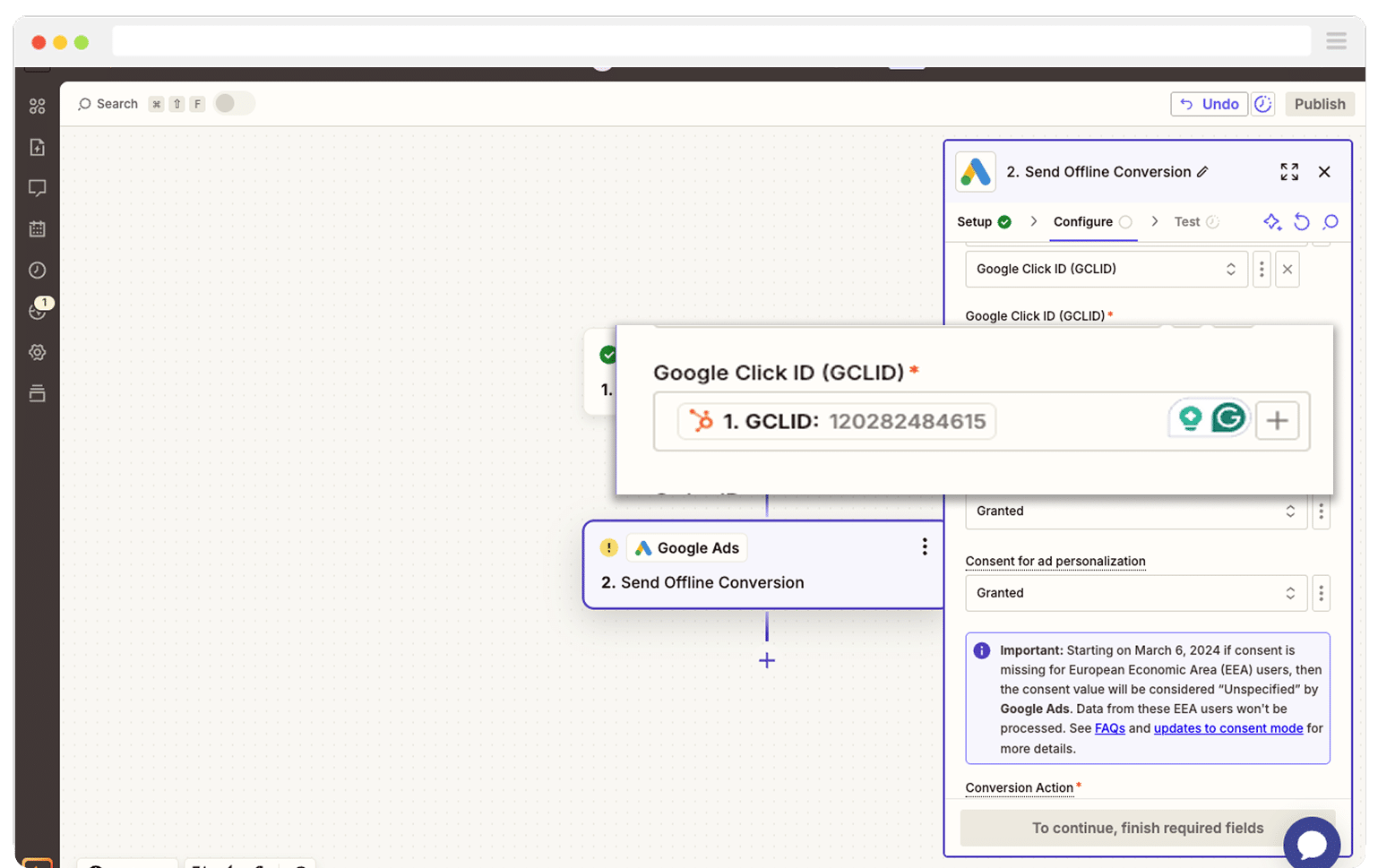
Finally, you just need to map the GCLID from your CRM (or wherever you are storing it) to the correct field in Zapier.
That’s it! You have now set up offline conversions in Google Ads. It’s a good idea to test it’s working before piling money into ads, and you can read more about how to do that here.
Why Attributer is the best way to capture the GCLID in Acuity Scheduling
There are other ways to capture the GCLID with Acuity Scheduling bookings, so why use Attributer instead?
Here are a few reasons it stands out:
1. Remembers the GCLID as visitors browse your site
Most other methods for capturing the GCLID only work if the visitor books a meeting on the exact page they originally landed on.
That's a real problem. If someone clicks your Google Ad and lands on your homepage, but then navigates to your Contact Us page to book a call, the GCLID is no longer in the URL and it never gets captured.
Attributer works differently. It stores the GCLID in the visitor's browser the moment they hit your site, so it doesn't matter which page they end up booking on, or even if they leave and come back days later. The GCLID gets captured every single time.
2. Captures UTM parameters as well
Attributer doesn't just capture the GCLID. It also grabs any UTM parameters you've added to your campaigns.
For example, let's say you run an executive recruitment firm. When someone clicks one of your Google Ads and completes an Acuity Scheduling booking, Attributer would write the following into the hidden fields alongside the GCLID:
- Channel = Paid Search
- Channel Drilldown 1 = Google
- Channel Drilldown 2 = Executive Search Campaign
- Channel Drilldown 3 = CFO Recruitment Sydney
- Channel Drilldown 4 = Free Consultation Ad
3. Captures information on users from organic channels
Attributer also captures attribution data for visitors who arrive through organic channels like Organic Search, Organic Social, Referral, or Direct Traffic.
Sticking with the executive recruitment firm example, if someone finds your site through a regular Google search rather than a paid ad, Attributer would pass through something like this:
- Channel = Organic Search
- Channel Drilldown 1 = Google
- Channel Drilldown 2 = www.google.com (or whichever search engine domain they came from)
- Channel Drilldown 3 = executive recruitment firms Sydney (or whatever keyword they searched, if available)
How Attributer helped Harris Federal Law track which Google Ads are truly generating customers & revenue
Harris Federal Law Firm is a legal practice based in Washington D.C. that specializes in helping federal employees secure their benefits.
They were pouring serious money into Google Ads and keeping an eye on website traffic through Google Analytics, but there was a big gap in what they could actually see. They knew how many visitors their ads were sending to the site, but they had no way of connecting those visitors to the leads and paying clients coming through the door.
Then they found Attributer.
After getting it set up, Attributer began capturing key attribution data (campaign, ad group, ad, keyword, and GCLID) with every lead that came through their website. All of that information was automatically passed into their CRM alongside each new lead's contact details.
For the first time, they could actually see which campaigns were producing paying clients and which ones were just burning through budget with nothing to show for it.
The biggest eye opener? Some of their display campaigns were generating tons of website traffic but were hardly turning any of those visitors into clients. Once they had that data in hand, they moved budget into the search campaigns that were actually driving new business.
The end result? More customers and a lower cost per acquisition.
"With Attributer we can see which campaigns are actually generating customers & revenue, rather than just website visitors. We were able to see that some of our campaigns were driving lots of visitors but few of them converted into leads and customers. Now we’re able to reinvest that budget into other campaigns that we can see are generating revenue."

Nick Child - Director of Marketing, Harris Federal Law Firm
Wrap Up
Want to capture the GCLID with every Acuity Scheduling booking and send it to your CRM so you can fire offline conversions back to Google Ads? Attributer makes it simple.
It grabs the GCLID the moment a visitor lands on your site and holds onto it as they browse around, even if they leave and return days later. That means the GCLID gets captured with every single booking, regardless of which page they end up on.
Best of all, it's free to get started and setup takes less than 10 minutes. Start your 14-day free trial today and start capturing the GCLID with every Acuity Scheduling booking right away.
Get Started For Free
Start your 14-day free trial of Attributer today!

About the Author
Aaron Beashel is the founder of Attributer and has over 15 years of experience in marketing & analytics. He is a recognized expert in the subject and has written articles for leading websites such as Hubspot, Zapier, Search Engine Journal, Buffer, Unbounce & more. Learn more about Aaron here.