
How to capture the GCLID in WordPress forms
Learn how to capture the GCLID every time someone completes a form on your WordPress site, so you can send that data to your CRM and other tools (and ultimately back into Google Ads).

Attributer makes it easy to capture the GCLID in WordPress forms. Just add a hidden field to your forms and Attributer will automatically write the GCLID into it when someone submits. It works with all form plugins, including Gravity Forms, WPForms, Fluent Forms and more.
Finding it hard to tell which Google Ads campaigns are actually bringing in leads and customers? You're not alone.
Tools like Google Analytics are great for showing how many visitors your ads are driving to your site, but they fall short when it comes to revealing which of those visitors actually became leads or paying customers. Without that information, it's tough to know whether your ad spend is delivering results and which campaigns deserve more investment.
The good news? There's a solution.
In this article, I'll walk you through how to use Attributer to capture the GCLID every time someone fills out a form on your WordPress site, then pass that data into your CRM and back to Google Ads as an offline conversion.
3 steps for capturing the GCLID in WordPress forms
Capturing the GCLID is easy when you pair Attributer with WordPress forms. Here's how it works:
1. Install Attributer on your website and add a hidden field

When you sign up for a 14 day free trial of Attributer, you'll receive a small snippet of code to install on your website.
Adding it to WordPress is quick and straightforward. You can paste the code into the Header section of your site using a plugin like WPCode, or add it directly through your theme's settings.
Once that's done, you'll need to add a hidden field to your WordPress forms. Simply add a new hidden field and name it 'GCLID'. This gives Attributer a place to write the GCLID so it gets included with every form submission.
2. Attributer writes the GCLID into the hidden field
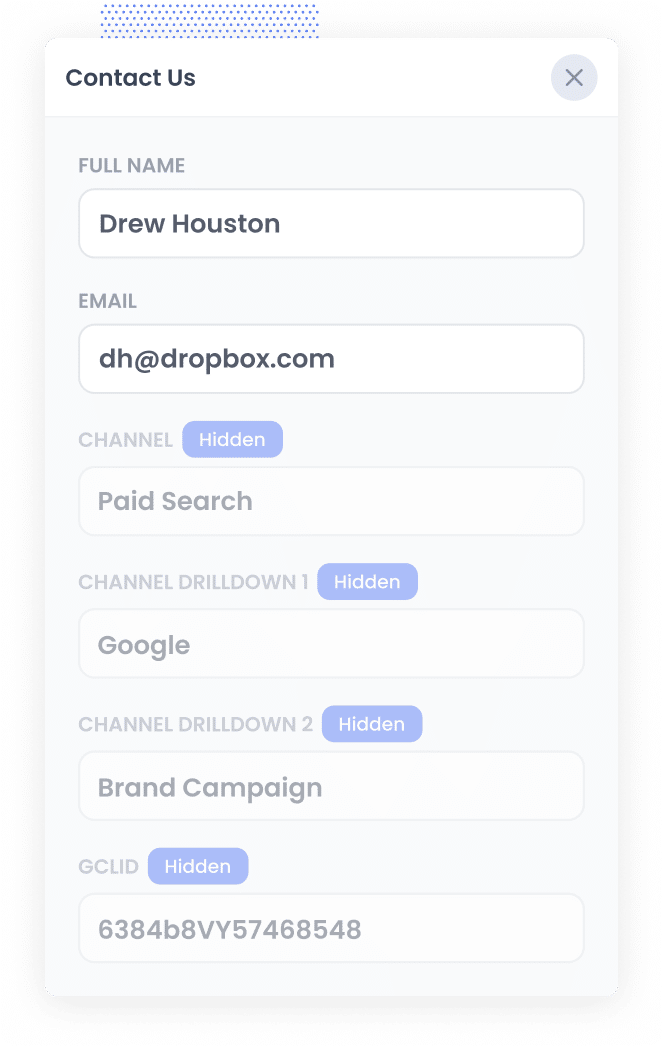
When a visitor clicks one of your Google Ads and arrives on your site, Attributer captures the GCLID from the URL and saves it in their browser. This means that even if they spend time exploring your site before completing a form (or leave and return days later), the original GCLID is still preserved.
Then, when they eventually fill out a form, Attributer automatically writes the stored GCLID into the hidden field you added earlier.
3. GCLID is captured with each form submission
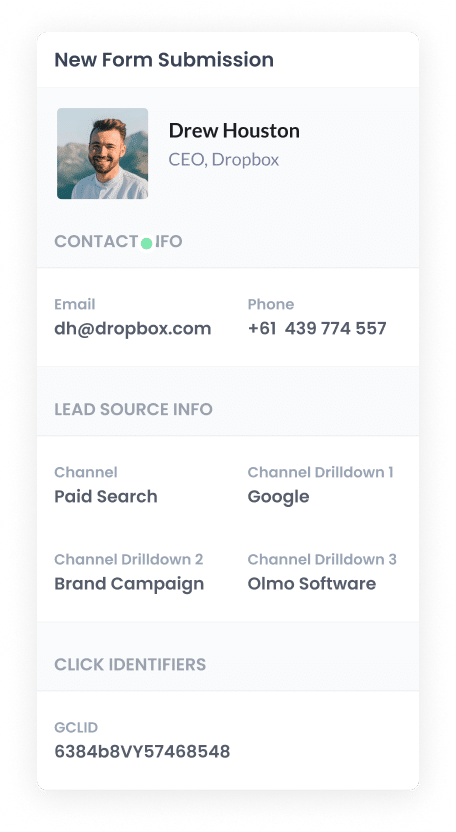
When the form is submitted, WordPress captures the GCLID alongside all the other details the lead provided (like their name, email, and so on). You can view it right there in your form submissions.
From there, you can send the GCLID to your CRM and other tools using your form plugin's built in integrations or through a third party tool like Zapier or Make.
How to send the GCLID back to Google Ads and mark it as an offline conversion
Before you can send the GCLID back to Google Ads, you'll need to create a new conversion action.
To get started, open your Google Ads account and click on Goals in the sidebar, then navigate to Conversions. From there, click the button to create a new conversion and select Offline Conversion from the available options.
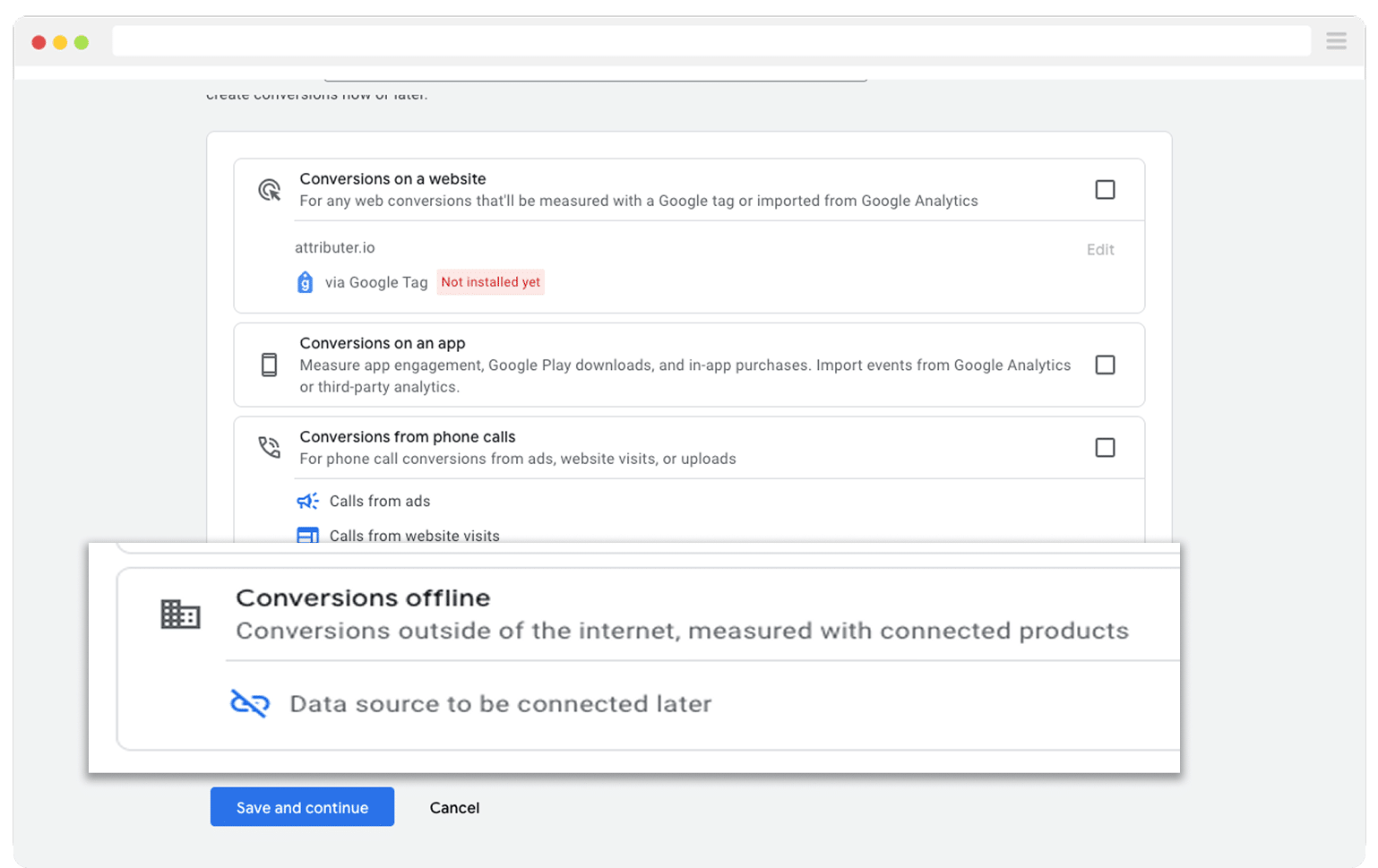
Then, in the final screen when it asks you to add a data source, select the option to ‘Add data source later’.
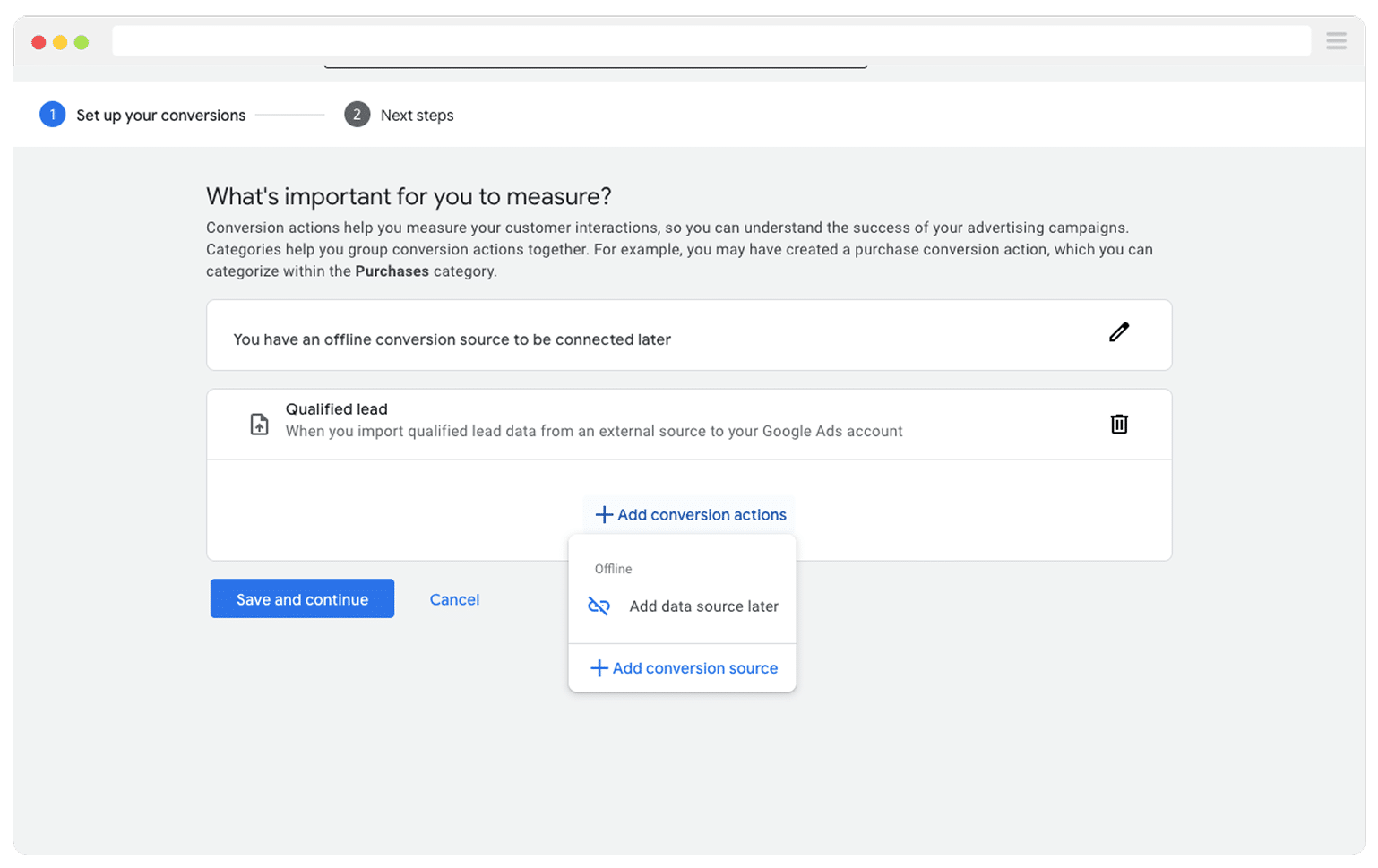
Once your conversion is set up in Google Ads, you need to decide at what point in your sales process to send the GCLID back to Google. Picking the right moment here is key.
A lot of businesses wait until a deal is fully closed before sending the conversion to Google Ads. That sounds reasonable, but it can actually hurt your results. Google's smart bidding strategies (like Maximise Conversions, Maximise Conversion Value, or Target CPA) typically need at least 50 conversions per month to perform well.
If you're not closing 50 deals a month, you'll get better results by tracking an earlier step in the process, like when a new deal gets created in your CRM. This ensures you're giving Google positive signals (I.e. a lead that was qualified by your sales team) whilst also making sure there's enough volume.
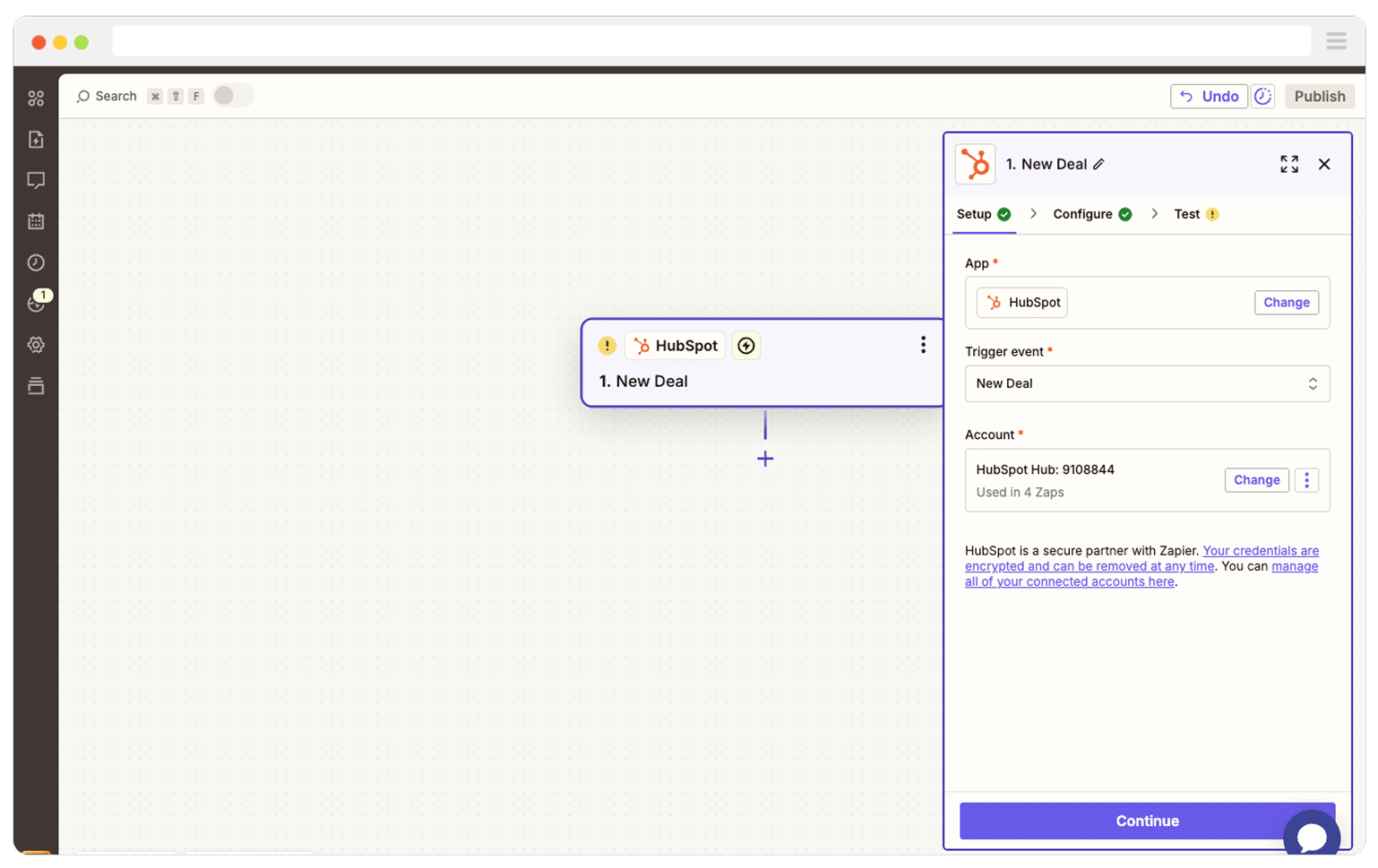
Once you've chosen your trigger point, go into Zapier and set up a new Zap. Configure the trigger to match the moment you selected. For instance, if you want to send the offline conversion when a deal is created for a contact, that's what you'd use as your trigger.
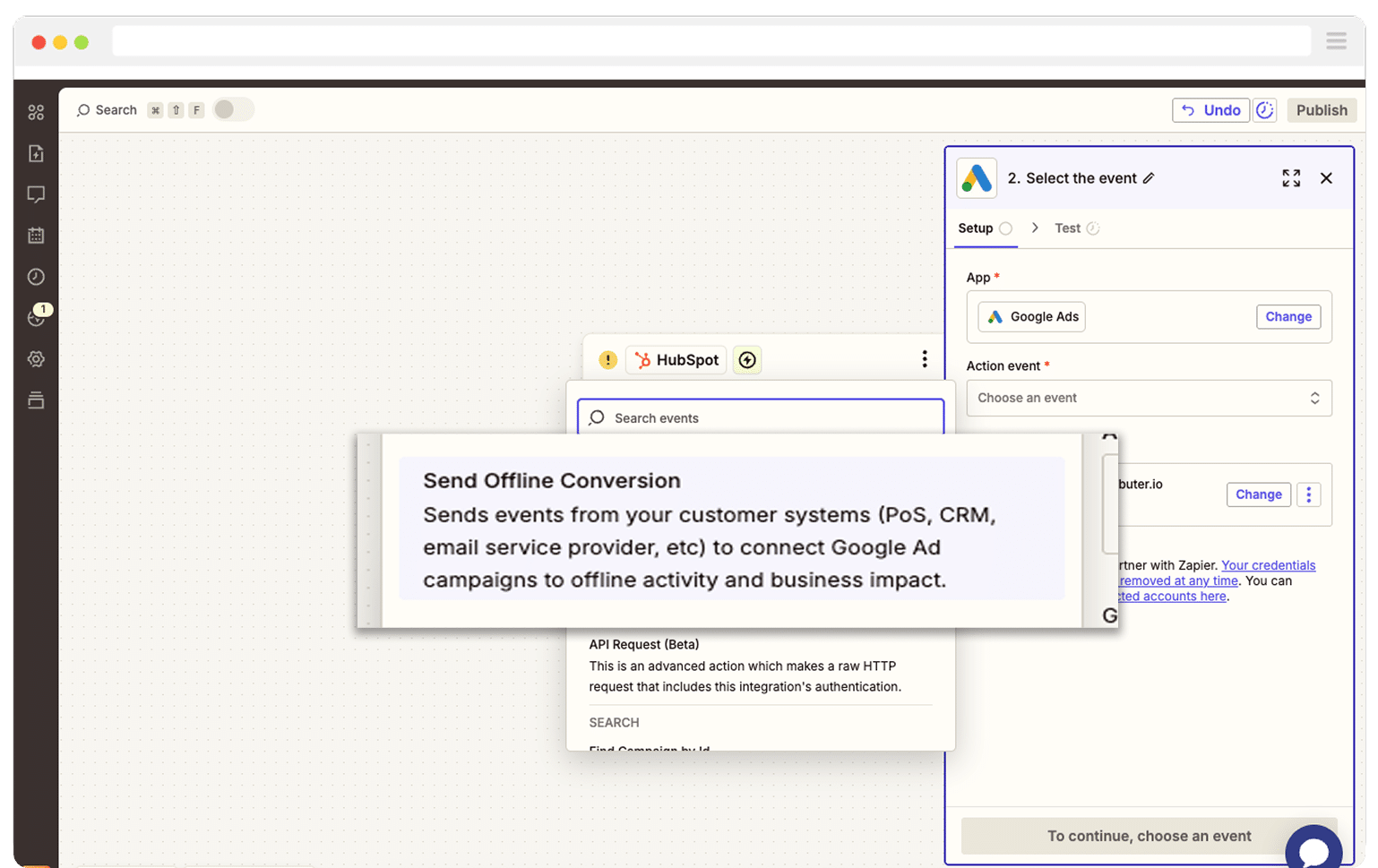
Next, select Google Ads as the Action and then select the ‘Send Offline Conversion’ as the event.
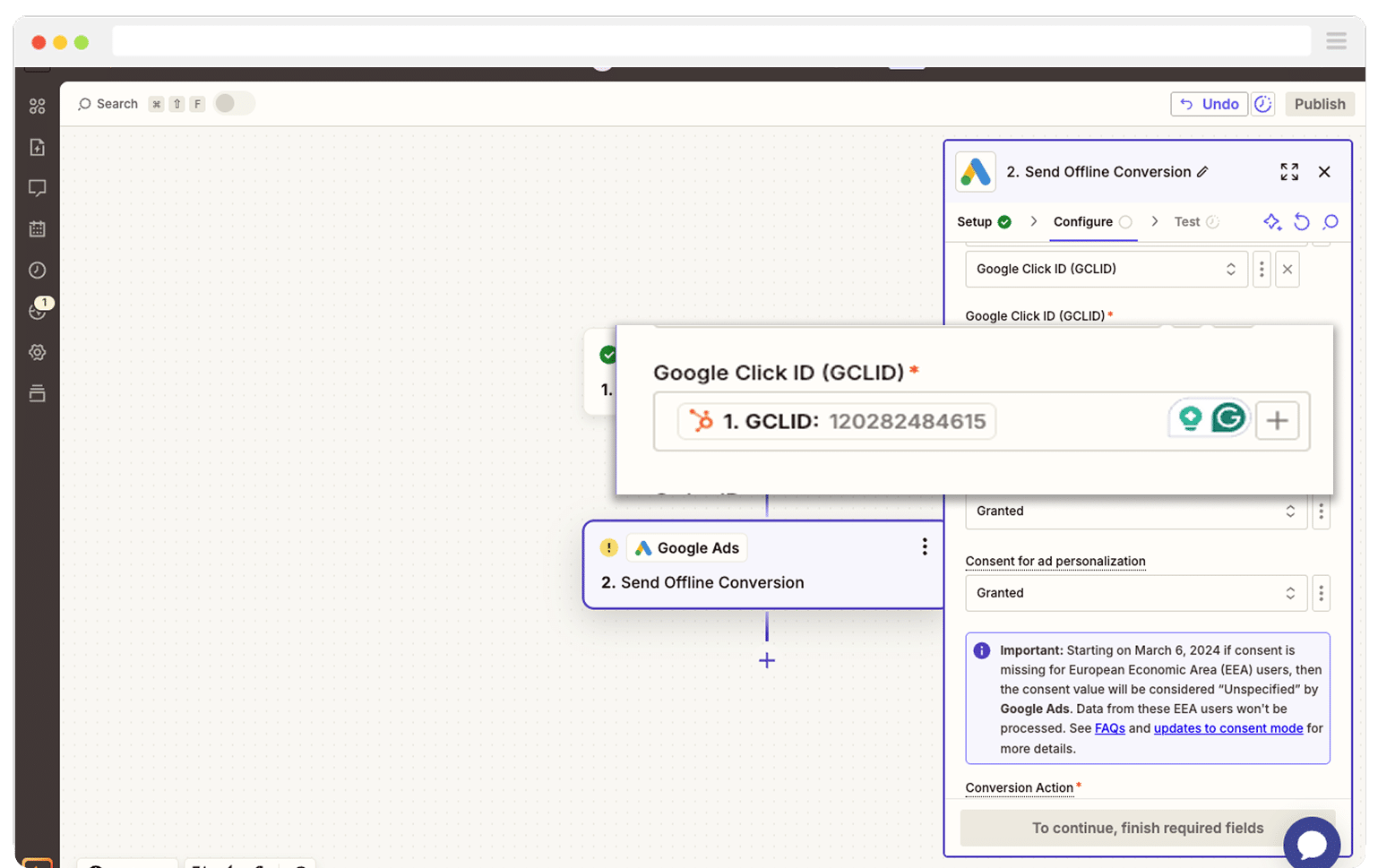
Finally, you just need to map the GCLID from your CRM (or wherever you are storing it) to the correct field in Zapier.
That’s it! You have now set up offline conversions in Google Ads. It’s a good idea to test it’s working before piling money into ads, and you can read more about how to do that here.
Why Attributer is the best way to capture the GCLID in WordPress forms
There are other ways to capture the GCLID in WordPress forms, so why go with Attributer?
Here's what sets it apart:
1. Remembers the GCLID as visitors browse your site
Most other methods for capturing the GCLID only work if it's still in the URL when the form is submitted.
That's a problem. Imagine someone clicks your Google Ad, lands on your homepage, then browses over to your Contact Us page to fill out a form. By that point, the GCLID has disappeared from the URL and it's lost for good.
Attributer takes a different approach. It saves the GCLID in the visitor's browser, so it doesn't matter if they explore other pages on your site before completing a form (or even leave and come back a few days later). The GCLID still gets captured every time.
2. Captures UTM parameters as well
Attributer doesn't stop at the GCLID. It also captures any UTM parameters you've added to your campaigns.
For example, let's say you're running ads for a fencing company. When someone clicks one of your Google Ads and completes a form, Attributer would pass the following information through with each form submission (based on the UTM parameters behind your ads):
- Channel = Paid Search
- Channel Drilldown 1 = Google
- Channel Drilldown 2 = Residential Fencing Campaign
- Channel Drilldown 3 = Timber Fencing Sydney
- Channel Drilldown 4 = Free Quote Ad
3. Captures information on users from organic channels
Attributer also captures details on leads who find your site through organic channels like Organic Search, Organic Social, Referral, or Direct Traffic.
Sticking with the fencing company example, if someone discovers your business through a regular Google search, Attributer can pass through information like:
- Channel = Organic Search
- Channel Drilldown 1 = Google
- Channel Drilldown 2 = www.google.com (or whatever search engine domain they used)
- Channel Drilldown 3 = Timber Fencing Sydney (or whatever keyword they searched for, if available)
How Attributer helped Harris Federal Law track which Google Ads are truly generating customers & revenue
Harris Federal Law Firm is a legal practice based in Washington D.C that focuses on helping federal employees secure their benefits.
They were pouring money into Google Ads and keeping an eye on website traffic through Google Analytics, but there was a major blind spot. They had no way of telling which visitors were actually converting into leads and customers.
Then they found Attributer.
Once set up, Attributer started passing through attribution details (like campaign, ad group, ad, keyword, GCLID, and more every time someone submitted a form on their site. They then sent this information to their CRM (alongside the lead's details, like name, email, etc).
This enabled the team to run reports that showed which campaigns were bringing in real, paying customers and which ones were just racking up clicks with nothing to show for it.
One of the biggest discoveries? Several of their display campaigns were generating a ton of traffic but almost zero paying clients. With that knowledge, they moved their budget into the search campaigns that were truly driving results.
The impact? More customers while spending less on ads.
"With Attributer we can see which campaigns are actually generating customers & revenue, rather than just website visitors. We were able to see that some of our campaigns were driving lots of visitors but few of them converted into leads and customers. Now we’re able to reinvest that budget into other campaigns that we can see are generating revenue."

Nick Child - Director of Marketing, Harris Federal Law Firm
Wrap Up
Want to capture the GCLID in WordPress forms and send it to your CRM so you can fire offline conversions back to Google Ads? Attributer makes it easy.
It saves the GCLID as visitors browse your site (even if they leave and return days later), and automatically passes it through with every form submission.
Best of all, it's free to get started and you can be up and running in under 10 minutes. Start your 14 day free trial today and begin capturing the GCLID in WordPress right away.
Get Started For Free
Start your 14-day free trial of Attributer today!

About the Author
Aaron Beashel is the founder of Attributer and has over 15 years of experience in marketing & analytics. He is a recognized expert in the subject and has written articles for leading websites such as Hubspot, Zapier, Search Engine Journal, Buffer, Unbounce & more. Learn more about Aaron here.