
3 ways to send conversions to Meta Ads from Zoho CRM
Learn 3 different ways to send conversions to Meta Ads from Zoho CRM and which one is the best approach for your business.
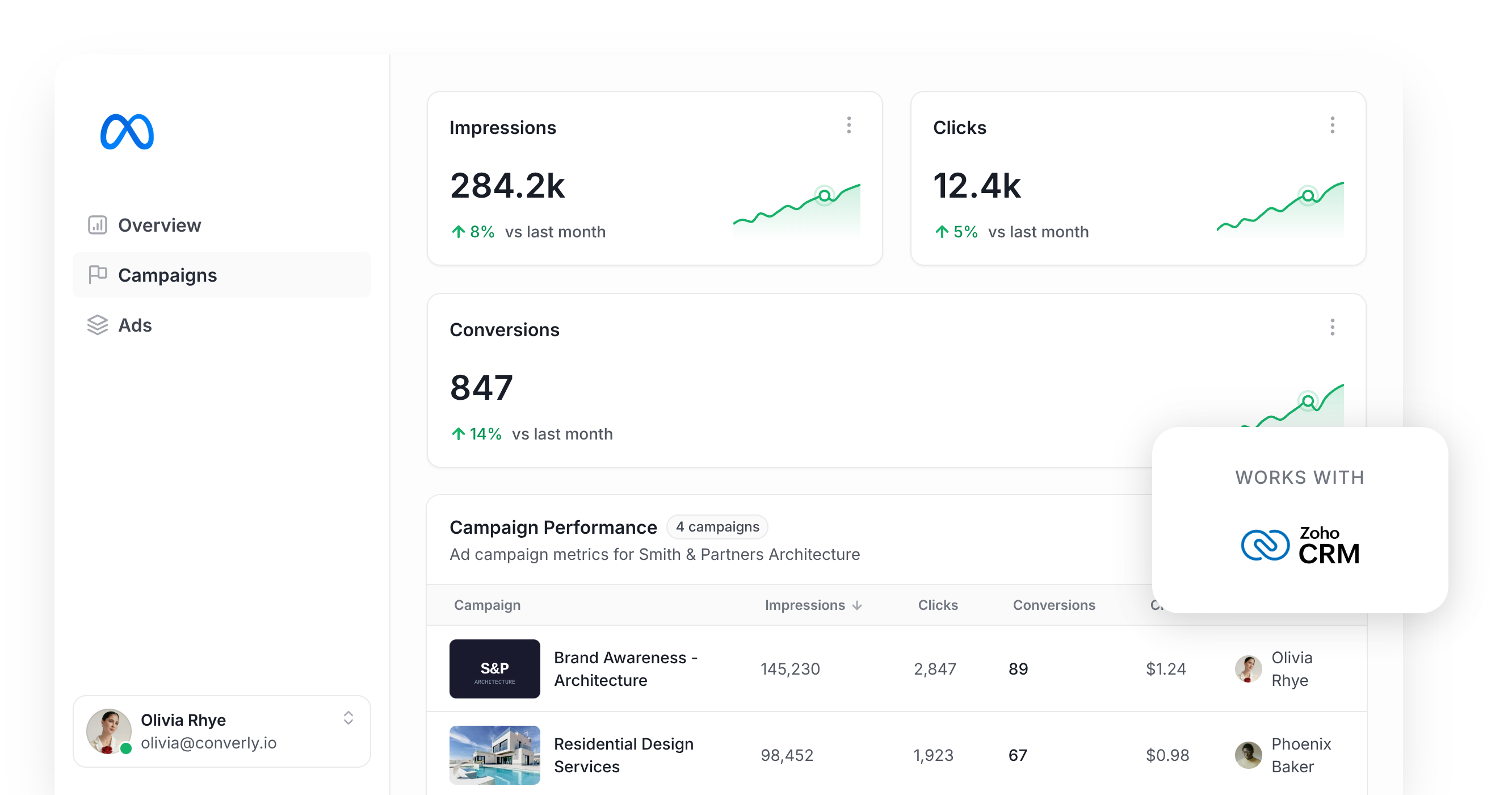
There are 3 ways to send conversions from Zoho CRM to Meta Ads. Use Converly when a form is submitted, use Attributer plus Zapier when a lead is qualified, or use Meta's Conversions API for CRM if you run Lead Ads. The right one comes down to where your leads come from and how much volume you have at each stage.
Running Meta Ads to bring in new leads and customers?
If so, you'll want conversion tracking set up properly so you can see exactly how many leads and customers each campaign is actually producing.
Plus, it's a good idea to feed conversion data to Meta so it can understand who converts and who doesn't (and then use that data to serve your ads to the right type of people).
This article covers 3 ways to send conversions to Meta Ads from Zoho CRM, along with when each one makes sense, so you can work out which fits your business.
3 ways to send conversions to Meta Ads from Zoho CRM
There's more than one way to get conversions from Zoho CRM into Meta Ads, and which one suits you depends on how leads actually reach you from Meta and where in your process you want to report the conversion back.
Method 1: Using Converly
Best for sending conversions to Meta when the lead first submits a form on your website
Converly is a dedicated conversion tracking tool that can send a conversion to Meta whenever a lead submits a form, books a meeting, or opens a chat on your site.
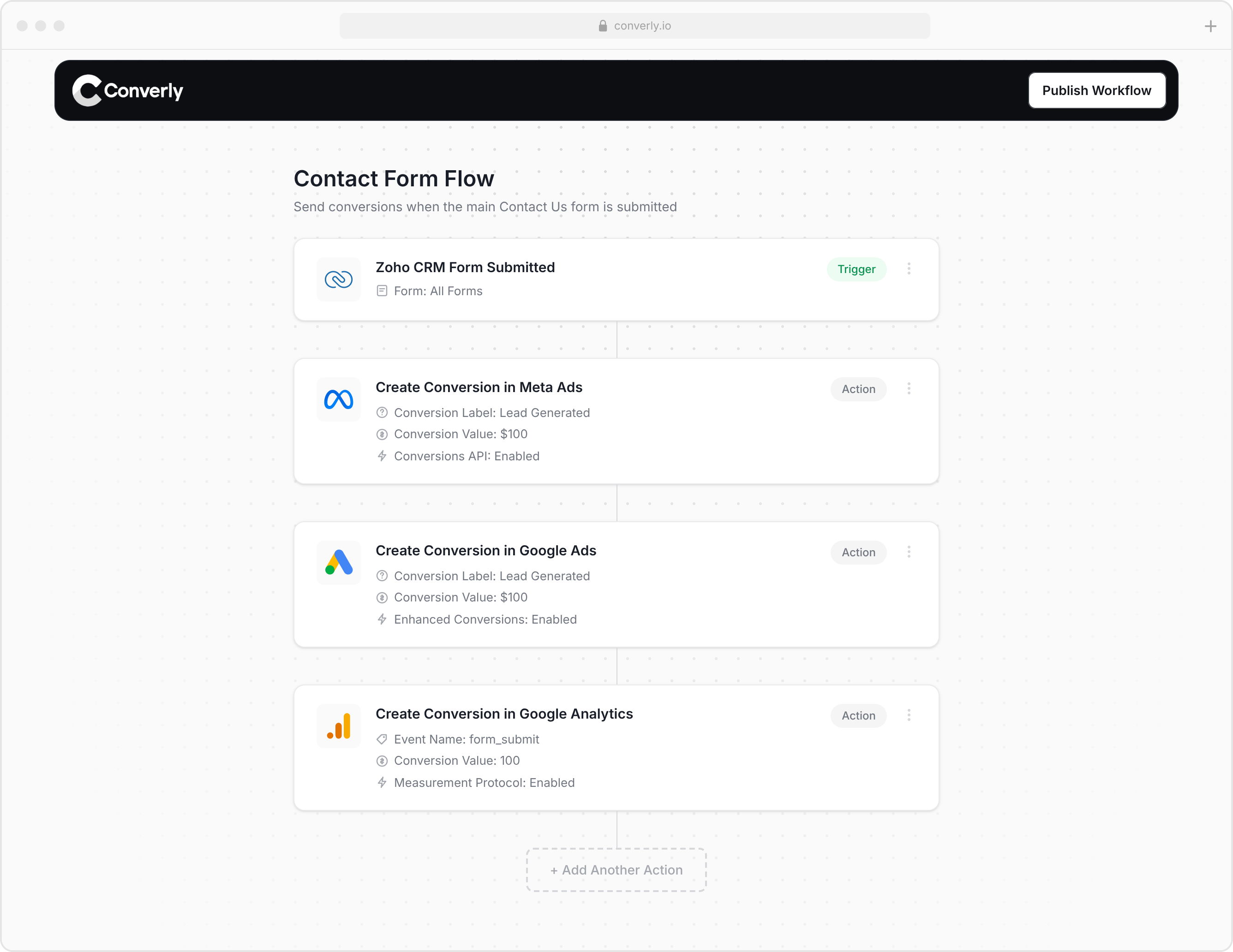
The screenshot above shows how straightforward it is to set up. You simply pick a trigger (like a lead submitting a form on your site) and pick an action (sending a conversion to Meta Ads, Google Ads, and so on). Converly works with Zoho CRM's own Web Forms, plus popular third-party form and booking tools like Zoho Forms, Typeform, Jotform and Calendly.
Once it's all set up, Converly listens for the submission, pulls the lead's name, email and phone from it, grabs the Facebook identifiers (the FBCLID, the _fbc and the _fbp) from the visitor's browser, and sends it all to Meta's Conversions API as a server-side conversion. Sending the data server-side, with the lead's name, email and phone plus those Facebook identifiers attached, should get you an Event Match Score of 9 or 10, which is Meta's own rating of how solid your conversion tracking is. Track something basic like a thank-you page visit instead, and you'd be doing well to hit a 3.
Converly also keeps a full conversion log, so you can see every conversion it captured, exactly what data went to Meta, and whether Meta received it successfully.
When to use this approach
- When you get a low volume of new customers each month. Meta says it needs at least 50 conversions per ad set per week in order to have enough data to optimize against. So if you're closing fewer than 50 deals a week, send the conversion at the form submission instead, since that's where your volume is highest.
- When your sales cycle runs longer than 7 days. Meta only counts conversions inside its 7-day click attribution window. So if it typically takes longer than a week to go from ad click to closed deal, sending the conversion at form submission keeps you inside that window.
- When you want the simplest possible setup. This is the easiest of the 3 to get up and running. You can literally set it up in about 5 minutes with just a few clicks. If you're new to Meta Ads, it's the easiest way to get going (and you can always change it later).
Method 2: Use Attributer + Zapier
Best for sending conversions to Meta when a lead is qualified, a Deal is created, or a Deal is won
If you'd prefer to send the conversion later in the sales process (like when a Lead is marked as qualified, or when a Deal is marked Won), Attributer and Zapier can do that for you.
Here's the process.
1. Install Attributer on your website and add some hidden fields to your forms
First, start a 14-day free trial of Attributer. You'll get given a small snippet of code to add to your site.
Once that's done, you'll need to add a few hidden fields to the lead capture forms on your website, including:
- FBCLID
- FBC
- FBP
These are the identifiers Meta relies on to connect the conversion action (like a lead being marked as qualified) back to the ad the lead originally clicked. The plan is to capture them, save them against the lead in Zoho CRM, and send them back to Meta once the conversion event happens.
2. Attributer writes data into the hidden fields
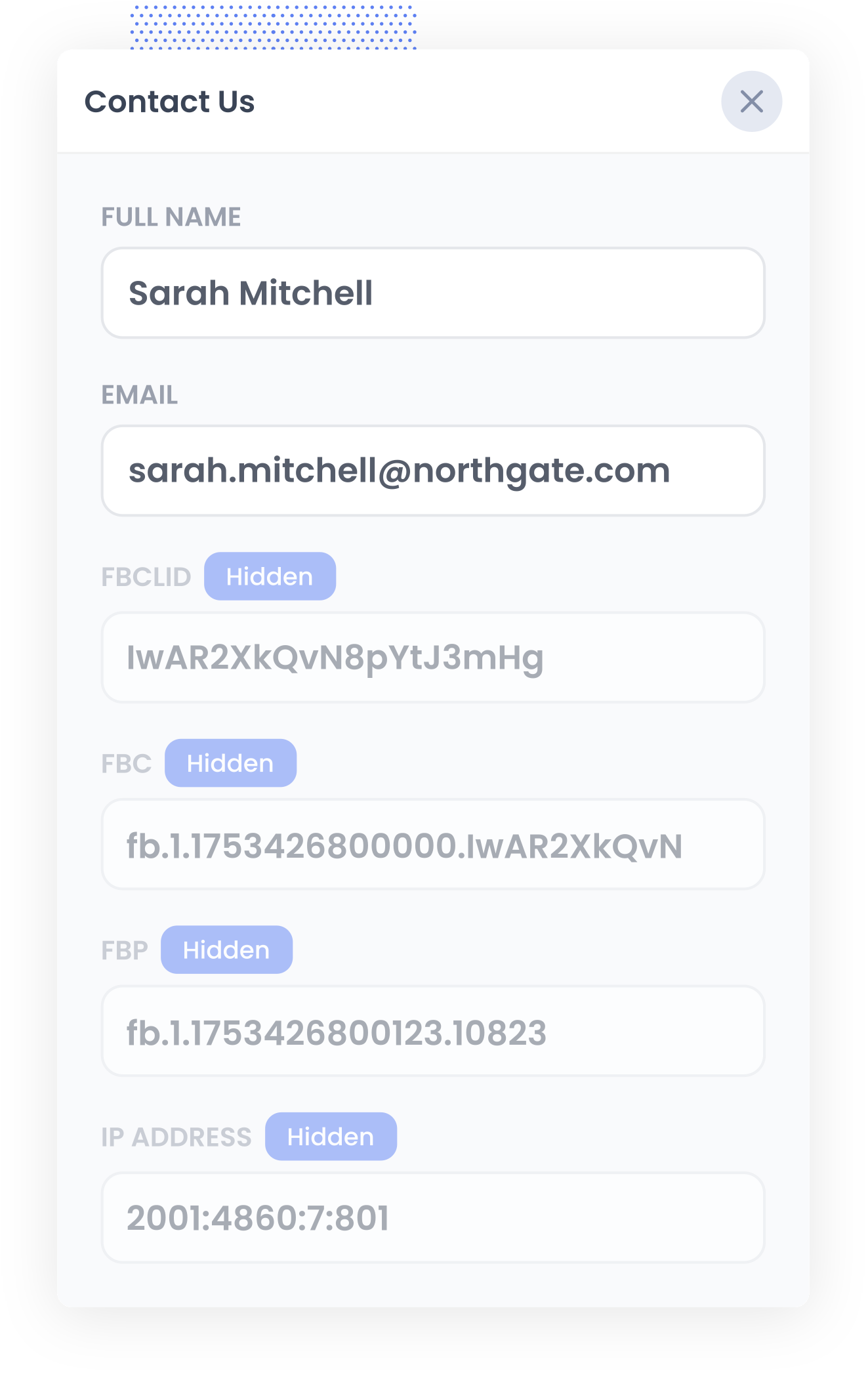
When someone arrives on your site from a Meta ad, Attributer picks up the identifiers Meta needs (the FBCLID, the _fbc and the _fbp) and stores them in the visitor's browser.
Once that visitor fills in a form on your site, Attributer writes those values into the hidden fields you added, and they get submitted along with the rest of the form.
3. Data is sent to your CRM
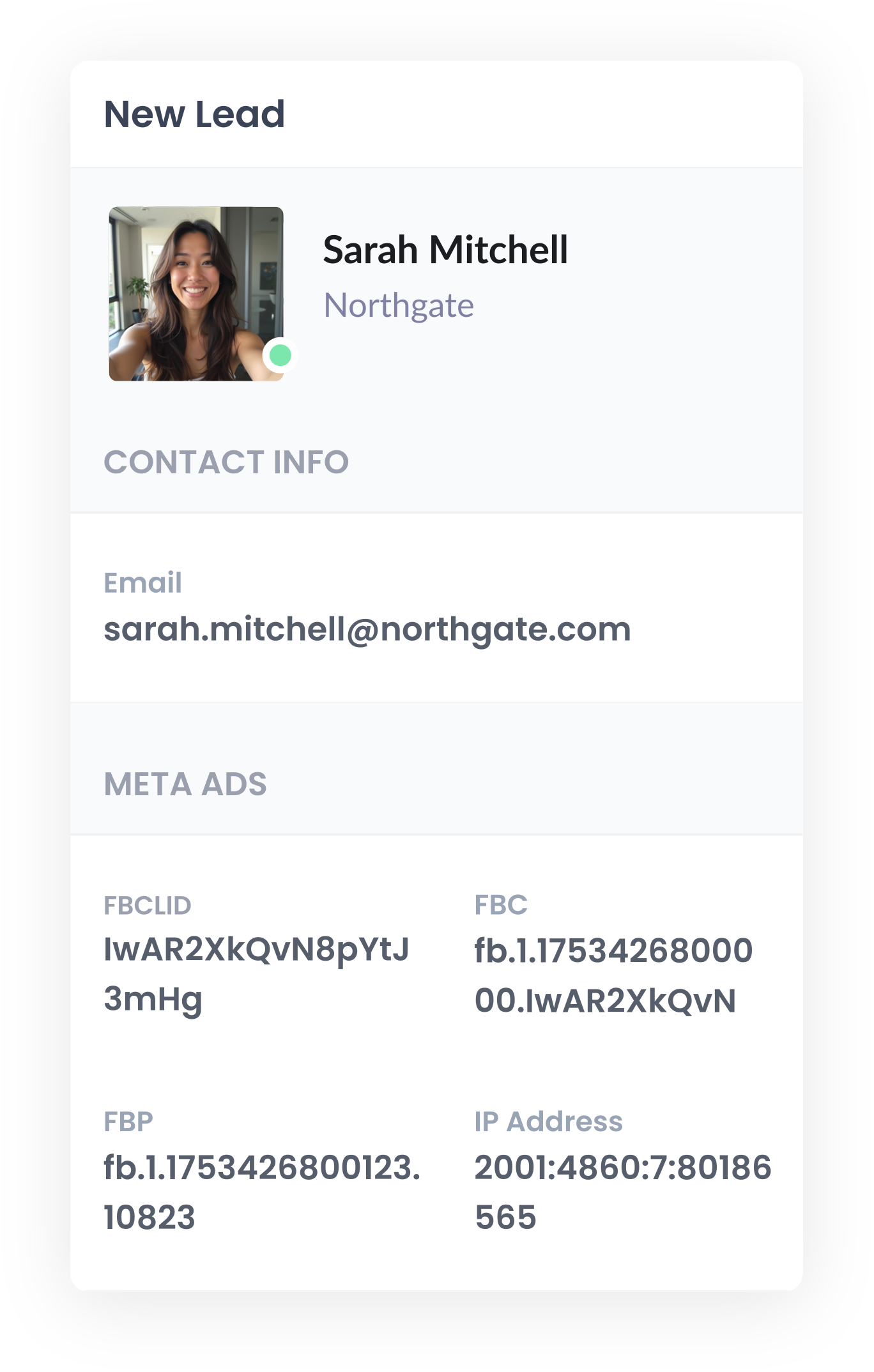
Once the form comes through with that data attached, it can be sent to Zoho CRM alongside the name, email, phone and everything else the lead entered.
If you're using Zoho CRM's own Web Forms, this lands on the Lead module automatically. If you are using a third-party tool to capture leads on your site instead (Gravity Forms, Typeform or Calendly, for example), you can push it across using that tool's built-in Zoho CRM integration, or a tool like Zapier.
From there, it sits on the Lead record in Zoho CRM (or synced to the Deal record if needed) and can be sent back to Meta Ads once the lead reaches whatever conversion point you've chosen.
4. Send the data to Meta Ads
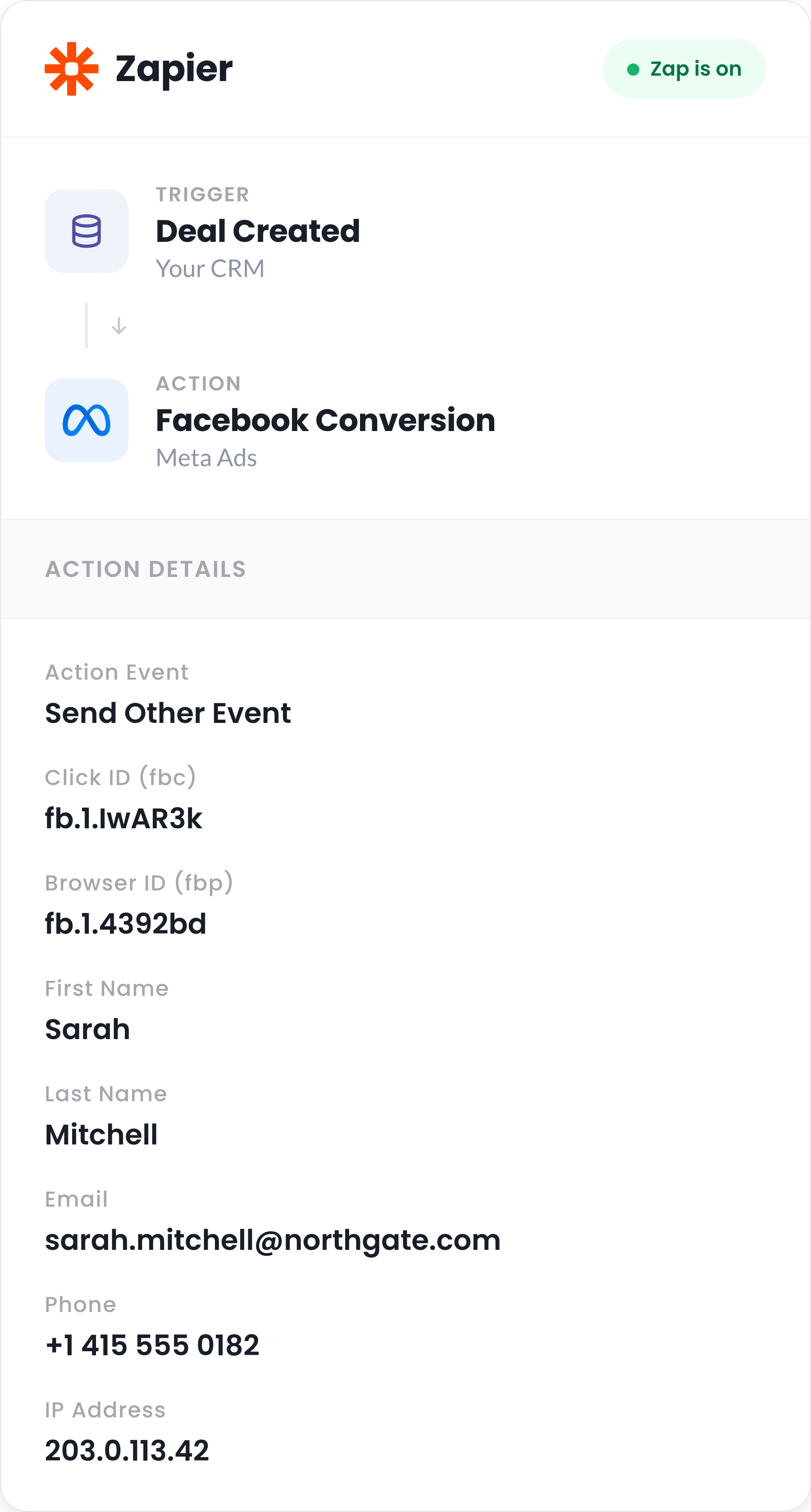
Once your chosen milestone has been reached (like a Deal being created against the Contact), it's time to send the conversion back to Meta Ads.
Zapier is the best tool for this as it works with both Zoho CRM and Meta Ads. You first need to create a Zap and set the trigger to whatever stage in your Zoho CRM process you want to fire the conversion from (a Lead being marked as Qualified, a Deal being created, etc).
For the action, choose Facebook Conversions, then 'Send Other Event' as the Action Event. This is the option that lets you map the fbclid, fbp and fbc across, and it matters, because without it Meta falls back to matching on email address alone, and a lot of people's Facebook accounts are tied to an email they've long since abandoned (my Facebook account is tied to my high school Hotmail address :).
You want to map the fields as follows:
- Attributer's fbc field to the Click ID (fbc) in Zapier
- Attributer's fbp field to the Browser ID (fbp) field in Zapier
Sending these identifiers across is what lifts your Event Match Score to a 9 or 10, and it substantially increases how many conversions Meta can tie back to real people.
When to use this approach
- When quality, not volume, is the issue. If your Meta campaigns bring in plenty of leads but your sales team keeps saying most of them go nowhere, sending the conversion only once a Lead has been qualified or converted into a Deal helps Meta's algorithm learn what a genuinely good lead looks like for you. It'll then get better at finding more people like them.
- When leads get qualified fast. The 7-day click attribution window still applies here. If your sales team is qualifying leads or converting them into Deals within a day or two of them arriving, that's well within the window, so this method could work for you.
- When there's decent volume at that later stage. Meta's algorithm wants around 50 conversions per ad set per week to optimize against. So if 50+ leads reach your chosen conversion milestone each week, this Attributer plus Zapier approach will work nicely for you.
Method 3: Use the Conversions API for CRM
Best for businesses that use Lead Ads and want to tell Meta which of their leads were actually good
When advertising on Facebook or Instagram, you can send people to your website, or let them fill in a form right inside the ad. That second format is known as Lead Ads.
Meta pre-populates the form from the person's Facebook or Instagram profile, and once submitted, those leads can flow directly into your CRM.
Lead Ads are well known for boosting lead volume, but it's often at the expense of lead quality. A few reasons why:
- Because they prefill the lead's details, it's easy to accidentally submit the form. This means plenty of leads arriving in your CRM (and being followed up by your sales team) actually have no idea they even handed over their details.
- The contact details are frequently stale. The email is pulled straight from their Facebook profile, and that's often an old address nobody checks anymore.
- The person has usually never been to your site or looked into your product (they've just seen an ad for 3 seconds). So even where the details are real and the submission intentional, they're often not very educated on your product and may not be the best fit.
Recognising these problems, Meta built a mechanism for passing back information on which of these leads turned out to be good, and which didn't. Meta then uses that signal to learn who's a strong fit for your business and put your ads in front of more people like them.
To set it up, you first need to store the Meta Lead ID against each new Lead that comes into Zoho CRM. Then, when a Lead hits a point in your process that signals it was a good one (your sales team converting it into a Deal, or the Lead Status field changing to Qualified), use Zapier to send that signal back to Meta.
To set this up, build a Zap that is triggered by whatever action in Zoho CRM shows the Lead is worth pursuing (like the Lead Status field being changed to 'Qualified' for example).
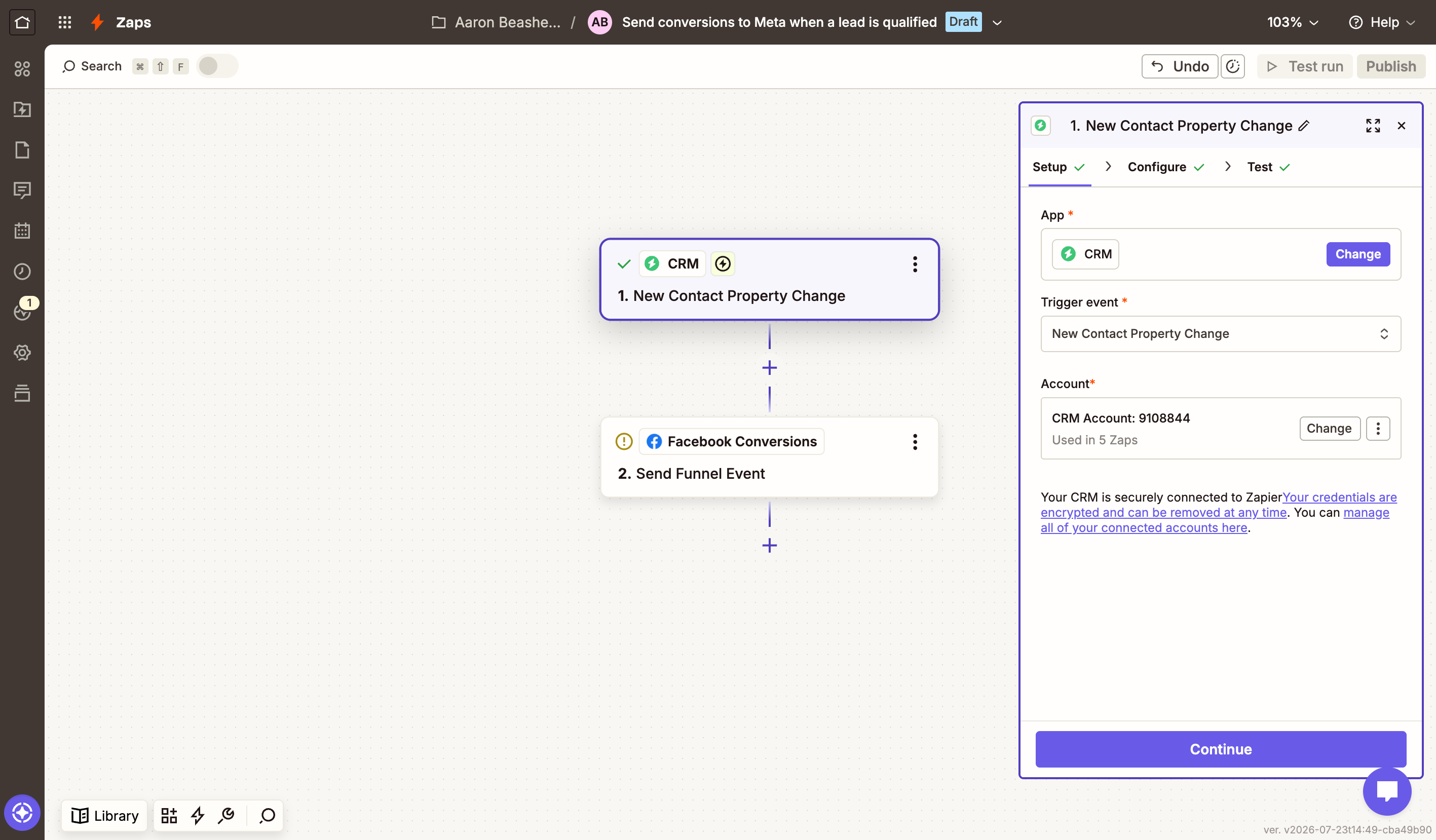
Add an action to that Zap, choose Facebook Conversions as the app, and select Send a Funnel Event. Map across the Meta Lead ID, Contact Email and Contact Phone from Zoho CRM.
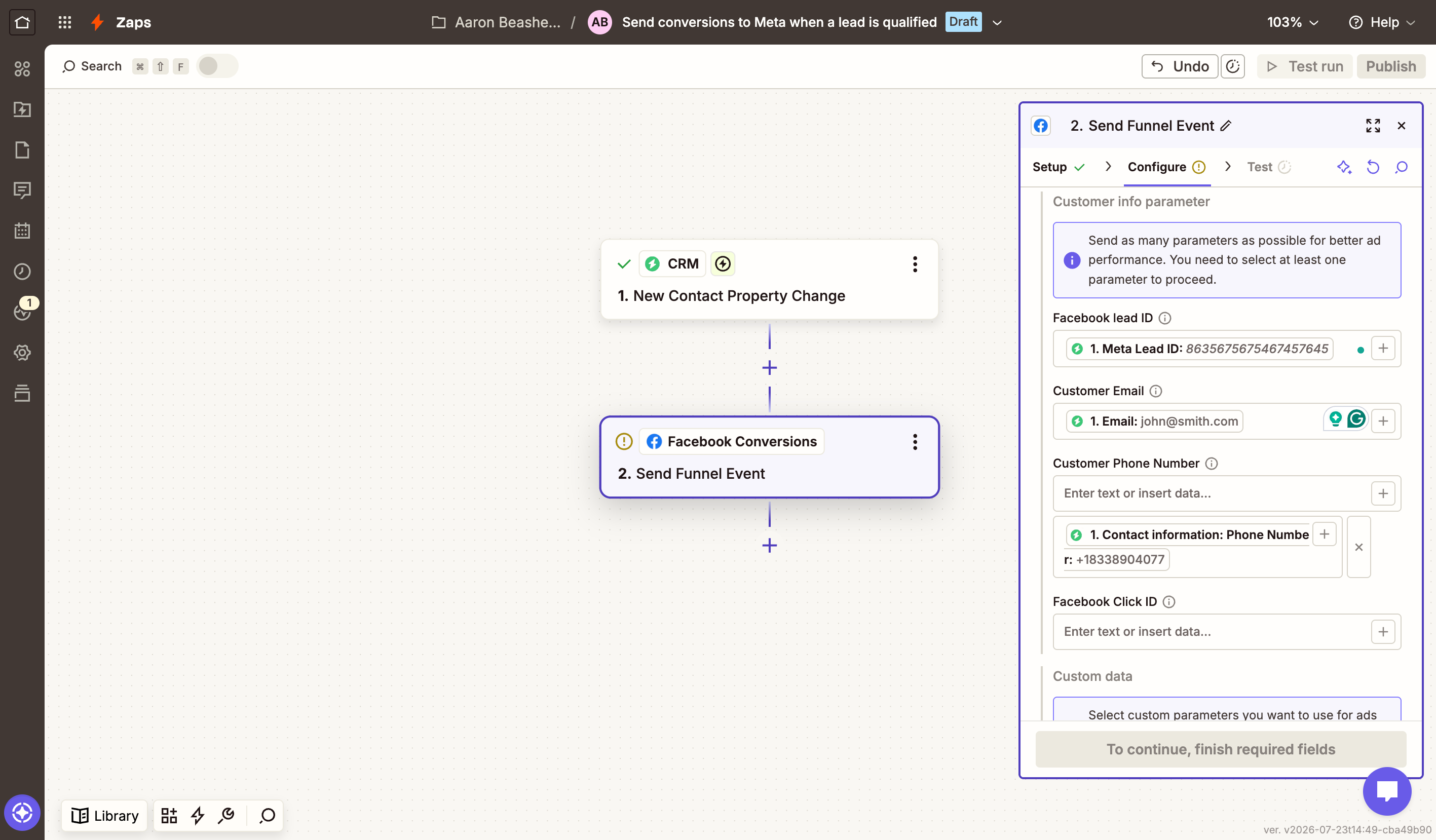
Once your Zaps are running, real leads need to move through your sales process for roughly a week before you can finish setting this up. Meta wants to see around 50 stage updates over a 7-day period.
Once that data has come through, go to Events Manager, open your dataset and head to the Settings tab. There's a section there for the conversion leads integration, showing your progress and, once you're ready, letting you configure your sales funnel. That's where you tell Meta the stages in your process, the order they happen in, and which one means "this was a good lead" (the stage Meta should optimize toward).
When to use this approach
- When you're running Lead Ads (Instant Forms). This method only works for Lead Ads. It runs on the Meta Lead ID, which only exists for leads who filled out a form inside Facebook or Instagram. If your leads arrive through your website instead, this isn't the right method. Look at Method 1 or 2.
- When lead volume is fine but quality is an issue. Telling Meta which leads become qualified teaches its algorithm the difference between a good lead and an accidental form submission, and it uses that to improve who it shows your ads to. Meta claims advertisers typically see around 21% lower cost per quality lead once this feedback loop is up and running.
- When leads get qualified within a few weeks, even if deals take longer to close. Meta needs the optimized stage (like the Lead Status field changing to Qualified, for example) to happen within 28 days of the Lead arriving, and it stops accepting updates on leads once they're older than 90 days. So as long as new leads get triaged within days, you're covered, regardless of how long the rest of your sales cycle runs.
- When you've got the volume to support it. Meta won't turn the sales funnel on until it's seen around 50 CRM events in 7 days. That generally only suits businesses bringing in a few hundred new leads through Facebook Lead Ads each month (and who have a sales team that keeps Zoho CRM up to date). Below that volume, the funnel configuration screen in Meta won't unlock, and you won't be able to use this method.
Which method is right for you?
Unfortunately, it isn't really a case of preference here. It comes down to 2 questions: Where your leads come from (your website, or Lead Ads inside Facebook), and how much volume you have at each stage of your process. Here's the cheat sheet:
| Your situation | Best method | Why |
|---|---|---|
| Leads come from forms on your website, and you get fewer than 50 qualified leads per week | Method 1: Converly | The form submission is the highest-volume point in your funnel, so it gives Meta's algorithm the most data to work with. It's also the easiest one to set up (it only takes about 5 minutes). |
| Leads come from forms on your website, you get plenty of them, but quality is weak. | Method 2: Attributer + Zapier | Sending the conversion once a Lead gets qualified teaches Meta what a good lead looks like for your business, so it can find more of them. |
| Leads come from forms on your website and you want to see which campaigns actually produce Deals and revenue, not just leads | Methods 1 + 2 together | Use Converly for the form submission conversion (which is the event Meta optimizes on), but also use Attributer plus Zapier to send Deal Created and Closed Won events. That way, you'll be able to see the number of Leads and Deals for every campaign in Ads Manager, and it will help you make better decisions. |
| Leads come from Lead Ads (forms inside Facebook or Instagram), you get 150+ leads a month, and your sales team keeps Zoho CRM up to date | Method 3: Conversions API for CRM | The only method built for Lead Ads. It uses the Meta Lead ID to tell Meta which leads your sales team qualified, and Meta's own numbers claim around 21% lower cost per quality lead once the feedback loop is running. |
| Leads come from Lead Ads, but volume is only a handful a week | Consider sending traffic to your website instead | Method 3 never activates below roughly 50 CRM events a week, so the Lead Ads feedback loop just isn't available at low volumes. Sending people to a landing page on your site instead opens up Methods 1 and 2. |
Or put another way, your best bet is to send the conversion from whichever point in your funnel has enough volume for Meta to learn from, using the method that fits where your leads actually come from.
Wrap up
Sending conversions to Meta Ads from Zoho CRM tells Meta which clicks turned into real leads and customers, so it can learn what your ideal customer looks like and put your ads in front of more people like them.
But which approach is right depends heavily on how your leads reach you from Meta and how much volume you're working with at each stage, so pick the one that actually matches your business.
Get Started For Free
Start your 14-day free trial of Attributer today!

About the Author
Aaron Beashel is the founder of Attributer and has over 15 years of experience in marketing & analytics. He is a recognized expert in the subject and has written articles for leading websites such as Hubspot, Zapier, Search Engine Journal, Buffer, Unbounce & more. Learn more about Aaron here.