
The best way to track Wix Forms submissions as conversions in Google Ads
Track your Wix Forms submissions the right way and get up to 23% more conversions at a 10% lower cost per conversion.

Use Attributer to capture the GCLID and the other Google Ads identifiers with each submission of your Wix forms, then send them back to Google Ads as a conversion. You can send it when the form is initially submitted, or wait until the lead becomes a paying customer in your CRM.
Are you using Google Ads for your business but struggling to set up conversion tracking?
It's a common issue. Tools like Google Tag Manager require you to write custom code to listen for form submissions, then configure triggers, tags, variables, and a whole lot of other complicated stuff on top.
There are simpler approaches, like tracking thank you page visits, but these can result in up to 30% of your conversions being missed thanks to things like ad blockers, privacy features built into modern browsers (especially Safaru), and people clicking your ad on one device (like their phone) but converting on another one (like their work computer).
So what are you supposed to do? Fortunately, there is a solution.
In this article, we'll show you how to set up proper server-side conversion tracking in Google Ads when someone submits a Wix form on your website. The best part? You won't need to write any code or go through any complicated set up process.
Why server side tracking in Google Ads matters
Common approaches to tracking conversions in Google Ads, such as tracking thank you page visits or firing events through Google Tag Manager, have some serious flaws. In fact, studies show that these methods can result in missing up to 30% of your actual conversions.
This happens for a number of reasons:
- Ad blockers: Ad blockers prevent the Google Tag from loading on your website, which means it can't track anything users do when they arrive (like submitting a Wix form, for instance)
- Privacy features in browsers: Web browsers like Safari have built in technologies that block the Google Tag from tracking visitors for more than a day or two. So if a person clicks your ad but doesn't convert until 5 days later, it won't be tracked.
- Using multiple devices: People might click your ad on their work computer but convert later on their home computer or their mobile, which means their original ad click can't be tied to their later conversion because they happen on different devices.
This is why you need to be doing server side tracking. Instead of relying on things to happen in the browser (like the user visiting a thank you page) and hoping the Google Tag can track it, the conversion data is sent from Wix forms to Google's servers, which means ad blockers and privacy settings can't get in the way.
This has been proven to work significantly better. Google's own data shows that server side tracking typically results in a 23% average increase in total recorded conversions and a 10% reduction in cost per conversion (because Google has more data on what makes a 'good' website visitor, and can show your ads to other searchers who fit the same profile).
How to track Wix Forms submissions in Google Ads using server side conversion tracking
There are two ways to do this, and it largely comes down to when you want to mark the lead as a conversion. Do you want to send the conversion to Google Ads when they submit a Wix form on your site? Or do you want to do it later in the sales cycle when the lead actually becomes a customer?
Option 1: When a lead submits the form
If you just want to send a conversion to Google Ads when a lead submits a Wix form on your site, then the easiest way to do that is to use a tool like Converly. It's purpose built for sending server side conversions to Google Ads each time someone submits a form on your site, and it works perfectly with Wix forms.

As you can see from the screenshot, you simply pick a trigger (i.e. a Wix form is submitted on your site) and then pick the action you want to take (i.e. a conversion is sent to Google Ads).
From there, Converly automatically detects when a form is submitted, pulls out the user's name, email, phone number, and so on, secures it with SHA-256, and sends it through to Google Ads. It even captures a heap of other context about the user and how they got to your site (like the Google CLick ID, GBRAID, WBRAID, User Agent, and more) and sends it to Google Ads with each conversion (the more data you send, the better Google can match the conversion back to the exact campaign, ad, and keyword the lead originally clicked).
Using a tool like Converly ultimately gives you all the benefits of server side tracking (like a 23% average lift in total recorded conversions and a 10% reduction in cost per conversion) without ever needing to write custom code to listen for Wix form submissions, learn what SHA-256 actually is, or figure out how to send events to Google's API yourself.
Option 2: When a lead becomes a customer
If you collect leads through Wix Forms and then push them through to a CRM like Salesforce, HubSpot, or Pipedrive, you can also wait until later in the sales cycle (i.e. when the lead actually becomes a paying customer) to fire the conversion back to Google Ads.
You do this by capturing some extra context with each form submission, sending it through to your CRM, and then triggering a conversion when the right point in the sales process is reached. Here's how:
1. Install Attributer on your website and add a hidden field
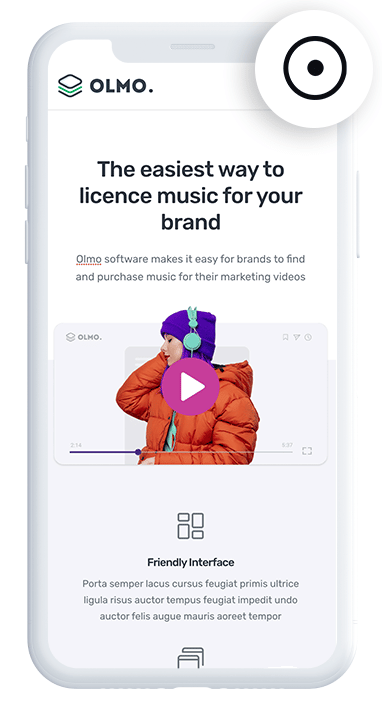
When you sign up for a 14-day free trial of Attributer, you'll get a small snippet of code to drop onto your website (in Wix, you can add the code by going to Settings > Custom Code > Add Custom Code).
Once that's in place, head into your Wix form and add a few hidden fields. The four you need are:
- GCLID
- WBRAID
- GBRAID
- User Agent
Wix Forms doesn't natively support hidden fields, so the workaround depends on which Wix form builder you're using. In Wix Classic Forms, you add four regular Short Answer fields with the labels Attributer expects, then use Dev Mode to set their initial visibility to hidden. The setup is slightly different again in Wix's newer form builder and Wix Studio. Fortunately though, the Attributer help docs cover all three variants with step by step instructions and the exact label names to use.
2. Attributer writes data into the hidden fields
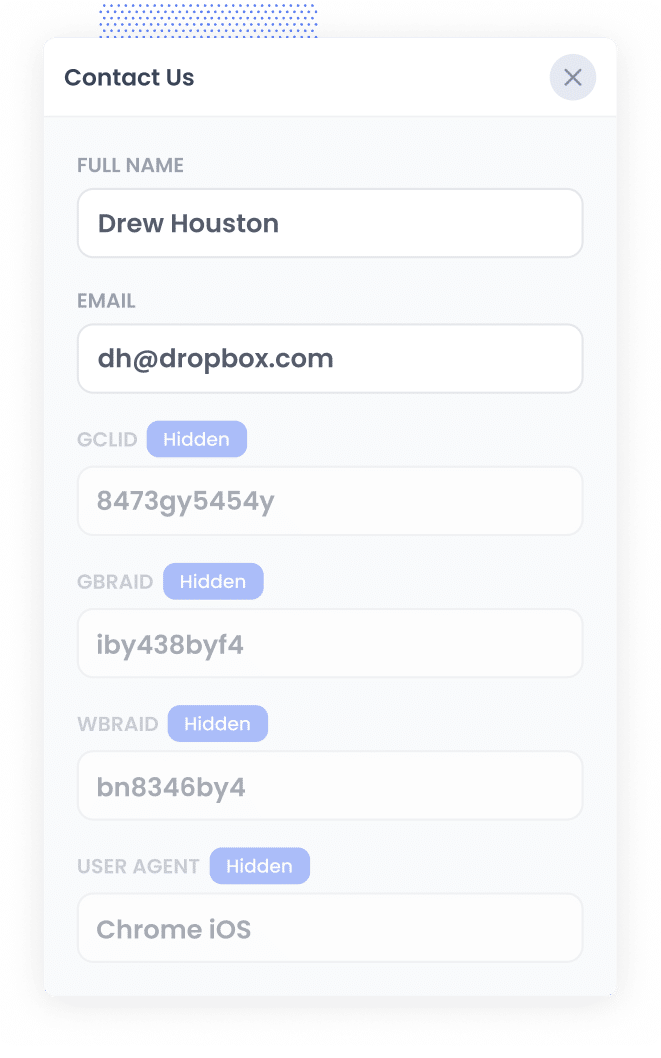
Once Attributer's code is on your site, it'll start watching where every visitor is coming from automatically.
When someone eventually clicks one of your Google Ads and lands on your site, Attributer captures everything Google Ads needs for a server side conversion (GCLID, GBRAID, WBRAID, User Agent, and so on) and stores it in the visitor's browser.
Then when that visitor submits one of your Wix Forms forms, Attributer writes the data into the hidden fields you set up earlier, and it's captured along with the rest of the form submission.
3. Data is sent to your CRM
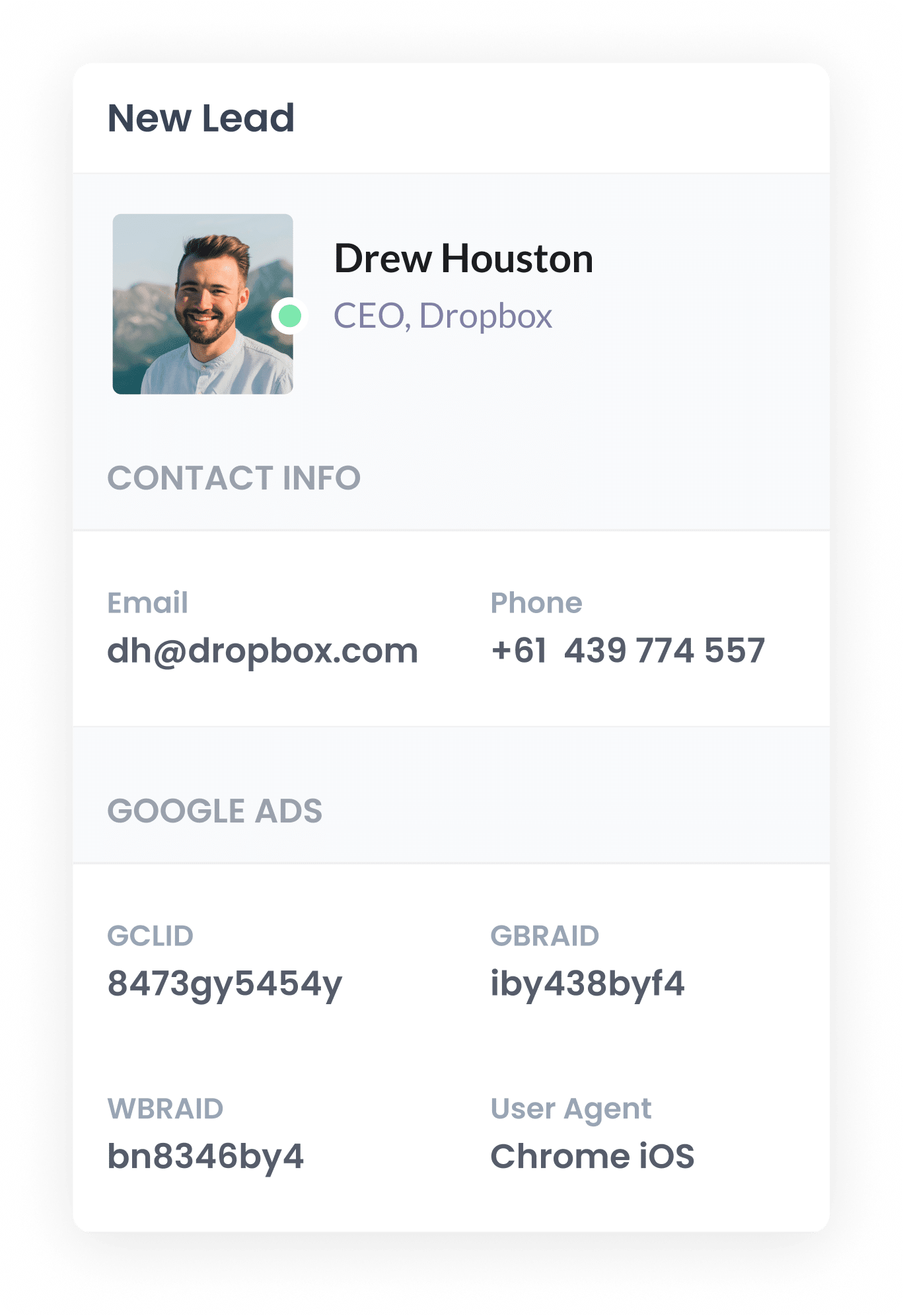
Once the data is captured with the form submission, you can send it through to your CRM alongside the lead's name, email, phone number, etc. Wix Forms doesn't ship with deep native CRM integrations, but submissions can be pushed straight to most major CRMs (Salesforce, HubSpot, Pipedrive, ActiveCampaign, Zoho, and others) via Wix's Zapier integration.
The data then sits on the contact/lead record in your CRM, ready to be used when it's time to send the conversion back to Google Ads.
4. Send the data to Google Ads
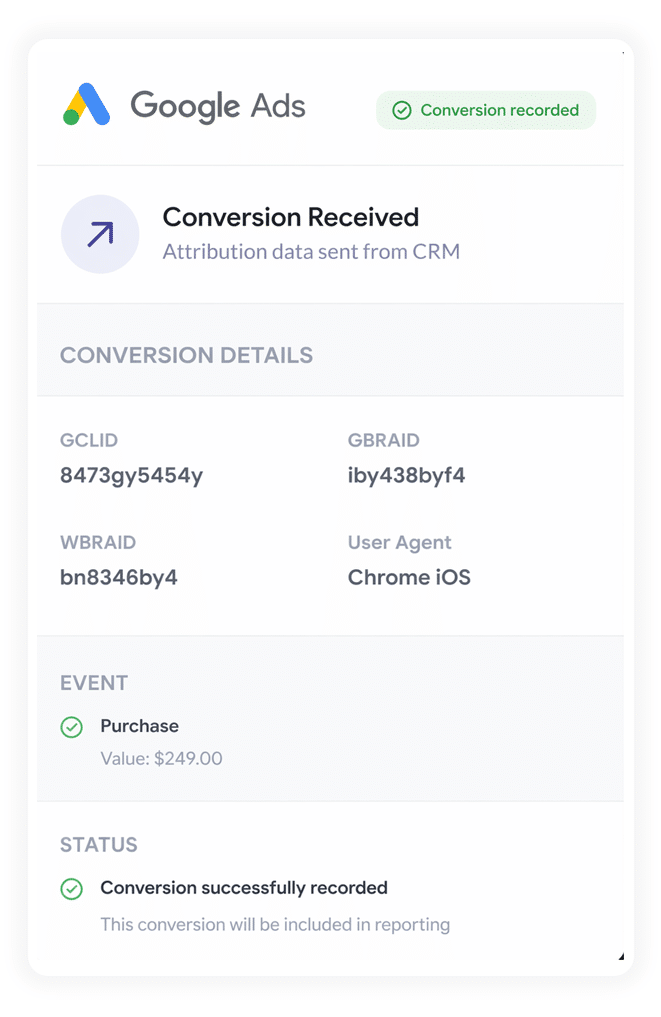
Whenever the lead reaches a specific milestone in your CRM (such as a new deal getting created or an opportunity being marked closed won), then you can use tools like Zapier to send the conversion to Google Ads.
Both Zapier and Make connect to almost any CRM, and you can configure them to trigger the Google Ads conversion at whichever point in the sales cycle makes sense for your business (i.e. Deal Created, Deal Closed, etc). They also give you a nice visual interface for mapping the values Attributer captured (GCLID, GBRAID, WBRAID, User Agent, and so on) back to the right fields in Google Ads.
Why sending server side conversions to Google Ads is the best approach
Server side tracking gives you much more accurate results than client side tracking (which is just a fancier way of saying browser tracking). Here's why:
1. Overcomes ad blockers
Traditional tracking methods (like using Google Tag Manager or triggering conversions on thank you page visits) all depend on the Google Tag loading correctly inside the visitor's browser.
But Ad blockers and privacy focused browsers regularly stop the Google Tag from loading (which means nothing the user does can be tracked).
And the share of users running an ad blocker isn't small either (ecent estimates put it at over 30% of internet users), which means you could be losing a significant amount of conversions.
Server side tracking sidesteps the issue entirely. The conversion data is sent straight to Google's servers, where ad blockers can't get in the way, so every lead ends up accurately counted.
2. Bypasses Safari & iOS privacy limitations
Apple's Intelligent Tracking Prevention (ITP) clears tracking cookies after just a couple of days. So if a lead clicks your ad on Monday but doesn't convert until the following Friday, the link between the click and the conversion has already been wiped.
Server side tracking solves this problem as well. Instead of relying on a cookie to be present in the user's browser, it sends the lead's name, email, phone, etc to Google, which allows them to match the conversion back to their original ad click (regardless of how much time has passed in between).
3. Works across devices
It's pretty common for a lead to first land on your site on one device (i.e. their work computer) but wait until they're back at home they convert (maybe on their home computer, or maybe on their mobile phone while sitting on the couch).
Unfortunately, traditional browser tracking (like tracking thank you page visits) can't connect those two sessions because they happen on different devices.
But server-side tracking is different. Because it sends identity data (name, email, phone, etc) directly to Google's server, it gives Google the data it needs to figure out that the conversion on the home computer came from the same person as the earlier ad click on the work computer, and it can credit your ad with the conversion it actually started initially.
4. Eliminates duplicate and messy data
On top of all the above, browser based tracking is prone to other errors like:
- Double counting form submits: If a conversion is fired when the user hits the 'Submit' button, but they hit it twice or get an error on the form (and have to fix it and submit again), then multiple conversions will get recorded
- Thank you page loads: If you're tracking thank you page visits and sometimes finds their way there without submitting a form, then a conversion is counted without any actually submitting a form.
- Dropped connections or slow devices: If a person submits a form but doesn't make it to the thank you page due to a bad connection or a misconfigured redirect, then their conversion will never be counted.
Tracking from the server is much more precise because it only triggers a conversion when a form is successfully submitted (not when the Submit button is clicked or a thank you page happens is visited), so the conversion counts in Google Ads end up matching your real lead numbers in your CRM much more closely.
3 reports you can run when you properly send conversions to Google Ads from Wix Forms
I have been running marketing teams for various business for over 15 years. In that time, I've spent millions of dollars on Google Ads and built hundreds of reports to try to understand what's actually working and what isn't.
Over that time, I have found that there are 3 reports that consistently delivered the most value. They are:
1. Conversions by Keyword
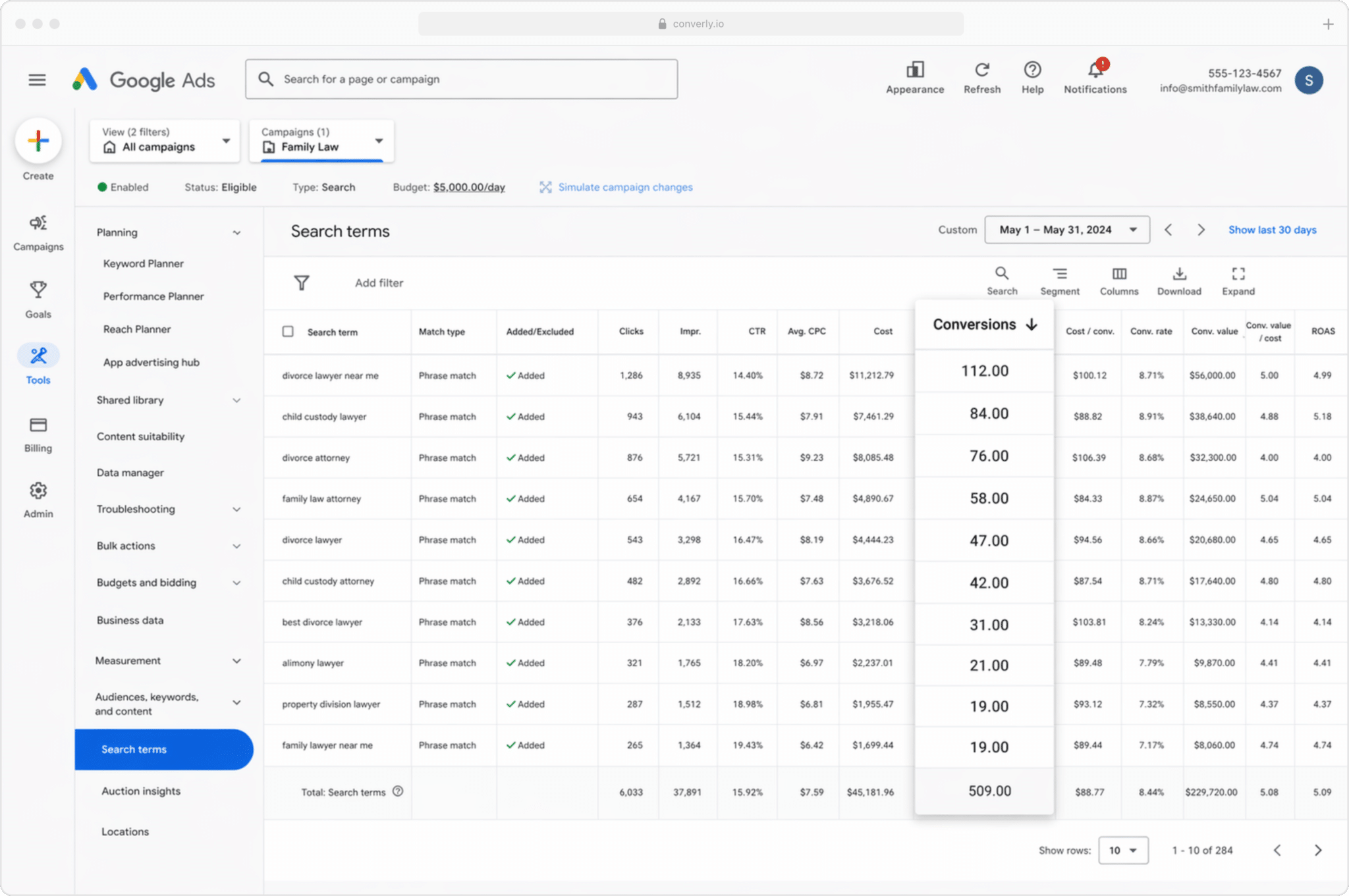
Most businesses running Google Ads end up bidding on a varied set of keywords across multiple campaigns, often broken out by the type of services they offer (like a tour operator running a group safari campaign and a separate private luxury safari campaign).
This report shows you which of those keywords are actually generating conversions, instead of just impressions and clicks that go nowhere.
It helps you understand which keywords are profitable and which ones aren't, so you know where to put more budget for the best return.
2. Conversion Value by Campaign
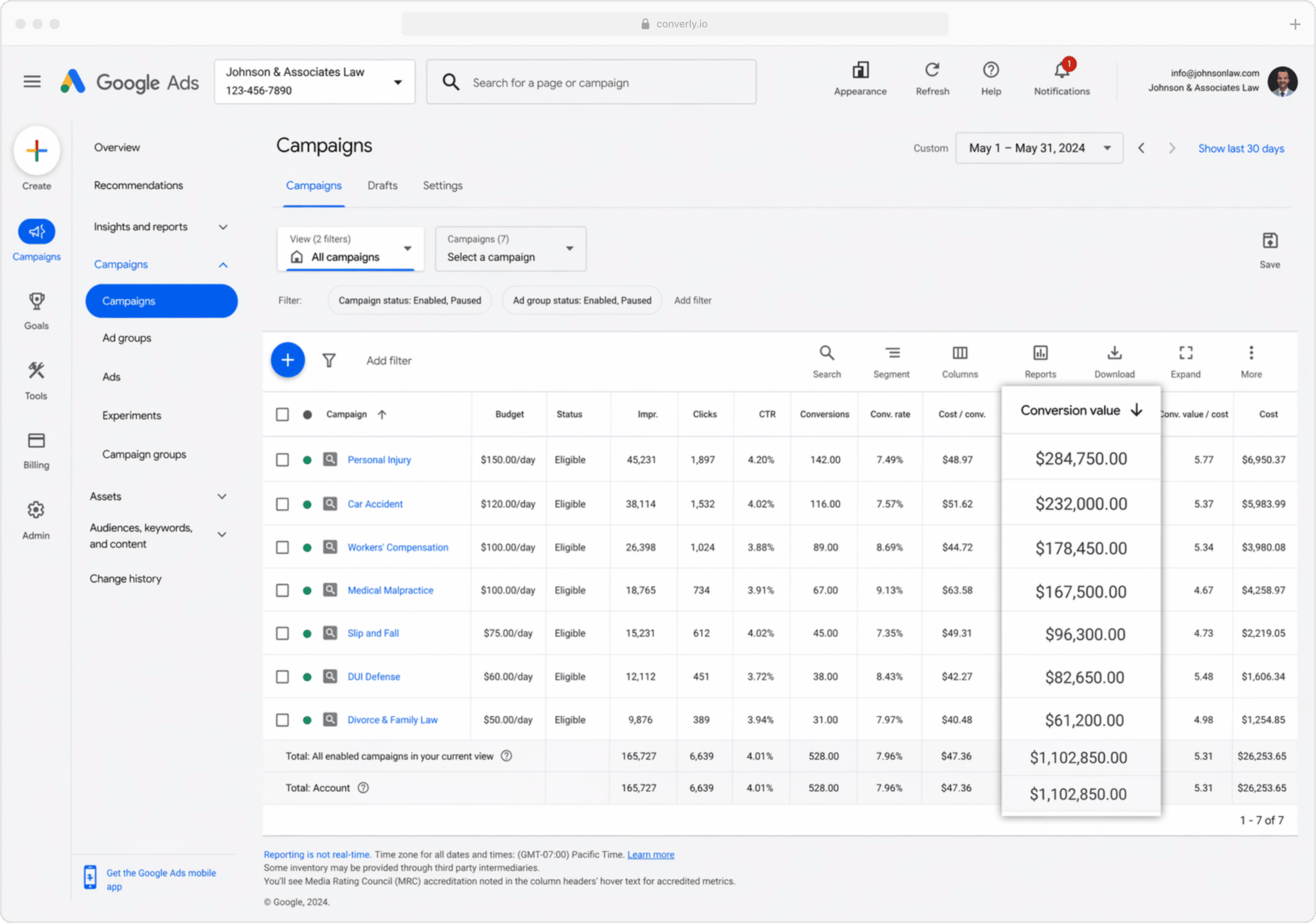
If you're sending conversions back to Google Ads from your CRM, you can also include the value of each conversion (which would normally be populated from the value of the deal or opportunity attached to the lead in your CRM).
This is important because not all customers are equal. For a tour operator, getting a new client from your 'group safari' campaign is nowhere near as profitable as winning a client from your 'private luxury safari' campaign, so you don't really want to treat them as equals.
If you send a conversion value from your CRM to Google Ads, you can run reports that show how much actual revenue you got from each campaign. That makes it much easier to decide which campaigns to put your budget behind (because you can literally see how much money you are making from each one).
3. Conversions by Geography
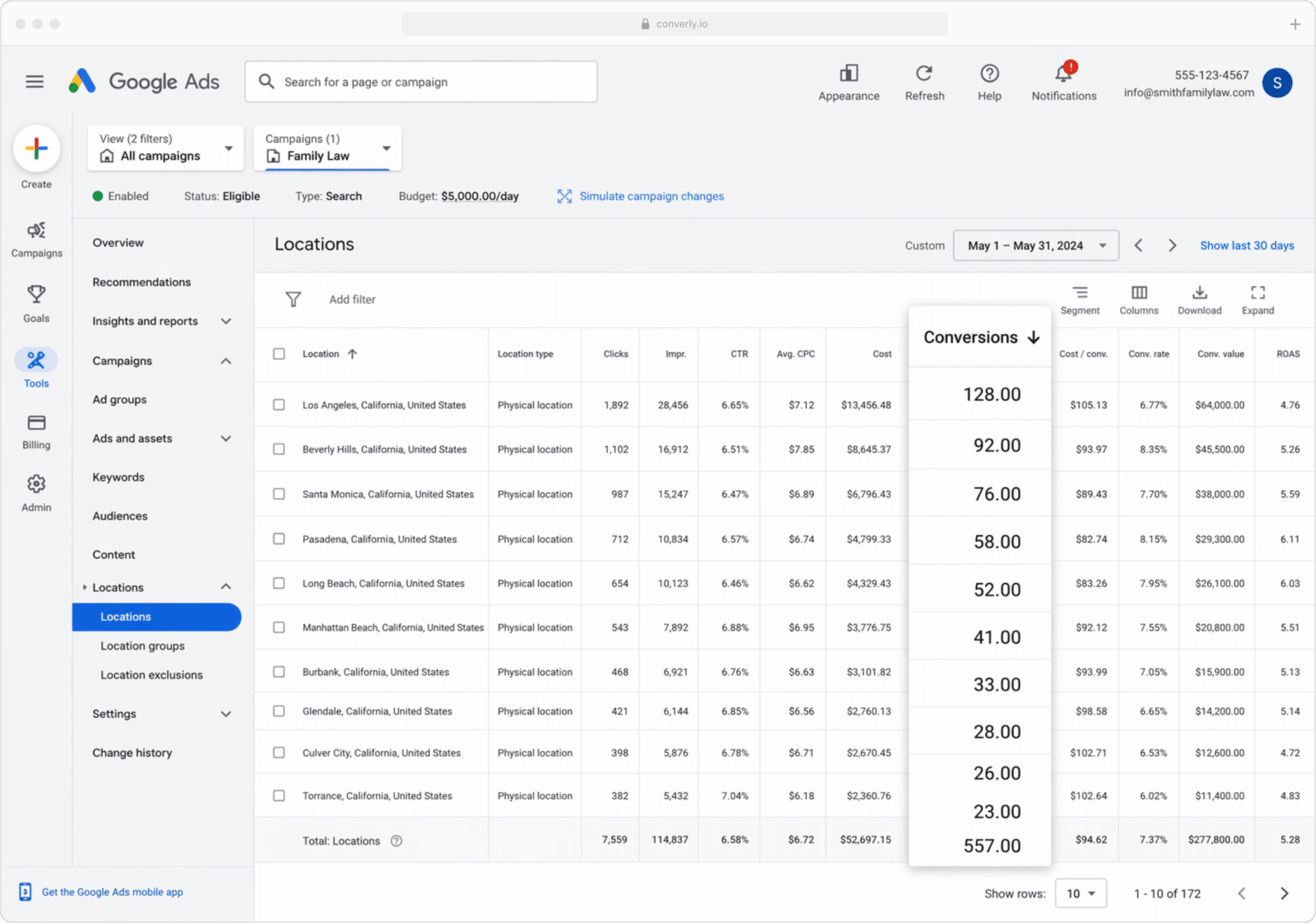
This report is especially useful for businesses that earn most of their revenue locally (think wedding planners, caterers, florists, and so on). It breaks your conversions down by geographical region.
You can view the numbers at a high level (country, state, or city), or drill all the way down to a specific postcode. That tells you whether the leads you are generating from Google Ads are actually in areas you service, or whether you are accidentally paying for clicks from people outside your service area.
From there, Google's Location Bid Adjustments give you a way to act on it. Tell Google to bid more aggressively in the postcodes that consistently produce paying customers, and pull bids back (or cut them entirely) in the areas that aren't working for you.
Wrap up
Sending server side conversions is a gerat way to improve the results you get from Google Ads.
It gives you the data you need to make manual adjustments (like bidding higher on certain keywords), and it gives Google's algorithms the data they need to make smarter automated bidding decisions for you (like bidding higher on a keyword when the searcher matches the profile of your previous converters).
But it only works well if you have accurate conversion data going in. If you're tracking thank you page visits or firing events in the browser through Google Tag Manager, you're not really sending proper data, and your Google Ads performance will reflect it.
So whether you fire the conversion when the form is initially submitted (using Converly) or hold off until the lead becomes a paying customer (using Attributer + your CRM + Zapier), make sure you're sending it server side. That's where the real lift in performance comes from.
Get Started For Free
Start your 14-day free trial of Attributer today!

About the Author
Aaron Beashel is the founder of Attributer and has over 15 years of experience in marketing & analytics. He is a recognized expert in the subject and has written articles for leading websites such as Hubspot, Zapier, Search Engine Journal, Buffer, Unbounce & more. Learn more about Aaron here.