
The best way to track Paperform submissions as conversions in Google Ads
Learn how to set up proper conversion tracking in Google Ads when someone submits a Paperform on your site.
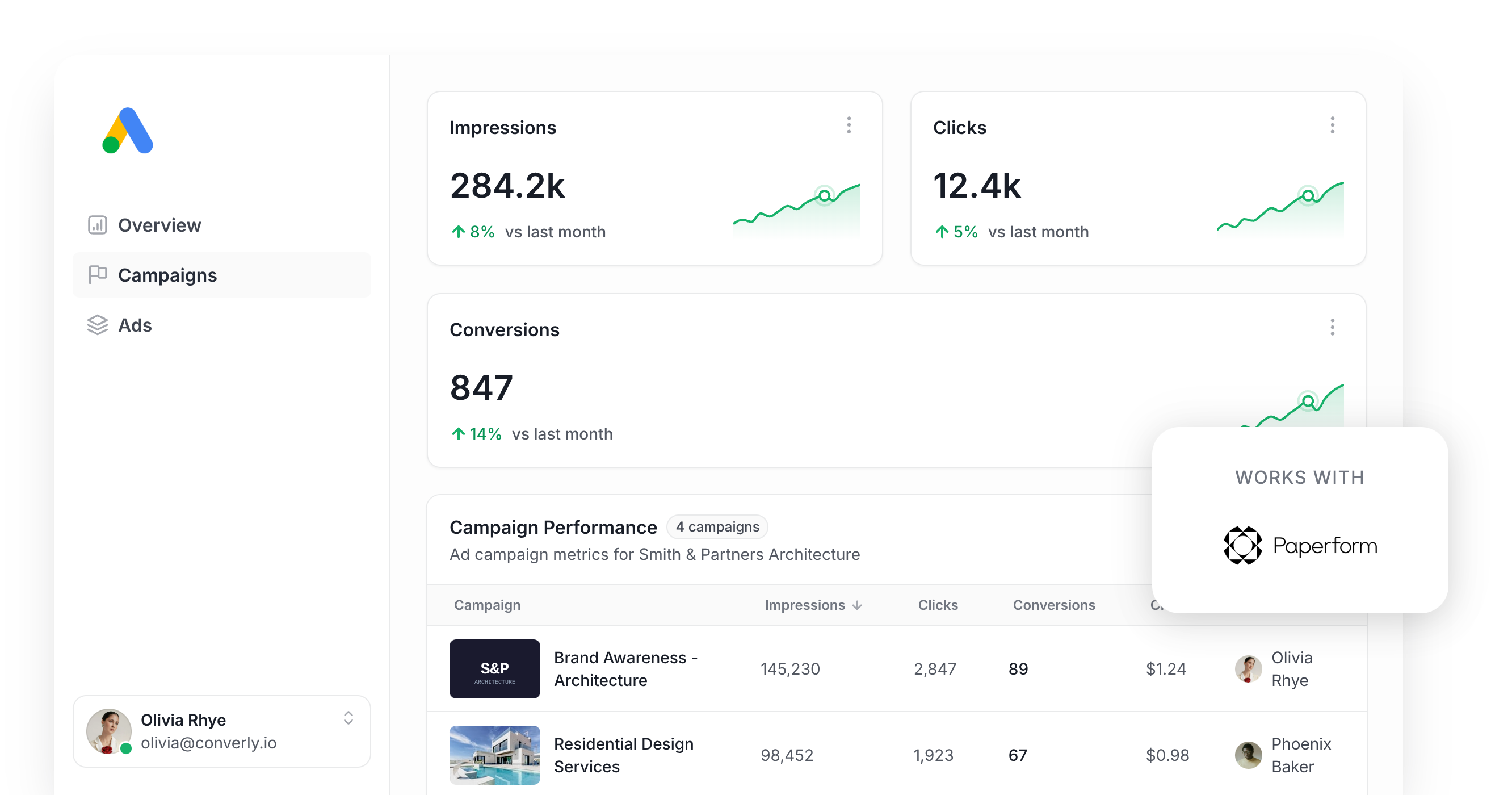
Use Attributer to capture the GCLID when someone fills out your Paperform form, then send it back to Google Ads as a conversion (either right away, or once that lead becomes a customer).
Google Ads can be a genuinely good source of new leads and customers for your business, but getting conversion tracking right is far more difficult than it should be.
If you try to use Google Tag Manager to do it, you'll end up writing custom code to catch a form submission, then wiring up triggers, tags, and variables just to get one number to show up correctly. It's genuinely complicated.
But the simpler options aren't much better either. Counting visits to a thank you page quietly misses as much as 30% of your real conversions, thanks to ad blockers & privacy features baked into browsers like Firefox and Safari. Plus a thank you page doesn't contain the lead's name, email and phone, which is what Google Ads want you to send with each conversion these days.
So what actually works?
In this article, we'll show you a better way to track conversions in Google Ads when someone fills out a Paperform on your website, using an approach called server-side tracking.
Why you need to be doing server-side tracking in Google Ads
The usual ways of tracking conversions in Google Ads, whether that's counting thank you page views or firing form submission events through Google Tag Manager, all run into the same problems. Research suggests these methods can miss up to 30% of conversions.
Here's why:
- Ad Blockers. They stop the Google Tag from loading in the visitor's browser when they visit your site, so nothing that happens on your site ever gets recorded.
- Browser privacy features. Browsers like Safari actively cut the Google Tag off from following visitors after a day or so, so if a lead clicks your ad today but only converts 4 days later, that conversion can't be tied back to the original click.
- People switching devices. Someone might click your ad on their phone but come back and fill out your form later from their laptop, and browser-based tracking has no way to connect those two moments because they happen on different devices.
This is exactly the gap server-side tracking closes. Rather than waiting for something to happen in the browser (like a visitor landing on a thank you page) and hoping the Google Tag loads and can see it, you send a direct, private message to Google with the lead's details, so ad blockers and privacy settings simply can't get in the way.
This has very real upside. Google's own data shows server-side tracking tends to deliver a 23% average increase in total recorded conversions and a 10% cut in cost per conversion, largely because Google's algorithms get better data to learn from and can put your ads in front of the right people.
How to track Paperform submissions in Google Ads using server-side conversion tracking
There are two main ways to set this up, and which one you pick depends on when you want the conversion to be sent back to Google Ads.
Option 1: When a lead submits your form
Use a tool like Converly to send a server-side conversion to Google Ads when someone submits a Paperform form on your site.
Instead of writing custom code in Google Tag Manager to listen for the form submission, pull out the lead's details, hash them with SHA-256, and send them off to Google's API yourself, Converly gives you a clean visual builder for putting the whole conversion flow together.
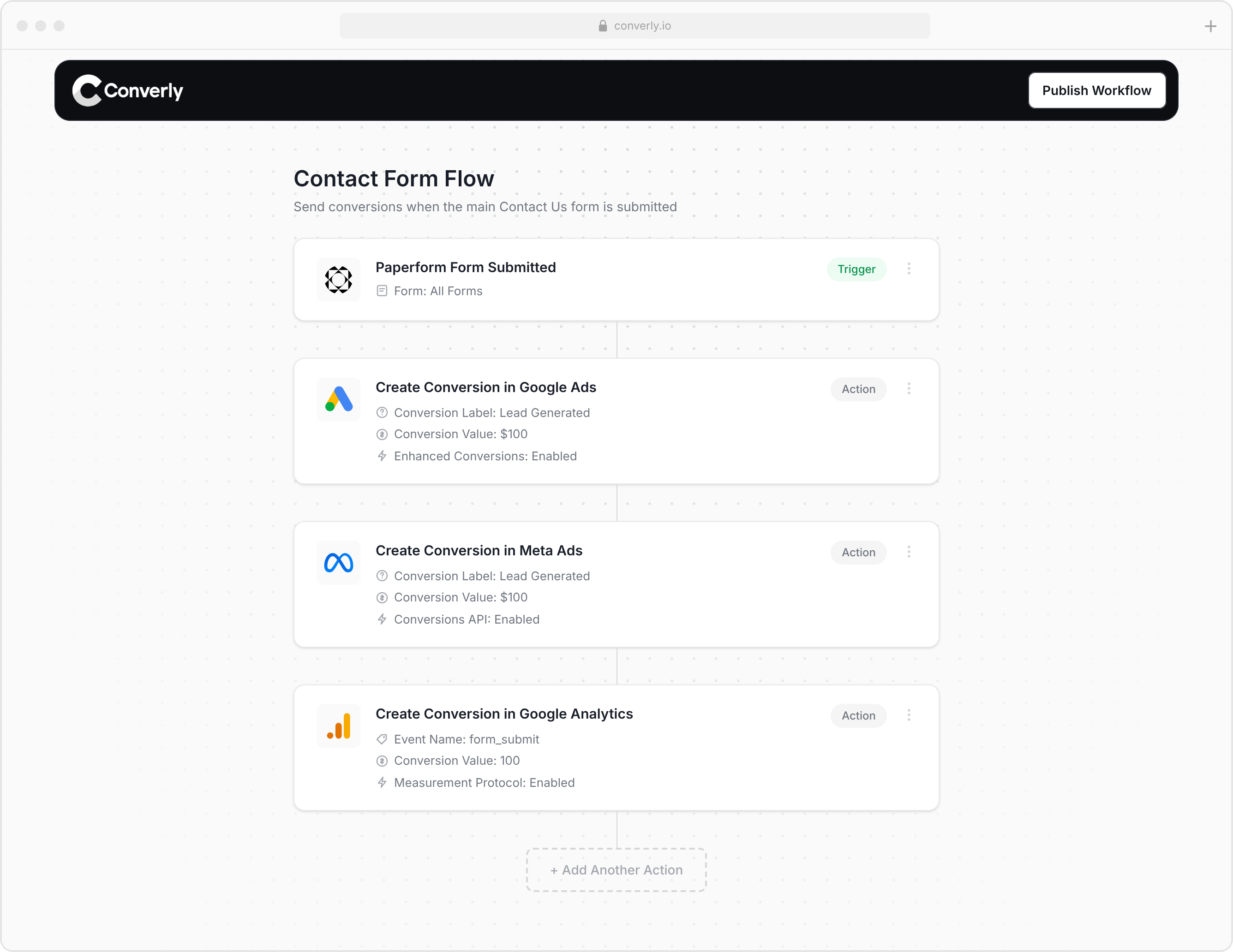
You simply choose a trigger (like a new submission of your Paperform form) and pick the actions that should follow it (like sending a conversion to Google Ads).
From there, Converly takes care of the rest. It watches for new submissions, grabs the lead's name, email, and phone number from the form, hashes them with SHA-256 (which Google requires), and passes it all along to Google Ads. It also picks up the GCLID and other signals and sends those alongside the conversion, giving Google a far better shot at tying the conversion back to a real person and the exact campaign, ad, and keyword that person originally clicked.
The result is that you get every benefit of server-side tracking (that 23% average lift in recorded conversions and 10% drop in cost per conversion) without writing custom code, understanding SHA-256, or wrangling Google's API yourself.
Option 2: When a lead becomes a customer
You can also choose to hold off and send the conversion back to Google Ads later in the sales cycle (once a lead actually becomes a paying customer, for example).
To do that, you just need to capture a bit of extra data with every submission and store it on the contact record in your CRM. Here's how it works:
1. Install Attributer and add a hidden field to your Paperform form

To get going, start a 14-day free trial of Attributer and add the snippet of code it gives you to your website.
Then open your form in the Paperform editor, type /hidden where you want the new question to sit, and choose the Hidden field option. Give it a clear name, then click its Configure icon and set a prefill key, something like gclid. That prefill key is what Attributer will target when it writes the Google Click ID into the form. Full setup instructions are on the Attributer Help site.
2. Attributer writes the GCLID into the hidden field
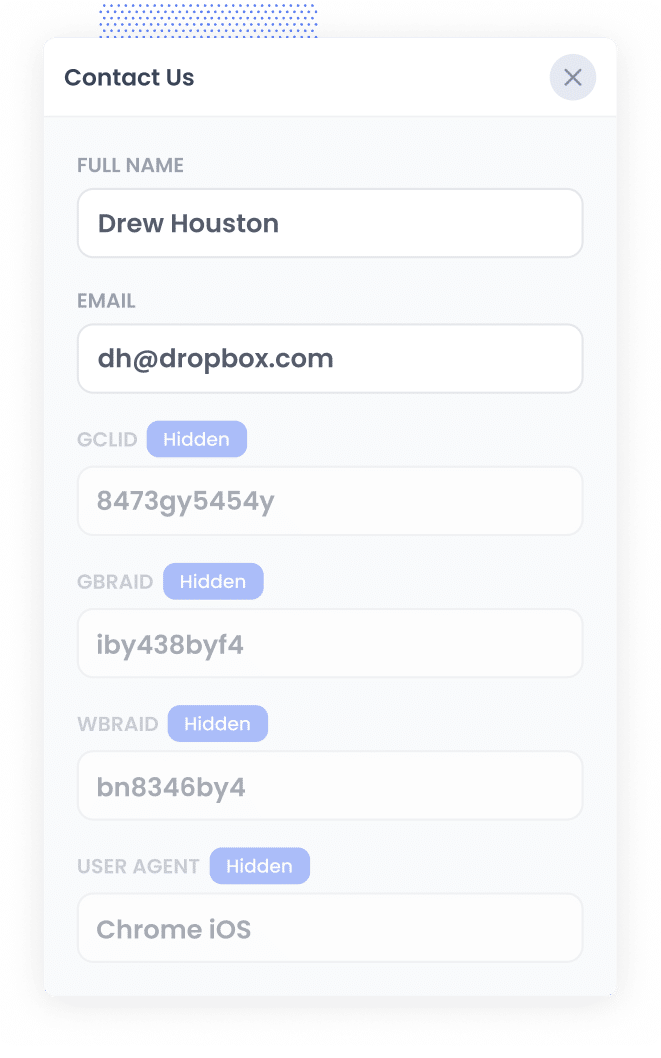
When someone clicks one of your Google Ads and lands on your website, Attributer captures the GCLID and stores it in their browser, so it's still there even if they browse around for a while (or leave and come back later).
Then, when they submit the Paperform on your site, Attributer writes that GCLID straight into the hidden field you configured.
3. GCLID is captured with each new lead
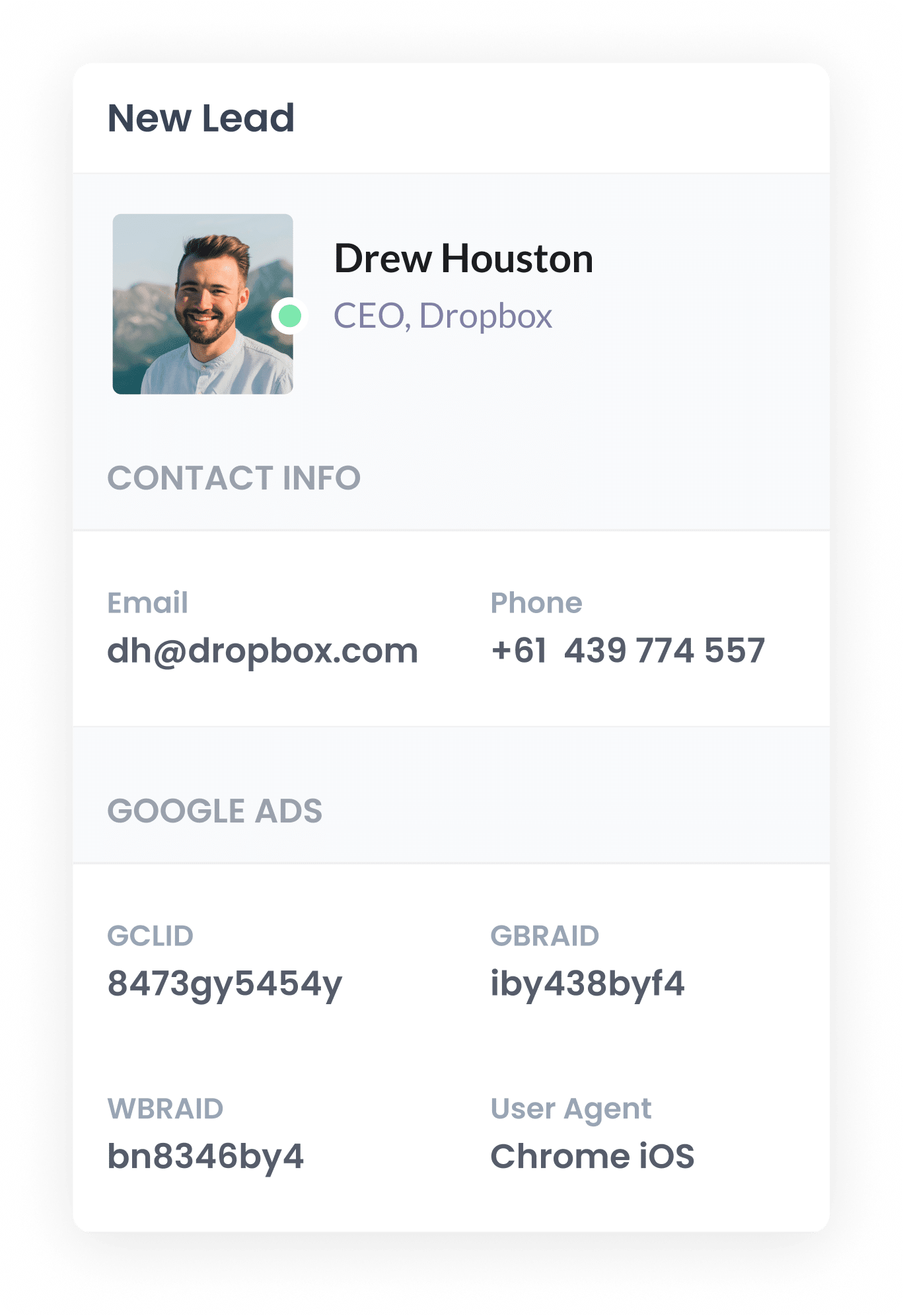
When the form is submitted, the GCLID that Attributer wrote into the hidden field is captured alongside everything else the person entered (like their name, email, phone, and so on).
From there, you can use Paperform's built-in integrations or a tool like Zapier or Make to push the lead's details (GCLID included) over to your CRM, where it sits on the contact record waiting for when you need it.
4. Send the data to Google Ads
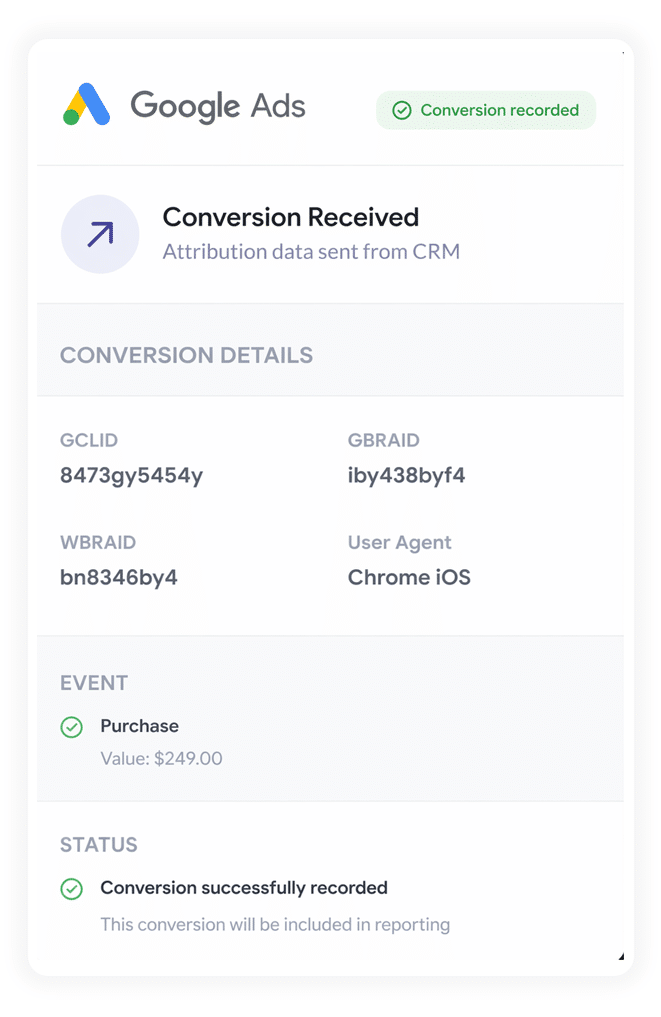
Once the lead reaches a certain milestone in your sales process (like a deal gets created, or the lead turns into a paying customer), you can send everything back to Google Ads to log a conversion.
Most CRMs don't talk to Google Ads natively, so you'll need to use a tool like Zapier or Make. They connect to your CRM and can push the conversion over to Google Ads at whatever point makes sense for your business (when a deal opens, when it closes, etc).
Why sending server-side conversions to Google Ads is the best approach
Here's why sending server-side conversions to Google Ads is the best approach (regardless of when you choose to send it):
1. Overcomes Ad Blockers
Other tracking methods, like using Google Tag Manager to count thank you page visits, depend entirely on scripts loading in the visitor's browser. But ad blockers and privacy-first browsers regularly stop those scripts from ever running.
Recent research puts the share of internet users running some form of ad blocker north of 30%, so this isn't a minor edge case either.
Fortunately, server-side tracking solves this problem by sending the conversion straight to Google's servers, so ad blockers and privacy restrictions have nothing to interfere with, and every lead gets counted.
2. Bypasses Safari & iOS Privacy Limitations
Apple's Intelligent Tracking Prevention (ITP) wipes tracking cookies set by ad platforms like Google Ads within a day or two, so if someone clicks an ad on Monday but doesn't convert until Friday, the link between those two moments is gone.
Server-side tracking gets around that by sending the name, email, phone, Google Click ID, and so on over to Google Ads with each lead, giving Google what it needs to tie the conversion back to the original ad click no matter how much time passes between the click and the submission.
3. Works across devices
Plenty of leads will click your ad on one device (maybe their phone), but come back later on a computer to actually fill in your form.
Ordinary browser-based tracking can't connect those two visits because they happen on separate devices. But by sending the lead's details (name, email, and so on) straight to Google's servers, Google has what it needs to stitch the sessions back together and credit your ads properly for starting things off.
4. Eliminates duplicate and messy data
On top of everything else, browser-based tracking opens the door to other mistakes, particularly if you're tracking thank-you page views or clicks on the submit button. Someone could enter the wrong email or skip a required field, but because they clicked submit, the conversion still gets logged. Then when they fix the mistake and submit again, you've counted 2 conversions for a single lead.
Server-side tracking avoids all of that. It only logs a conversion once a submission genuinely goes through, not when a thank you page loads or a button gets clicked, so your Google Ads conversion counts stay much closer to the real number of leads you're actually generating.
3 reports you can run when you properly send conversions to Google Ads from Paperform
Across 15 years leading marketing teams, I've spent millions of dollars on Google Ads and built more reports than I can count trying to work out what was actually working and what wasn't.
Here are the 3 I kept coming back to:
1. Conversions by Keyword
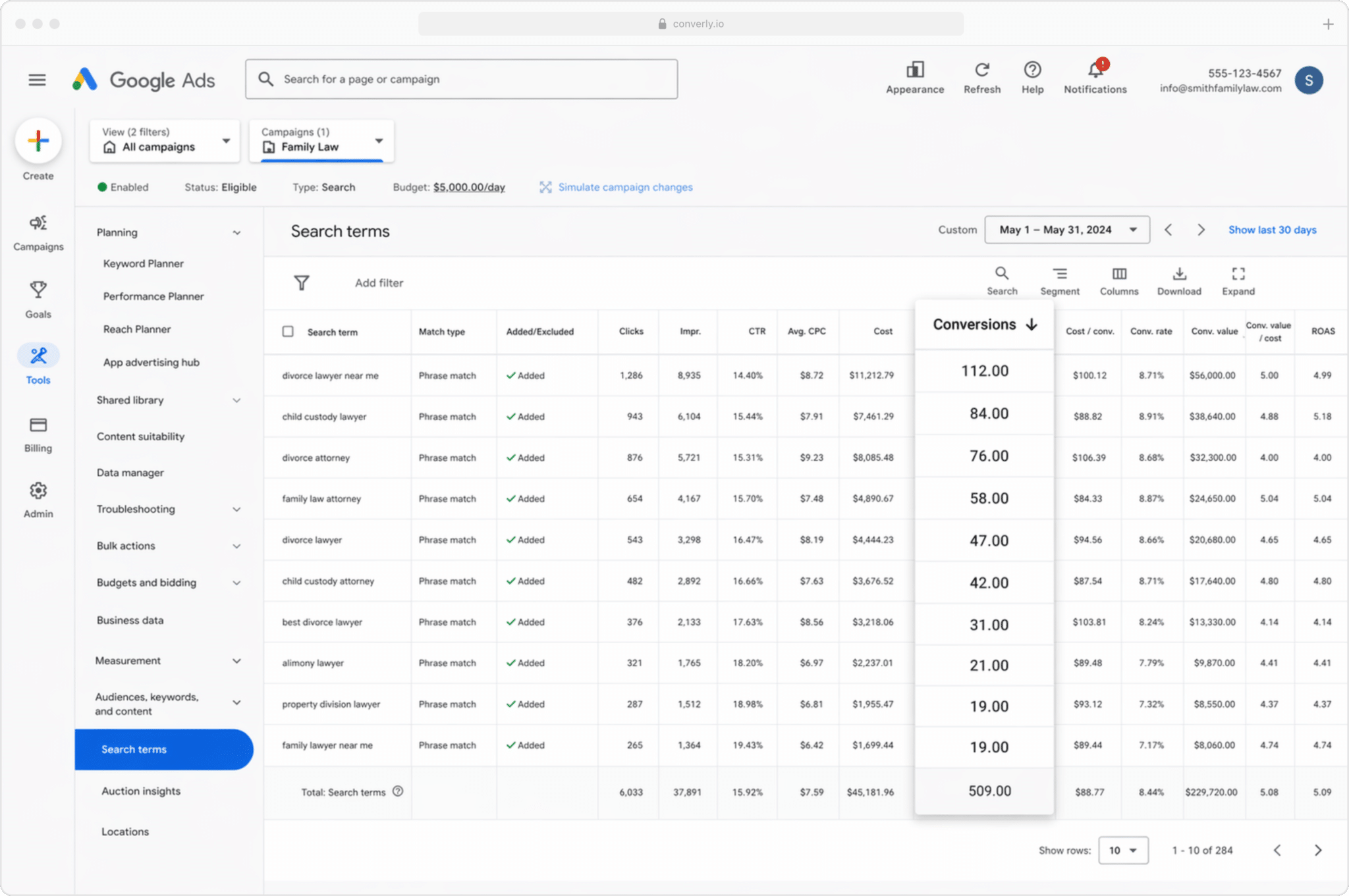
Most businesses are running several campaigns and have dozens of keywords they are bidding on, often split by service line (an environmental consulting firm might bid on 'phase 1 site assessment' in one campaign and 'environmental compliance audit' in another).
This report shows which of those keywords are actually turning into conversions, rather than just generating vanity metrics like impressions and clicks that don't actually lead to revenue. It makes it obvious which keywords are pulling their weight for your business and which aren't, and ultimately where you should be putting your budget.
2. Conversion Value by Campaign
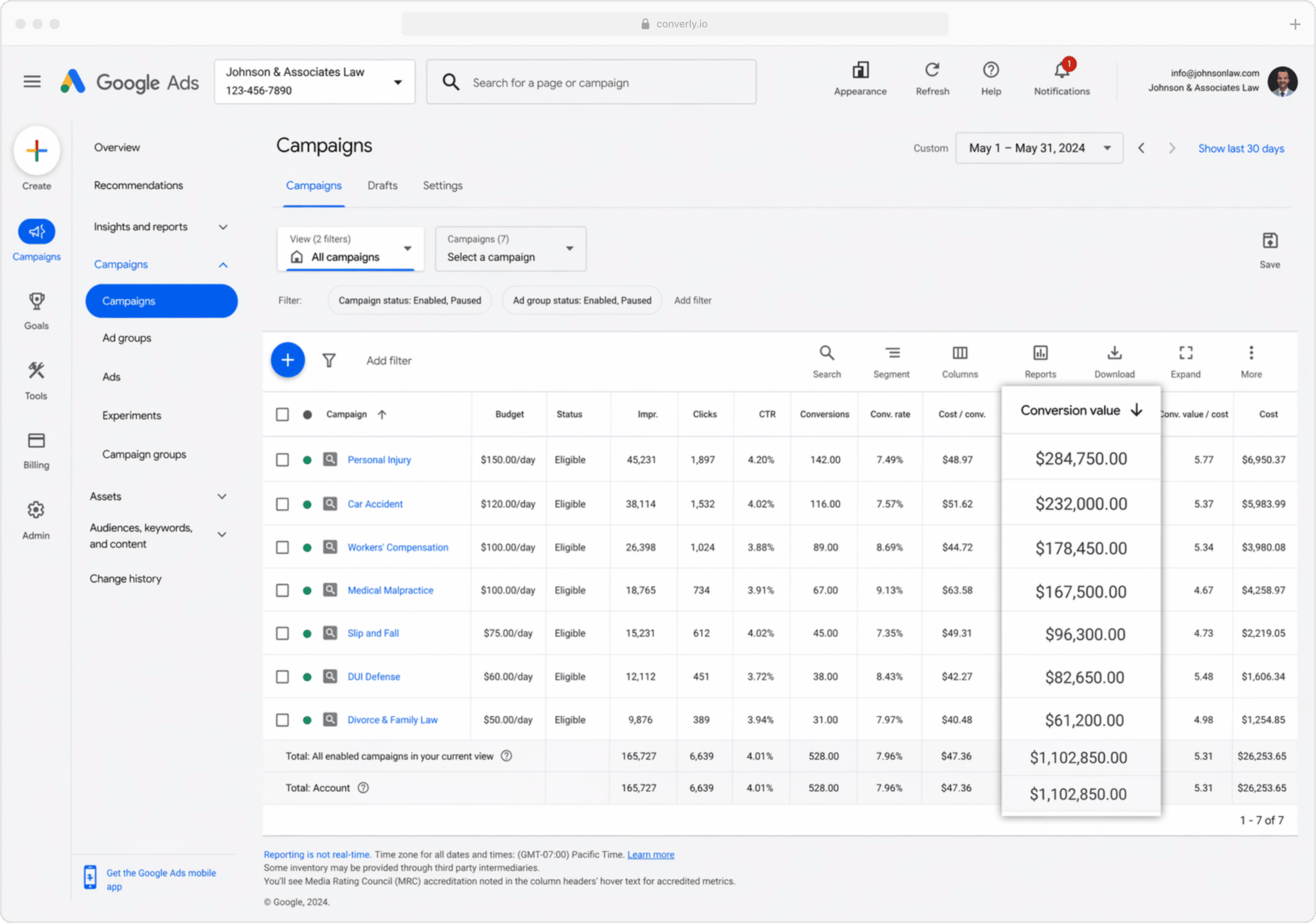
If you're pushing conversions back to Google Ads from your CRM, you can attach a value to each one (usually pulled straight from the value field on that contact or deal record).
That matters because not every customer is worth the same. For an environmental consulting firm, a client sourced from a 'site assessment' campaign is worth far less than one that comes in through a 'compliance audit' campaign.
So by sending a conversion value to Google Ads from your CRM, you get reports showing you that you got $1,000 from leads on one campaign and $10,000 from another. Witht hat kind of data, deciding where the budget should actually go gets a lot easier.
3. Conversions by Geography
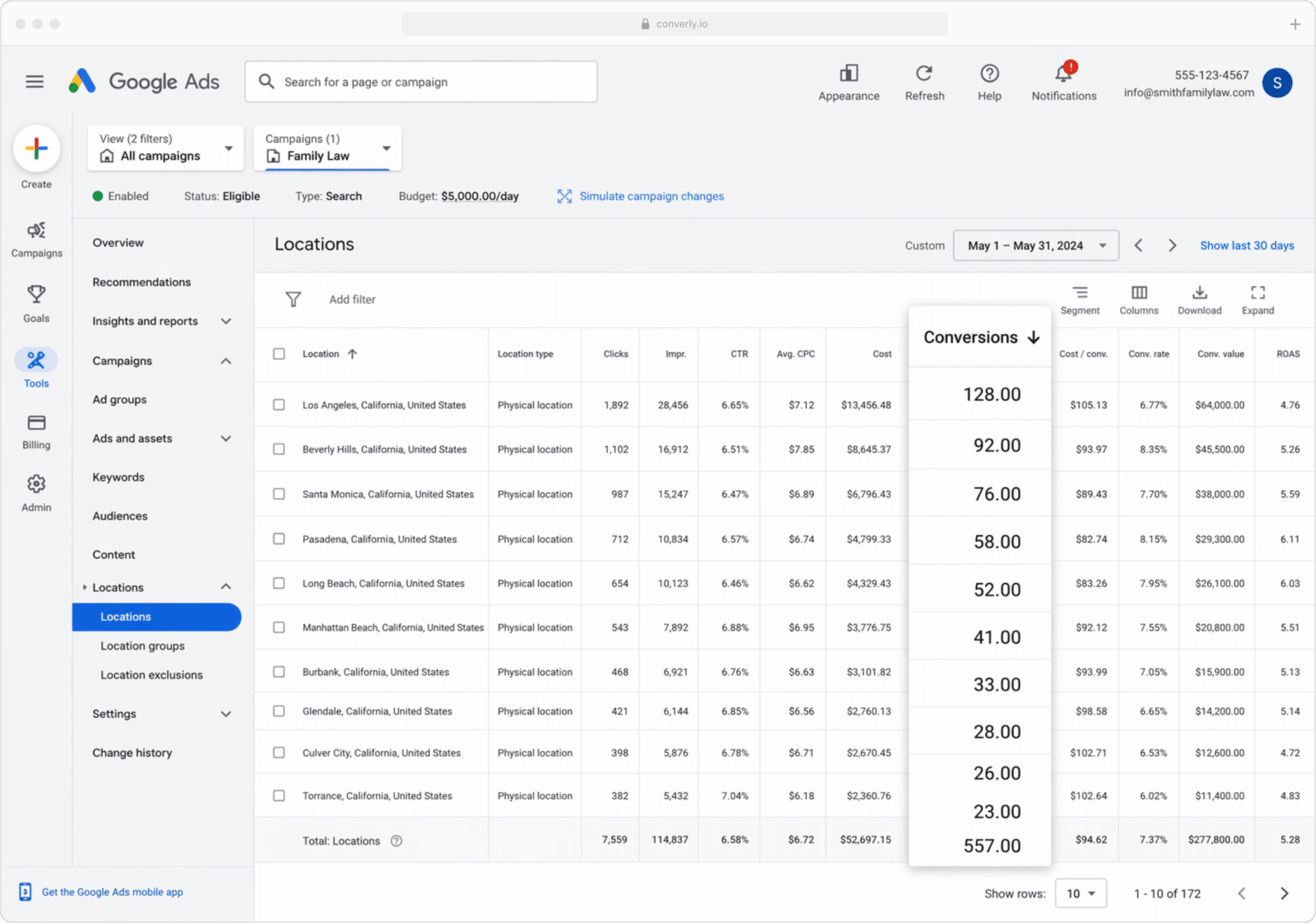
This report is especially handy for businesses that win most of their clients locally (environmental consultancies, law practices, accounting firms, and the like). It breaks your conversions down by geographic region.
You can zoom out to country, state, or city, or drill right down to an individual postcode. Either way, you get a clear read on whether your leads are genuinely coming from the areas you want to serve, or whether budget is being spent acquiring clicks and leads from people who are outside your service areas.
Once you have this data, Google Ads has a feature called Location Bid Adjustments that lets you act on it. You can tell Google to bid harder in the postcodes that are working well, and pull back (or stop entirely) in the ones that aren't.
Wrap Up
Accurate conversion data is what lets you make real decisions about how to optimise your ad campaigns (like knowing which keywords deserve more budget and which locations to pull back from). It also gives Google's automated bidding algorithms the data they need to understand what your ideal lead looks like, so it can show your ads more prominently to people like them.
So go ahead and get proper server-side conversion tracking set up in Google Ads today. You'll get much better results from your ad campaigns.
Get Started For Free
Start your 14-day free trial of Attributer today!

About the Author
Aaron Beashel is the founder of Attributer and has over 15 years of experience in marketing & analytics. He is a recognized expert in the subject and has written articles for leading websites such as Hubspot, Zapier, Search Engine Journal, Buffer, Unbounce & more. Learn more about Aaron here.