
Track leads & customers from AI in WPForms
Here's the best way to track how many leads & customers AI tools like ChatGPT are generating through WPForms
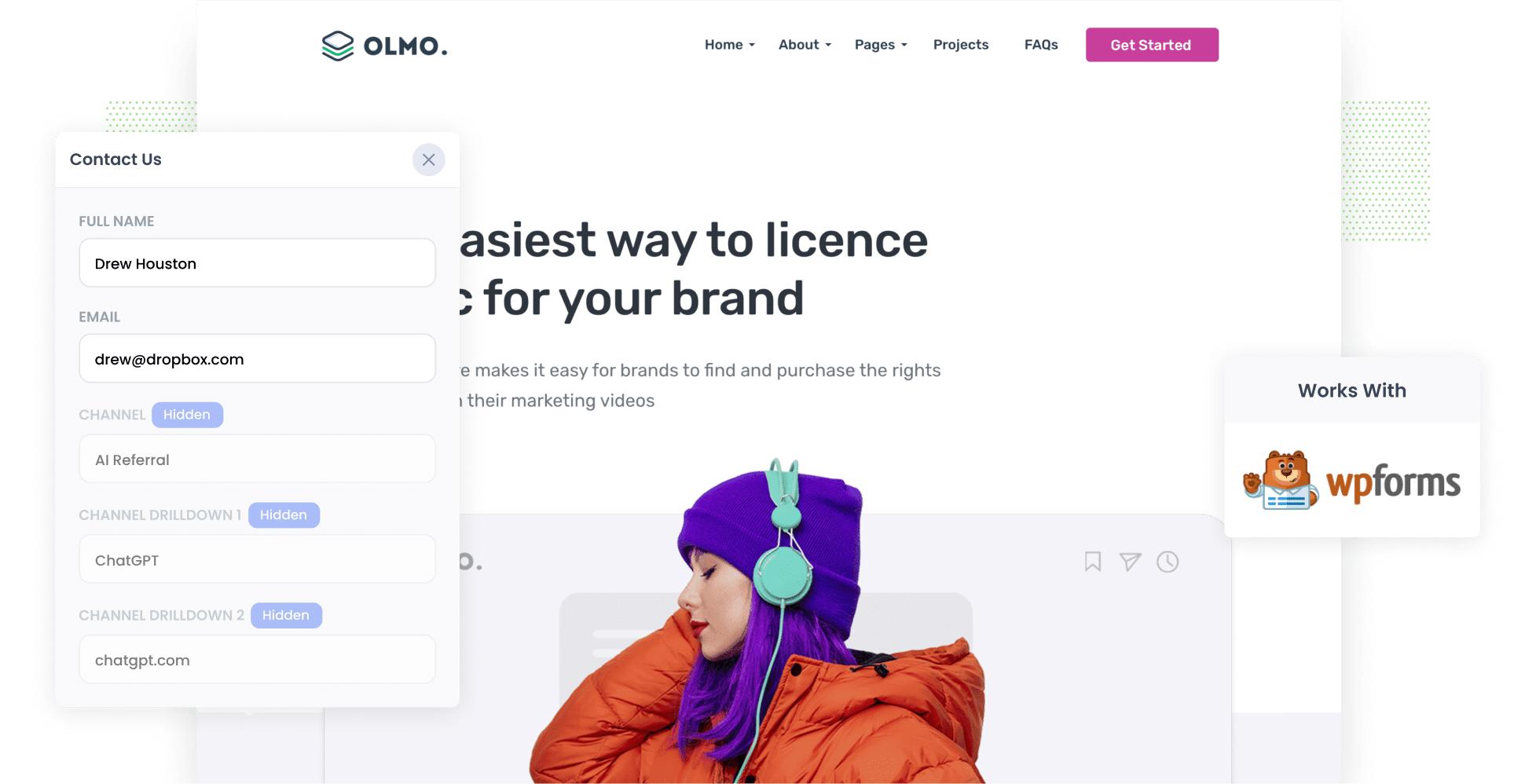
Use Attributer to capture AI referral data (like the fact a lead arrived from ChatGPT) with every WPForms submission. You can then send this to your CRM and other tools, and use it to run reports showing how many leads and customers AI is actually generating.
Are you trying to figure out how many of your leads came from AI tools like ChatGPT?
Everyone is talking about AI 'mentions' and 'citations' right now, but those don't pay the bills. Knowing how many leads you got from AI, how many became customers, and how much revenue they brought in is what enables you to make real decisions about your AEO/GEO efforts.
So how do you do it?
In this article, we'll show you how to use a tool called Attributer to capture AI referral data with every WPForms submission. We'll also share a set of reports you can run to see exactly how many leads and customers AI is sending your business.
4 steps to track leads & customers from AI in WPForms
Using Attributer with WPForms makes it easy to see how many leads you are getting from AI tools. Here's how it works:
1. Install Attributer and add hidden fields to your forms
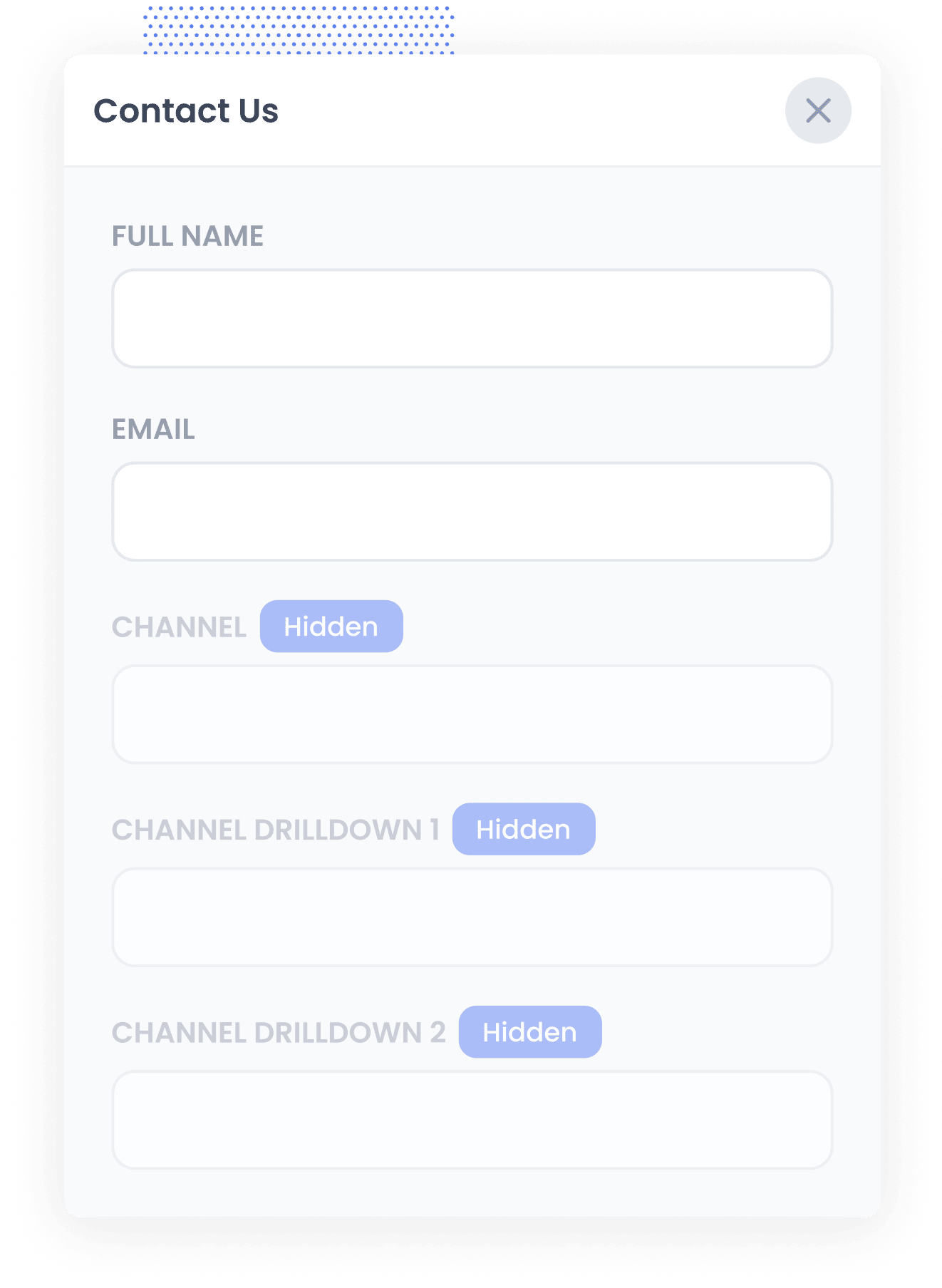
When you start your 14-day free trial of Attributer, you'll receive a small snippet of code to add to your website. Instructions for installing it can be found here.
Once done, you need to add a series of hidden fields to your forms. These include:
- Channel
- Channel Drilldown 1
- Channel Drilldown 2
- Channel Drilldown 3
- Landing Page
- Landing Page Group
To do this in WPForms, simply drag and drop a 'Hidden' field into the bottom of the form and give it a name and default value. Full step-by-step instructions can be seen here.
2. Attributer tracks where each visitor came from
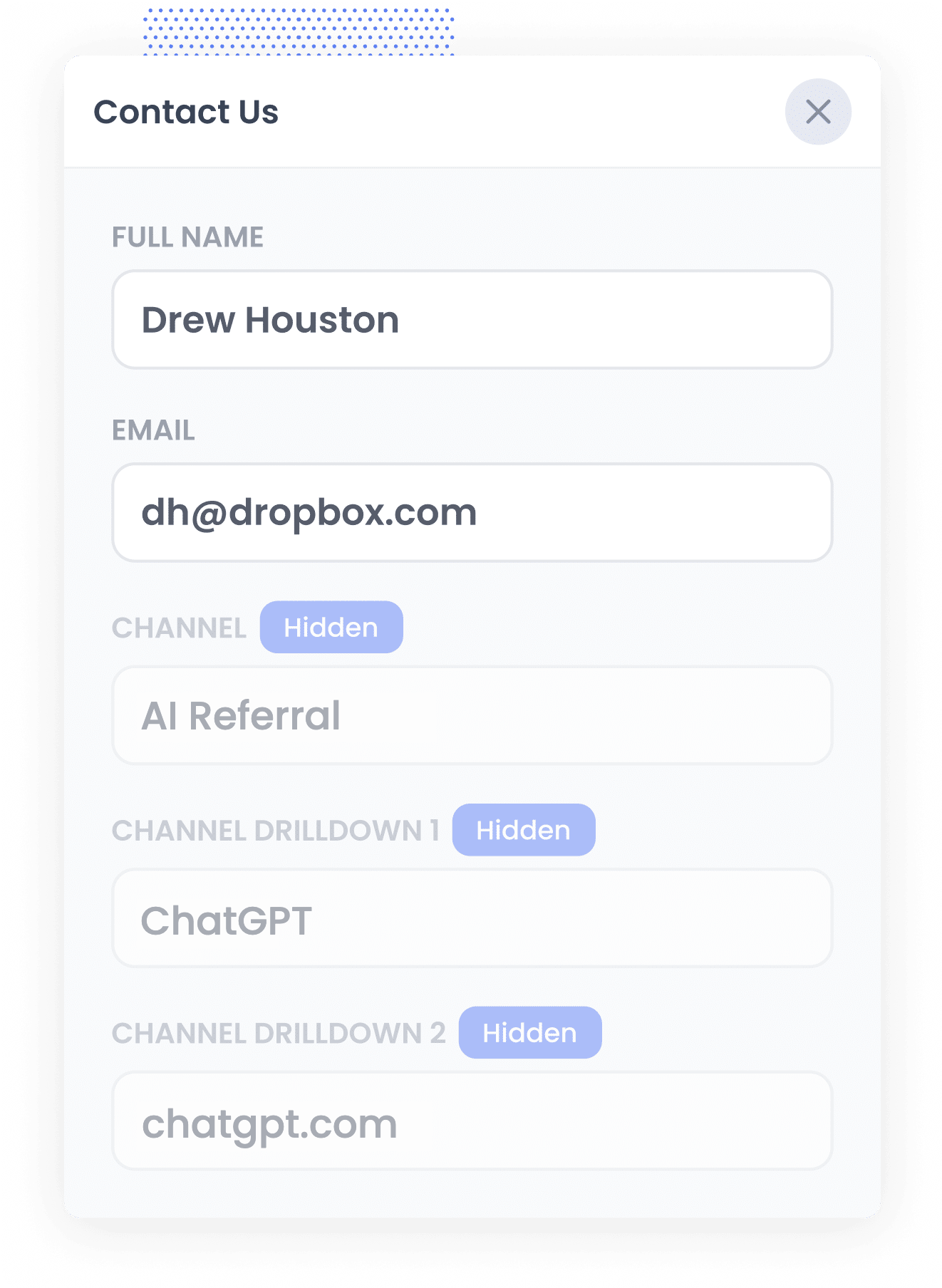
Every time someone lands on your site, Attributer looks at a set of signals to work out how they got there (much the same signals a tool like Google Analytics uses).
It then assigns that visitor to a channel such as AI Referral, Organic Search, Paid Search or Paid Social, and stores the data in their browser.
Then, when the visitor eventually submits one of the forms on your site (like your 'Contact Us' or 'Book a Consultation' form), Attributer writes the details of where they came from (like the fact they arrived from an AI tool, and which one) into the hidden fields.
3. AI data is captured with the form submission
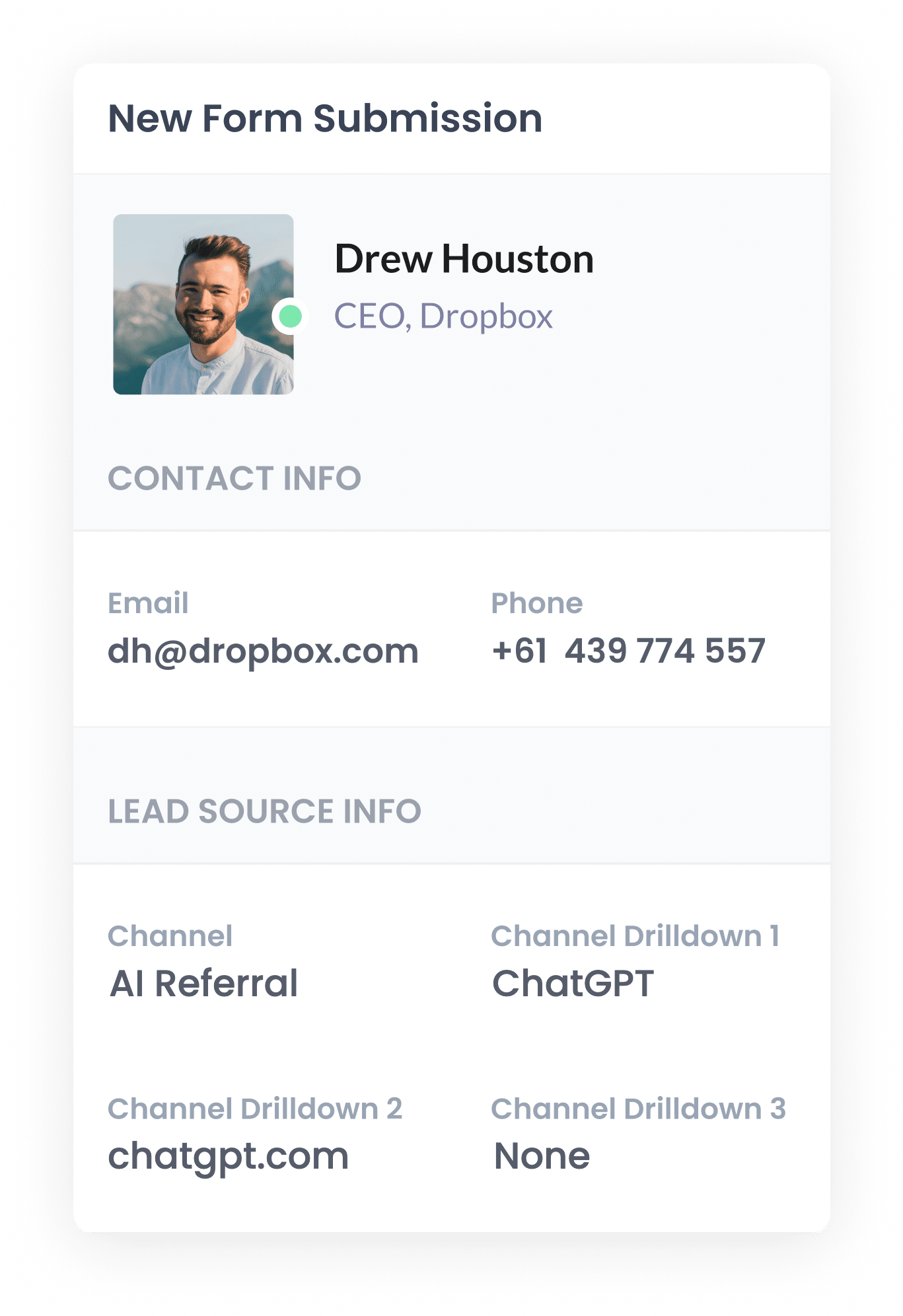
When the form is submitted, WPForms saves the AI referral data that Attributer wrote into the hidden fields along with the lead's name, email and anything else they entered into the form.
You can then see it on the Entries page in the WPForms section of your WordPress dashboard, add it to the new lead notification emails WPForms sends, or send it to your CRM and other tools (like a spreadsheet, analytics tool, etc).
4. Report on AI leads
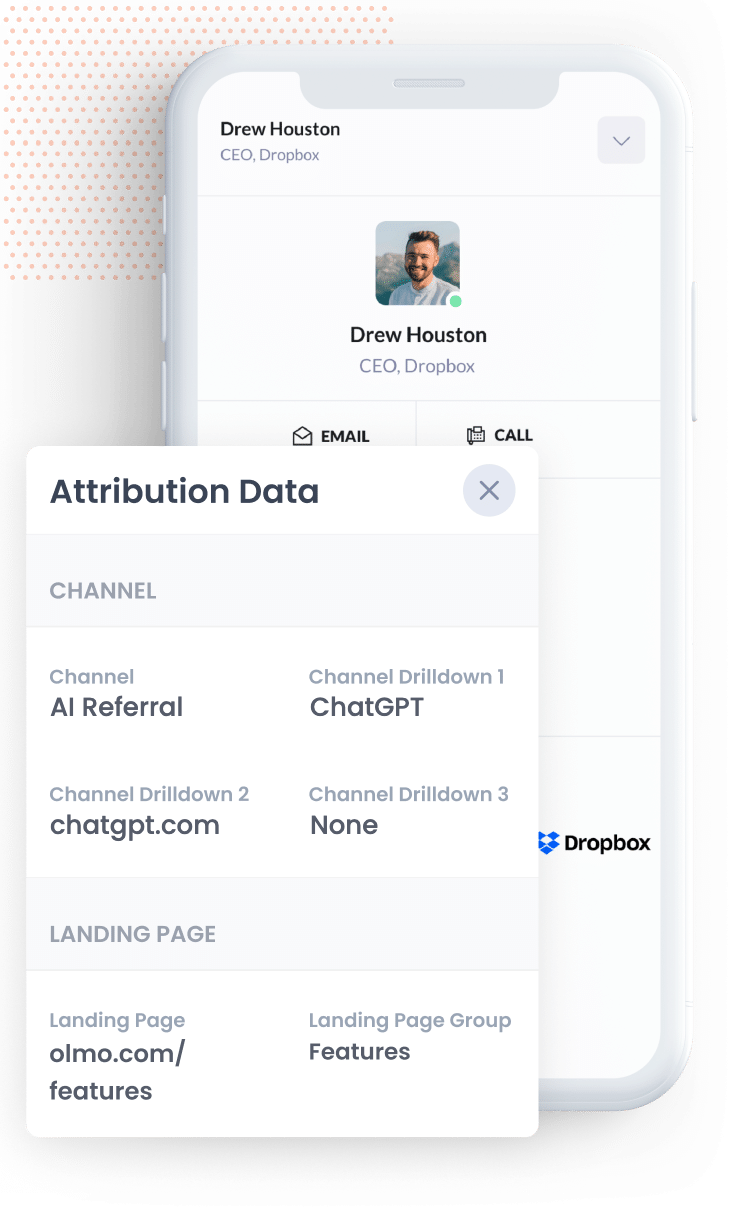
With the data in your CRM (or wherever you store it), you can start building reports that show how many leads and customers came from AI, which AI tools sent them, what content drew them in, and how much revenue followed.
You should be able to use your CRM's built-in tools to create basic reports, or you can connect a dedicated reporting tool like Tableau, Google Data Studio or Microsoft Power BI and build them there.
And if you'd rather ask than build, connect Claude or ChatGPT to your CRM and just ask "How many leads did I get from AI referral this month?"
What data gets captured
Attributer passes through two kinds of information about each lead. There's how they reached your site (the channel) and what content brought them there (the landing page).
Imagine you run marketing for a recruitment agency, and a hiring manager asks ChatGPT which agencies specialise in placing finance professionals. They click through to your site and submit your form to request a call. You would get the following information with the form submission:
- Channel = AI Referral
- Channel Drilldown 1 = ChatGPT (or whichever AI tool sent them)
- Channel Drilldown 2 = chatgpt.com (the domain they came from)
- Channel Drilldown 3 = None (there's no deeper level of detail for an AI referral, so this comes through as None)
You'd also see which page they landed on first. So continuing that example, it could look like this:
- Landing Page = harbourtalent.com/sectors/finance-recruitment
- Landing Page Group = /sectors
That landing page data shows you which of your content AI tools are actually reading and recommending, which tells you what's worth creating more of.
4 example reports you can run when you capture AI data in WPForms
In my 15 years of marketing, I've built more reports than I can remember trying to work out which channels were delivering and which weren't. Here are 4 that I've found most useful over the years (all of which are easy to run when you use a tool like Attributer with WPForms):
1. Leads by Channel
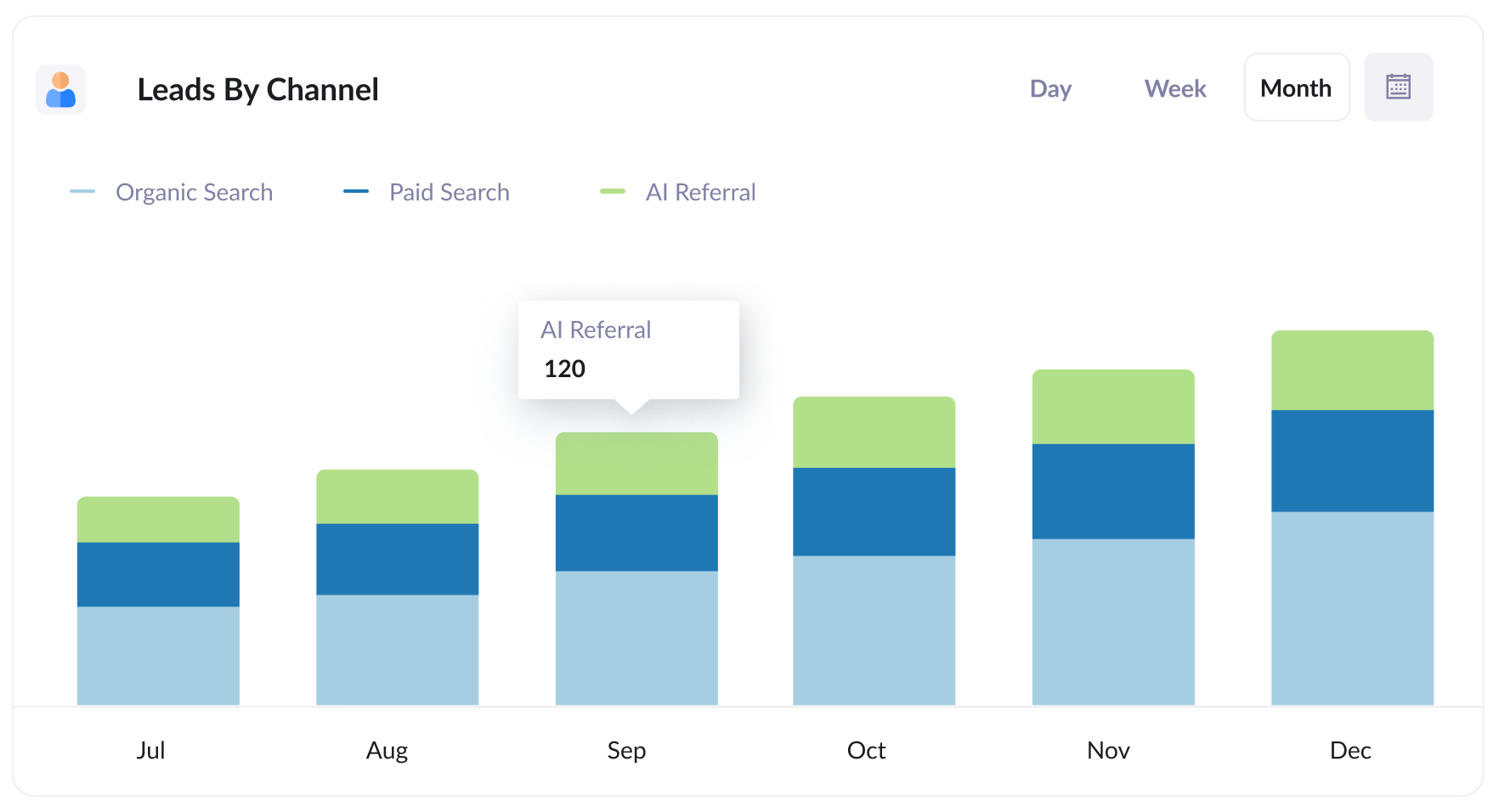
This report shows how many leads you generate each month, broken down by the channel they came from (AI Referral, Organic Search, Paid Search, Paid Social and so on).
It gives you a clear picture of how much AI is contributing to your lead targets. If AI referrals are still a small slice, you know there's room to grow. If they're starting to match organic search, you're clearly on the right track!
2. Customers by AI tool
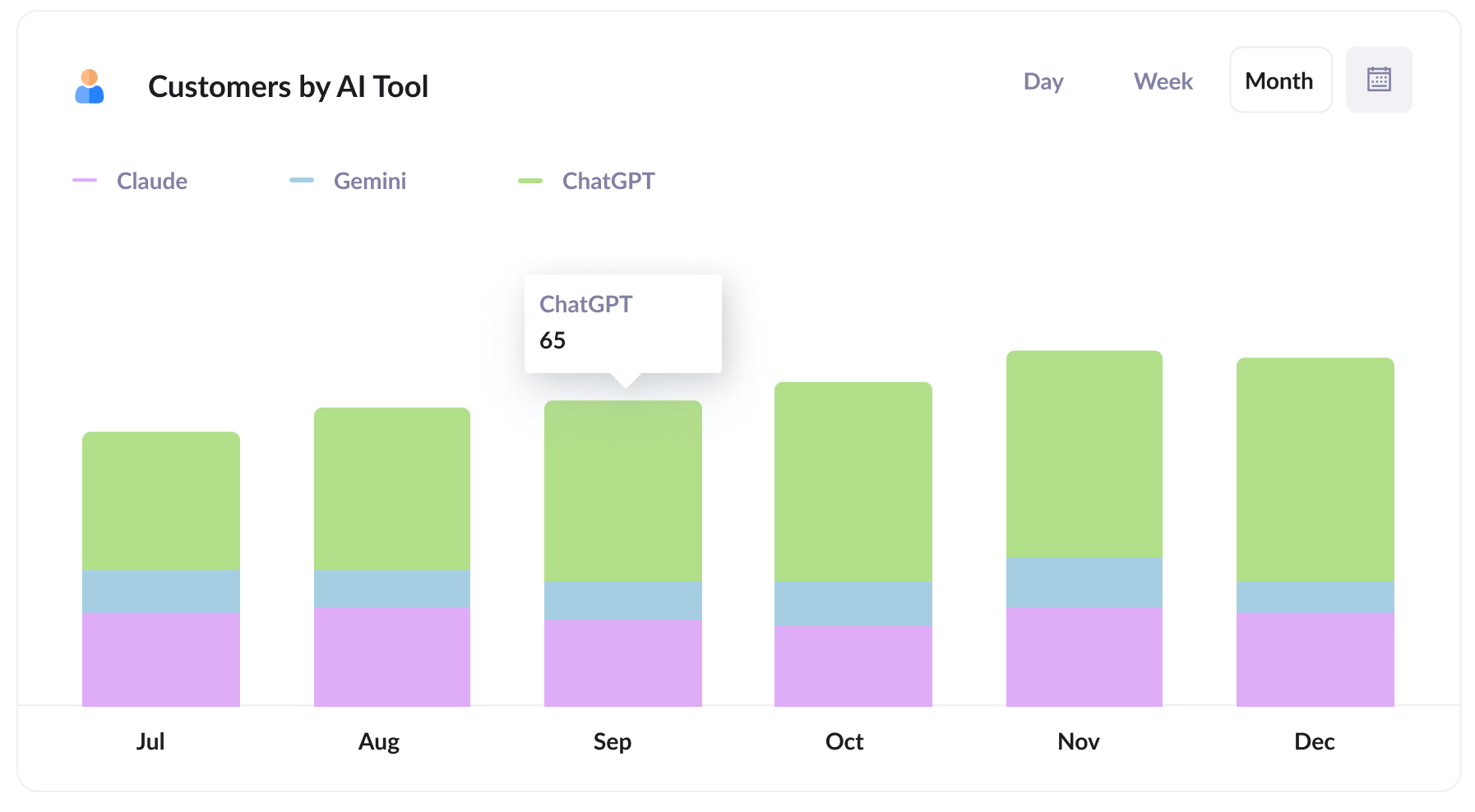
This report shows how many new customers you get each month broken down by the AI tool that sent them.
It allows you to compare AI tools like ChatGPT with others like Claude and Gemini, and can help you understand which ones to focus on. For instance, if most of your leads are coming from ChatGPT then it's probably the one your target market is using, so you're probably best off focusing your efforts there.
3. Close rate by channel
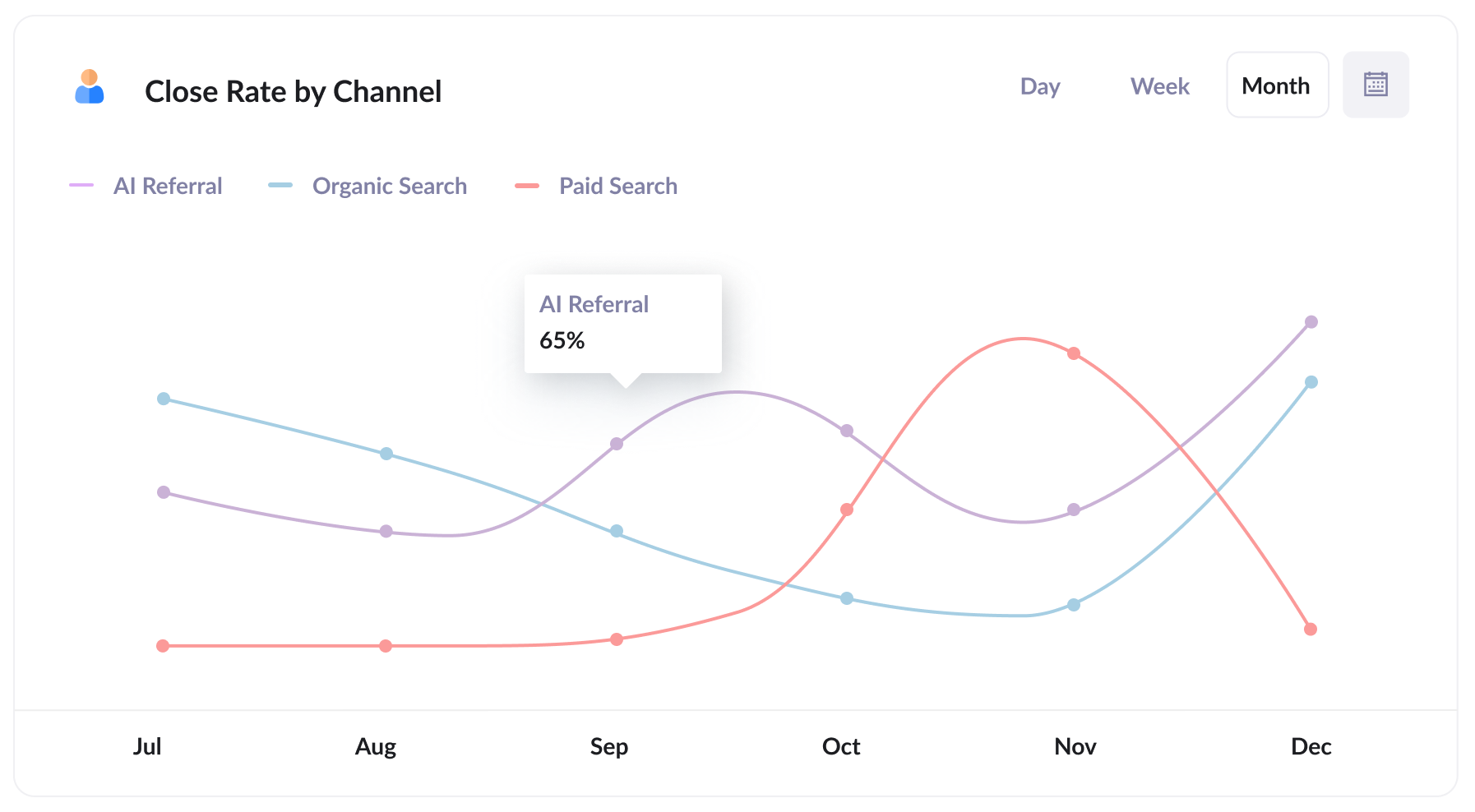
This report shows how often leads become customers, broken down by the channel they came from.
It's frequently the most revealing report of the four, because lead volume by itself can mislead you. You might find that 35% of your AI Referral leads go on to become customers, versus 10% of Organic Search leads and 7% of Paid Search leads.
If your numbers look like that, a lead from an AI tool is worth several times one from paid search, and that should change how you think about where you put your time and money.
4. Revenue from AI by landing page
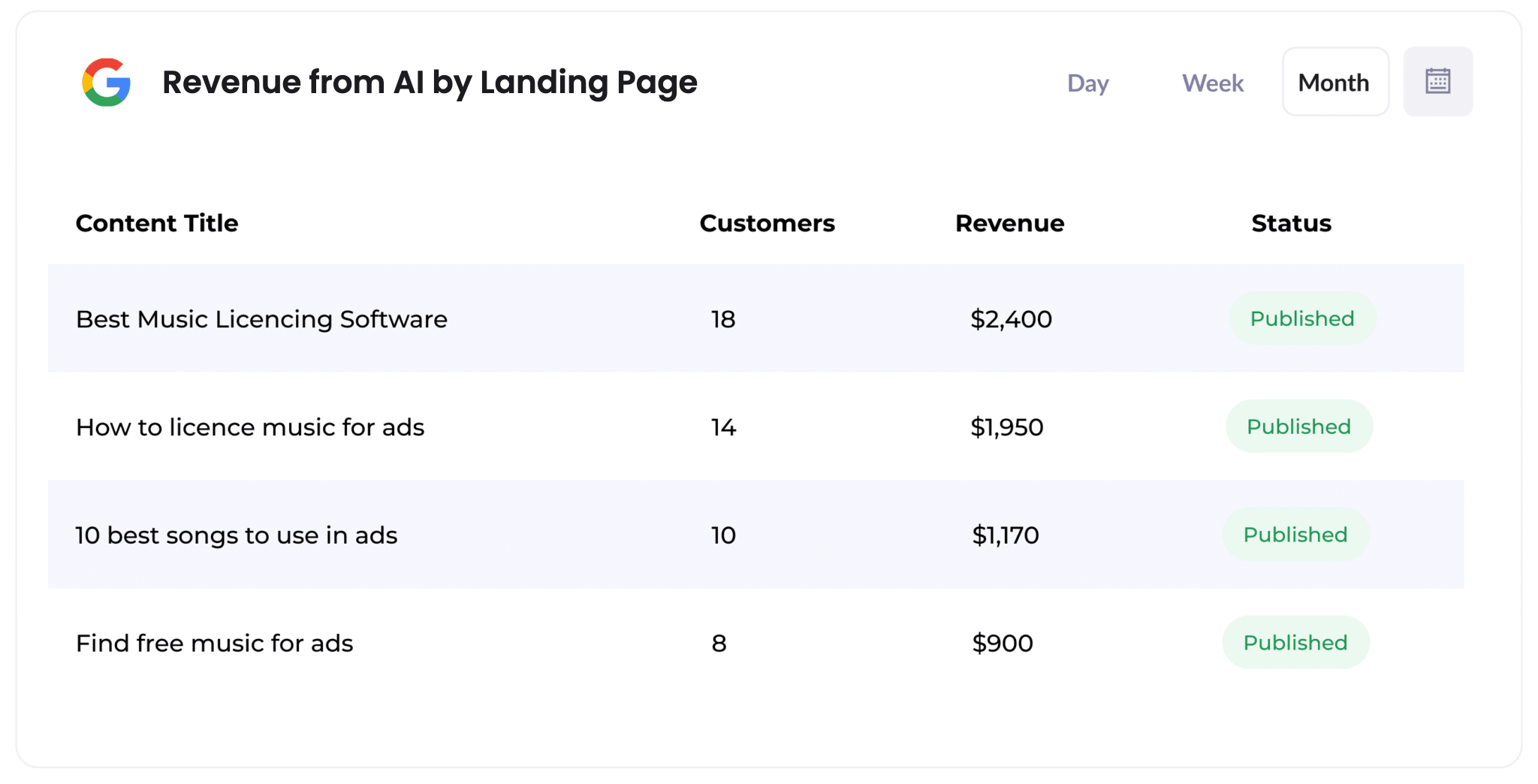
This report shows how many customers, and how much revenue, each piece of content on your site has generated from AI referrals.
It makes it easy to spot which pages (like specific blog posts or service pages) AI tools are citing and sending leads to.
It's basically a guide on what to write next. If a small number of pages drive most of your AI revenue, producing more content along those lines is a smart move.
Wrap Up
If you want to know how many leads and customers AI tools are really sending you, using Attributer with WPForms is a great way to do it.
Best of all, it's free to get started with Attributer and setup usually takes less than 10 minutes. So start your 14-day free trial today!
Get Started For Free
Start your 14-day free trial of Attributer today!

About the Author
Aaron Beashel is the founder of Attributer and has over 15 years of experience in marketing & analytics. He is a recognized expert in the subject and has written articles for leading websites such as Hubspot, Zapier, Search Engine Journal, Buffer, Unbounce & more. Learn more about Aaron here.