
Track leads & customers from AI in Microsoft Dynamics
Learn how to track how many leads & customers AI tools like ChatGPT are generating in Microsoft Dynamics CRM
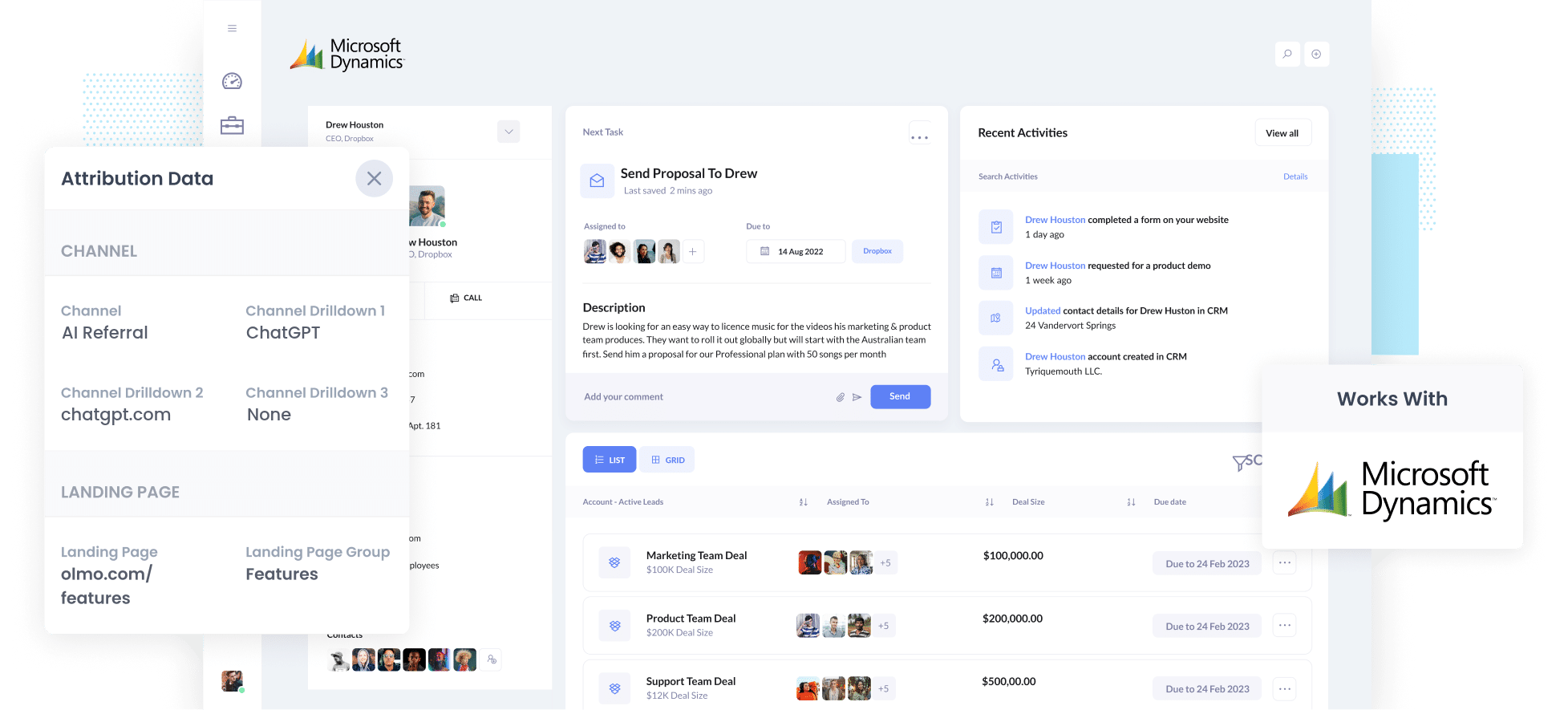
Use Attributer to capture AI referral data (like the fact a lead came from ChatGPT) with each form submission, pass it into Microsoft Dynamics CRM, and then report on how many leads and customers AI tools are really generating for your business.
When a new lead lands in Microsoft Dynamics, do you actually know how they found you? Maybe it was a Google Ads campaign, maybe a LinkedIn ad, or maybe ChatGPT recommended you.
More and more buyers are asking AI tools which products and services they should use, and it's only going to increase over time. The problem is that most AI visibility tools and website analytics platforms can't close the loop. AI tracking tools can show how often you're mentioned in AI answers, and Google Analytics can show how many people clicked through, but neither can tell you how many of those people became leads and customers.
The good news is that there's an easy way to fix it.
In this guide, we'll show you how to use a tool called Attributer to capture AI referral data for every new lead that arrives in Microsoft Dynamics. We'll also share a few reports you can build to see exactly how much ChatGPT, Claude and Gemini are adding to your pipeline.
4 steps to track leads & customers from AI in Microsoft Dynamics
Using Attributer with Microsoft Dynamics shows you exactly which leads came from AI tools. Here's how to set it up:
1. Install Attributer and add hidden fields
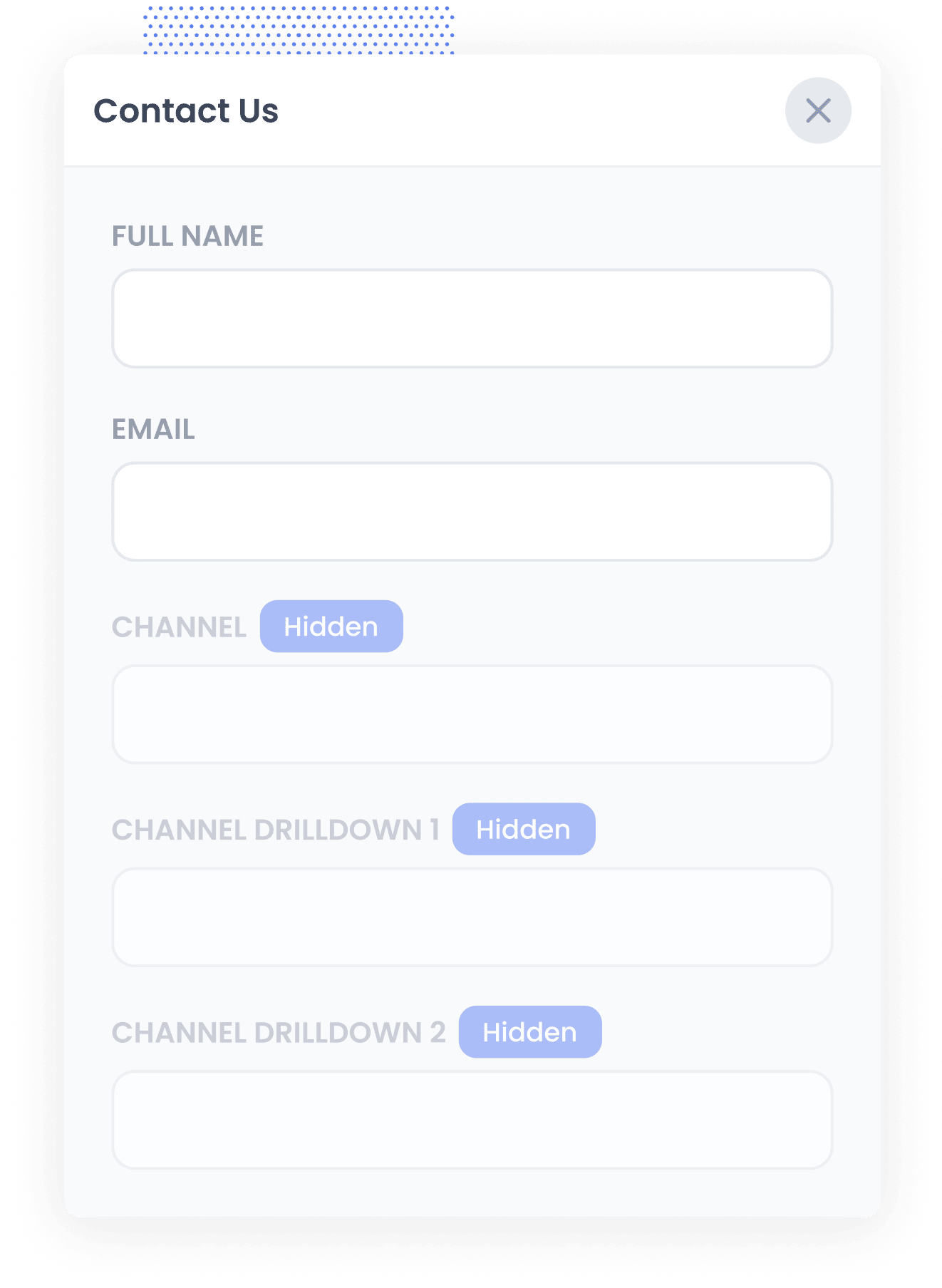
When you sign up for a 14-day free trial of Attributer, you'll be given a small snippet of code to add to your website. You can find full setup instructions here.
Once the code is in place, add these four hidden fields to the lead capture forms on your website:
- Channel
- Channel Drilldown 1
- Channel Drilldown 2
- Channel Drilldown 3
This part is simple in most form builders. Some include a 'Hidden' field type you can add in a couple of clicks, while others require you to add a standard text field and then hide it in the field settings. We've got step-by-step guides for Gravity Forms, Wix Forms, Webflow Forms and 50+ other form builders, scheduling tools and chat widgets here.
2. Attributer writes AI data into the hidden fields
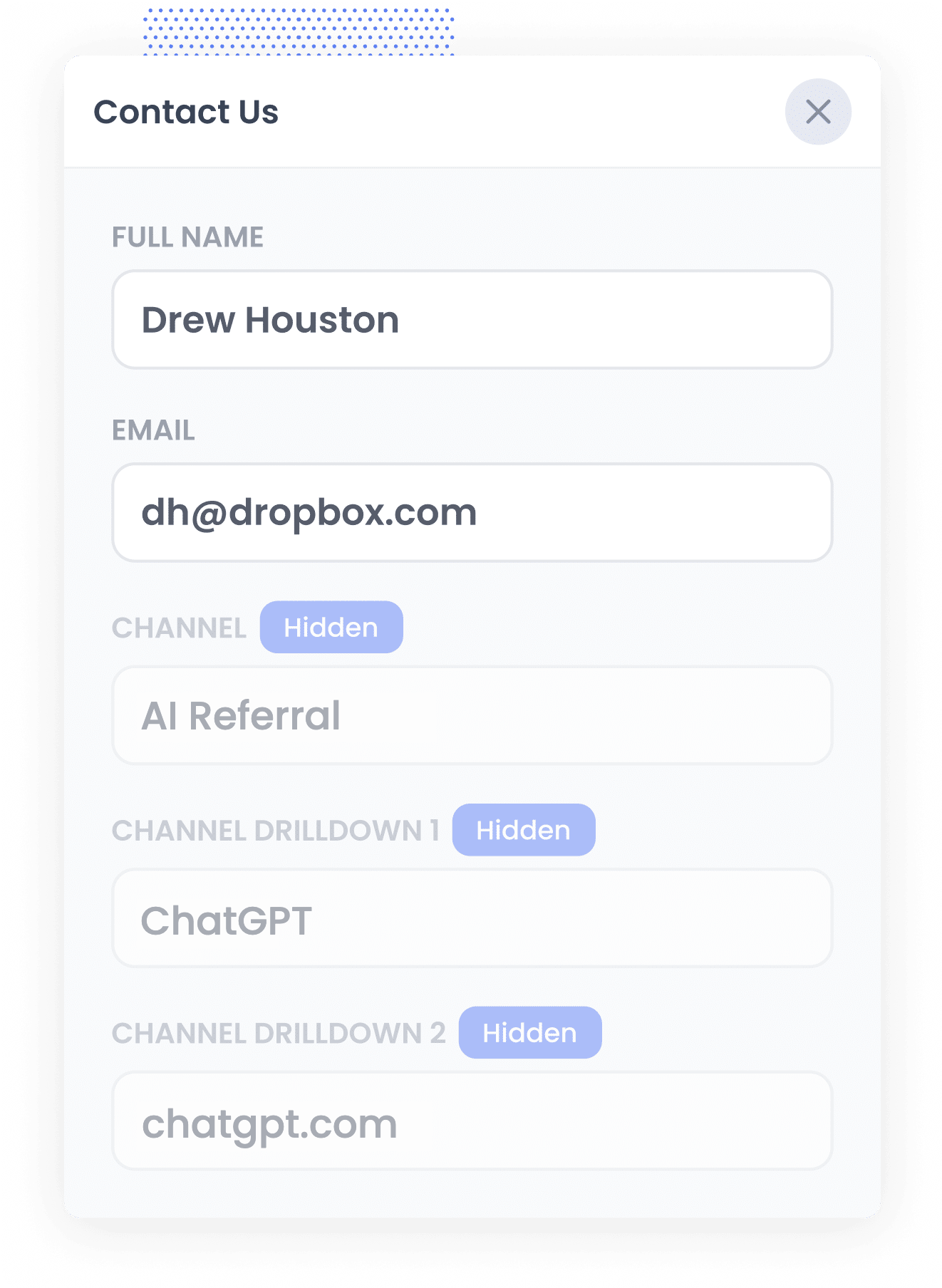
Whenever someone visits your website, Attributer looks at a range of technical signals (the same ones a tool like Google Analytics uses) to figure out how that visitor got there.
It then sorts the visitor into a channel (such as AI Referral, Organic Search, Paid Search or Paid Social) and saves that information in their browser.
Later, when the visitor fills in one of your forms (a 'Request a Consultation' or 'Contact Us' form, for example), Attributer writes the data on where they came from into the hidden fields (including the fact the visitor came from an AI referral and which tool sent them).
3. AI data is captured with each lead
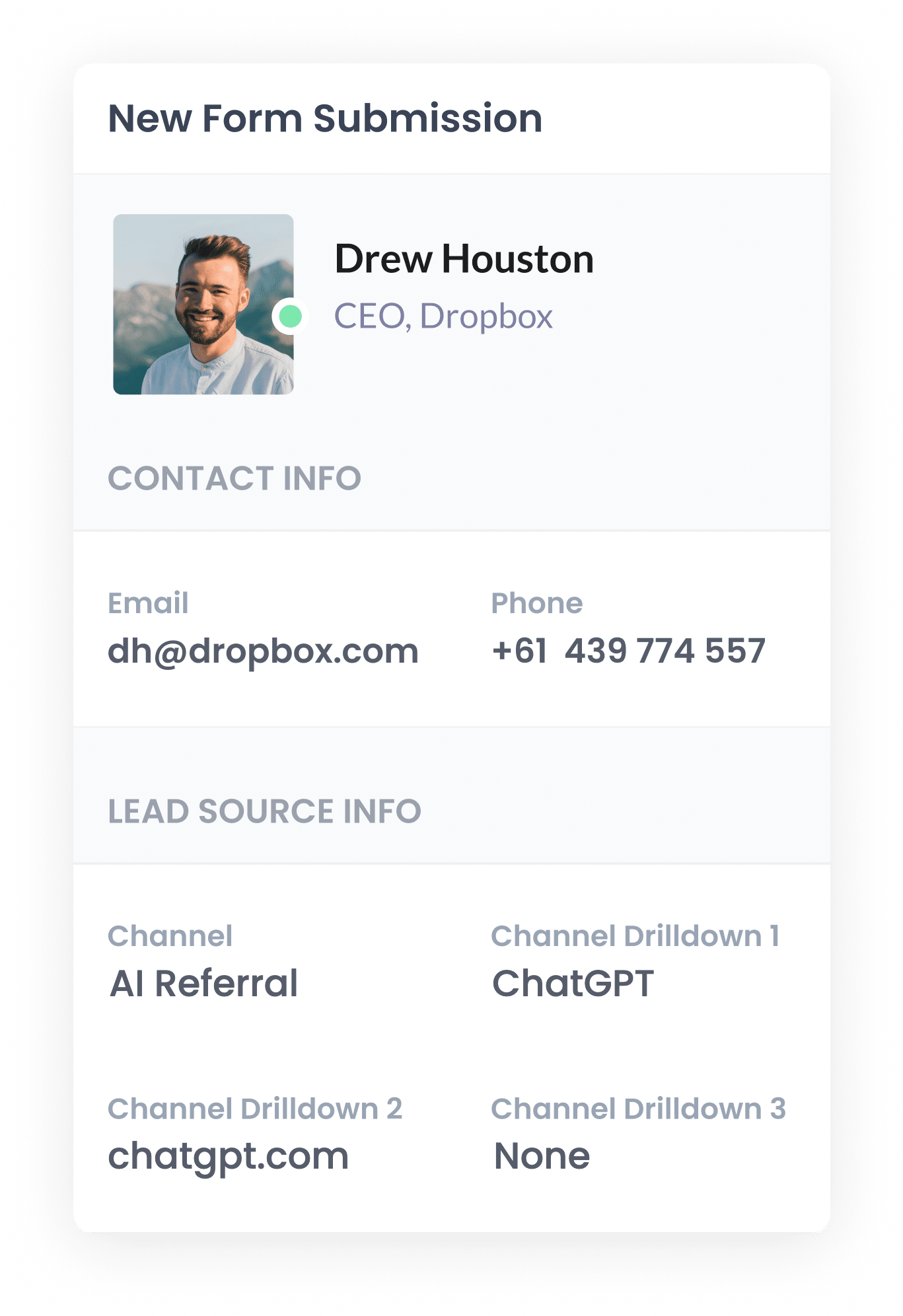
When the form is submitted, the data that Attributer wrote into the hidden fields is captured by your form tool, along with the name, email address and every other detail the visitor entered.
Attributer works with over 50 form builders, scheduling tools and live chat products, such as Gravity Forms, Contact Form 7, Wix Forms, Webflow Forms, Typeform, Jotform and Calendly.
4. AI data is sent to Microsoft Dynamics
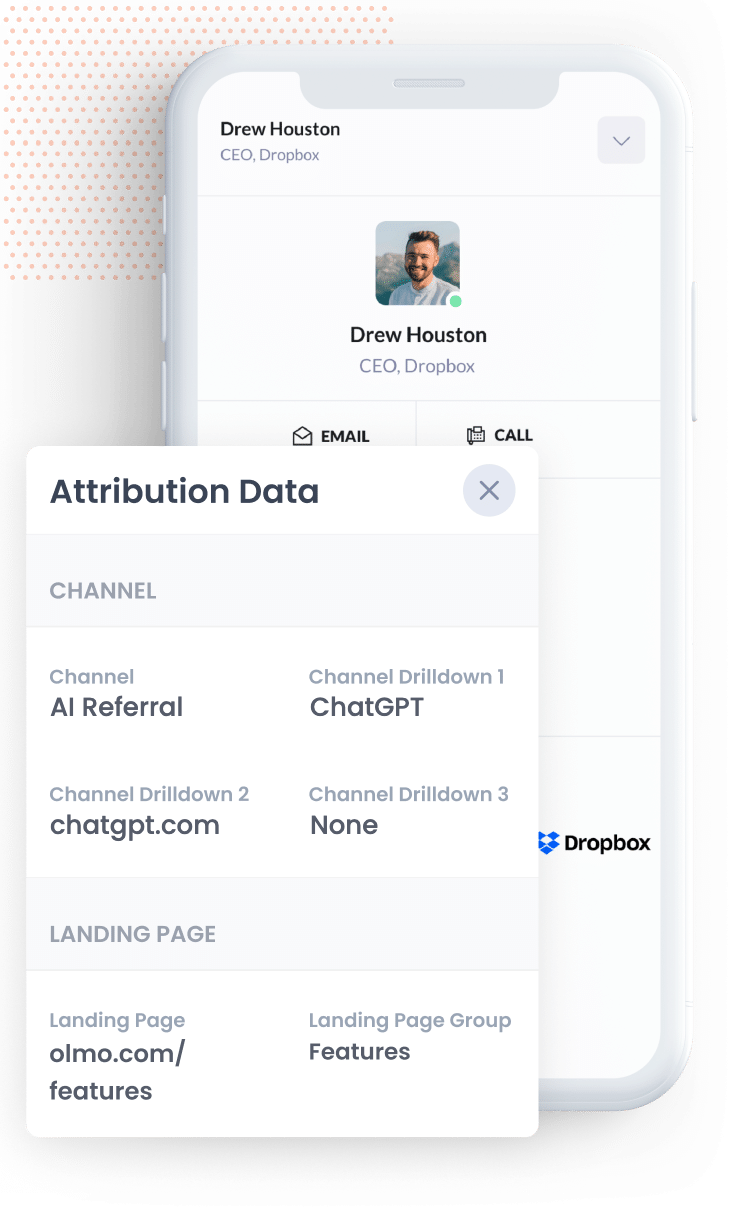
After your form tool captures the submission, it needs to pass it through to Microsoft Dynamics.
Depending on which form builder you use, you can either send it with the tool's built-in Microsoft Dynamics integration, or use a tool like Zapier or Power Automate to create a new lead in Microsoft Dynamics every time a form is submitted (including all the data Attributer captured).
Once it's there, the AI referral data sits on the lead record right next to their name, email, phone number and other details, ready for you to report on. You can start with the reports and dashboards built into Microsoft Dynamics, and if you want to go further, you can connect a tool like Microsoft Power BI, Looker Studio, or Tableau to build more detailed reports. You can even connect AI tools like Claude or ChatGPT and have them do the analysis for you!
What data gets captured
For each lead, Attributer passes through two types of information. There's how they got to your website (the channel) and which content they arrived on (the landing page).
To illustrate, imagine you look after marketing for an architecture firm. If someone asked ChatGPT to recommend an architect for a new office fitout, then clicked through and submitted an enquiry, this is what Attributer would capture:
- Channel = AI Referral
- Channel Drilldown 1 = ChatGPT (the AI tool that referred them)
- Channel Drilldown 2 = chatgpt.com (the domain they came from)
- Channel Drilldown 3 = None (AI referrals don't have a further level of detail, so this shows as None)
You'd also see the first page they landed on. Sticking with the same example, that could be:
- Landing Page = hollowayarchitects.com/services/commercial-fitouts
- Landing Page Group = /services
Knowing the landing page shows you which of your pages AI tools are actually recommending, which is really helpful when deciding what content to create next.
4 example reports you can run when you capture AI data in Microsoft Dynamics
I've worked in marketing for more than 15 years, and in that time I've built plenty of reports trying to work out which channels genuinely generate leads and which just drive impressions and clicks that go nowhere. These 4 have proven worth building again and again:
1. Leads by Channel
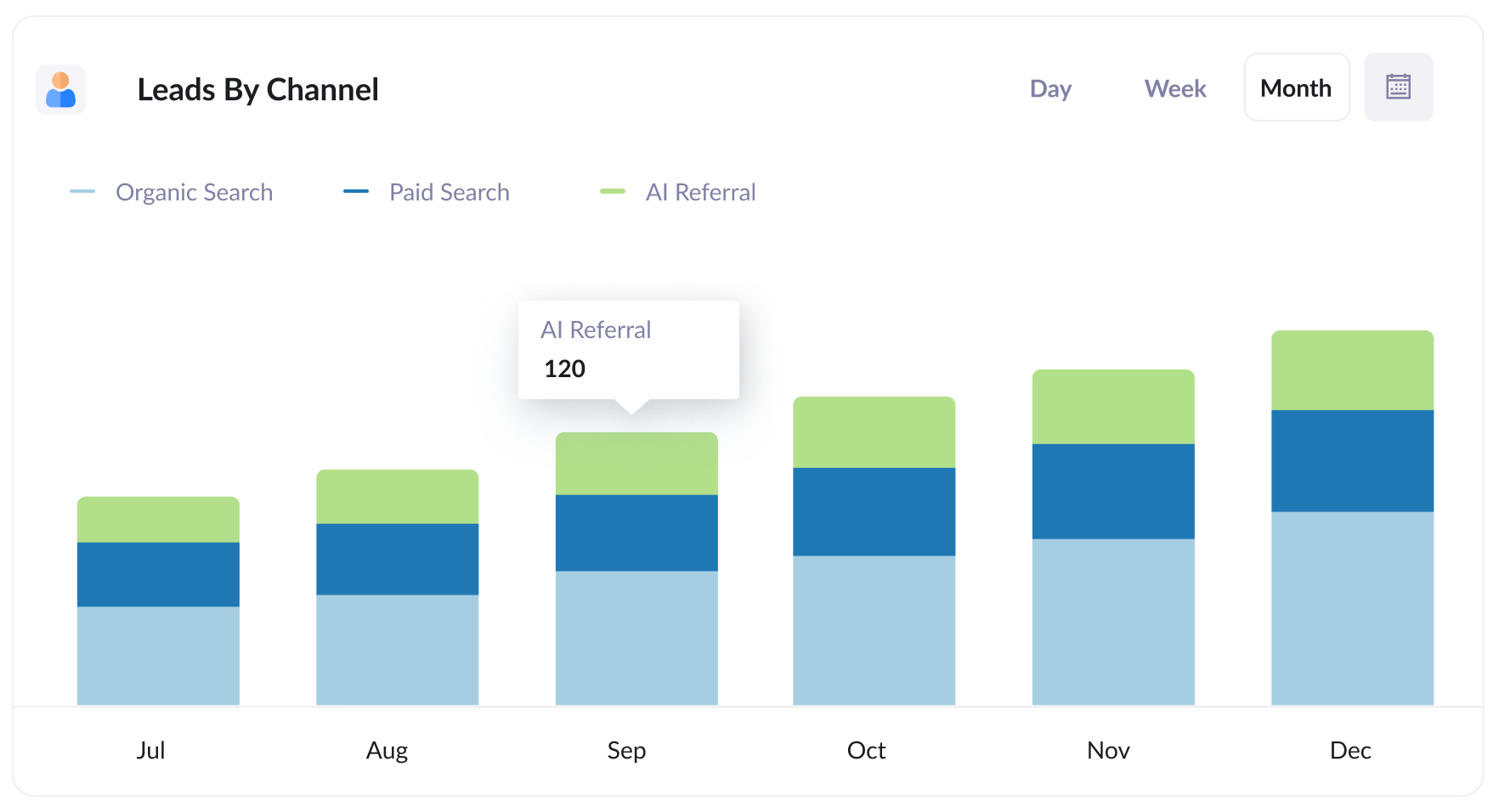
This report shows how many leads you're getting each month from each channel (AI Referral, Organic Search, Paid Search, Paid Social, and so on).
It's the fastest way to see how AI compares with every other channel that's sending you leads.
2. Customers by AI tool
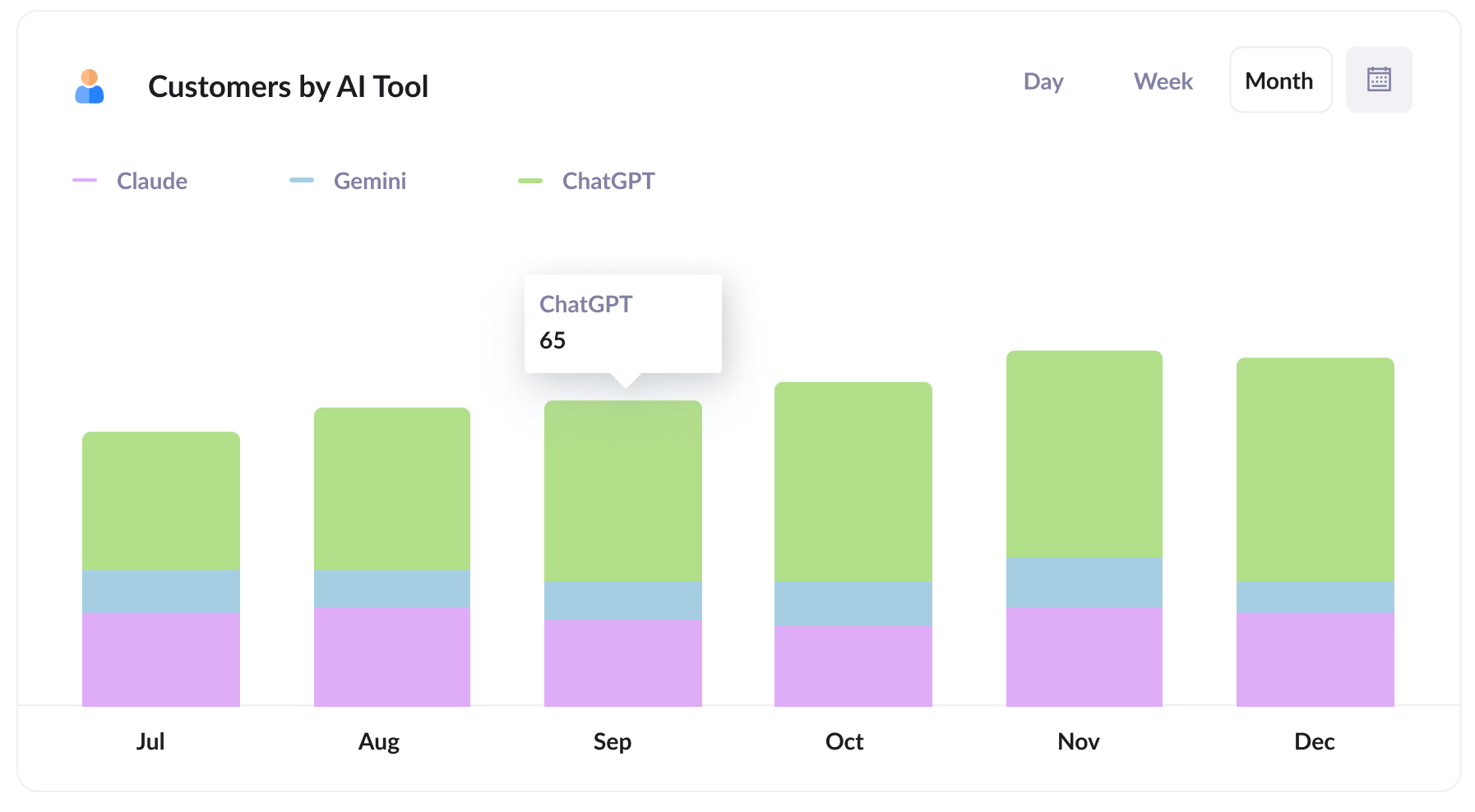
This report shows how many new customers arrived via AI tools, broken down by the tool that referred them. It lets you quickly compare ChatGPT with Claude and Gemini on the metric that matters most (number of paying customers).
Understanding which tool actually drives customers (rather than just mentions) tells you where to focus. If nearly all of them come from ChatGPT, that's a sign it's the one to watch closely and optimise for.
3. Close rate by channel
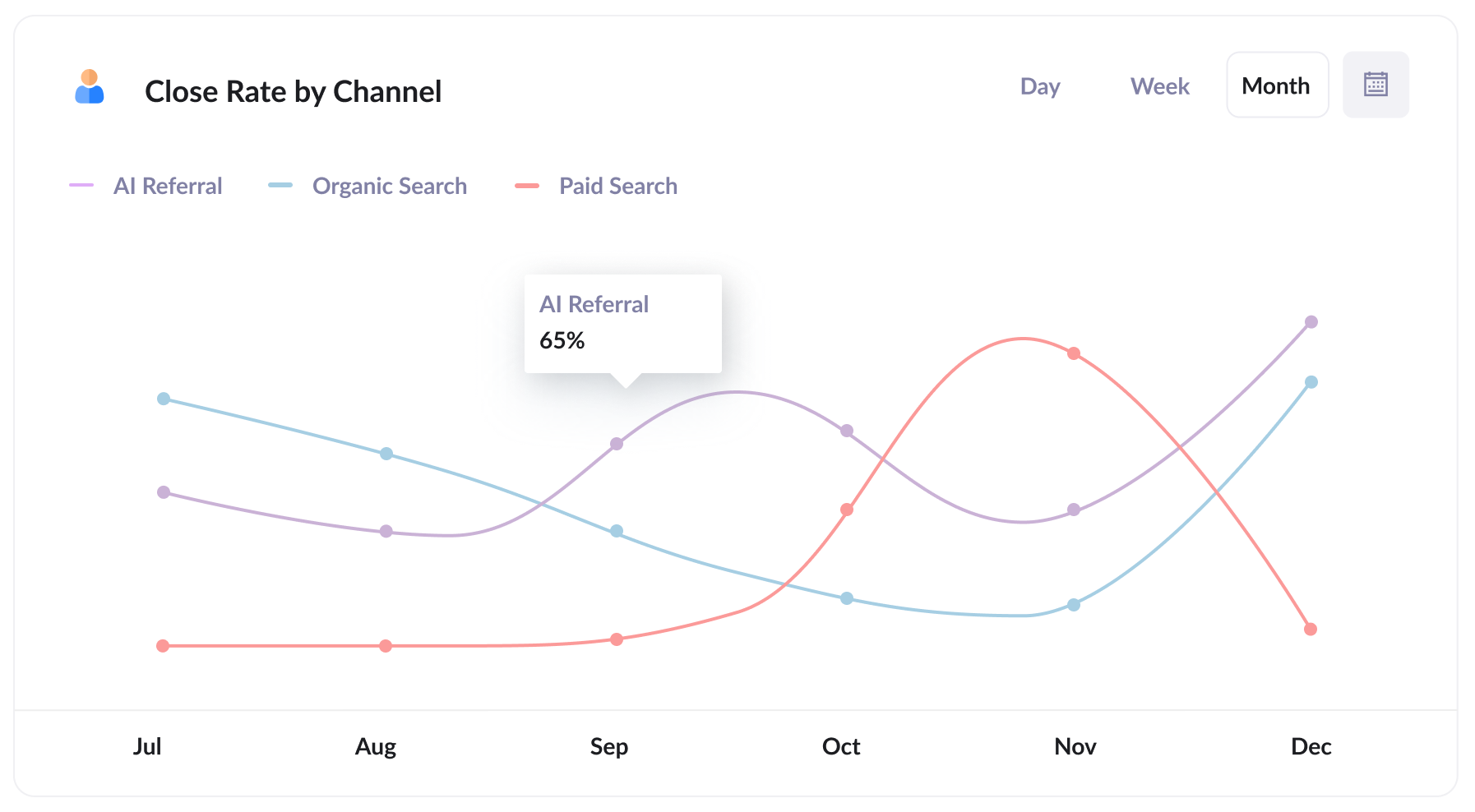
This report shows what percentage of leads from each channel go on to become customers.
It's often the most eye-opening of the four, because lead volume alone can be misleading. You might discover, for instance, that 35% of your AI Referral leads turn into customers, compared with 10% from Organic Search and 7% from Paid Search (people who come via an AI tool are usually much more educated on your products/services than people who just clicked a paid search ad).
If your results look anything like that, then one AI lead is worth several from paid search, and that should change where you spend your next marketing dollar.
4. Revenue from AI by landing page
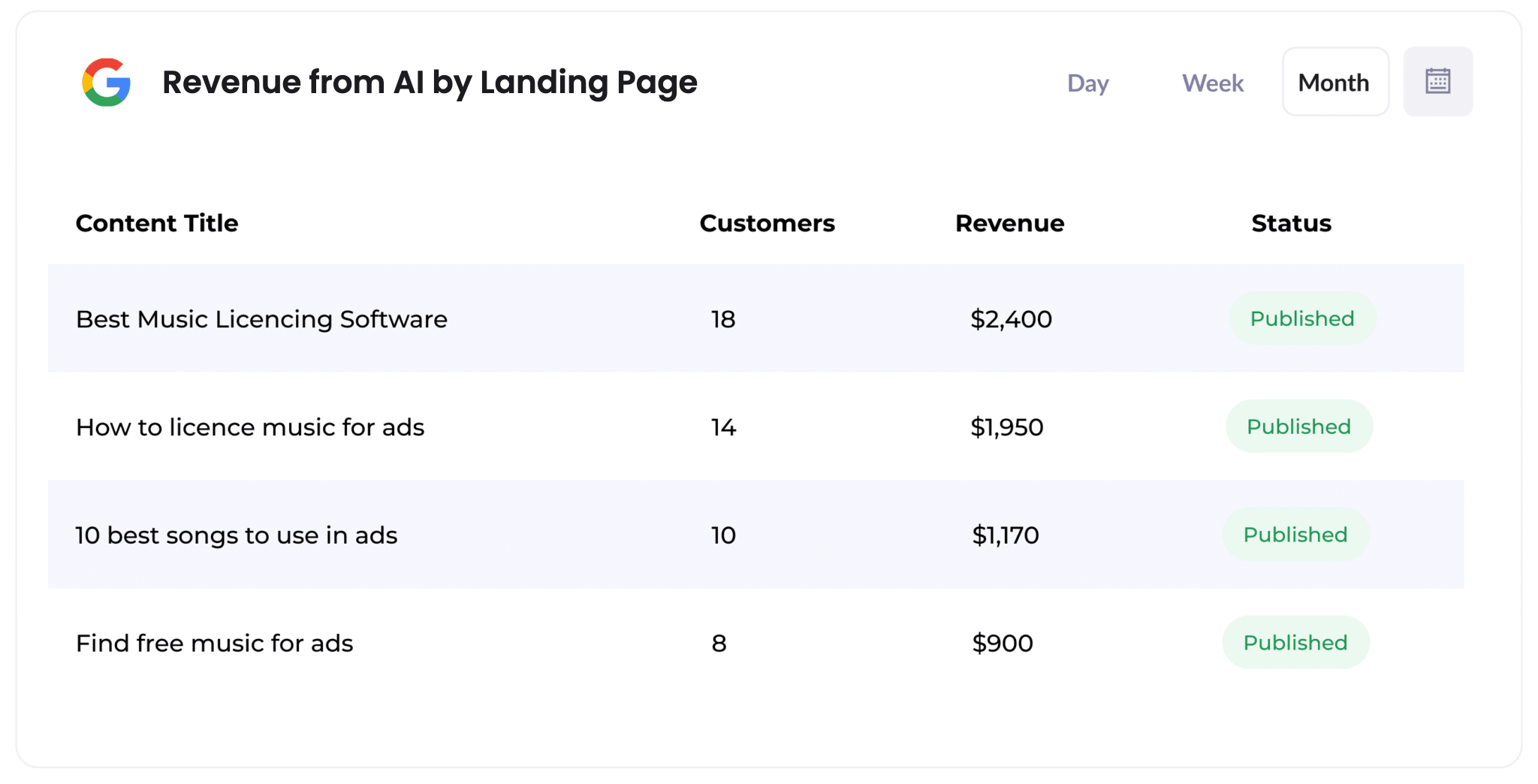
This report shows how many customers, and how much revenue, each page on your website has produced from AI referrals.
It's the easiest way to see which pages AI tools are recommending and actually sending buyers to. If most of the revenue comes from a small group of pages, you've got a clear direction for what content pieces to produce next.
Wrap Up
If you've been wondering how much of your pipeline really comes from AI tools, using Attributer with Microsoft Dynamics CRM is an easy way to find out.
Even better, Attributer is free to get started with and setup typically takes under 10 minutes. Start your 14-day free trial today!
Get Started For Free
Start your 14-day free trial of Attributer today!

About the Author
Aaron Beashel is the founder of Attributer and has over 15 years of experience in marketing & analytics. He is a recognized expert in the subject and has written articles for leading websites such as Hubspot, Zapier, Search Engine Journal, Buffer, Unbounce & more. Learn more about Aaron here.