
Track leads & customers from AI in Fluent Forms
Use Attributer to capture AI referral data with each Fluent Forms entry, so you can see how many leads you're getting from AI tools like ChatGPT and Gemini
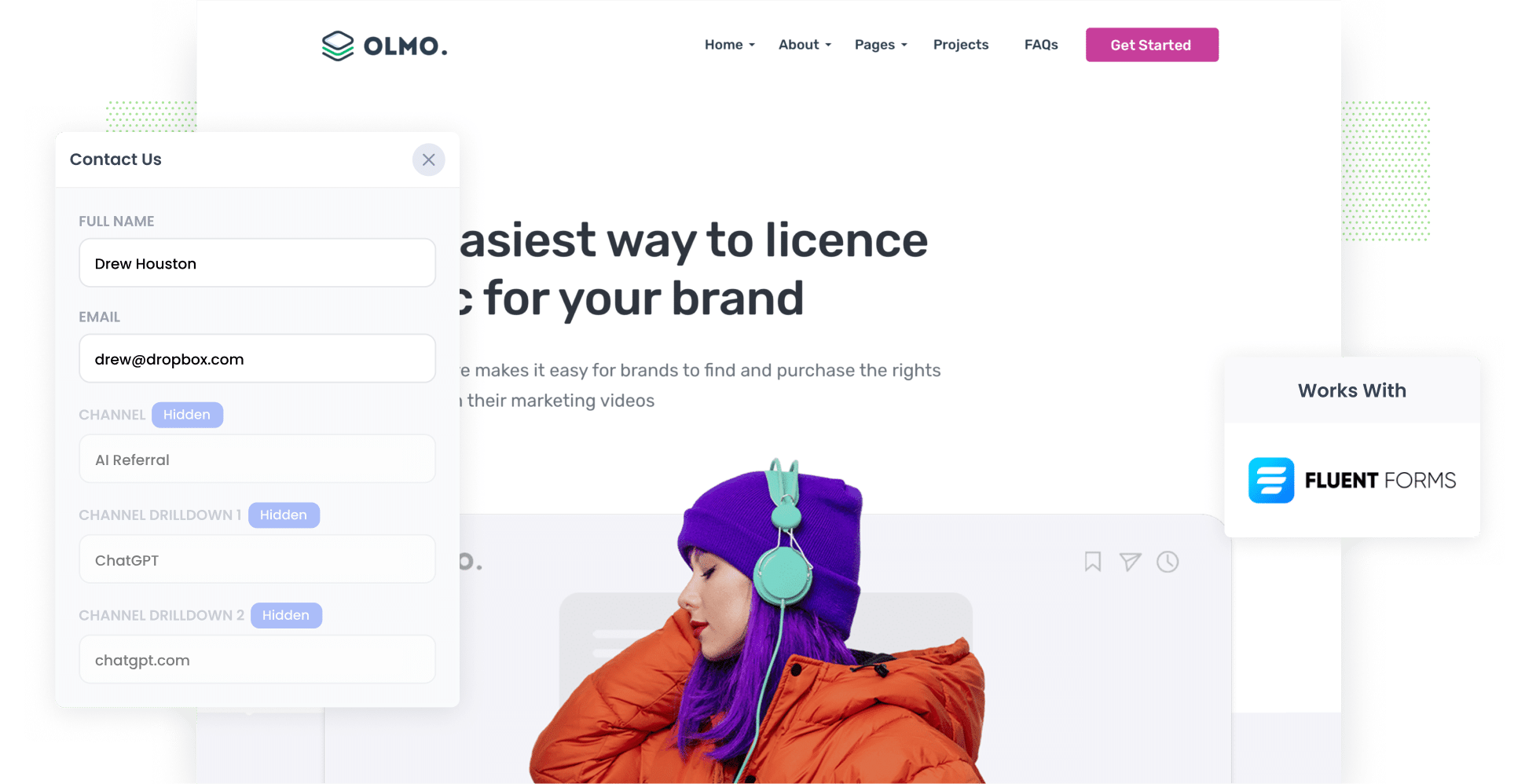
Attributer writes AI referral data (like the fact a lead came from ChatGPT) into hidden fields on your Fluent Forms forms, so it's saved with every entry. You can pass it on to your CRM and other tools, then run reports showing how many leads and customers AI is really generating for you.
Are ChatGPT, Claude or Gemini actually generating leads for your business? And if they are, how many of those people become paying customers?
At the moment, everyone is focused on getting 'mentions' and 'citations' in AI answers. But a mention is a long way from a paying customer, and if you are going to make informed decisions about your AEO/GEO strategy, you need to know how many leads AI is generating, which tools are sending them, what content is attracting them, and more.
Fortunately, that's easy to find out.
In this post, we'll show you how to use a tool called Attributer to capture AI referral data with every Fluent Forms entry on your website. We'll also show you how to get that data into your CRM and other tools, and we'll walk through a few reports you can run to see exactly how many leads and customers AI is generating for your business.
4 steps to track leads & customers from AI in Fluent Forms
Using Attributer with Fluent Forms shows you how many leads AI tools are generating for your business (and whether those leads go on to become customers). Here's how it works:
1. Install Attributer and add hidden fields to your forms
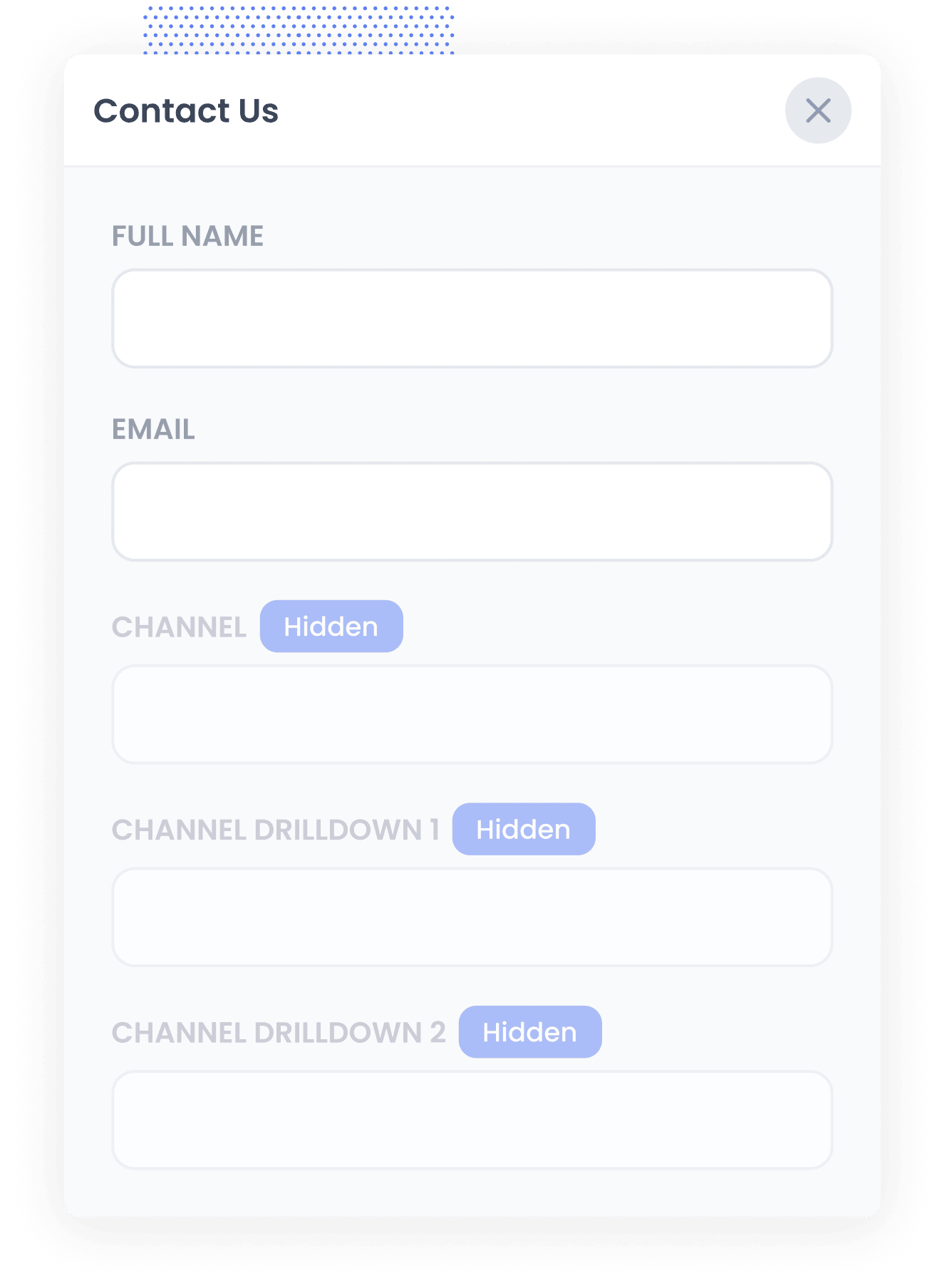
Start your 14-day free trial of Attributer and you'll get a small snippet of code to add to your website. The instructions for installing it are here.
Once that's been installed, add a set of hidden fields to each Fluent Forms form you want to track. There are 6 of them:
- Channel
- Channel Drilldown 1
- Channel Drilldown 2
- Channel Drilldown 3
- Landing Page
- Landing Page Group
To add them, click Fluent Forms in your WordPress admin menu, then click 'Edit' under the form you want to track. Drag 6x 'Hidden Field' fields (you'll find them under 'Advanced Fields') into the form, then click each one and set its Field Label, Default Value and Name Attribute. The exact values for each field are in our setup guide available here.
Alternatively, you can install our WordPress plugin and simply select which forms you want Attributer to work on.
2. Attributer works out where each visitor came from
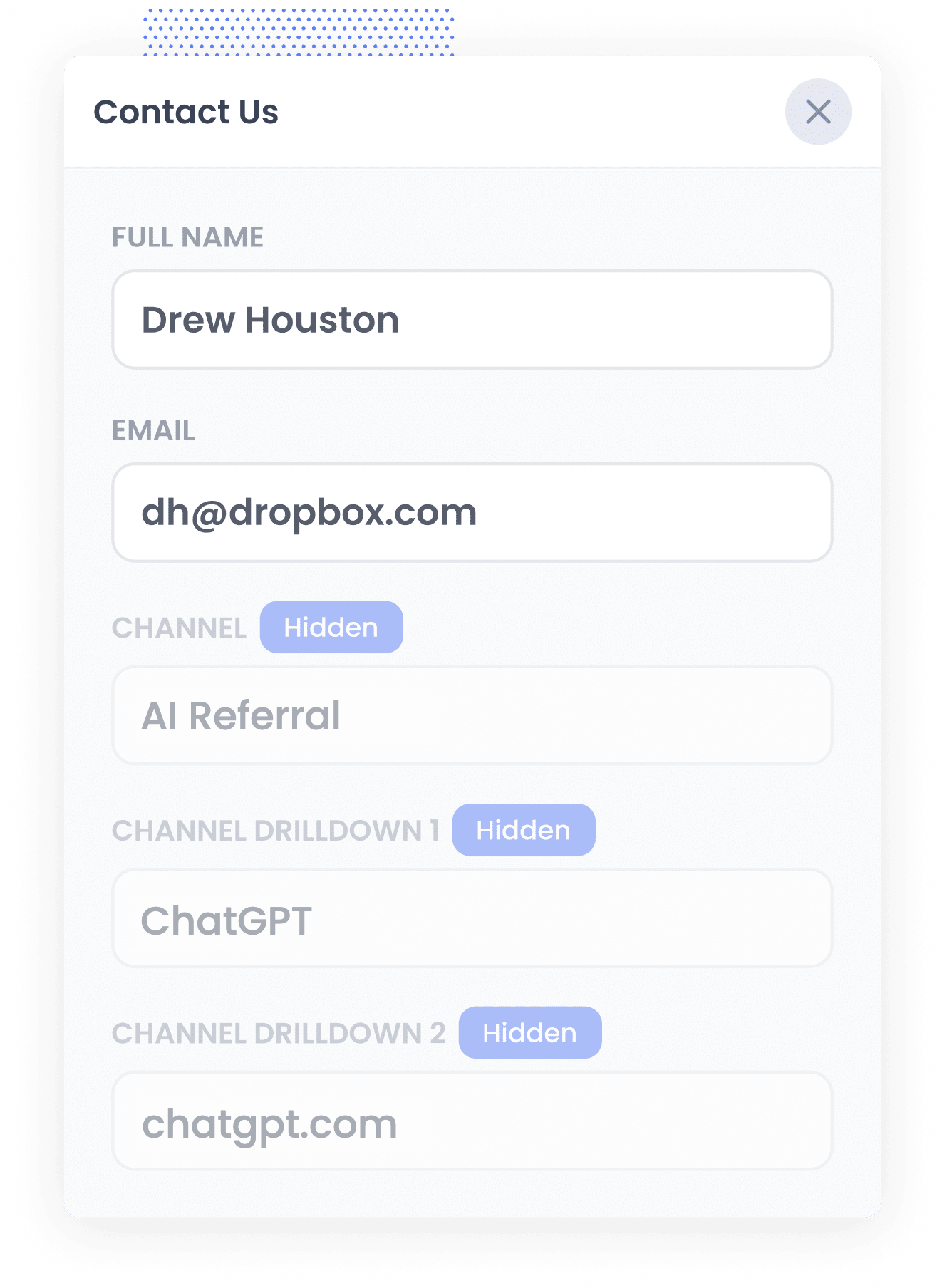
As soon as someone lands on your website, Attributer looks at a range of signals to work out how they found you.
It then uses those signals to categorise the visitor into a channel like AI Referral, Organic Search, Paid Search or Paid Social, and stores that in their browser.
Then, when the visitor completes one of your Fluent Forms forms (like a 'Contact Us' or 'Request a Proposal' form), Attributer writes the source data into the hidden fields you added.
3. AI data is captured with each entry
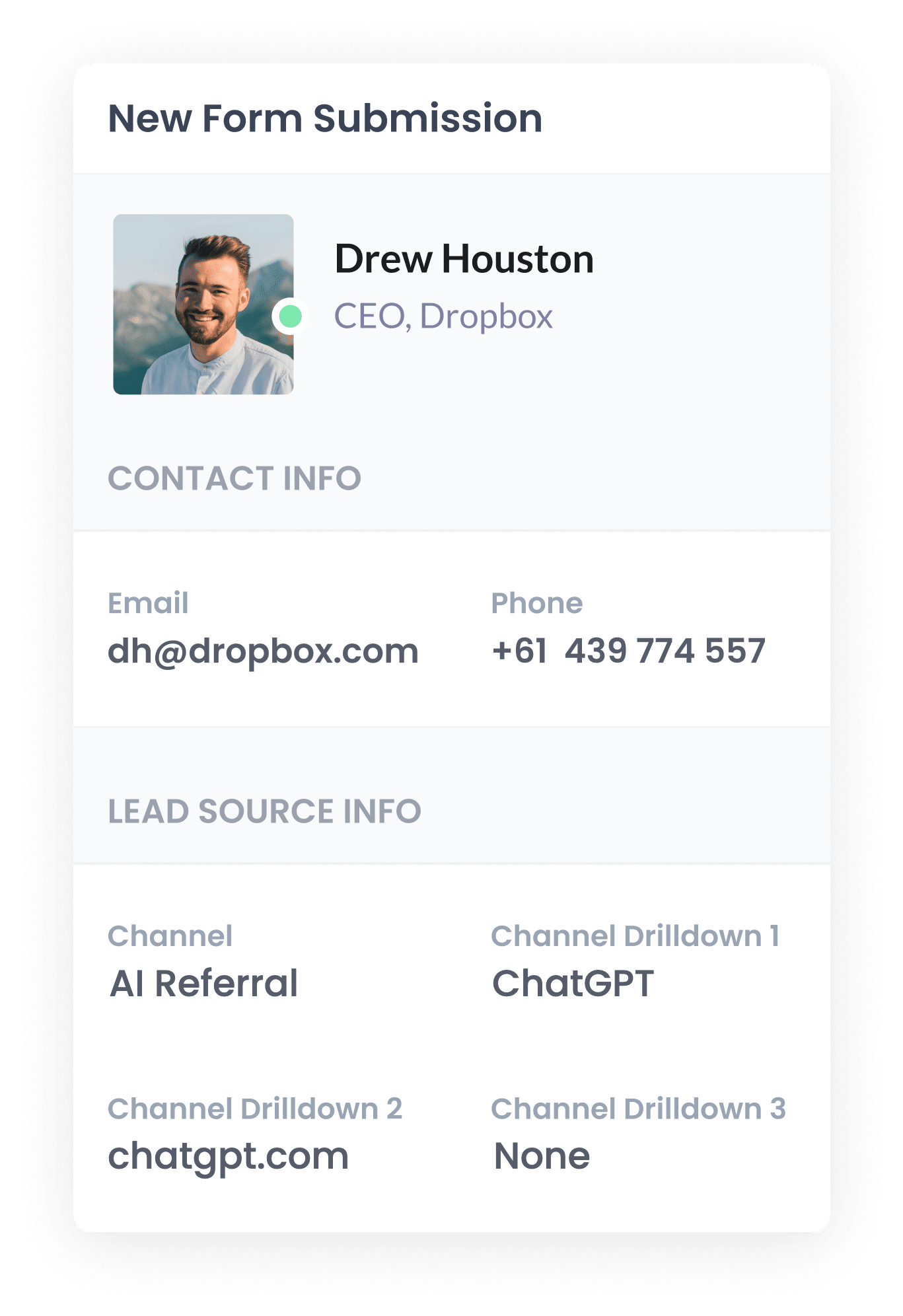
When the form is submitted, the AI referral data is saved with the entry in Fluent Forms (alongside the lead's name, email and anything else they entered into your form).
To see it, open Fluent Forms in your WordPress admin, go to the Entries section for that form, and click into a specific entry. You'll see the AI referral data listed there alongside the lead's name, email, etc.
Once the data has been captured in Fluent Forms, you can send it on to your CRM using one of the built-in integrations (like HubSpot, Salesforce or ActiveCampaign), or with a tool like Zapier or Make.
4. Report on AI leads
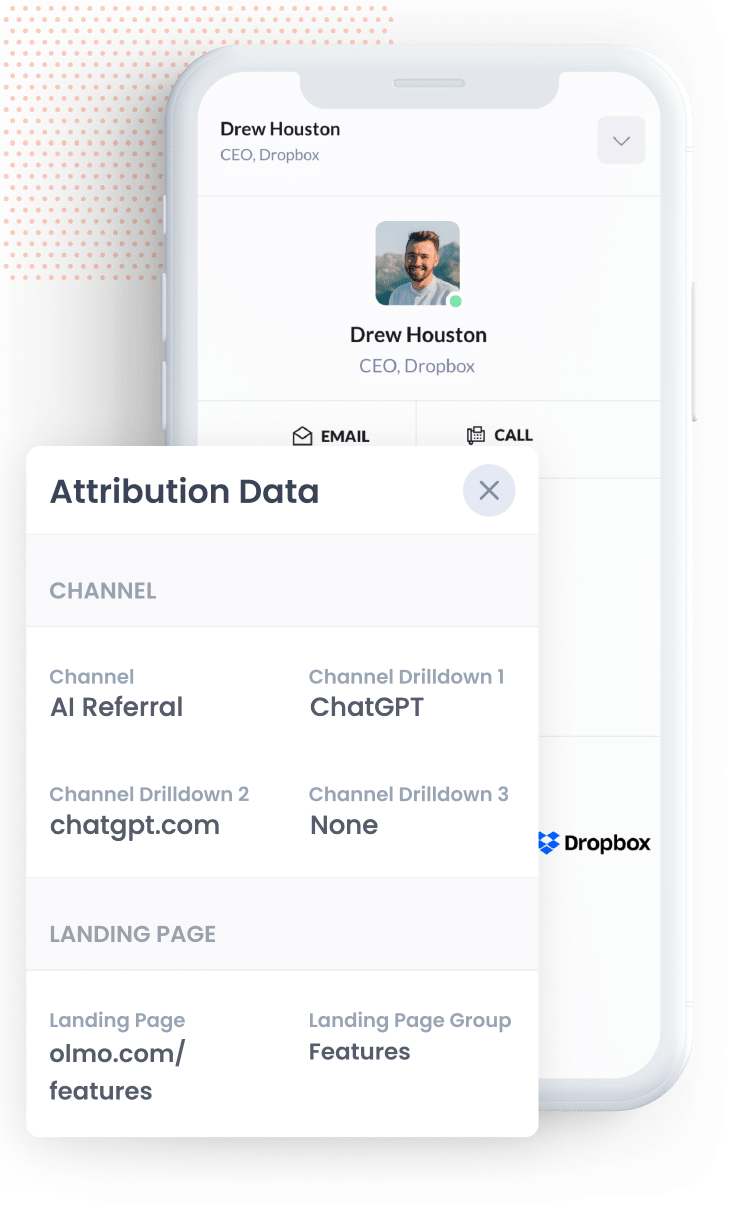
Once the data is in your CRM (or wherever you keep your leads), you can use it to build reports that show how many leads and customers came from AI, which AI tools sent them, and how much revenue they generated.
Most CRMs have built-in reporting that can do this easily. Or if you'd prefer a dedicated reporting tool, you can connect tools like Tableau, Google Data Studio and Microsoft Power BI to your CRM and build your charts and dashboards there.
Or if you'd rather not build reports at all, just connect Claude or ChatGPT to your CRM and ask "How many leads did we get from AI referral this month?"
What data gets captured
Attributer captures two types of information for every lead. The first is how they found your website (the channel), and the second is the content that brought them in (the landing page).
As an example, imagine you run marketing for a marketing agency, and the owner of a local dental group asks ChatGPT to recommend an agency that can run their Google Ads and bring in more new patients. They click through to your site and fill in your 'Request a Proposal' form. Here's what would be captured with the entry:
- Channel = AI Referral
- Channel Drilldown 1 = ChatGPT (or whichever AI tool sent them)
- Channel Drilldown 2 = chatgpt.com (the domain they came from)
- Channel Drilldown 3 = None (AI referrals don't have a deeper level of detail, so this shows as None)
You'd also capture the first page they landed on. Using the same example, that might look like this:
- Landing Page = brightlanedigital.com/services/google-ads-management
- Landing Page Group = /services
The landing page data shows you which content on your website AI tools are reading and recommending, which makes it much easier to decide what to create next.
4 example reports you can run when you capture AI data in Fluent Forms
Throughout my 15 years in marketing, I've built more reports than I can count trying to work out which channels were pulling their weight and which ones weren't. Below are the 4 I keep coming back to, and they're all simple to put together once Attributer is set up with Fluent Forms:
1. Leads by Channel
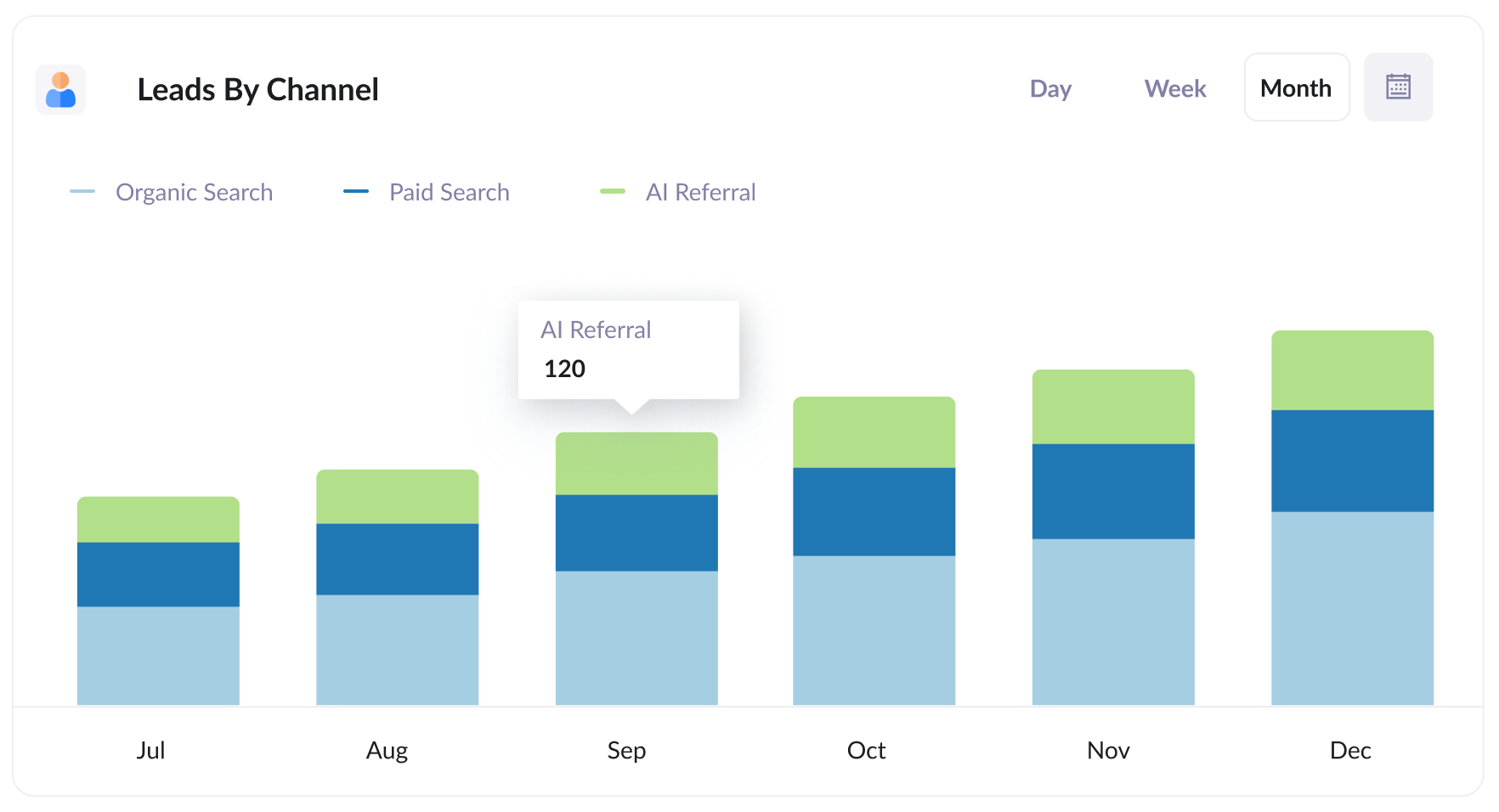
This report shows how many leads you get each month, broken down by the channel they came from (like AI Referral, Organic Search, Paid Search, Paid Social and so on).
It tells you exactly how many leads AI is sending you, and lets you compare that against your other channels so you can judge how much AEO/GEO really matters to your business.
2. Customers by AI tool
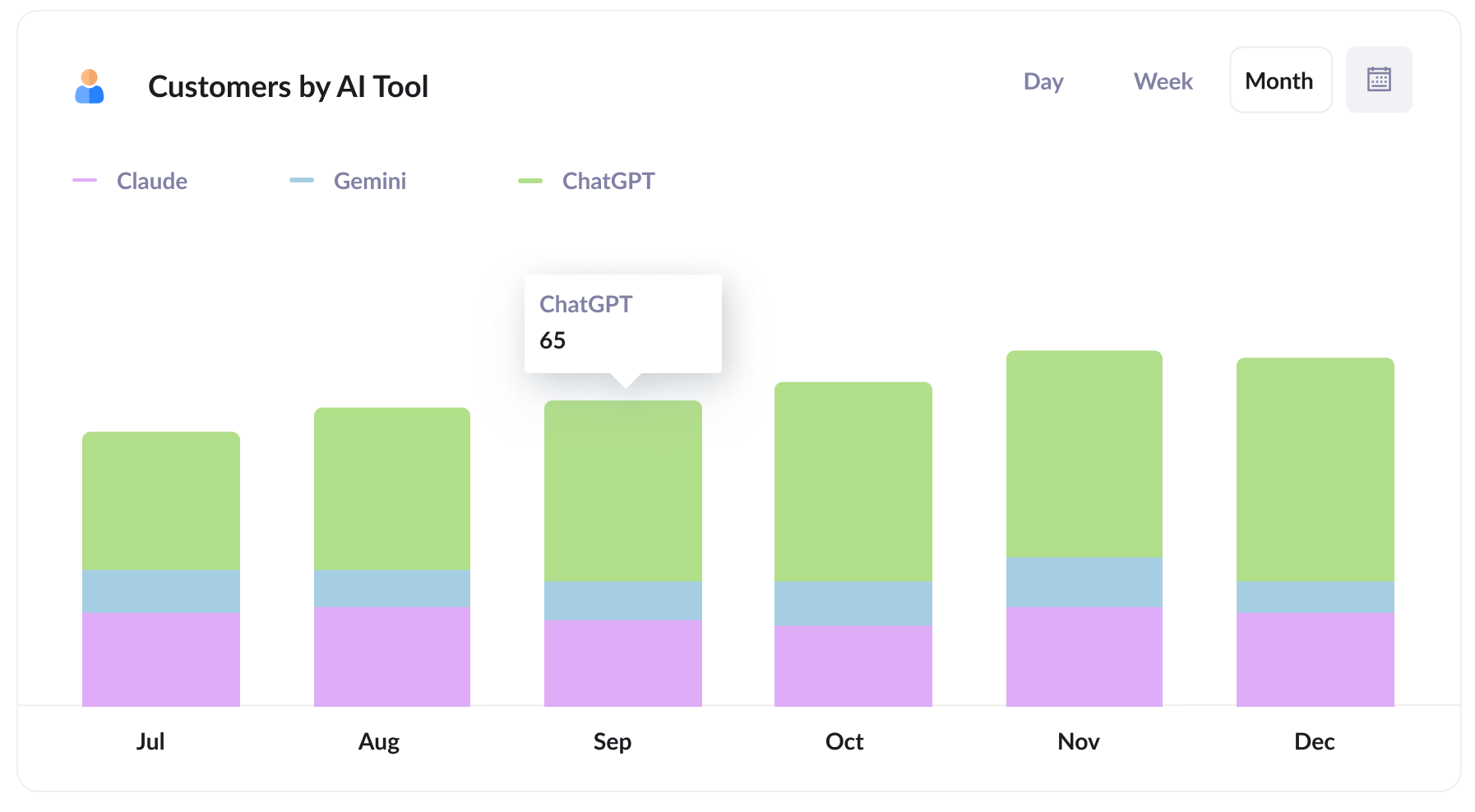
This one shows how many new customers you win each month from AI referral, split by the AI tool that sent them.
It lets you compare ChatGPT, Claude, Gemini, etc. side by side to see which ones deserve your attention. If most of your AI leads come from ChatGPT (for example), then it's probably a sign that's the tool your target customers are using most (and therefore the one you should be paying the most attention to).
3. Close rate by channel
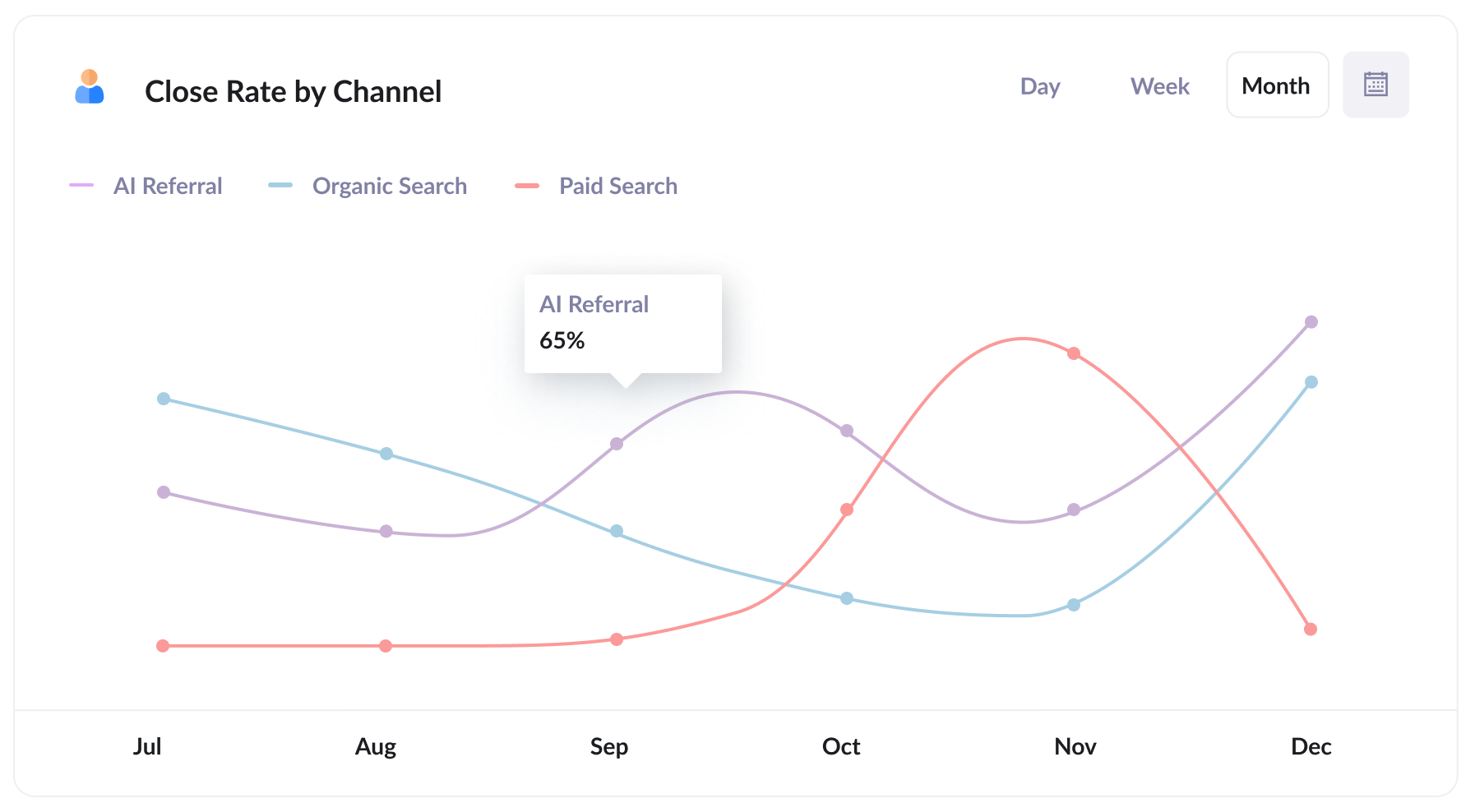
This report shows what percentage of leads go on to become customers, broken down by the channel the lead came from.
The results can be surprising. For instance, you might find that around 30% of your AI Referral leads become customers, compared with only 15% of Organic Search leads and 10% of Paid Search leads (people who come from AI tools have usually had a conversation with the AI about your products or services, so they tend to be more qualified and close at a higher rate).
If your numbers look anything like that, a lead from AI could be worth several times as much as one from paid search, and that should shape where you spend your time and budget.
4. Revenue from AI by landing page
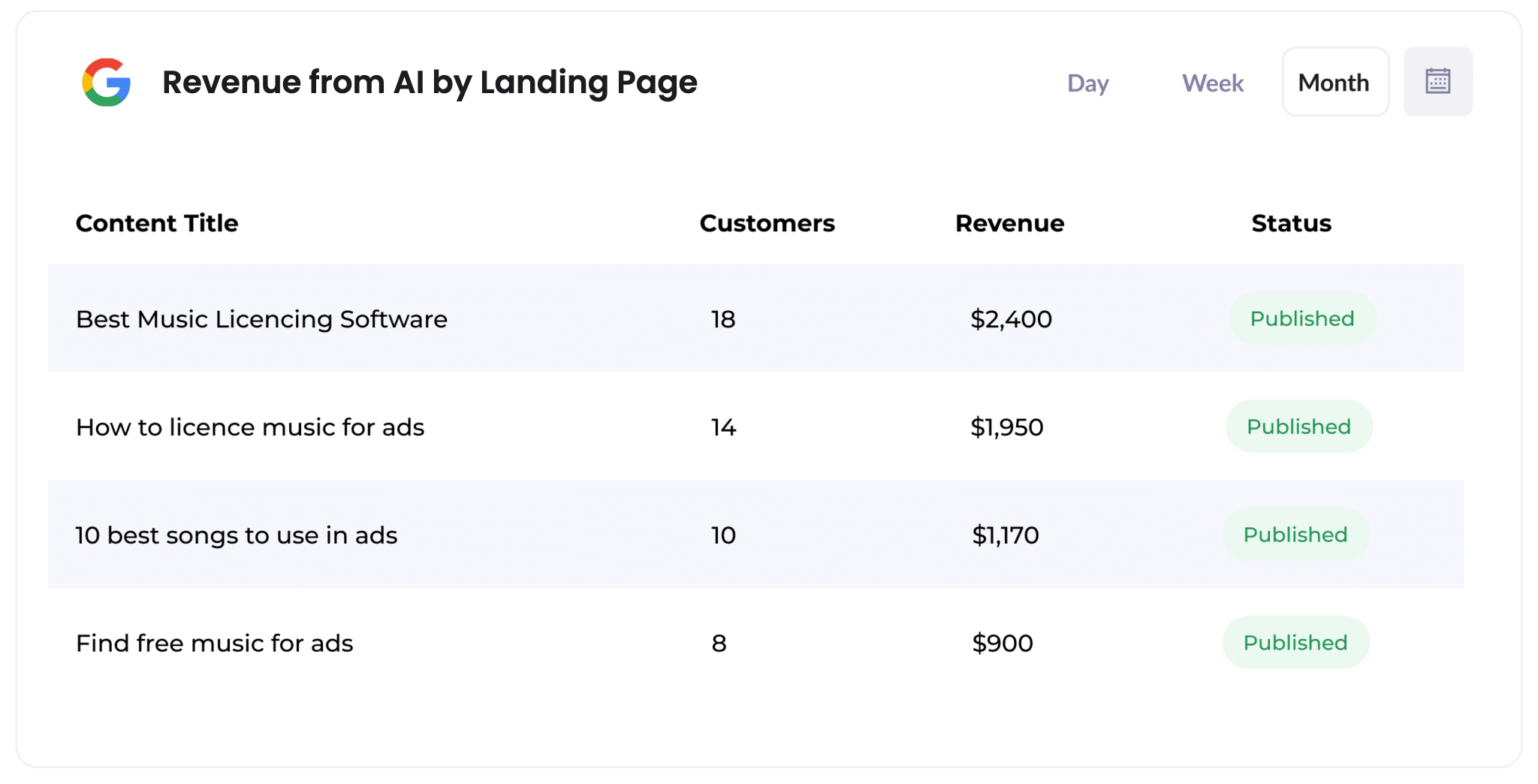
This report shows how many customers, and how much revenue, each page on your website has generated from AI referrals.
It makes it easy to see which pages (like particular blog posts or service pages) AI tools are citing and sending leads to.
Use it as a guide for what to create next. If a handful of pages are bringing in most of your AI revenue, more content along the same lines is probably a smart investment.
Wrap Up
If you want to know how many leads and customers AI tools are really sending you, using Attributer with Fluent Forms is a great way to find out.
Attributer is free to get started with, and setup usually takes less than 10 minutes. So start your 14-day free trial today!
Get Started For Free
Start your 14-day free trial of Attributer today!

About the Author
Aaron Beashel is the founder of Attributer and has over 15 years of experience in marketing & analytics. He is a recognized expert in the subject and has written articles for leading websites such as Hubspot, Zapier, Search Engine Journal, Buffer, Unbounce & more. Learn more about Aaron here.