
The best way to track Contact Form 7 submissions as conversions in Google Ads
Get up to 23% more recorded conversions in Google Ads by tracking your Contact Form 7 submissions the right way.

Use Attributer to capture the GCLID and other identifiers in Contact Form 7 submissions, then send them back to Google Ads as a conversion. This can happen either straight away when the form is submitted, or later when the lead becomes a customer in your CRM.
Google Ads is one of the best ways to generate new leads for your business. But getting conversion tracking set up properly? That's a different story.
Google Tag Manager needs custom code to listen for form submissions, plus triggers, tags, variables, and a dozen other moving parts. Most marketers don't have time to learn all that.
And the simpler approaches (like tracking thank you page visits) can miss up to 30% of conversions. Ad blockers stop tracking scripts from firing. Safari and iOS delete tracking cookies within a couple of days. And anyone who clicks your ad on their phone but comes back on their laptop breaks the connection entirely.
So what are you supposed to do?
In this article, we'll show you the best way to track Contact Form 7 submissions as conversions in Google Ads, using an approach called server side tracking.
Why server side tracking in Google Ads matters
The common approaches to tracking conversions in Google Ads have some serious flaws. Tracking thank you page visits or firing events through Google Tag Manager can miss up to 30% of your actual conversions.
There are a few reasons this happens:
- Ad blockers - Ad blockers stop the Google Tag from running on your site, which means anything users do there goes untracked.
- Browser privacy features - Browsers like Safari have built in technologies that block Google's tag from tracking visitors beyond a day or two. So if someone clicks your ad and comes back to convert 3 days later, you lose the connection.
- Multiple devices - People often click your ad on their work laptop but convert later on their home computer or phone. Traditional browser tracking can't stitch those two sessions together.
Server side tracking fixes this. Instead of relying on the visitor's browser (a chaotic environment full of privacy settings, ad blockers, and device changes you don't control), you send the conversion data directly to Google from your own server.
This has been proven to work significantly better. In fact, Google's own data shows that server side tracking typically results in a 23% average increase in total recorded conversions and a 10% reduction in cost per conversion (because Google's algorithms have more accurate data to learn from and can serve your ads more effectively).
How to track Contact Form 7 submissions in Google Ads using server side conversion tracking
There are actually a couple of ways to set this up, and it really comes down to when you want to fire the conversion event in Google Ads.
Option 1: When a lead submits the form
Tools like Converly make it easy to send server side conversions to Google Ads every time someone submits a Contact Form 7 form on your site.
Instead of wrestling with Google Tag Manager, writing custom code to listen for form submissions, extracting the lead's data, hashing it with SHA 256, and sending it to Google's API, Converly gives you a simple, visual builder you can use to put the whole conversion flow together.

You pick a trigger (like a Contact Form 7 form being submitted on your site) and then pick the actions you want to happen (like firing a conversion in Google Ads).
From there, Converly automatically detects when a form gets submitted, extracts the user's name, email, phone number, etc, hashes it with SHA 256, and sends it off to Google Ads. It also captures all the extra context about the user and their visit (the GCLID, GBRAID, WBRAID, User Agent, and more) and sends those over with the conversion, giving Google the best possible chance of matching the conversion back to the exact campaign, ad, and keyword that originally brought the lead in.
The end result is all the benefits of server side tracking (a 23% average increase in total recorded conversions, a 10% reduction in cost per conversion) without ever needing to write custom code, learn what SHA 256 is, or figure out how to send events to Google's API.
Option 2: When a lead becomes a customer
If you generate leads from your website via Contact Form 7 and send them through to a CRM like Salesforce, Pipedrive, or HubSpot, you can also send conversions back to Google Ads later in the sales cycle (when a lead becomes a paying customer, for example).
The way this works is pretty straightforward: capture some extra information with each form submission, pass it to your CRM, and fire a conversion back to Google Ads later when the right milestone is reached. Here's how it works step by step:
1. Install Attributer on your website and add a hidden field

To get started, sign up for a 14 day free trial of Attributer. You'll be given a small snippet of code to install on your website.
Next, you need to add a series of hidden fields to your Contact Form 7 forms, including:
- GCLID
- WBRAID
- GBRAID
- User Agent
Contact Form 7 uses a simple shortcode based editor, so adding a hidden field is just a matter of pasting in a single line of shortcode (like [hidden gclid]) for each field. You'll find the exact shortcodes to paste into your form in Attributer's help docs.
2. Attributer writes data into the hidden fields
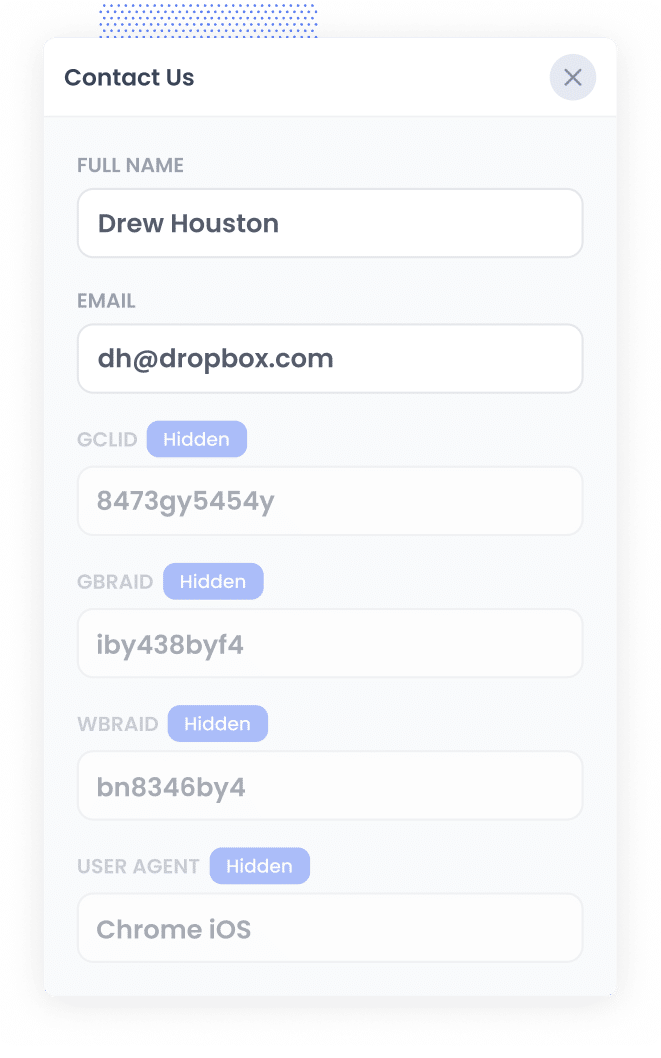
Once the Attributer code is live on your site, it'll start tracking where your visitors are coming from.
When someone clicks one of your Google Ads and lands on your site, Attributer grabs all the identifiers Google Ads needs for a server side conversion (the GCLID, GBRAID, WBRAID, User Agent, etc) and stores them in the visitor's browser.
Then when the visitor completes a Contact Form 7 form on your site, Attributer automatically writes those values into the hidden fields you added earlier, and they get captured along with the rest of the form submission.
3. Data is sent to your CRM
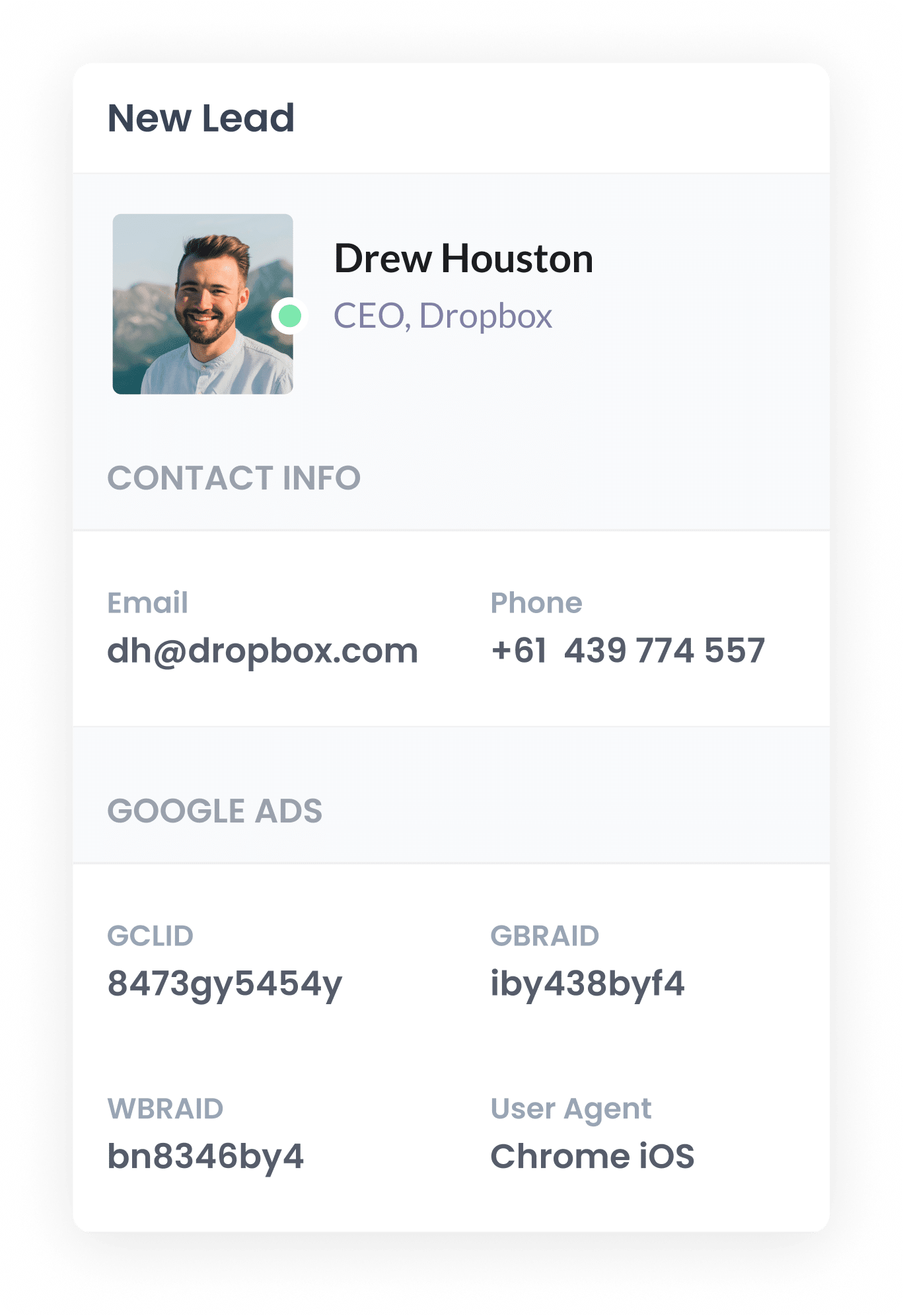
Once the data is captured with the form submission, you can send it to your CRM alongside the lead's name, email, phone number, and anything else they entered into the form.
Contact Form 7 doesn't have native CRM integrations, so you'll typically do this with a plugin like CF7 to Webhook, or through a tool like Zapier or Make.
From there, the data lives on the contact or lead record in your CRM, ready to be used when the conversion needs to be fired back to Google Ads.
4. Send the data to Google Ads
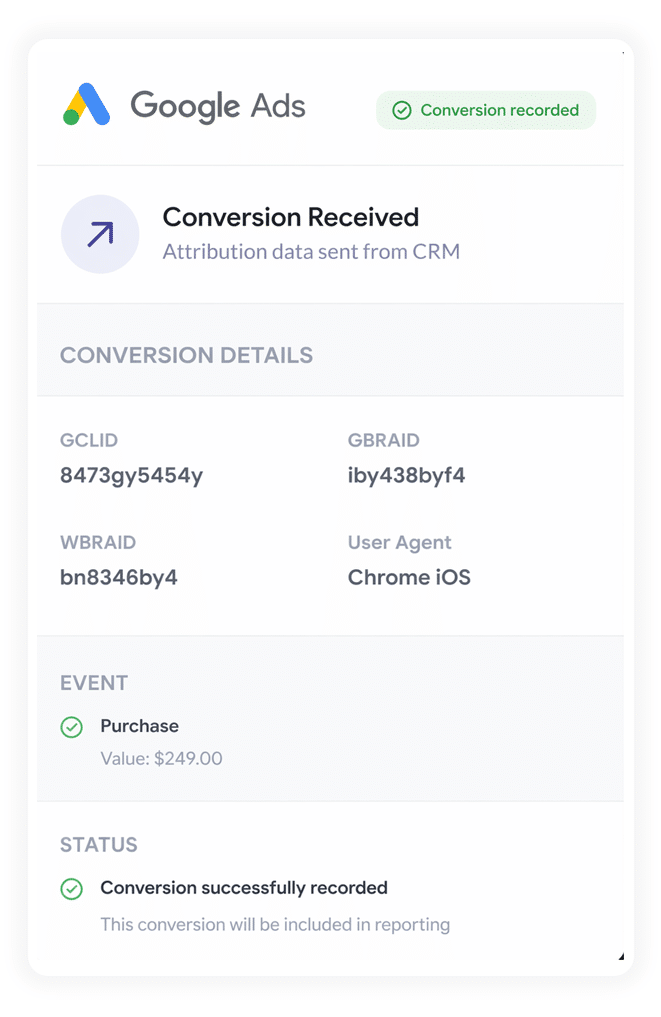
When the lead hits a milestone in your CRM (a new deal being created, a deal being won, etc), that's when you send the data back to Google Ads to mark the conversion.
Zapier and Make are great for this. They connect to just about any CRM, and you can set them up to trigger a Google Ads conversion at any point in the journey. They also give you a clean visual interface for mapping the data Attributer captured (the GCLID, GBRAID, WBRAID, User Agent, and so on) to the right fields in Google Ads.
Why sending server side conversions to Google Ads is the best approach
Here are the 4 main reasons server-side tracking is the most effective way to track conversions:
1. Overcomes ad blockers
Traditional tracking (like tracking thank you page visits or using Google Tag Manager) relies on scripts that have to load in the visitor's browser. Ad blockers and privacy focused browsers routinely stop these scripts from firing.
And recent research suggests that more than 30% of internet users are now running some sort of ad blocker.
Server side tracking sidesteps this entirely. The conversion data is sent directly to Google's servers, so ad blockers never get the chance to stop it. Every lead gets counted.
2. Bypasses Safari & iOS privacy limitations
Apple's Intelligent Tracking Prevention (ITP) deletes tracking cookies within a couple of days. That means if someone clicks your ad today but doesn't convert until next week, you've lost the connection between the click and the conversion.
With server side tracking, you can use the lead's email as a permanent identifier that links them back to their original ad click, no matter how long ago that click happened.
3. Works across devices
It's pretty common for a lead to first visit your site on their phone while they're out and about, but wait until they're at a laptop to actually fill out a form.
Traditional browser tracking can't connect those two sessions because they happen on different devices. But when you send identity data (name, email, etc), Google can stitch those visits together and give your ads the credit they deserve for starting the journey.
4. Eliminates duplicate and messy data
On top of everything else, browser based tracking is prone to other glitches: double counting from page refreshes, missing data when pages load slowly, lost events when someone's connection drops mid load.
Server side tracking is much more precise because it only fires a conversion when a form is actually, successfully submitted (not when someone happens to load a thank you page). That means the conversion counts in Google Ads line up much more closely with your real lead numbers in your CRM.
3 reports you can run when you properly send conversions to Google Ads from Contact Form 7
Over my 15 years running marketing for various companies, I've spent millions on Google Ads and run hundreds of reports to track how those campaigns were performing.
Below are 3 of the reports I've found most useful over the years for understanding which campaigns are actually paying off:
1. Conversions by Keyword
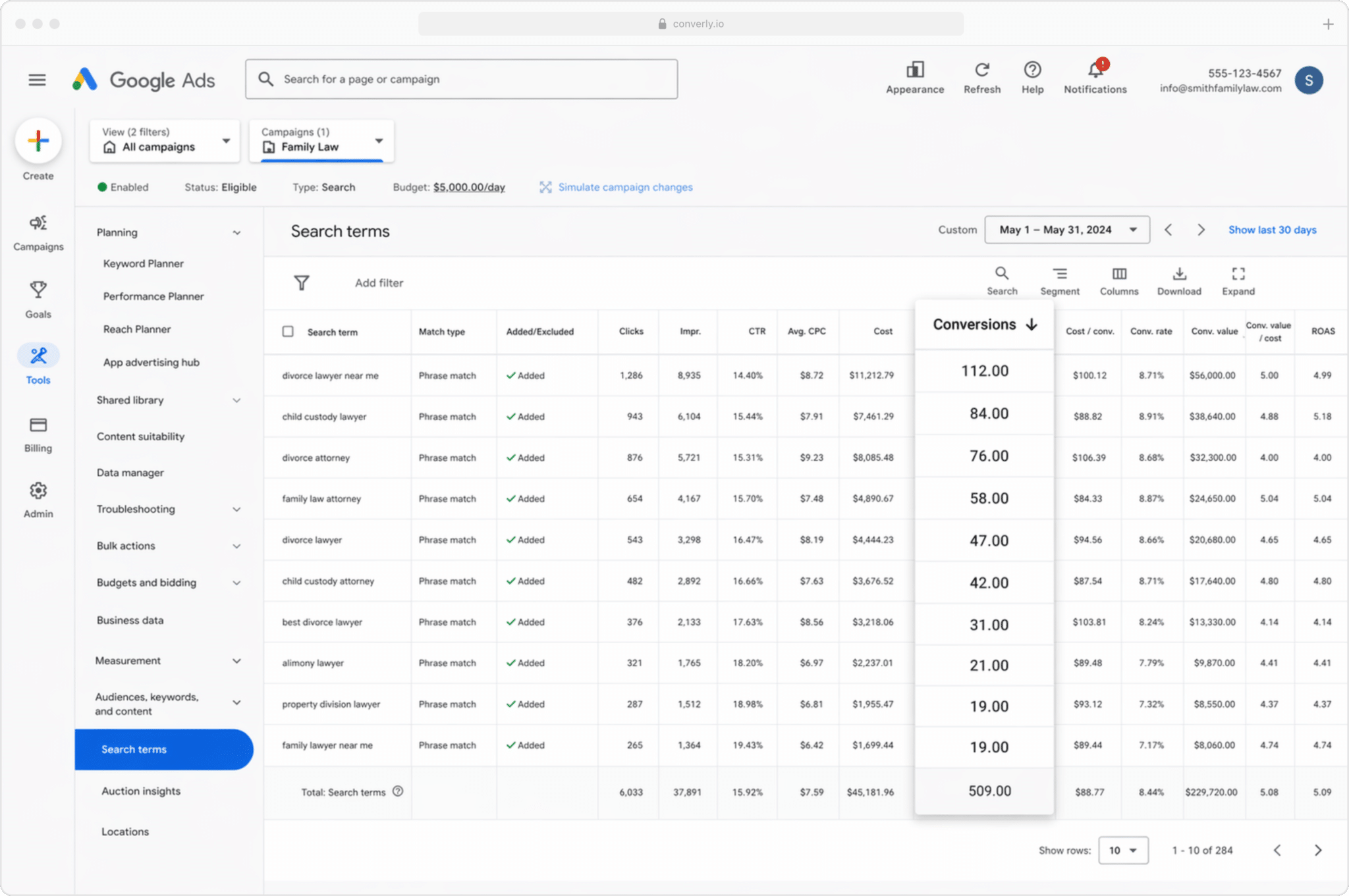
Like most businesses running Google Ads, you're probably bidding on multiple keywords across a handful of different campaigns (maybe for the different services you offer, like personal injury law versus family law).
If so, this report shows you which specific keywords are generating actual conversions for your business, rather than just impressions and clicks that never turn into real leads.
It's the fastest way to figure out which keywords are profitable and which ones aren't, so you know where to put more budget to get the best return.
2. Conversion Value by Campaign
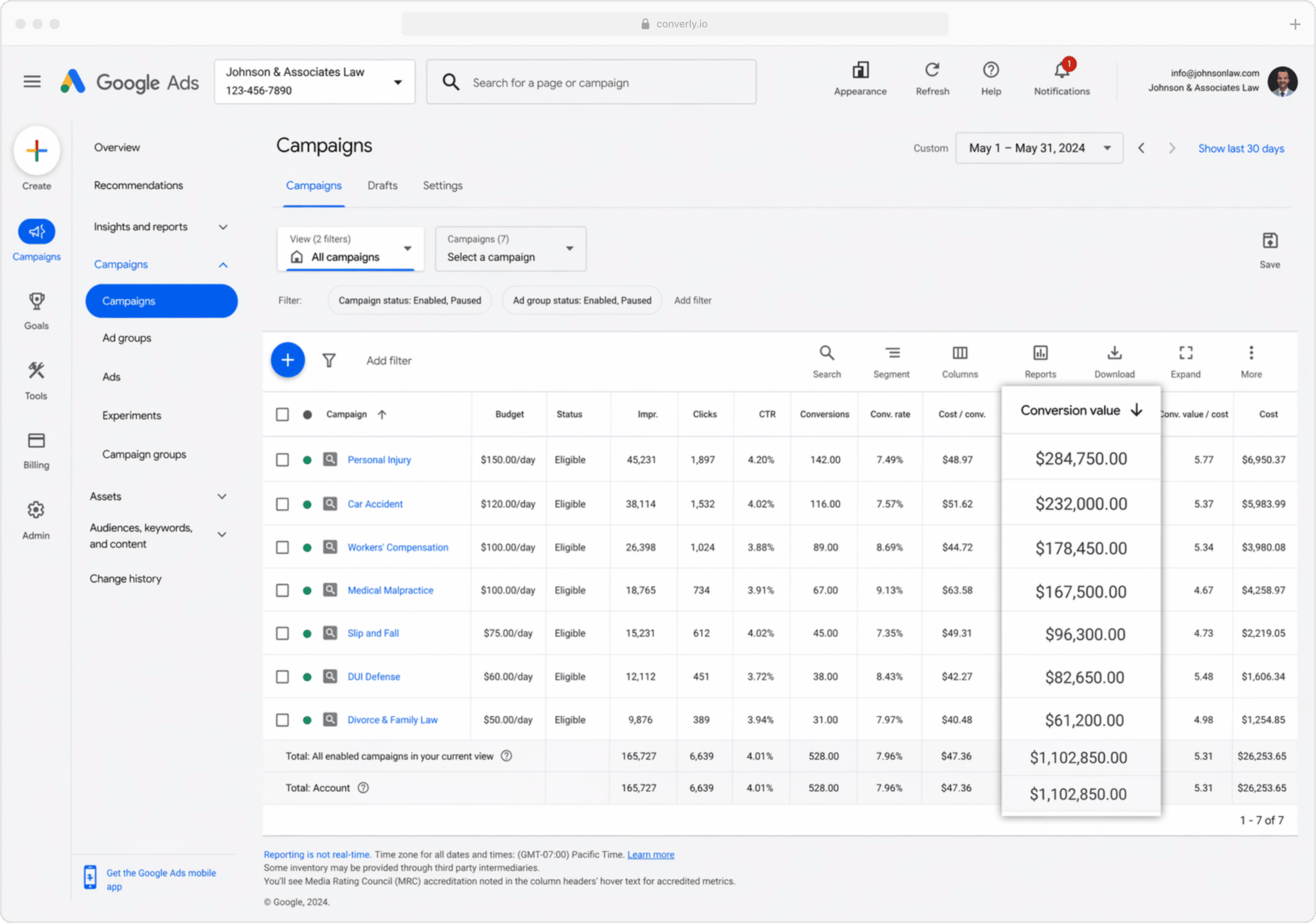
When you're sending conversions back to Google Ads from your CRM, you can also include the value of each conversion (pulled directly from the value of the deal or opportunity in your CRM).
This matters because not all customers are equal. If you run a law firm, a new customer from your 'contract review' campaign is probably nowhere near as profitable as a new customer from your 'litigation' campaign, so just counting the number of conversions doesn't really give you the full picture.
When you pass a conversion value from your CRM to Google Ads, you can run reports that show exactly how much revenue each campaign has generated. That makes it much easier to decide where to put more budget and where to pull back.
3. Conversions by Geography
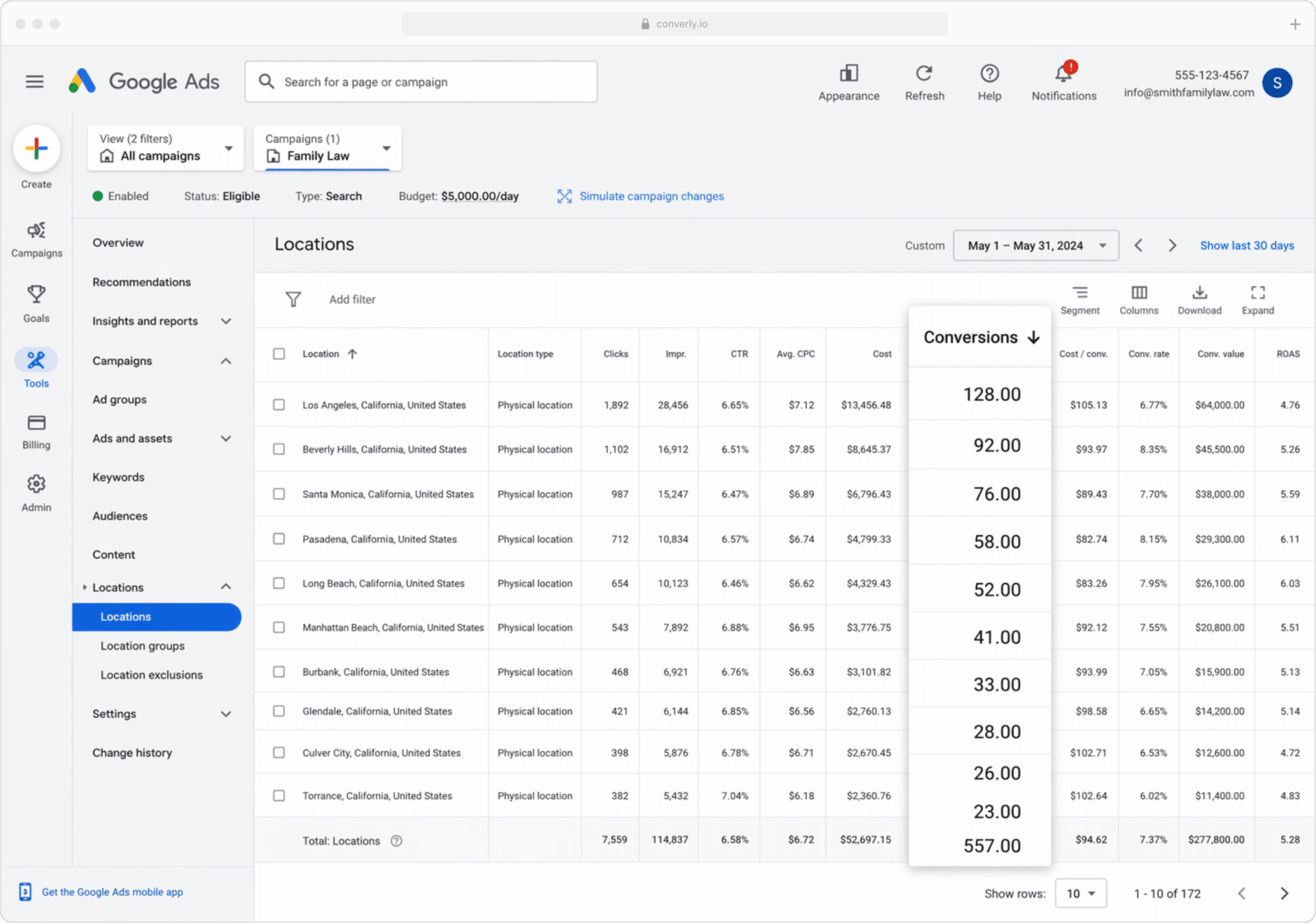
This one is especially useful for businesses that serve a local market (boutique law firms, accounting firms, construction companies, etc). It shows how many conversions each geographical region generated.
You can view this at a high level (country, state, or city), or drill down to a specific postcode. That lets you see whether your leads are actually coming from your target service areas, or whether you're wasting budget on clicks from suburbs too far out to profitably serve.
Once you've got this data, you can use Google's Location Bid Adjustments to sharpen up your results. Tell Google to bid more aggressively in the postcodes that produce your most profitable customers, and lower bids (or stop spending altogether) in the areas that generate clicks but never fill out your forms.
Wrap up
Sending conversions to Google Ads can dramatically improve the results you're getting. It gives you the data you need to make manual adjustments (like bidding more on certain keywords or geographies), and it also feeds Google's algorithms the data they need to make smarter automated bidding decisions.
But it only works well if the conversion data is accurate. If you're tracking thank you page visits or firing events in the browser through Google Tag Manager, you're sending incomplete data, and your Google Ads performance will suffer as a result.
So whether you fire the conversion on form submission or when the lead becomes a customer, make sure you're sending it server side. That's where Attributer and Contact Form 7 come in.
Get Started For Free
Start your 14-day free trial of Attributer today!

About the Author
Aaron Beashel is the founder of Attributer and has over 15 years of experience in marketing & analytics. He is a recognized expert in the subject and has written articles for leading websites such as Hubspot, Zapier, Search Engine Journal, Buffer, Unbounce & more. Learn more about Aaron here.