
The best way to track Cal.com bookings as conversions in Google Ads
Learn how to set up proper conversion tracking in Google Ads when someone books a meeting through Cal.com

Use Attributer to capture the GCLID when someone books a meeting through Cal.com, then send it back to Google Ads as a conversion (either right away, or once that lead becomes a customer in your CRM).
Google Ads is one of the best ways to bring new leads and customers into your business, but setting up conversion tracking the right way is surprisingly fiddly.
Go down the Google Tag Manager route and you're suddenly writing custom code to detect bookings, then juggling triggers, tags, variables and a stack of other settings.
And the easy options, like counting visits to a confirmation page, quietly miss as much as 30% of your conversions because of ad blockers, browser privacy features (like those in Safari), or someone clicking your ad on their phone and booking hours later on their laptop.
So where does that leave you?
This article walks through how to set up proper conversion tracking in Google Ads when someone books a meeting with you through Cal.com (using a method called server-side tracking).
Why you need to be doing server-side tracking in Google Ads
The usual ways of tracking conversions in Google Ads, whether that's counting confirmation page visits or firing events through Google Tag Manager, come with some real weaknesses. Studies suggest these methods can miss as much as 30% of conversions.
A few things cause this:
- Ad Blockers. They stop the Google Tag from firing at all, so nothing the visitor does on your site gets tracked.
- Browser privacy features. Browsers like Safari actively block the Google Tag from following visitors beyond a day or so, which means a click today and a booking three days later never get connected.
- People switching devices. A prospect might click your ad on a work laptop but book later from their phone, and browser tracking has no way to link those two moments together.
That's the case for tracking server-side. Rather than waiting on something to happen in the browser (like a visitor reaching a confirmation page) and trusting the Google Tag to catch it, you send a direct, private message to Google with the lead's details, which means ad blockers and privacy settings can't interfere.
And the numbers back it up. Google's own data shows server-side tracking tends to deliver a 23% average increase in total recorded conversions and a 10% cut in cost per conversion, simply because Google's algorithms have better data to learn from and can put your ads in front of the right people.
How to track Cal.com bookings in Google Ads using server-side conversion tracking
There are two main ways to go about it, and picking between them really depends on when you'd like the conversion to land in Google Ads.
Option 1: When a lead books a meeting
A tool like Converly makes it simple to fire a server-side conversion to Google Ads whenever someone books a meeting through Cal.com.
Instead of fighting with Google Tag Manager to detect bookings, extract the lead's details, hash them with SHA-256 and hand them off to Google's API, you get a clean visual builder to assemble your conversion flow in a few clicks.

You just pick a trigger (like when a meeting is booked through Cal.com) and choose the actions that should follow (like sending a conversion to Google Ads).
Converly then watches for new bookings, grabs the invitee's name, email and phone, hashes it with SHA-256, and passes it to Google Ads. It also picks up the GCLID and other signals about how the person found you and sends those along with the conversion as well. This gives Google a much better chance of tying the booking back to the exact campaign, ad and keyword that first brought the lead in.
The end result is every benefit of server-side tracking (like a 23% average lift in total recorded conversions and a 10% drop in cost per conversion) with no custom code, no need to understand SHA-256, and no wrangling Google's API yourself.
Option 2: When a lead becomes a customer
If your Cal.com bookings flow into a CRM like Salesforce, Pipedrive, etc., you can hold off and send the conversion back to Google Ads further down the sales cycle instead (once a lead actually becomes a paying customer, for example).
The way to do it is to capture a bit of extra data with every booking and carry it through to your CRM. Here's how that works:
1. Install Attributer and add a hidden field to Cal.com
To kick things off, sign up for a 14-day free trial of Attributer and drop its small snippet of code onto your website.
Next, add a hidden field to your Cal.com booking form for the GCLID (the unique ID Google attaches to every ad click, which you'll need to record a conversion later on). Full instructions for what to add are on the Attributer Help site.
2. Attributer writes the GCLID into the hidden field
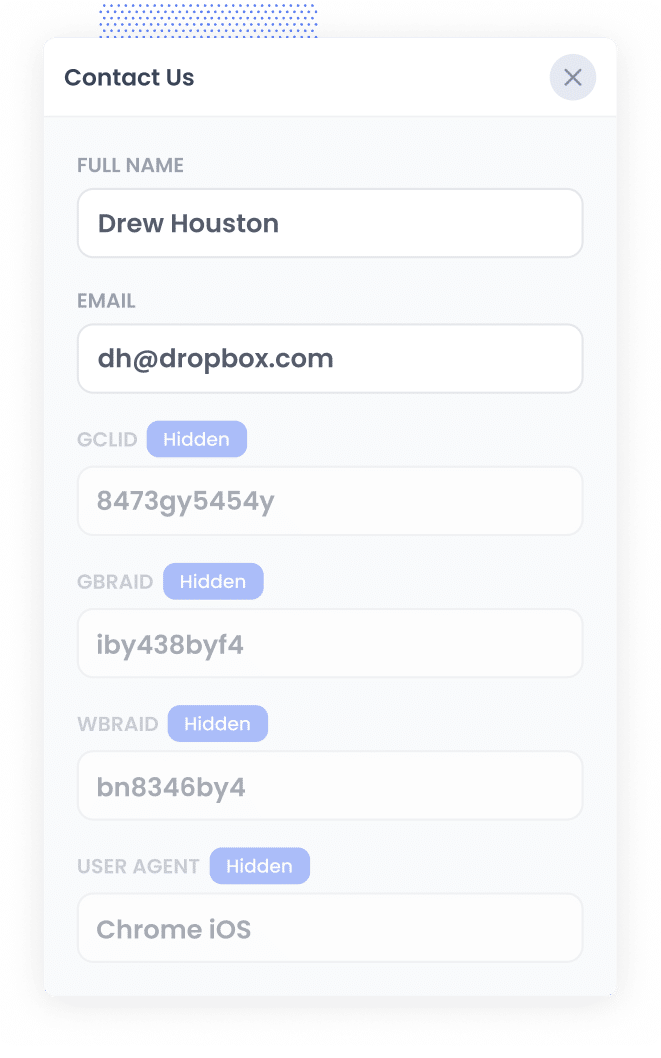
When someone clicks one of your Google Ads and lands on your site, Attributer captures the GCLID and stores it in their browser (so it's always known even if they browse around your site a bit or leave and come back later).
Then, when they book a meeting through Cal.com, Attributer writes the GCLID into the hidden field, and it is captured with the booking.
3. Data is sent to your CRM
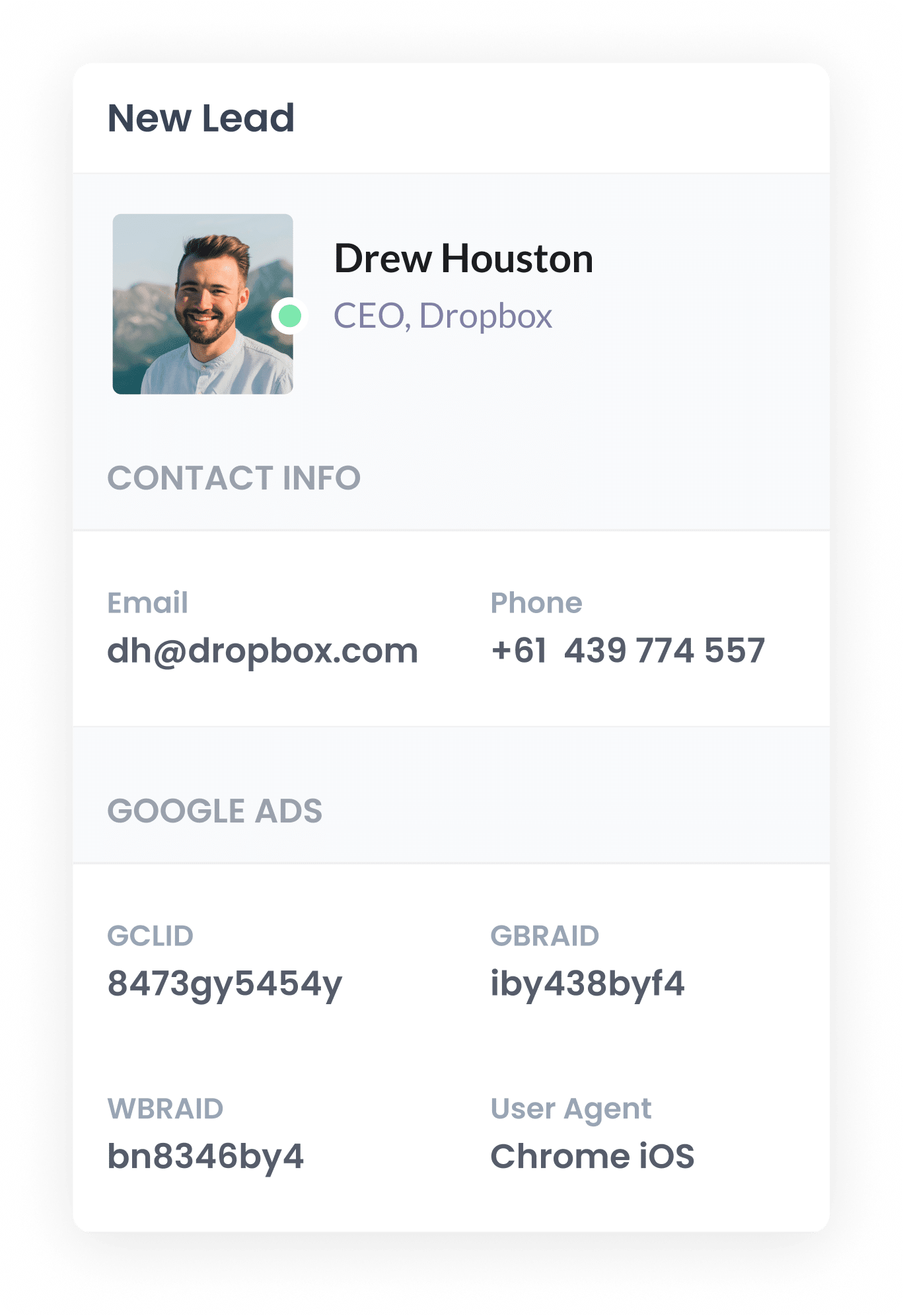
With the GCLID now captured on the booking, it can be sent to your CRM along with the invitee's name, email, phone number and anything else they filled in on thee booking form.
You can use Cal.com's native integrations to do this, or if it doesn't integrate with your specific CRM then you can use tools like Zapier or Make.
From there it lives on the contact record in your CRM, waiting until you need it.
4. Send the data to Google Ads
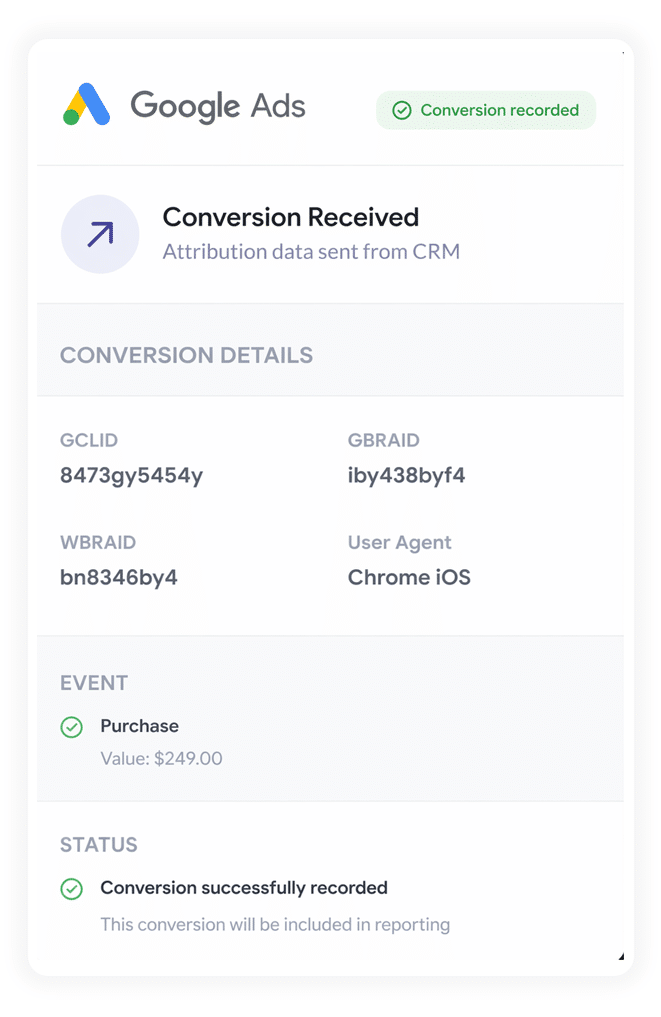
Once a meaningful milestone rolls around (a deal gets created, or the lead becomes a paying customer), you can push everything back to Google Ads to log a conversion.
Zapier and Make are perfect for this. They connect to practically any CRM and can send the conversion to Google Ads at whatever stage suits you (when a deal opens, when it closes, or anywhere in between). They also give you a simple mapping screen that makes it easy to send the GCLID that Attributer captured up into the right field in the Google Ads API.
Why sending server-side conversions to Google Ads is the best approach
Here are the four big reasons it's the most dependable way to track conversions:
1. Overcomes Ad Blockers
Old-school tracking (like counting confirmation page visits, or using Google Tag Manager) depends on scripts loading in the visitor's browser, and ad blockers and privacy-first browsers frequently stop those scripts from loading.
Recent research puts the share of internet users running some form of ad blocker at north of 30%.
But because server-side tracking sends the conversion straight to Google's servers, the whole thing stays invisible to ad blockers, and every lead gets counted.
2. Bypasses Safari & iOS Privacy Limitations
Apple's Intelligent Tracking Prevention (ITP) tends to clear tracking cookies within a day or two, so the link between an ad click and the eventual conversion vanishes whenever someone doesn't book the same day.
Server-side tracking sidesteps that by sending the name, email, phone, etc to Google with each lead, which enables Google to tie the conversion back to the original ad click no matter how long the gap between click and booking.
3. Works across devices
Plenty of leads will first stumble across your site on one device (their phone, for instance) and then hold off until they're at a computer to actually book.
Ordinary browser tracking can't join those two visits because they happen on separate devices. Sending identity data (their name, email and so on) straight to the server lets Google stitch the sessions together and give your ads proper credit for starting things off.
4. Eliminates duplicate and messy data
On top of everything else, browser-based tracking invites other mistakes, like counting the same conversion twice when a page is refreshed, or losing data to a slow connection or a request that never completes.
Server-side tracking is far tidier. It logs a conversion only when a booking genuinely goes through (not when a confirmation page happens to load), so your Google Ads conversion counts stay much closer to the real number of meetings you're booking.
3 reports you can run when you properly send conversions to Google Ads from Cal.com
Across 15 years leading marketing teams, I've spent millions of dollars on Google Ads and built more reports than I can count trying to see what was genuinely working.
Here are the 3 I kept coming back to:
1. Conversions by Keyword
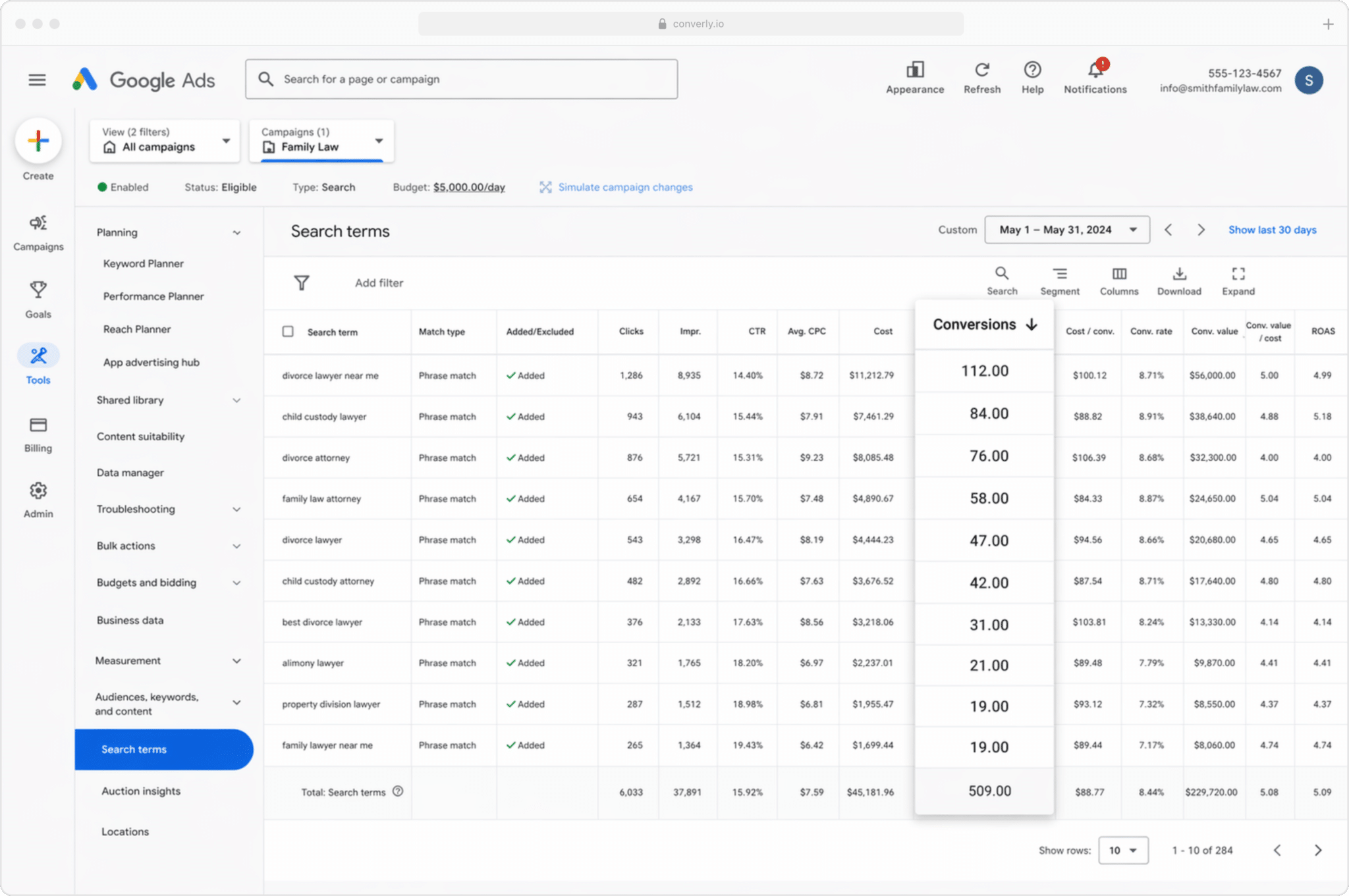
Most businesses bid on a spread of keywords across several campaigns, often for different services (a financial advisory firm might bid on retirement planning in one place and estate planning in another).
This report shows which of those keywords are actually producing conversions, rather than just racking up impressions and clicks that never turn into real leads.
It makes clear which keywords are working for your business and which aren't, and ultimately which ones you should put more budget into to drive more leads.
2. Conversion Value by Campaign
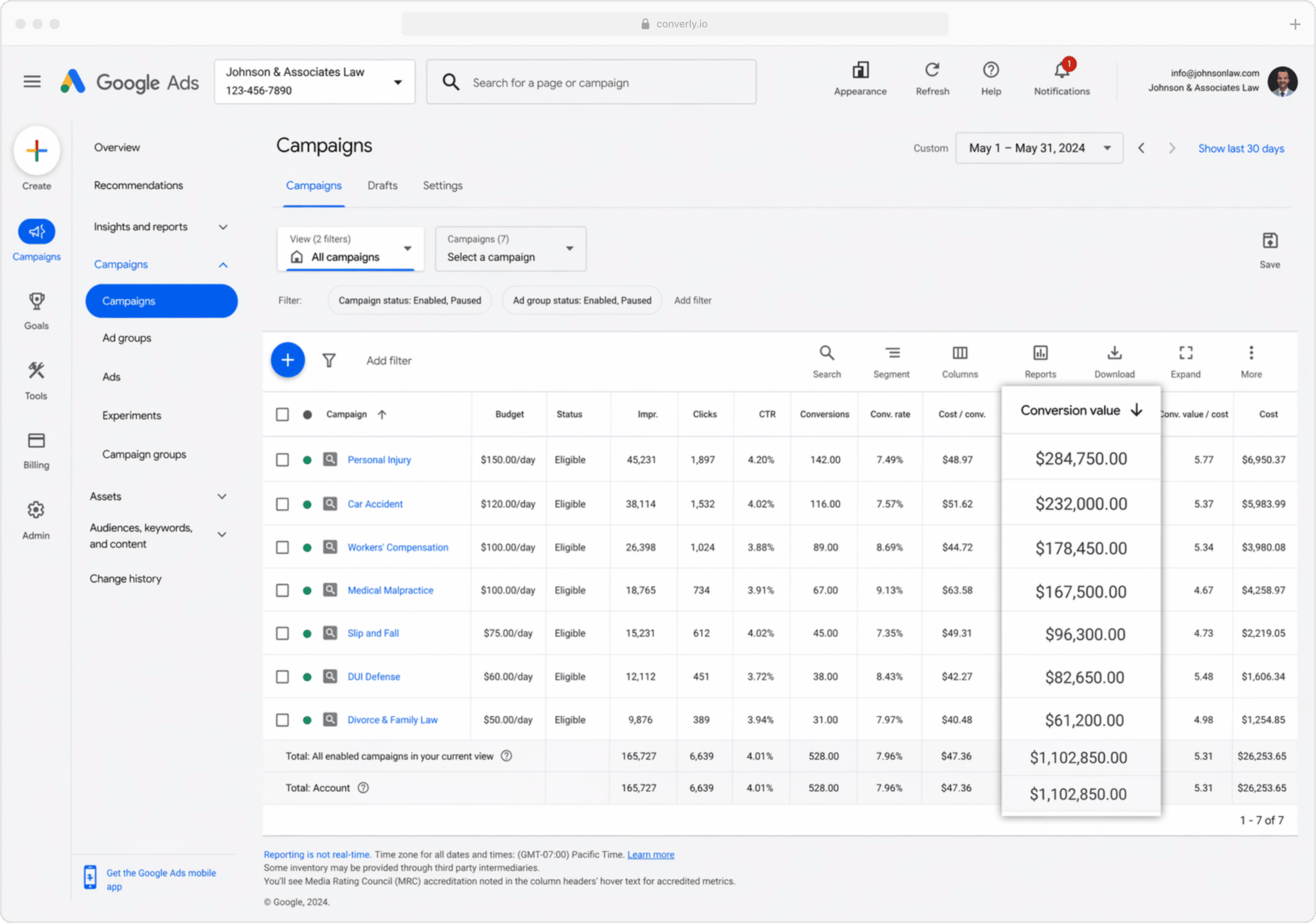
If you're feeding conversions back to Google Ads from your CRM, you can attach the value of each one (pulled from the Deal or Opportunity value in your CRM).
That matters because customers aren't all worth the same. For a wealth management firm, a client who comes in through a basic financial review campaign is worth a fraction of one who arrives via a high-net-worth planning campaign, so treating them equally would be a mistake.
Send a conversion value through from your CRM and you can run reports showing you earned X from leads on one campaign and Y from another. That makes deciding where your budget should go far more straightforward.
3. Conversions by Geography
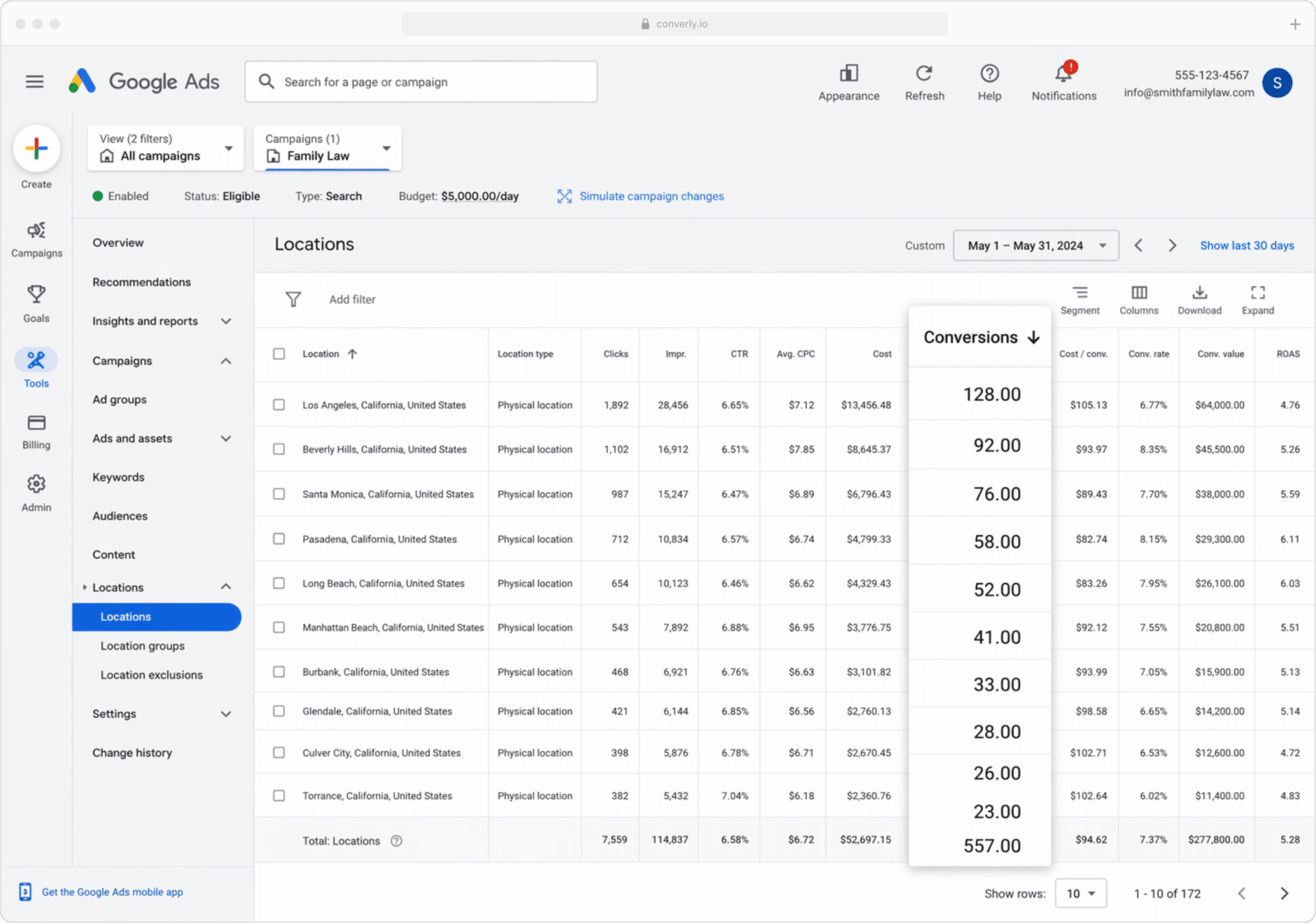
This report is great for businesses that win most of their clients locally (financial advisors, accounting firms, law practices, and the like). It breaks your conversions down by geographic region.
You can keep it broad (country, state or city) or drill right down to an individual postcode. Either way, you get to see whether your leads are genuinely coming from the areas you want to serve, or whether budget is leaking into suburbs too far away to be worth it.
With that information in hand, Location Bid Adjustments let you act on it. You can tell Google to bid harder in the postcodes that pay off best, and ease off (or stop entirely) in the ones that generate impressions & clicks but never turn into bookings and customers.
Wrap Up
Getting proper conversion tracking set up in Google Ads can genuinely move the needle on your results.
It gives you the numbers you need to make manual tweaks (bidding up on particular keywords or locations), and it feeds Google's algorithms the data they need to handle automated bidding for you.
But all of that hinges on the conversion data being accurate. Track confirmation page visits or fire events from the browser through Google Tag Manager and you're not really sending solid data, and your Google Ads results will slide because of it.
So whatever setup you land on, and whenever you choose to fire the conversion (at the point of booking, once the lead becomes a customer, and so on), sending it server-side is what gets you the best results.
Get Started For Free
Start your 14-day free trial of Attributer today!

About the Author
Aaron Beashel is the founder of Attributer and has over 15 years of experience in marketing & analytics. He is a recognized expert in the subject and has written articles for leading websites such as Hubspot, Zapier, Search Engine Journal, Buffer, Unbounce & more. Learn more about Aaron here.