
The best way to capture UTM Parameters in HubSpot Meetings
Use Attributer to capture UTM parameters every time someone books a meeting through HubSpot Meetings and send that data to your CRM and other tools.

Use Attributer to capture UTM parameters with each meeting booked through HubSpot Meetings. Simply add some custom fields to your HubSpot account and Attributer passes through data on where the lead came from. It even gives you information on leads that come from organic channels (like Organic Search, Organic Social, etc).
If you're spending money on Google Ads, Meta Ads, or other paid channels in an attempt to drive leads and meetings, you need to know which ones are actually delivering results.
Without that visibility, you're essentially guessing where to put your marketing budget. And guessing usually means wasting money on campaigns that aren't pulling their weight.
The good news? There's a straightforward way to solve this.
In this article, we'll walk you through how to capture UTM parameters in HubSpot Meetings and pass them into your CRM and other tools, so you can run reports that show exactly which campaigns are generating your leads and customers.
4 steps for capturing UTM parameters in HubSpot Meetings
Using Attributer to capture UTM parameters in HubSpot Meetings is simple. Here's how to get it done in 4 easy steps:
1. Install Attributer on your website
When you sign up for a free 14-day trial of Attributer, you'll receive a small snippet of code to place on your website.
The way you install it depends on your website builder. In most cases, you can add it through the Settings section of whatever platform you're using (WordPress, Webflow, Squarespace, etc.) or via Google Tag Manager if you have that set up.
We have step-by-step guides for all the popular website builders. You can find them here.
2. Add a series of custom fields to your HubSpot account
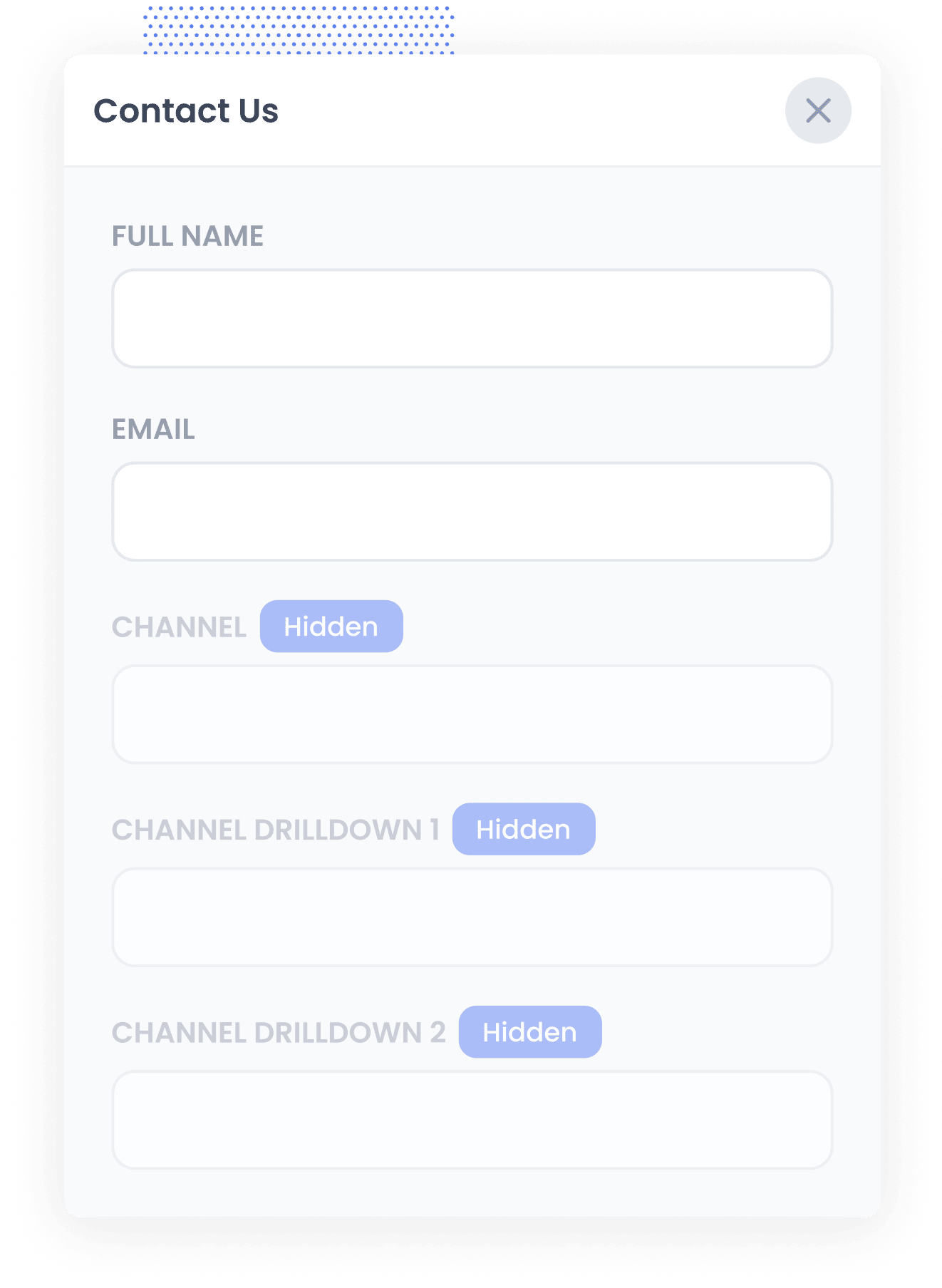
The next step is to add a series of custom fields to the Contact record in your HubSpot account.
The fields you need to add are:
- Channel
- Channel Drilldown 1
- Channel Drilldown 2
- Channel Drilldown 3
- Landing Page
- Landing Page Group
Adding these in is simple. Just go to the Settings section of your HubSpot account, go to the Data Management section, and finally go to Properties. Click the 'Create Property' button and follow the guide.
3. Attributer writes the UTM parameters into the custom fields
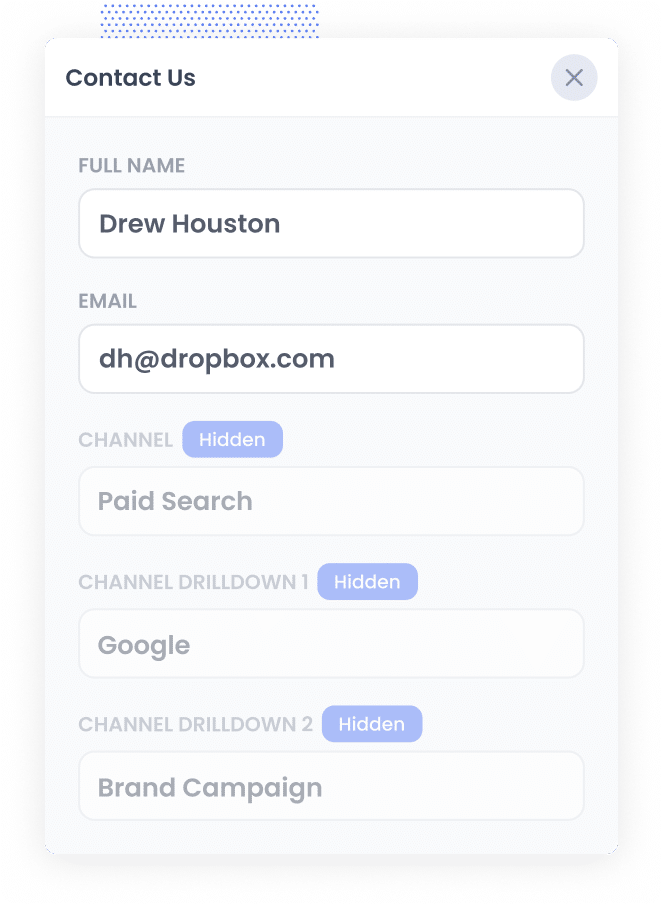
With everything in place, Attributer will now start to capture UTM parameters (and other attribution data) when a visitor lands on your site, store it in their browser, and then pass it through with each meeting booking.
Let me give you a quick example of how this plays out. Say you're the marketing manager at a company called Northline Advisory, a financial consulting firm.
A potential client clicks one of your Google Ads, arrives on your website, and navigates to your Book a Consultation page. They pick a time slot and book a meeting through the HubSpot Meetings widget embedded on the page.
Depending on the UTM parameters you put behind the ad, Attributer would capture details like this and pass them through to HubSpot:
- Channel = Paid Search
- Channel Drilldown 1 = Google
- Channel Drilldown 2 = Financial Consulting Campaign
- Channel Drilldown 3 = Retirement Planning
4. UTM parameters are captured in HubSpot
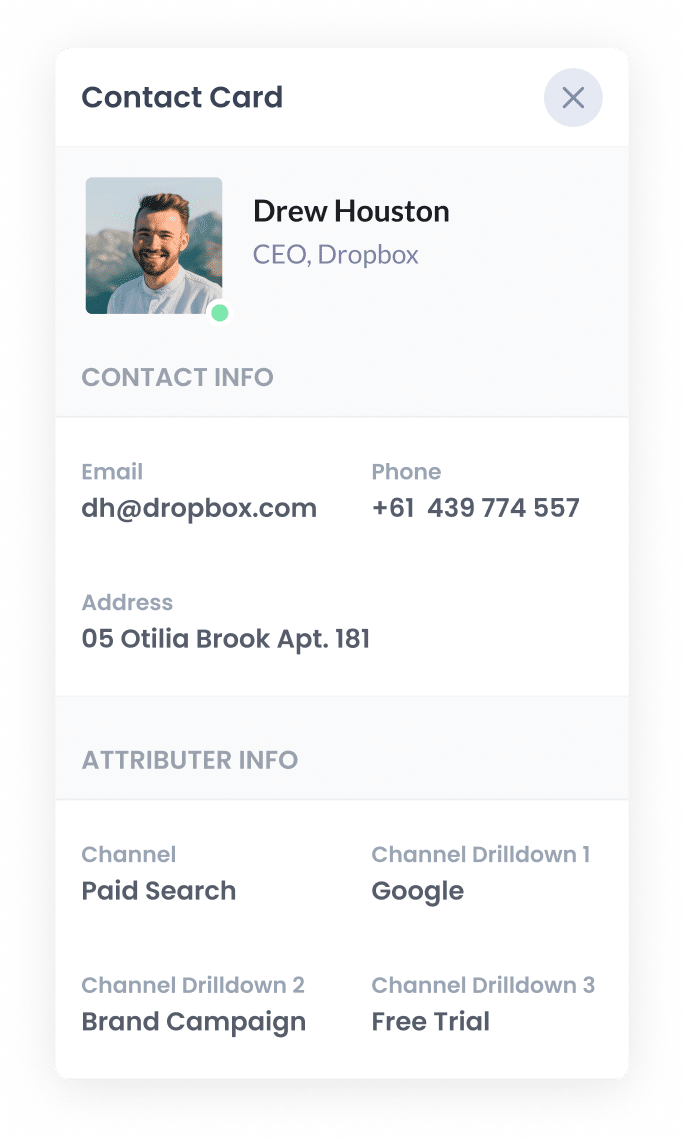
When the visitor completes the scheduling widget and books their meeting, the UTM parameters are captured in HubSpot alongside the details they entered (like their name, email, etc).
Because HubSpot Meetings is part of the HubSpot ecosystem, the data automatically flows into the contact record in your HubSpot CRM. From there, you can:
- View the UTM data on each contact's record in HubSpot CRM.
- Use HubSpot's built-in reporting tools to build reports showing which campaigns are driving the most meetings, leads, and customers.
- Build workflows that include the data (like sending internal email notifications with the data in it).
- Export the data to Google Sheets or Microsoft Excel if you prefer to run your analysis there.
What is Attributer?
Attributer is a small piece of code you install on your website.
Whenever someone lands on your site, Attributer figures out how they got there by analysing the same kind of technical data that tools like Google Analytics look at. It then sorts each visitor into a specific channel (Paid Search, Organic Search, Paid Social, etc.) and stores that information in their browser.
Then, if that visitor goes on to schedule a meeting through your HubSpot Meetings widget, Attributer passes through the UTM parameters with the booking and they get captured in HubSpot along with the visitor's name, email, phone number, and whatever else they submit.
Attributer was originally built by a marketing consultant who wanted a reliable way to track which campaigns were actually generating leads and customers, not just clicks and website traffic. It started as a tool for his own clients, but it quickly became clear that marketers everywhere needed the same thing.
Today, thousands of businesses worldwide rely on Attributer to track UTM parameters and referral data for over 10 million website visitors every month.
Why using Attributer is the best way to capture UTM parameters in HubSpot Meetings
Here's what makes Attributer the best approach for this:
1. Captures attribution data on all leads
Attributer goes beyond simply capturing UTM parameters and passing them into HubSpot.
It also tracks and passes through attribution data for leads who discover your business through organic channels like Organic Search, Organic Social, Referral, Direct Traffic and more.
This means you get the full picture of where every single lead is coming from, not just the ones generated by your paid advertising.
2. Remembers the data as visitors browse your site
With most other UTM tracking methods, the parameters only get captured if the visitor fills out the form on the exact same page they originally landed on.
Here's why that creates a problem: picture someone clicking one of your Google Ads and landing on your homepage. They browse around a bit and then click a "Book a Call" button that takes them to a separate page with your HubSpot Meetings widget. Because the meeting is booked on a different page than the one they originally arrived on, the UTM parameters disappear and you lose track of where that lead came from.
Attributer avoids this entirely by storing UTM parameters in the visitor's browser. So no matter which page they end up booking a meeting on, the attribution data is always captured and passed through to HubSpot.
3. Captures Click ID's
Attributer also captures click IDs like the Google Click ID (GCLID), Microsoft Click ID (MSCLID), and Facebook Click ID (FBCLID) with each new meeting booked through HubSpot Meetings.
Once those click IDs are in HubSpot, you can send them back to the relevant ad platform at a key moment in your sales process, like when a lead converts into a paying customer. This is known as offline conversion tracking.
The big benefit is that, instead of optimizing your campaigns around form submissions or thank-you page visits, you're feeding the ad platform data on actual customers and revenue. That gives the smart bidding algorithms much better signals to work with, typically leading to lower cost per acquisition and better campaign performance over time.
4. Captures landing page data as well
Curious how many leads and customers your blog is actually generating? Or those detailed whitepapers and guides you put so much effort into creating?
Attributer captures more than just UTM parameters and channel data. It also records the landing page and landing page category for each lead, so you can see exactly how much business your content is driving.
4 example reports you can run when you capture UTM parameters in HubSpot Meetings
Before building Attributer, I spent over 15 years working in marketing and analytics.
Throughout that time, I built hundreds of reports trying to work out which campaigns were generating real results and which ones were just burning through budget.
Over the years, a handful of reports kept proving themselves as the most valuable because they gave the clearest view of what was actually moving the needle.
I've included some of my go-to reports below. You can build all of these yourself once you use Attributer to capture UTM parameters in HubSpot Meetings and connect that data to HubSpot CRM or another reporting tool.
1. Leads by Channel
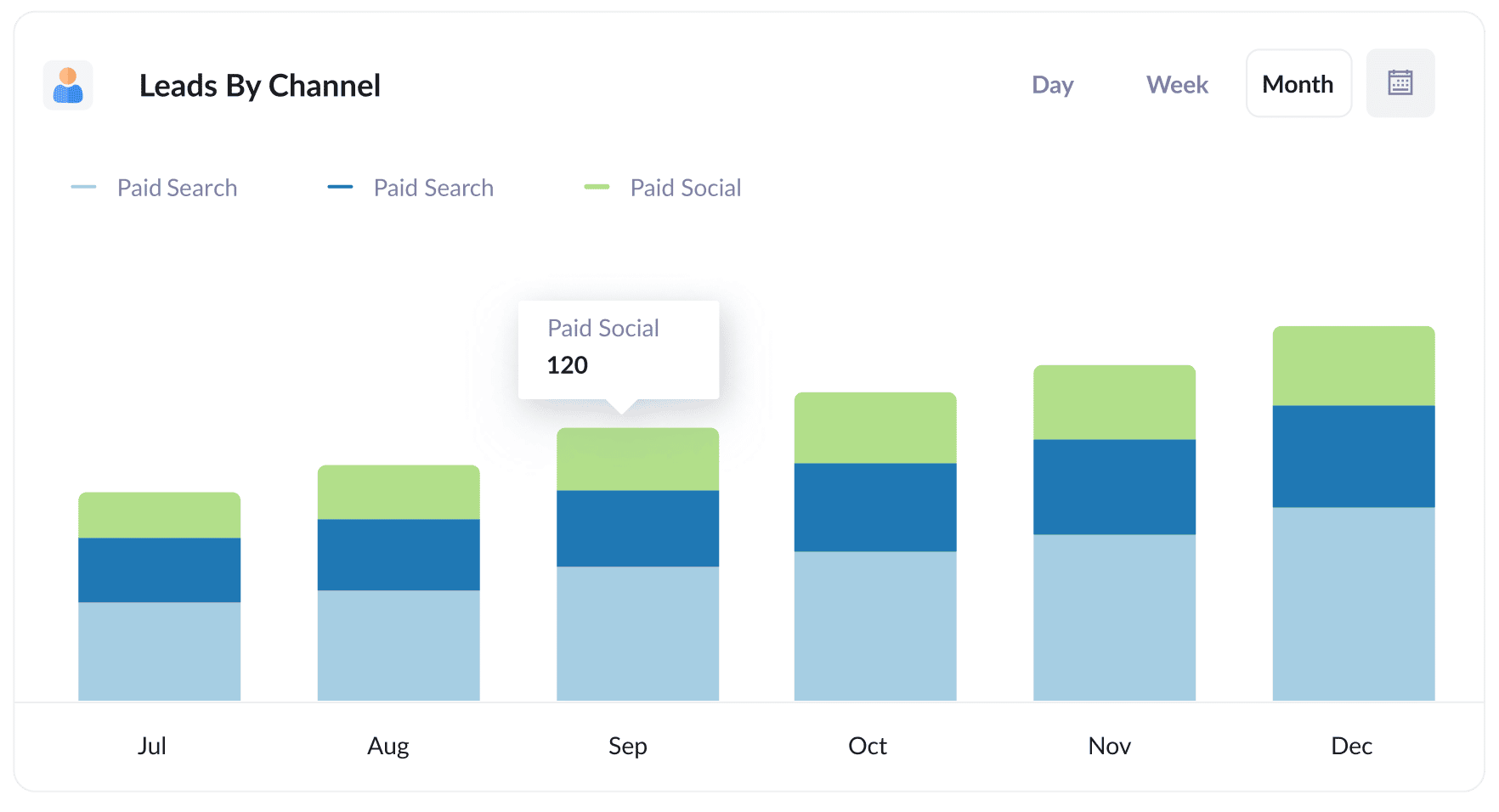
Because Attributer captures the source of every lead that comes through your site, not just the ones from paid campaigns, you can put together reports like the one above that show how many leads you're bringing in each month, organized by channel.
Reports like these make it crystal clear which channels are doing the heavy lifting when it comes to lead generation, so you can put your time and budget where they'll make the biggest difference.
For example, if you notice that a large portion of your leads are arriving through Organic Search but most of your marketing spend is going to paid ads, that could be a signal to invest more in your SEO strategy.
2. Leads by Meta Ads Network
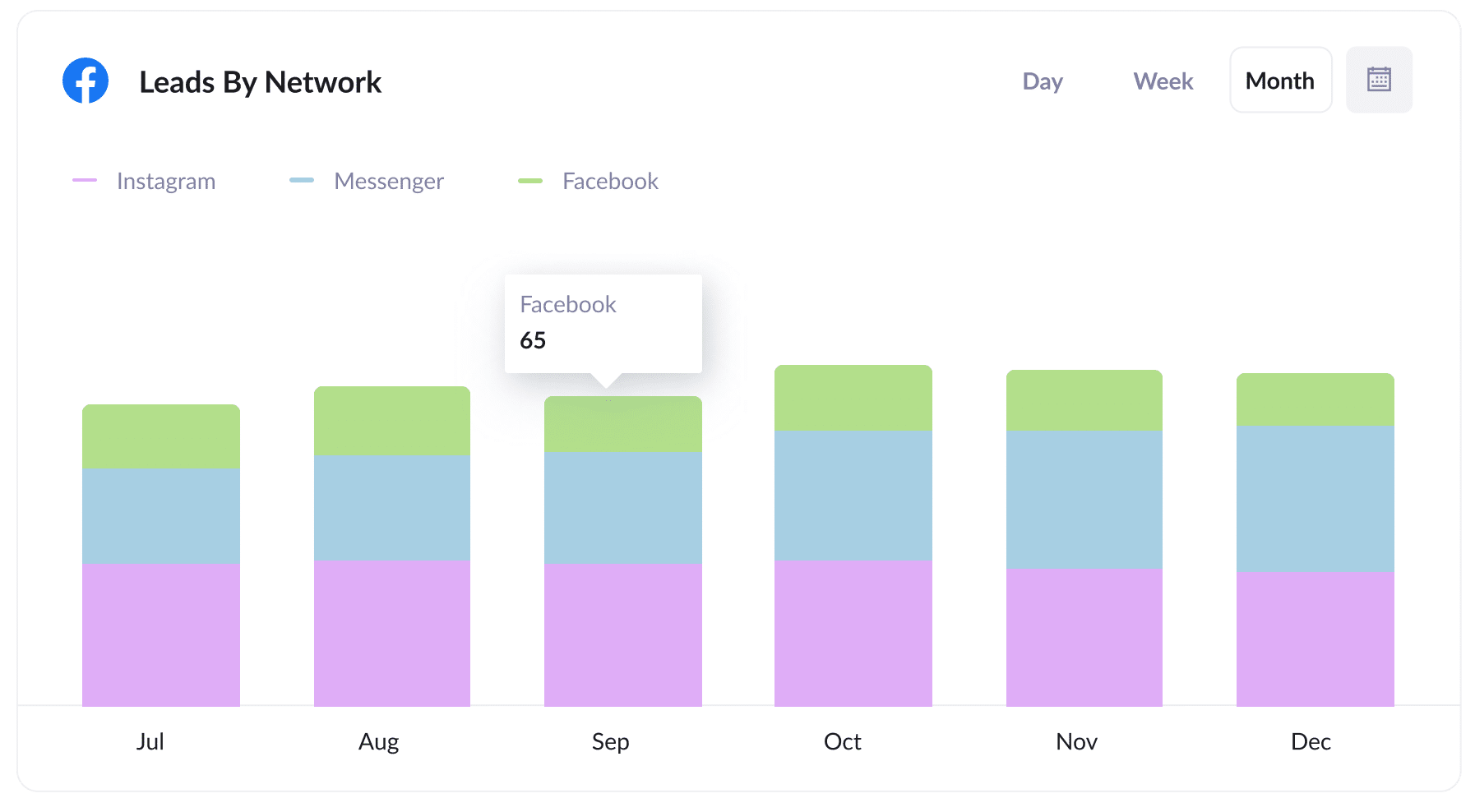
Running Meta Ads? Your campaigns are likely appearing across multiple platforms, including Facebook, Instagram, Messenger, and the Audience Network.
This is exactly why a report like the one above is so valuable. It breaks down exactly how many leads are coming from each platform, giving you a clear view of where you're getting the best return.
Armed with this information, you can allocate your ad spend more strategically by investing more in the platforms that are performing and pulling back from the ones that aren't.
3. Customers by Google Ads campaign
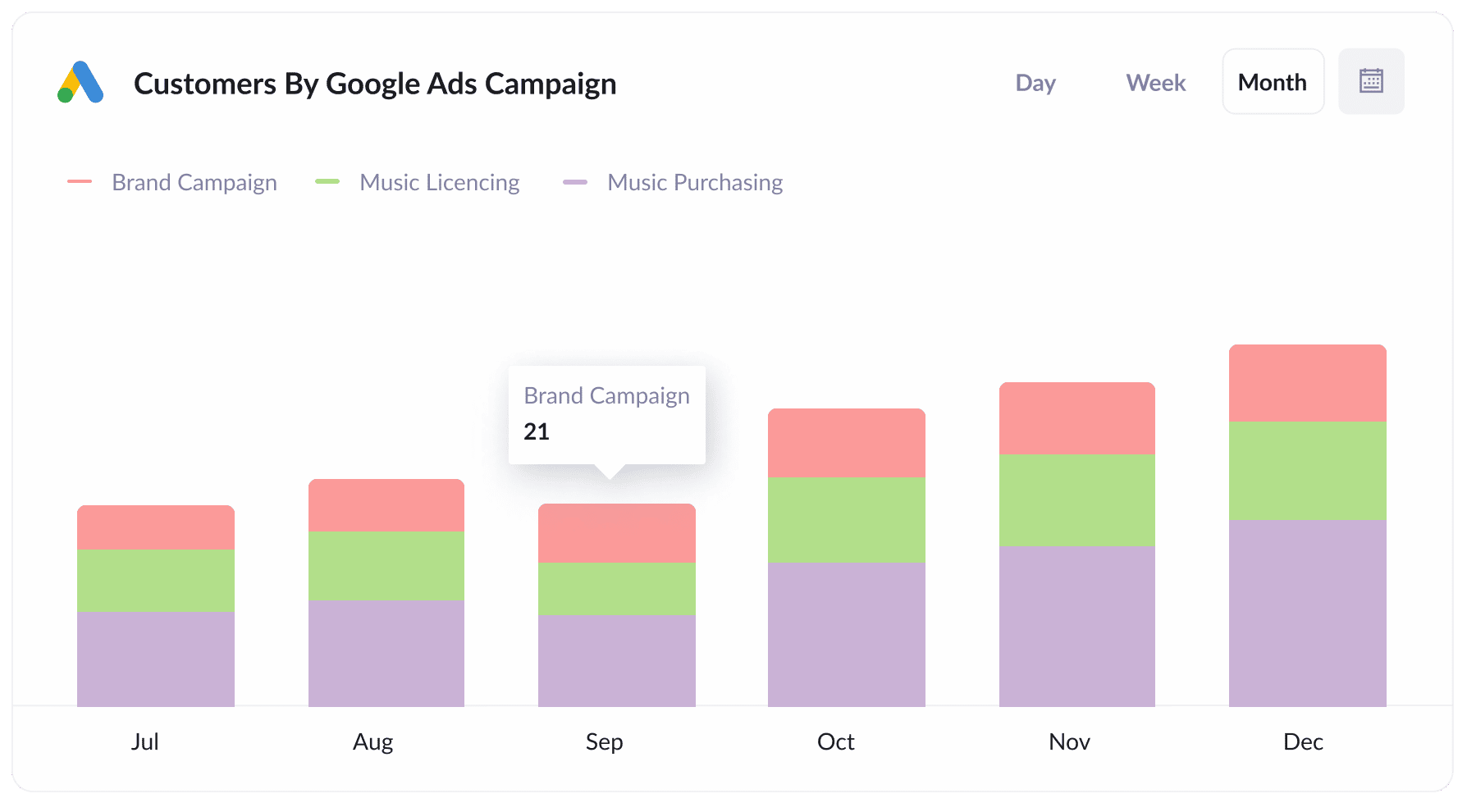
This report shows how many customers your different Google Ads campaigns are bringing in each month.
When you've built this report in HubSpot CRM or your go to analytics tool, you can quickly see which campaigns are actually delivering paying customers.
From there, it's easy to put more budget behind the campaigns that are working and pull back on the ones that aren't.
4. Revenue by Keyword
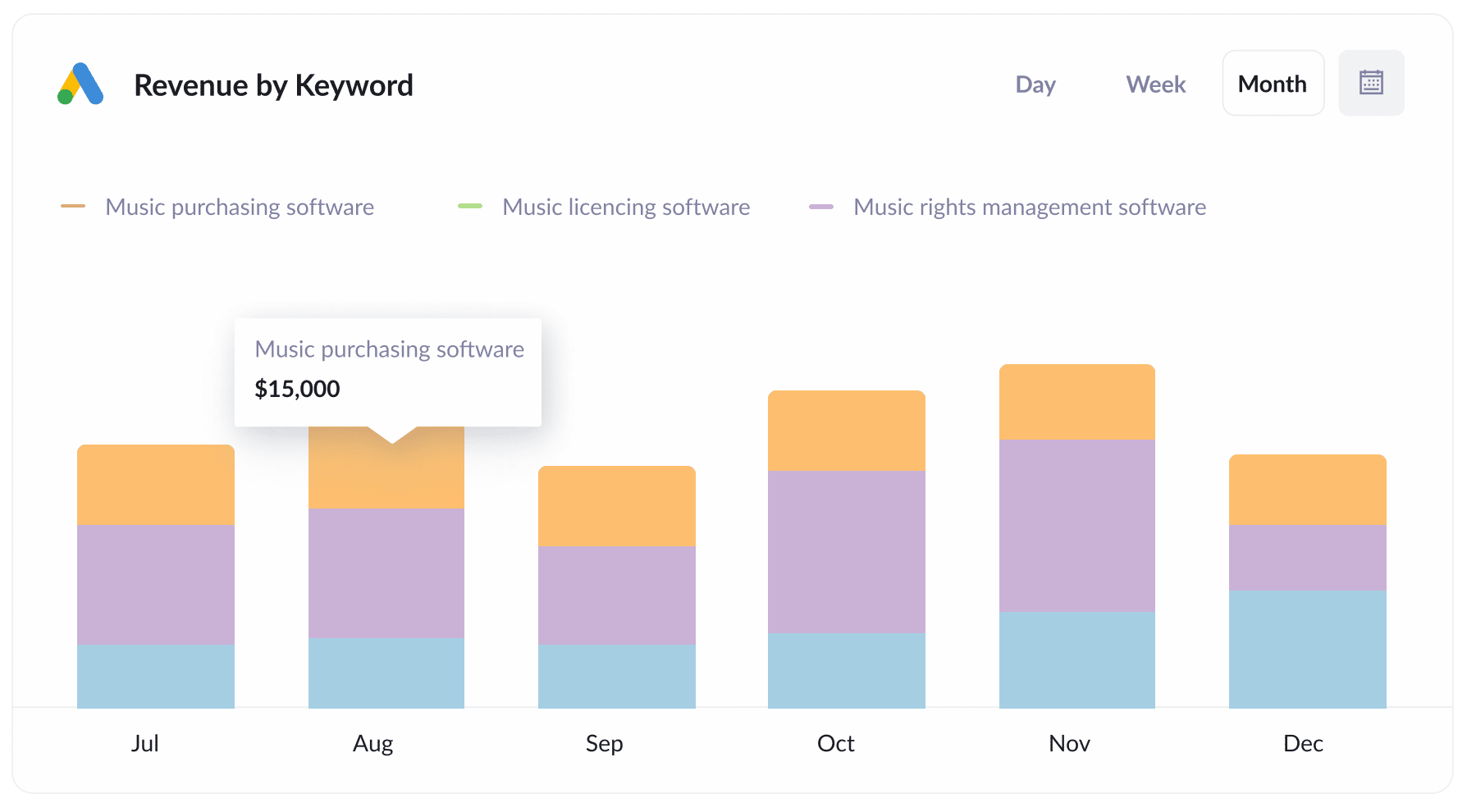
If you include the keyword in the UTM parameters behind your Google Ads (which is easy to do using tracking templates), you can capture the exact search terms people typed in before clicking your ad.
This opens the door to building reports like the one above, which show precisely how much revenue each keyword is driving.
With this data in hand, you can increase your bids on the keywords that are converting well and squeeze more value out of every dollar you spend.
How Attributer helped Harris Federal Law track which Google Ads are truly generating customers & revenue
Harris Federal Law Firm is a Washington D.C. law practice that helps federal employees secure the benefits they're entitled to. They were investing in Google Ads to bring in new clients and, through Google Analytics, could see exactly how many visitors those ads were sending to the site. What they couldn't see was how many of those visitors actually became paying clients.
That's the gap Attributer closed.
Every time a visitor completes a form on their site, Attributer writes the attribution data behind that lead (drawn from the UTM parameters on the ad they clicked) into the hidden fields, and it flows straight into their CRM with the rest of the lead's details.
With that in place, the team could finally build reports that connected real, paying clients back to the specific campaign, ad, keyword, etc they came from.
What the data showed surprised them. Several of their display campaigns were generating plenty of visitors but almost no actual clients. Once that was clear, they shifted budget away from those campaigns and toward the search campaigns that were genuinely converting.
The result was more clients from the same ad spend, and a level of confidence in their marketing budget they hadn't had before.
"With Attributer we can see which campaigns are actually generating customers & revenue, rather than just website visitors. We were able to see that some of our campaigns were driving lots of visitors but few of them converted into leads and customers. Now we’re able to reinvest that budget into other campaigns that we can see are generating revenue."

Nick Child - Director of Marketing, Harris Federal Law Firm
Wrap up
HubSpot Meetings makes it easy for potential customers to schedule time with your team.
But on its own, it doesn't give you a built-in way to capture UTM parameters with each booking. That means you're left without a clear view of which campaigns, ads, and keywords are actually generating leads for your business.
That's where Attributer steps in.
It passes through detailed information on where each of your meetings and leads have come from, and because HubSpot Meetings feeds directly into HubSpot CRM, you can use that data to build reports showing which campaigns, ads, and keywords are actually generating leads and customers for your business.
The best part? It's free to get started and only takes about 10 minutes to set up. So if you want better attribution from your HubSpot Meetings bookings, now's a great time to give Attributer a try.
Get Started For Free
Start your 14-day free trial of Attributer today!

About the Author
Aaron Beashel is the founder of Attributer and has over 15 years of experience in marketing & analytics. He is a recognized expert in the subject and has written articles for leading websites such as Hubspot, Zapier, Search Engine Journal, Buffer, Unbounce & more. Learn more about Aaron here.