
How to capture Google Ads data in HubSpot Meetings
Use Attributer to capture Google Ads data in HubSpot Meetings, so you can track which campaigns, ads, keywords, etc. are driving your leads and bookings.

You can use Attributer to track meetings and leads from Google Ads in HubSpot Meetings. Simply install the Attributer code on your site and Google Ads data (campaign, ad, keyword, etc) will be passed into HubSpot with each booking. It even gives you information on leads that come from organic channels (like Organic Search, Organic Social, etc).
You're running Google Ads to promote your business, and people are booking time with you through HubSpot Meetings.
The problem is, even though meetings are coming in, you have no clear idea which campaign, ad, or keyword actually brought that person to you. Without that visibility, you're operating in the dark. You could be pouring budget into ads that aren't producing anything while starving the ones that are genuinely driving bookings.
Fortunately, there is a solution.
In this article, we'll show you how to use a tool called Attributer to capture Google Ads data in HubSpot Meetings, so you can finally see exactly which campaigns, ads, and keywords are responsible for your leads and bookings.
4 simple steps to capture Google Ads data in HubSpot Meetings
Capturing Google Ads data in HubSpot Meetings is simple when you use Attributer. Just follow these 4 easy steps:
1. Add UTM parameters to your ads
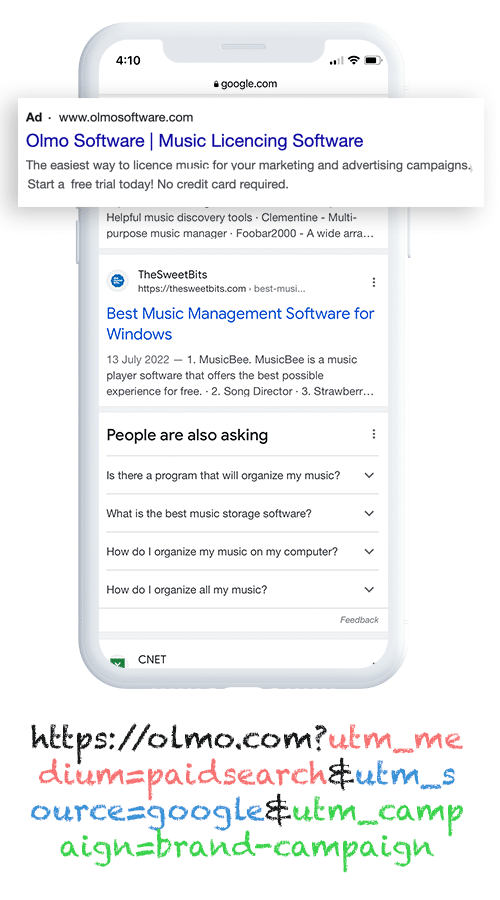
To get started, you'll need to add UTM parameters to your Google Ads.
UTM parameters are just small bits of text you attach to the end of the URLs in your ads. They tell analytics tools like Attributer where a visitor came from when they land on your site.
For example, if your ad was originally sending people to attributer.io/integrations/hubspot-meetings, the URL with UTM parameters added might look like this:
attributer.io/integrations/hubspot-meetings?utm_medium=paidsearch&utm_source=google&utm_campaign=brand-campaign
What you include in your UTM parameters is up to you, but for Google Ads we recommend this format:
- UTM Medium = paidsearch
- UTM Source = google
- UTM Campaign = The name of your Google Ads campaign
- UTM Term = The name of the ad group the ad belongs to
- UTM Content = The specific ad
2. Install Attributer on your site
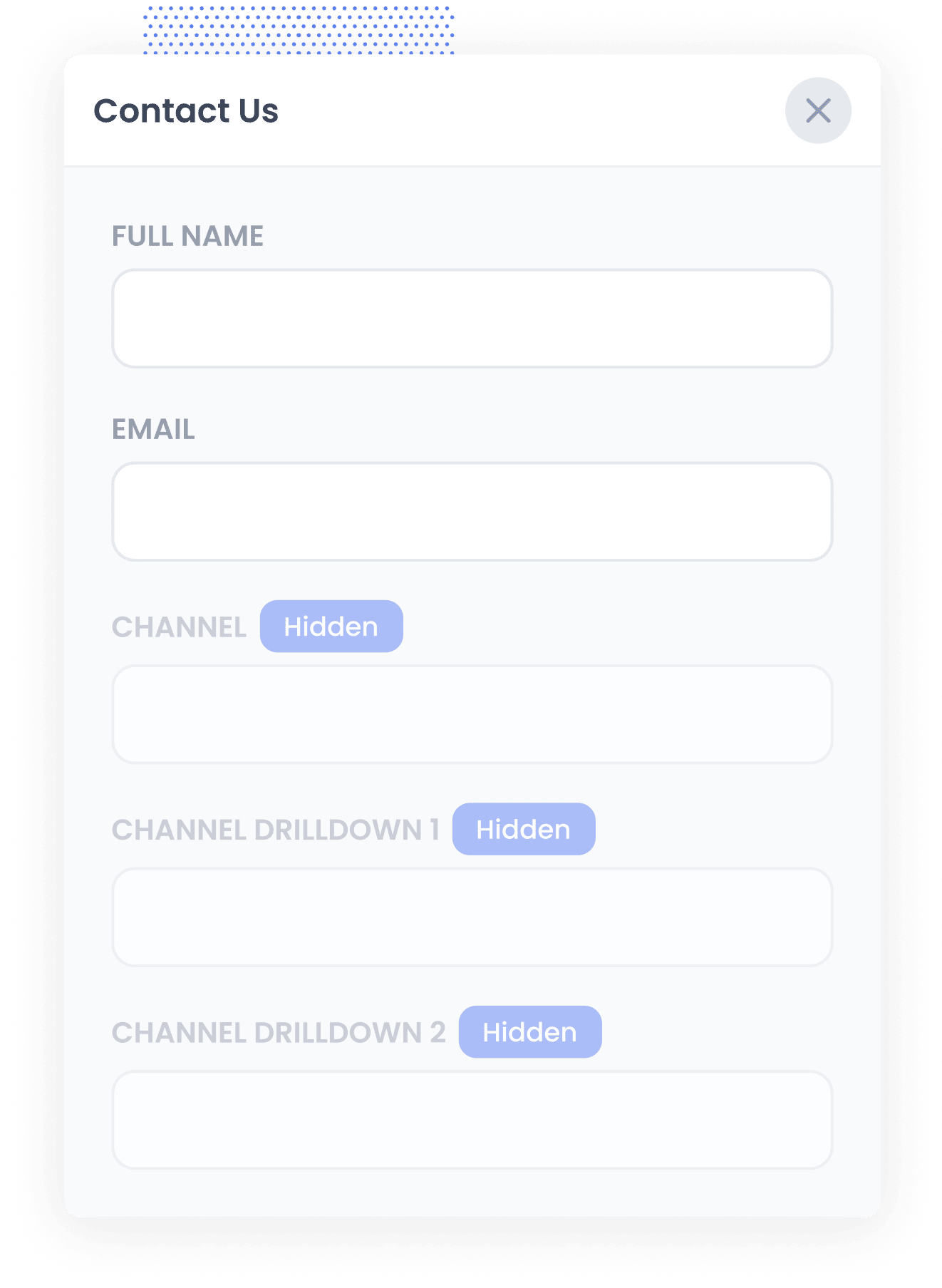
The next step is to install the Attributer code on your website.
When you sign up for a 14-day free trial of Attributer, you'll receive a small snippet of code to drop into your site. Depending on your platform (WordPress, Webflow, Framer, Squarespace, etc.), the exact process will look a little different, but in most cases, you can add it through the Settings section or via Google Tag Manager.
You can find step-by-step instructions for all the popular website builders here.
3. Attributer passes Google Ads data through with each booking
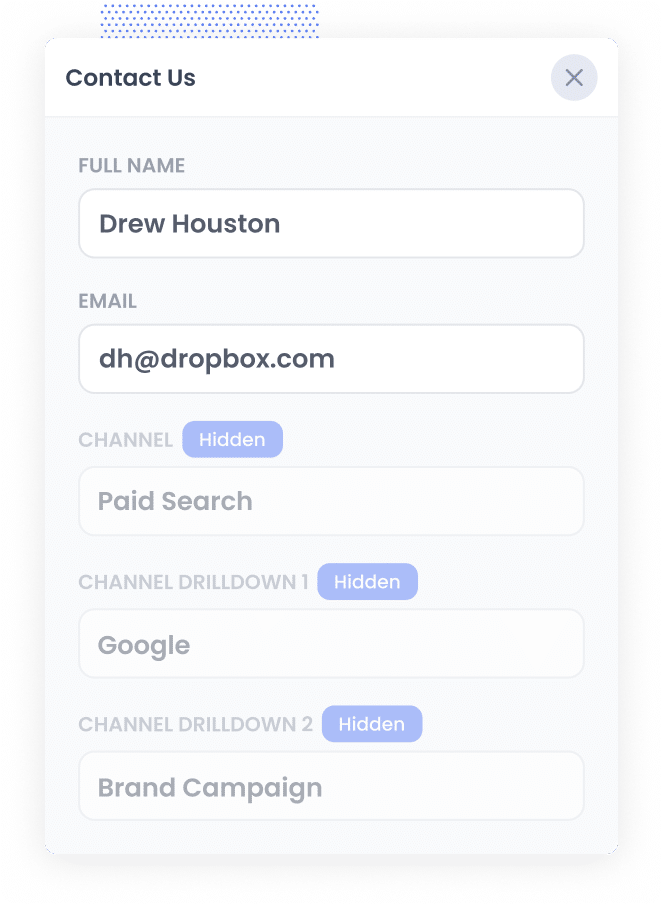
Once everything is set up, Attributer will start tracking where your website visitors are coming from straight away. Then, when someone schedules a meeting through your HubSpot Meetings widget, Attributer automatically sends that tracking data through with the booking.
Here's an example of how it works in practice:
Let's say you run an accounting firm that helps small businesses with their tax and compliance needs. You've launched a Google Ads campaign to promote a free initial consultation for new clients.
When someone clicks your ad and books a meeting through your HubSpot Meetings widget, Attributer will capture data like this (depending on the UTM parameters you've set up):
- Channel: Paid Search
- Channel Drilldown 1: Google
- Channel Drilldown 2: Small Business Tax Campaign
- Channel Drilldown 3: Free Consultation Ad
This gives you a precise view of which ads and campaigns are generating your bookings, so you can put more budget into the ones that are working and cut back on the ones that aren't.
4. Google Ads data is captured in HubSpot
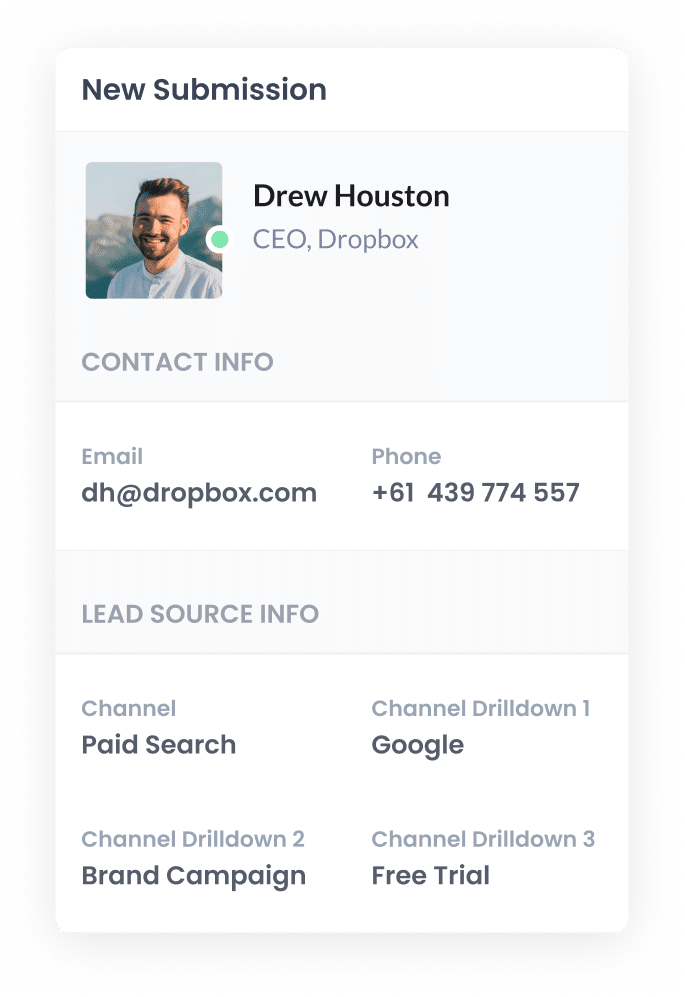
Once the data is flowing into HubSpot alongside each meeting booking, you can put it to work in a few different ways:
- View it on the contact record in HubSpot CRM – Because HubSpot Meetings is part of the HubSpot ecosystem, the attribution data automatically appears on the contact record in your CRM alongside the meeting details.
- Build reports in HubSpot – Use HubSpot's built-in reporting tools to create charts and dashboards that show how many meetings, leads and customers your Google Ads campaigns are generating each month.
- Export it to a spreadsheet – Pull the data into a simple table format, apply filters and sorting, then connect it to tools like Google Data Studio or Microsoft Power BI for more advanced reporting.
Why using Attributer is the best way to capture Google Ads data in HubSpot Meetings
Here's why Attributer is the best approach for capturing Google Ads data in HubSpot Meetings:
1. Captures all traffic
Attributer doesn't just track leads from your Google Ads. It captures the source of every single meeting booked through HubSpot Meetings, regardless of how someone found your site.
Whether a person discovers you through a Facebook Ad, an organic Google search, a LinkedIn post, or a referral from another site, Attributer records that information and passes it through with the booking.
That means when you're building reports in HubSpot CRM, you can see where all of your leads are coming from, not just the ones from paid campaigns.
2. Remembers the data as visitors browse your site
Most other ways of capturing UTM parameters only work if someone books a meeting on the exact same page they first landed on.
Here's why that's a problem: picture someone clicking one of your Google Ads and arriving on your homepage. They browse around a bit, then click a "Book a Call" button that takes them to a separate page where your HubSpot Meetings widget is embedded. Because the booking happens on a different page to the one they initially landed on, the UTM parameters disappear and you lose track of where that lead originally came from.
Attributer solves this by storing the UTM parameters in the visitor's browser. That way, no matter how many pages they click through before booking, the tracking data follows them and is passed to HubSpot when they finally schedule their meeting.
3. Captures GCLID and other details
Attributer can also pass through Google's various click IDs like the GCLID, GBRAID, WBRAID, and more.
Then, at a key point in your sales process (like when a lead becomes a customer), you can send them back to Google Ads as an offline conversion.
This means that instead of tracking form submissions or thank-you-page visits as conversions in your ad platforms, you can track actual paying customers.
3. Captures landing page data as well
On top of tracking Google Ads data via UTM parameters, Attributer also captures the very first page someone visits on your site, along with the broader section of your site that page belongs to.
For example, say you run a law firm. If the first page someone visits is lawfirm.com/services/estate-planning, Attributer would record:
- Landing Page: lawfirm.com/services/estate-planning
- Landing Page Group: /services
This gives you a clear picture of which sections of your site (whether that's your blog, your service pages, or your resource library) are generating the most meetings and clients.
3 example reports you can run when you capture Google Ads data in HubSpot Meetings
When you capture Google Ads data with every new meeting in HubSpot Meetings and it flows into HubSpot CRM, you can build reports that show you exactly how your Google Ads are performing.
I've spent over 15 years in marketing, building these kinds of reports for a wide range of businesses. Below are 3 of the ones I keep coming back to because they give the clearest picture of what's actually driving results.
1. Leads by Channel
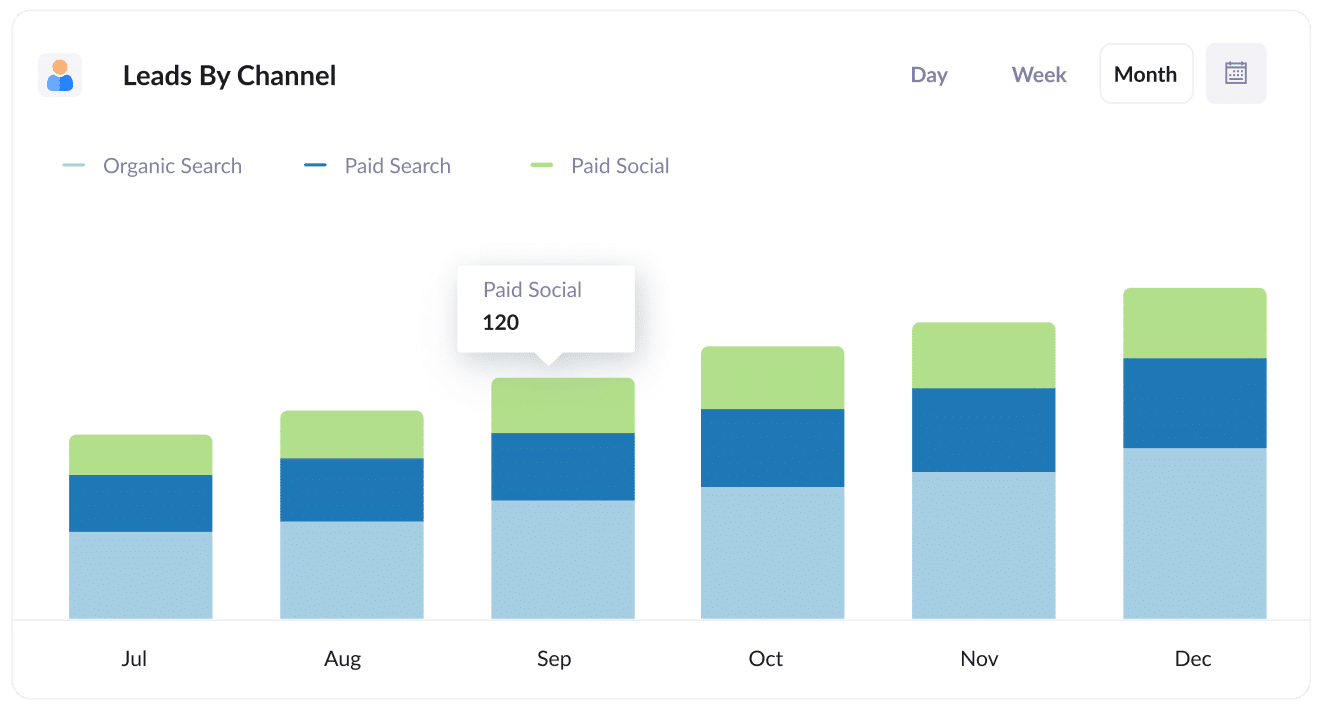
This report shows you, month by month, how many leads or bookings you're getting and breaks them down by the channel they came from.
It's a simple but really useful way to see which marketing channels are bringing in the best results and where your time and budget are actually making a difference.
For example, if most of your leads are coming through Organic Search but the bulk of your spend is going toward Paid Search, that could be a sign to shift some resources around.
2. Customers by Google Ads campaign
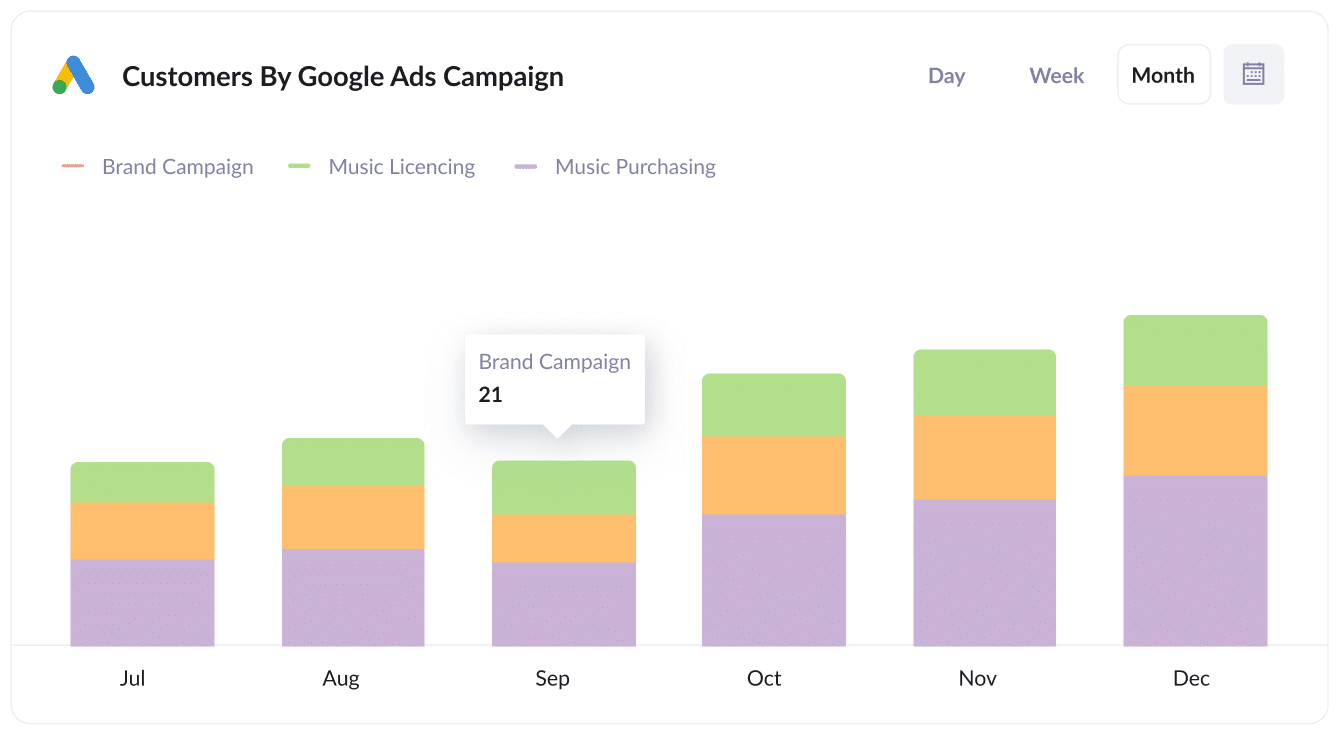
This report shows how many new customers you're winning each month and breaks it down by the Google Ads campaign they came from.
It's a great way to see which campaigns are actually producing paying customers rather than just generating clicks and website visits that go nowhere.
With this data, you can confidently put more budget behind the campaigns that are delivering real results and pull back on the ones that aren't.
3. Revenue by Keyword
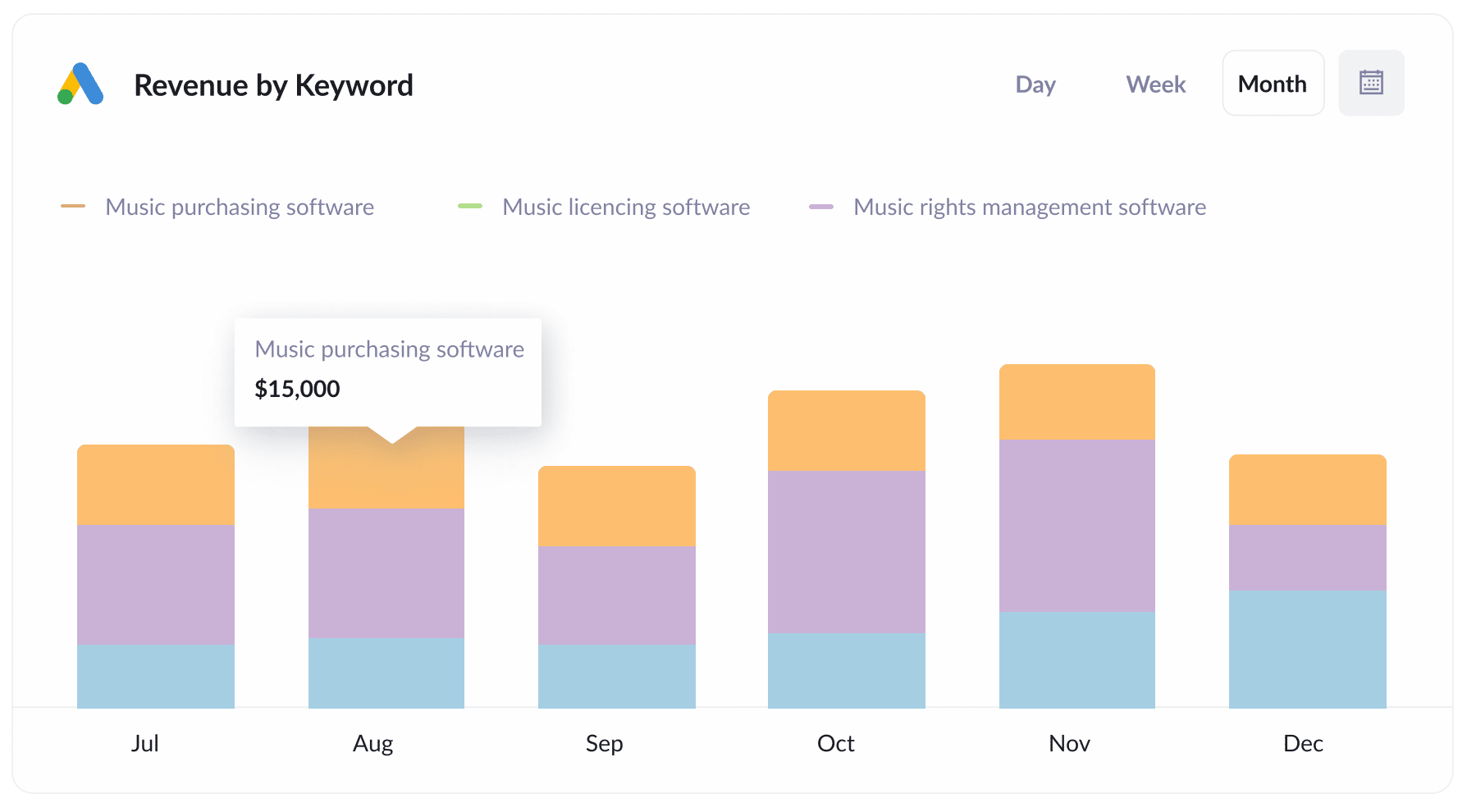
This report shows how much revenue you've generated from new customers, grouped by the keyword you are bidding on that triggered the ad to show to them.
It gives you a clear picture of which keywords are not just bringing people to your site, but are actually generating real customers and revenue.
With this insight, you can increase your bids on the keywords that are driving revenue and trim the ones that are eating up budget without delivering results.
Wrap up
If you've been looking for a straightforward way to see exactly how many leads and bookings your Google Ads are generating, Attributer is worth trying.
It captures the UTM parameters behind your Google Ads and passes them through when someone books a meeting via your HubSpot Meetings widget. Because HubSpot Meetings feeds directly into HubSpot CRM, that data shows up right on the contact record and you can use it to build reports showing which campaigns, ads, and keywords are actually driving business.
Getting started is simple. Attributer offers a free 14-day trial and it takes less than 10 minutes to set up, so give it a go today!
Get Started For Free
Start your 14-day free trial of Attributer today!

About the Author
Aaron Beashel is the founder of Attributer and has over 15 years of experience in marketing & analytics. He is a recognized expert in the subject and has written articles for leading websites such as Hubspot, Zapier, Search Engine Journal, Buffer, Unbounce & more. Learn more about Aaron here.