
The best way to track ActiveCampaign Forms submissions as conversions in Google Ads
Track your ActiveCampaign forms submissions the right way and capture up to 23% more conversions in Google Ads.

Use Attributer to capture the GCLID and the other Google Ads identifiers with each ActiveCampaign form submission, then send them back to Google Ads as a conversion. You can fire it the moment the form is submitted, or hold off until the lead becomes a paying customer in your CRM.
Google Ads is a great way to bring in new leads and customers for your business, but actually setting up conversion tracking properly is hard.
Tools like Google Tag Manager require you to write custom code to listen for form submissions, then configure triggers, tags, variables, and a whole lot of other complicated stuff on top.
And basic approaches like tracking thank you page visits can result in up to 30% of your conversions being missed, thanks to things like ad blockers, privacy features built into modern browsers (Safari being the main culprit), and people clicking your ad on their phone but converting later from their laptop.
So what are you supposed to do?
In this article, we'll show you a really easy way set up what's known as server side conversion tracking in Google Ads (or Enhanced Conversions as Google calls it).
Why server side tracking in Google Ads matters
Common approaches to tracking conversions in Google Ads, such as tracking thank you page visits or firing events through Google Tag Manager, have some serious flaws. In fact, studies show that these methods can result in missing up to 30% of your actual conversions.
This happens for a number of reasons:
- Ad blockers: Ad blockers prevent the Google Tag from firing on your website, which means it can't track anything users do once they're on your site.
- Privacy features in browsers: Web browsers like Safari have built in technologies that block the Google Tag from tracking visitors for more than a day or two. So if a person clicks your ad and converts 3 days later, it won't be tracked.
- Using multiple devices: People might click your ad on their work computer but later convert on their home computer (or on their mobile device), which means their original ad click can't be tied to their later conversion.
This is why you need to be doing server side tracking. Instead of relying on things to happen in the browser (like the user visiting a thank you page) and hoping the Google Tag can track it, the conversion data is captured with each form submission and sent directly to Google's servers, which means ad blockers and privacy settings can't get in the way.
This has been proven to work significantly better. Google's own data shows that server side tracking typically results in a 23% average increase in total recorded conversions and a 10% reduction in cost per conversion (because Google's algorithms have more accurate conversion data to learn from and can serve your ads better).
How to track ActiveCampaign Forms submissions in Google Ads using server side conversion tracking
There are two ways to do this, and the choice between them comes down to when you want to send the covnersion back to Google Ads. Do you want to send it when the form is submitted so that it tracks a lead being created? Or later in the sales cycle when the lead actually becomes a customer?
Option 1: When a lead submits the form
If you want the conversion to fire the moment a lead hits Submit, the easiest path is a tool like Converly. It's purpose built for sending server side conversions to Google Ads and works with ActiveCampaign forms.

You simply pick a trigger (like an ActiveCampaign form being submitted on your site) and pick the action you want to follow it (a conversion sent to Google Ads).
When a visitor lands on your site, it captures a heap of information about the user and how they got to your site (like the Google Click ID (GCLID), GBRAID, WBRAID, UTM parameters, User Agent, and more) and stores it.
Then when a visitor submits an ActiveCampaign form on your site, it grabs the user's name, email, phone, etc from the form submission, secures it with SHA-256 (required by Google), and ships it through to Google Ads. This combination of the user's details plus the GCLID, UTMs, etc gives Google a huge amount of information about the lead, which makes it much more likely that they can match the conversion back to the original ad click.
The end result: every benefit of server side tracking (a 23% average lift in total recorded conversions, a 10% reduction in cost per conversion) without ever needing to touch custom code, learn what SHA-256 actually does, or figure out how to send events to Google's API yourself.
Option 2: When a lead becomes a customer
If you collect leads through ActiveCampaign forms and then manage them using ActiveCampaign's CRM features (or if send them to Salesforce, Pipedrive, etc), then you can also wait until later in the sales cycle (when the lead actually becomes a paying customer, for example) to fire the conversion back to Google Ads.
This works by capturing some extra context with each form submission, sending it through to your CRM, and then triggering a conversion when the right milestone is reached. Here's the full flow:
1. Install Attributer on your website and add a hidden field

First, sign up for a 14 day free trial of Attributer. Once you do, you'll get a small snippet of code to drop onto your website (it goes in the head section, the same way you'd install Google Analytics).
ActiveCampaign Forms is closely tied to the ActiveCampaign contact object, so adding hidden fields is a two part process. First, you create custom fields on the contact record. Then you add those custom fields to your form and hide them. The four you need are:
- GCLID
- WBRAID
- GBRAID
- User Agent
In ActiveCampaign, head to Contacts > Manage Fields and add a new custom field for each of the four values above. Set the Field Type to Hidden Field, and set the default value to the one Attributer expects (the exact names and default values are listed in the Attributer help docs). Once the custom fields exist, open your form in the form builder and drag each one in into your form (placing them anywhere is fine, though just above the submit button works well).
2. Attributer writes data into the hidden fields
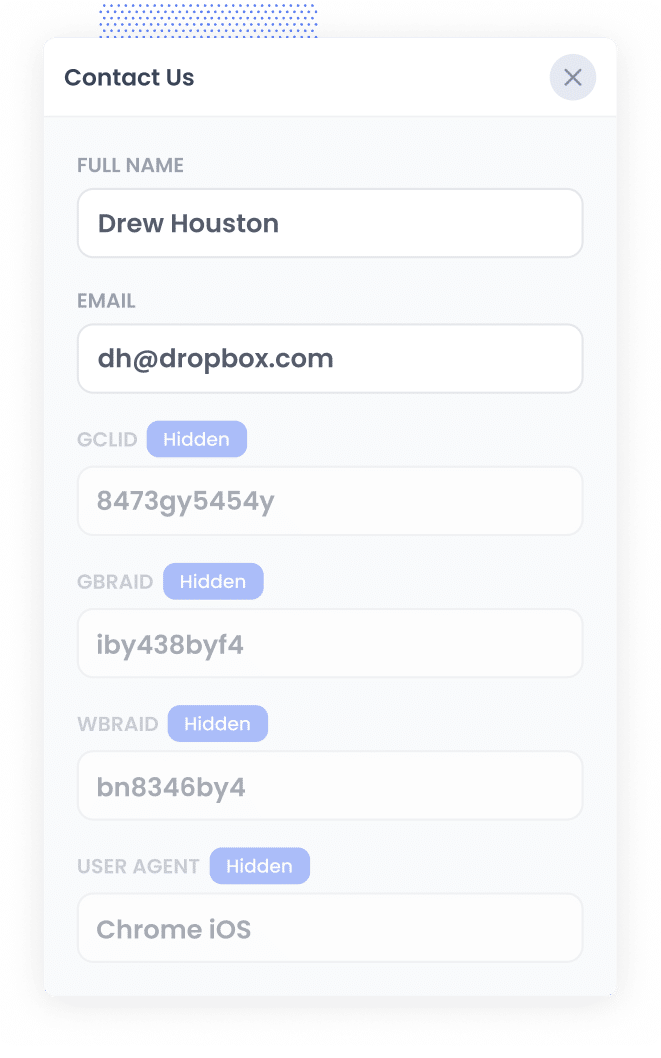
Once Attributer's code is on your site, it'll start watching where every visitor is coming from automatically.
When someone clicks one of your Google Ads and lands on your site, Attributer captures everything Google Ads needs for a server side conversion (GCLID, GBRAID, WBRAID, User Agent, and so on) and stores it in the visitor's browser.
Then when that visitor submits one of your ActiveCampaign forms, Attributer writes the data into the hidden fields you set up earlier, and it's captured along with the rest of the form submission.
3. Data is sent to your CRM
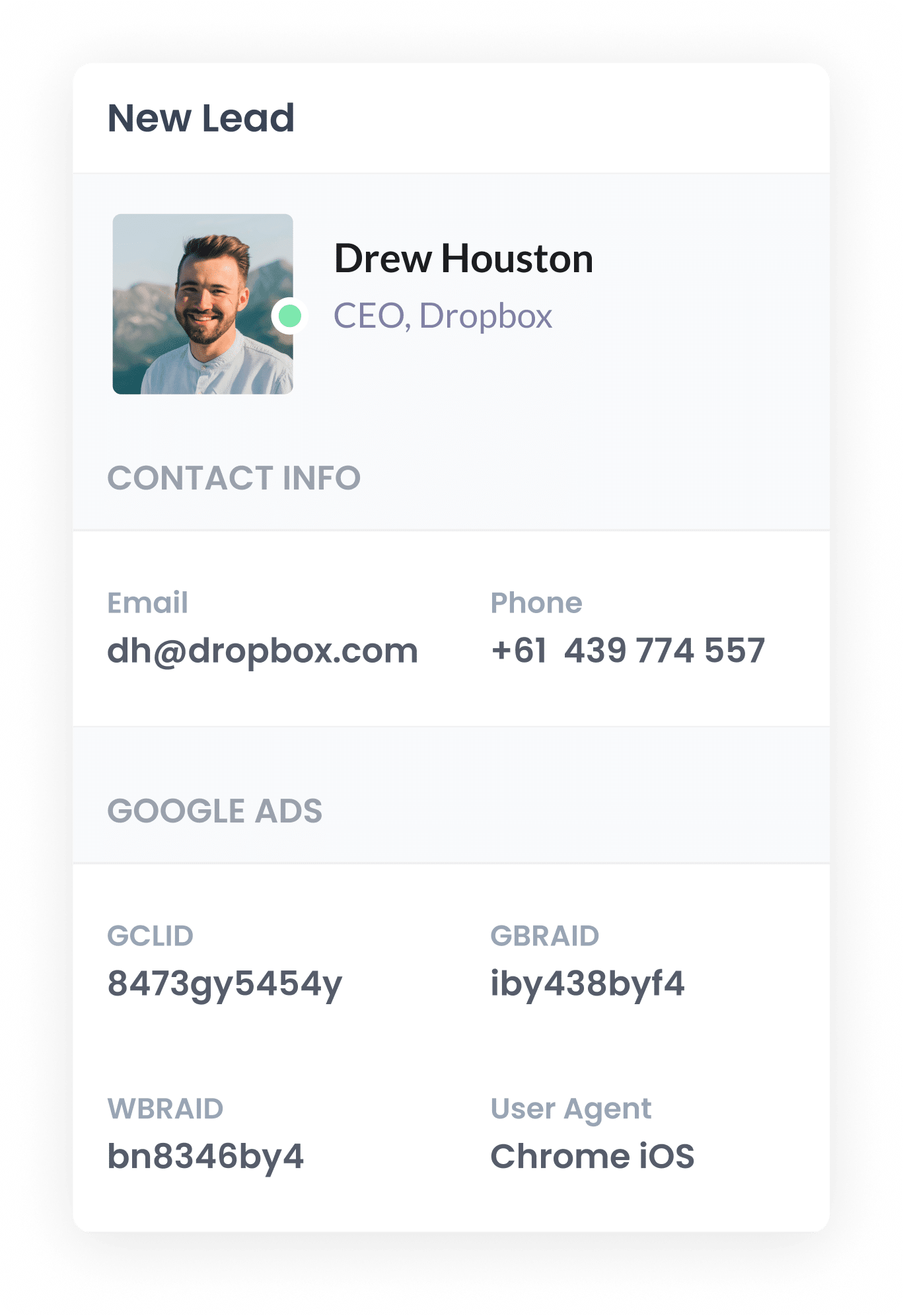
Once the data is captured with the form submission, you can send it through to your CRM alongside the lead's name, email, phone number, and any other information they entered into the form.
If you use ActiveCampaign as your CRM, then the Google Ads data will lands on the contact record automatically the moment the form is submitted. If you also push contacts onwards to a separate CRM, ActiveCampaign has native integrations for Salesforce, HubSpot, Pipedrive, and others that you can use to send it over, plus a Zapier integration for anything not covered.
The data then sits on the contact/lead record in your CRM, ready to be used when it's time to fire the conversion back to Google Ads.
4. Send the data to Google Ads
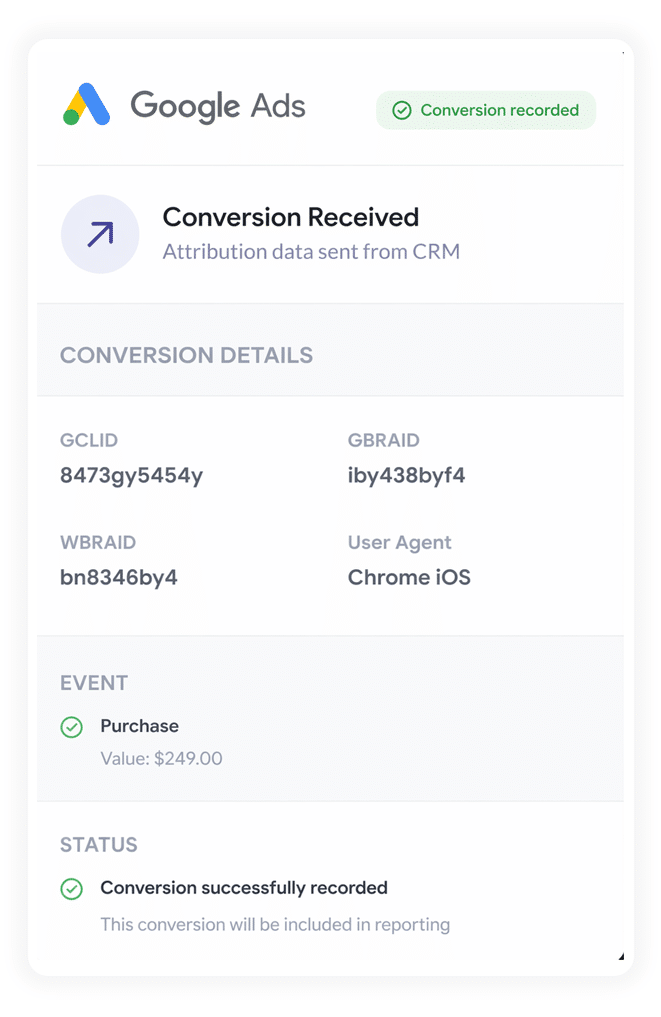
Whenever the lead reaches your chosen milestone (like a new deal getting created or an opportunity being marked as won), that's when you want to send the conversion back to Google Ads.
Zapier and Make handle this part of the flow nicely. Both connect to almost any CRM, and you can configure them to trigger the Google Ads conversion at whichever point in the sales cycle makes sense for your business. They also give you a clean visual mapping screen for matching the values Attributer passed through to your CRM (GCLID, GBRAID, WBRAID, User Agent, and so on) back to the right fields on the Google Ads side.
Why sending server side conversions to Google Ads is the best approach
At a high level, server side tracking gives you much more accurate results than client side tracking (which is just a fancier way of saying browser-based tracking).
With client side tracking, the conversion event has to fire inside the visitor's web browser, where things like ad blockers and browser settings can interfere. Server side tracking sends the conversion event straight to Google's servers, where none of that gets in the way.
Here are the 4 main reasons it's the most effective way to track conversions:
1. Overcomes ad blockers
Traditional tracking methods (like firing a Google Tag Manager event or relying on the standard Google Ads conversion pixel) all depend on scripts loading inside the visitor's browser. Ad blockers and privacy focused browsers regularly stop those scripts from running though.
And the share of users running an ad blocker isn't small. Recent estimates put it at over 30% of internet users.
Server side tracking sidesteps the issue entirely. The conversion data is sent straight to Google's servers, where ad blockers can't get in the way, so every lead ends up accurately counted.
2. Bypasses Safari & iOS privacy limitations
Apple's Intelligent Tracking Prevention (ITP) clears tracking cookies after just a couple of days. So if a lead clicks your ad on Monday but doesn't convert until the following Friday, the link between the click and the conversion has already been wiped.
Server side tracking handles this differently. Instead of relying on a cookie that gets deleted regularly, it passes through the lead's name, email, phone and a heap of other information, making it much easier for Google to tie the conversion back to the original ad click (no matter how much time has passed in between).
3. Works across devices
It's pretty common for a lead to first land on your site on one device (their phone, say) but then convert on another device (their work computer, for instance)
Traditional browser tracking can't connect those two sessions because they happen on different devices, but sending identity data (name, email, and so on) directly to Google lets it "stitch" those visits together and credit your ad with the conversion it actually started.
4. Eliminates duplicate and messy data
On top of all the above, browser based tracking is prone to other errors like double counting from page refreshes, missing data due to slow load times, or lost events when the visitor's connection drops mid load.
Tracking from the server is much more precise because it only triggers a conversion when a form is successfully submitted (not just when a thank you page happens to load), so the conversion counts in Google Ads end up matching your real lead numbers in your CRM much more closely.
3 reports you can run when you properly send conversions to Google Ads from ActiveCampaign Forms
Across 15 years of running marketing for various businesses, I've spent millions of dollars in Google Ads and built hundreds of reports trying to figure out which campaigns were actually pulling their weight.
Out of all of them, here are the 3 reports I've found most consistently useful:
1. Conversions by Keyword
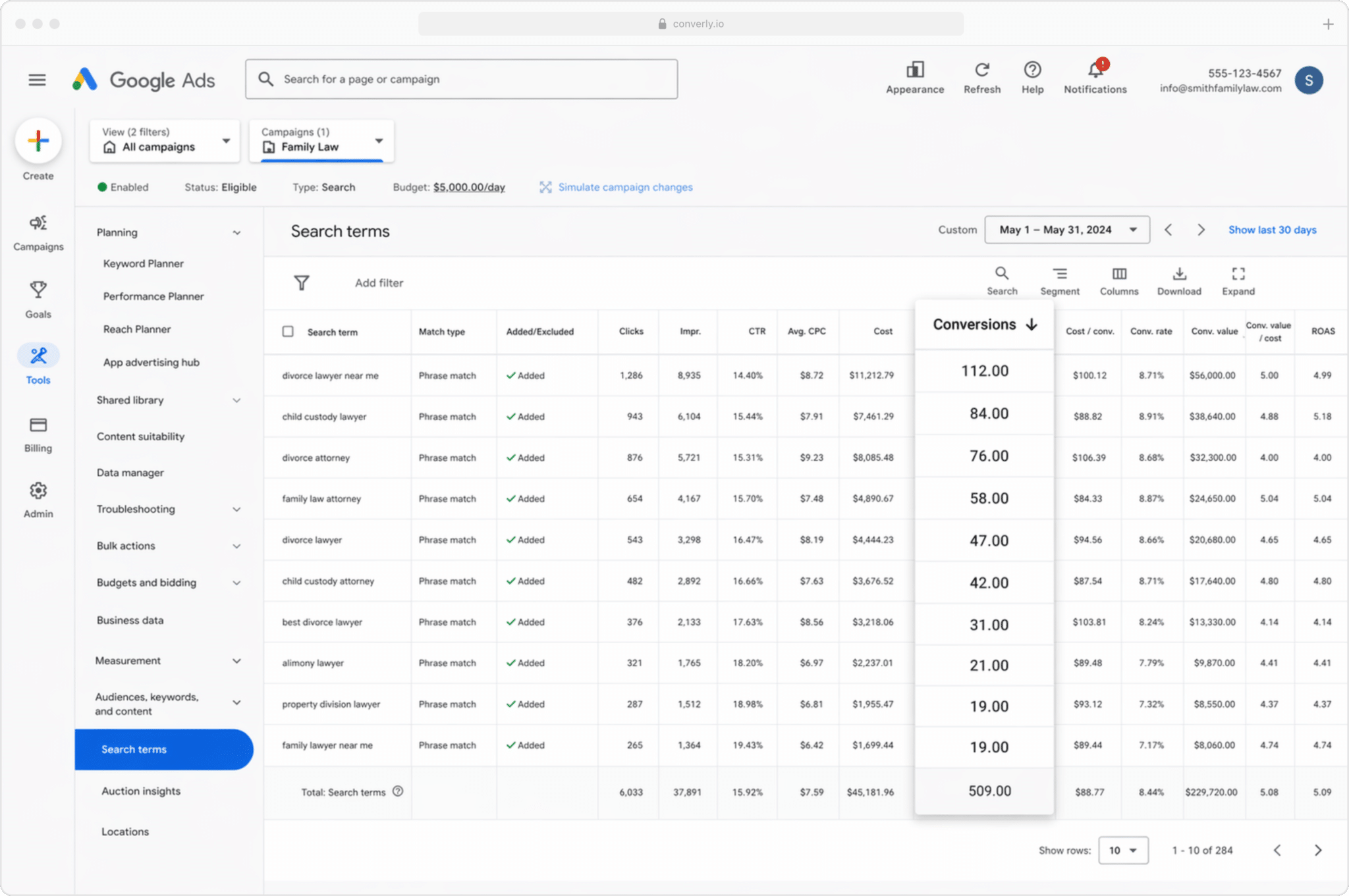
Most businesses running Google Ads end up bidding on a fairly broad spread of keywords across multiple campaigns (often broken out by the services you offer, like a medical spa running a separate basic facial campaign and a CoolSculpting campaign).
This report shows you which of those keywords are actually generating conversions, instead of just impressions and clicks that go nowhere.
It helps you understand which keywords are profitable and which ones aren't, so you know where to put more budget for the best return.
2. Conversion Value by Campaign
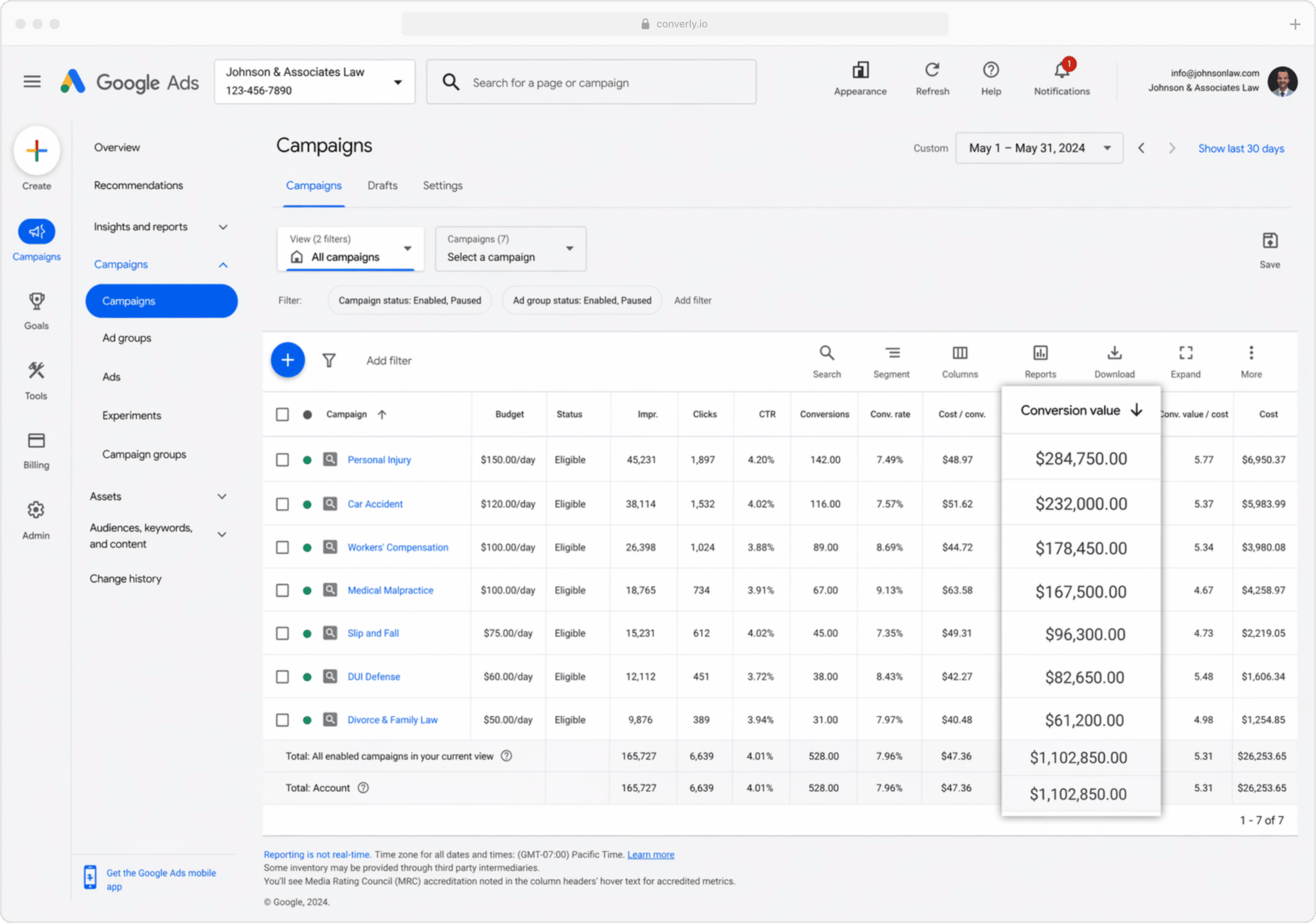
If you're sending conversions back to Google Ads from your CRM, you can also include the value of each conversion (which would normally be populated from the value of the deal or opportunity attached to the lead in your CRM).
This is important because not all customers are equal. For a medical spa, getting a new client from your 'basic facial' campaign is nowhere near as profitable as winning a client from your 'CoolSculpting' campaign, so you don't really want to treat them as equals.
If you send a conversion value from your CRM to Google Ads, you can run reports that show you got X revenue from leads that came from this campaign, and Y revenue from leads that came from another. That makes it much easier to decide which campaigns to put your budget behind.
3. Conversions by Geography
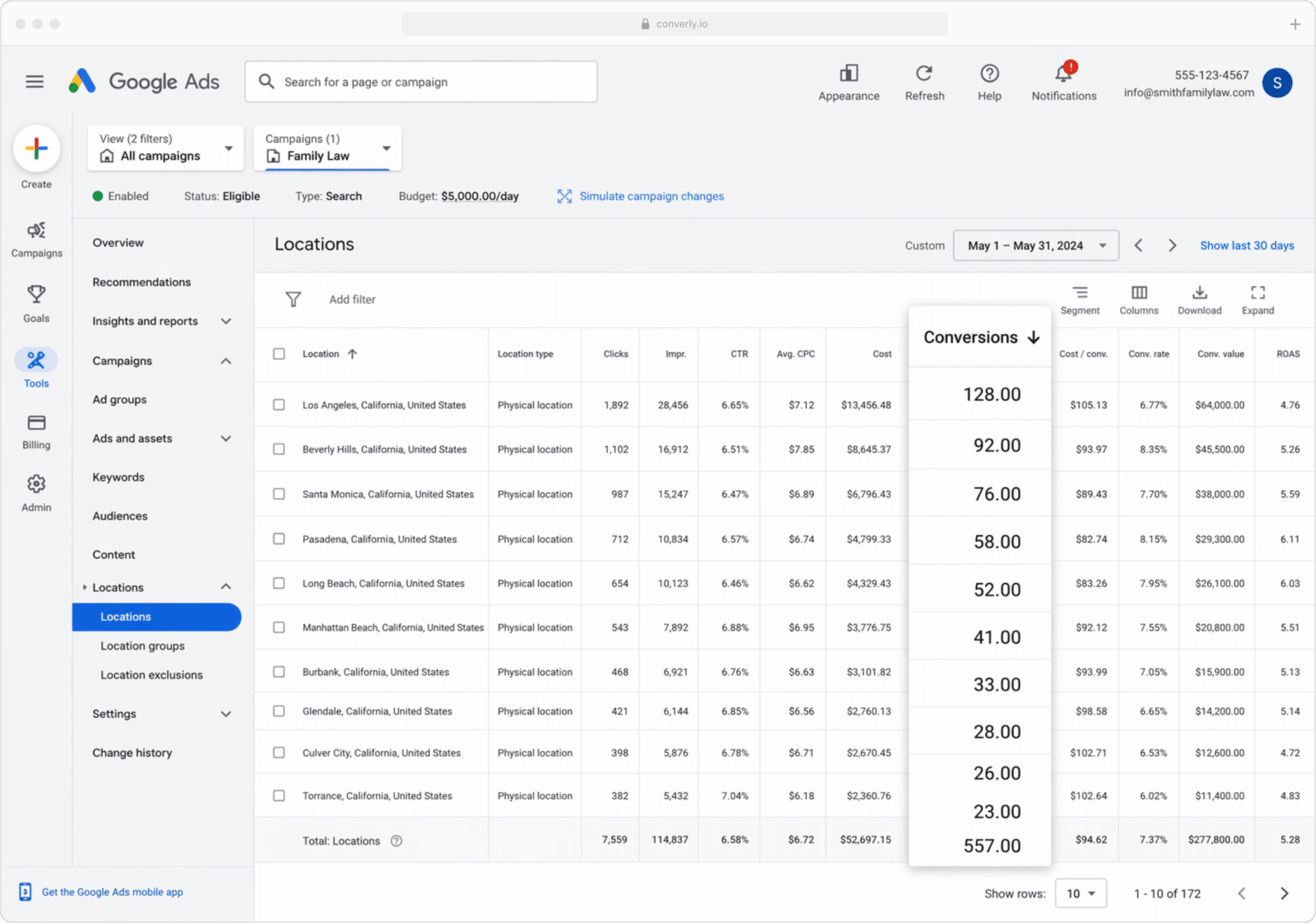
This report is especially useful for businesses that earn most of their revenue locally (day spas, massage therapy clinics, acupuncturists, hair salons, and so on). It breaks your conversions down by geographical region.
You can view the numbers at a high level (country, state, or city), or drill all the way down to a specific postcode. That tells you whether your leads are clustered in your target service areas, or whether you're paying for clicks from suburbs too far away to matter.
From there, Google's Location Bid Adjustments give you a way to act on it. Tell Google to bid more aggressively in the postcodes that consistently produce paying customers, and pull bids back (or cut them entirely) in the areas that generate clicks but never produce filled out forms.
Wrap up
Sending server side conversions to Google Ads can really move the needle on your campaign results. It gives you the data you need to make manual adjustments (like bidding higher on certain keywords or in certain geographies), and it gives Google's algorithms the data they need to make smarter automated bidding decisions for you.
But it only works well if the conversion data going in is accurate. If you're tracking thank you page visits or firing events in the browser through Google Tag Manager, you're not really sending proper data, and your Google Ads performance will reflect it.
So whether you fire the conversion the second the form is submitted (using tools like Converly) or hold off until the lead becomes a paying customer (using Attributer + your CRM + Zapier), make sure you're sending it server side. That's where the real lift in performance comes from.
Get Started For Free
Start your 14-day free trial of Attributer today!

About the Author
Aaron Beashel is the founder of Attributer and has over 15 years of experience in marketing & analytics. He is a recognized expert in the subject and has written articles for leading websites such as Hubspot, Zapier, Search Engine Journal, Buffer, Unbounce & more. Learn more about Aaron here.