
The best way to track Formidable Forms submissions as conversions in Google Ads
Track Formidable Forms submissions as proper server-side conversions, and you should see your recorded Google Ads conversions jump by around 23%.

Use Attributer to capture the GCLID and other Google Ads click identifiers with every Formidable Forms submission, then push them back to Google Ads as a server-side conversion (either as the form is submitted or later when the lead converts in your CRM).
Are your Google Ads conversion counts not matching lead count in your CRM?
You're not imagining it, and you're definitely not alone.
Most websites lose between 20% and 30% of their conversions in the gap between someone clicking an ad and Google actually recording the conversion. That's because ad blockers, Safari's privacy controls, and visitors who click your ad on one device but convert on another are all throwing off your conversion numbers.
There is a solution, though.
This article walks through how to send conversions to Google Ads when someone submits a Formidable Form on your website using the proper method (known as server-side tracking).
Why server side tracking in Google Ads matters
The traditional ways of tracking Google Ads conversions all rely on something happening in the visitor's browser at exactly the right moment (I.e. the conversion fires when the thank-you page loads.).
But there are a couple of reasons why this is unreliable:
- Ad blockers: A growing share of the internet is using one (recent estimates put it at 30%). Whatever the Google Tag was supposed to track on your site, an ad blocker stops it before it ever fires.
- Browser privacy features: Safari's Intelligent Tracking Prevention, Firefox's Total Cookie Protection, and similar systems clear tracking cookies from the browser every few days. So if a lead clicks an an but doesn't convert until 5 days later, there's no way to tie the conversion back to the original ad click.
- Multiple devices: If a lead clicks the ad on their phone but converts on a laptop the next day, browser-based tracking can't see them as the same person. The conversion doesn't get attributed back to the Google Ad they clicked.
Server-side conversion tracking sidesteps all three failure modes. Instead of tracking the conversion through the browser, the conversion event is sent directly to Google Ads' servers when it happens, with no way for ad blockers, browser privacy tech, or device switches to interfere.
The difference in results is noticeable. Switching to server-side tracking typically delivers a 23% increase in total recorded conversions and a 10% reduction in cost per conversion, according to Google's own published numbers.
How to track Formidable Forms submissions in Google Ads using server side conversion tracking
There are two ways to do this, depending on when in the sales cycle you want to send the conversion back to Google Ads.
Option 1: When a lead submits the form
For teams that want the conversion to fire the instant the form is submitted (rather than waiting for some downstream milestone in the CRM), Converly is the simplest way to set it up.
Converly is a tool built specifically for sending server side conversions to Google Ads, Meta Ads, Microsoft Ads, and other ad platforms when forms get submitted on your site. The whole point of Converly is to skip the engineering. There's no Tag Manager configuration, no JavaScript, no SHA 256 to hash by hand, no Google Ads API endpoints to figure out.

As you can see from the screenshot above, setup is a couple of clicks. Pick a trigger ('Formidable form submitted' in this case), pick the destinations you want the conversion to (Google Ads, plus any other ad platforms you're running), and you're set.
Converly then listens for Formidable Forms submissions on your site. When one happens, it grabs the lead's contact details from the form, hashes them with SHA 256 (Google's required format for server-side conversions), bundles them up with the GCLID and other identifiers Attributer captured, and sends the complete conversion to Google Ads.
What you get is the full benefit of server-side tracking (the typical 23% lift in recorded conversions, the 10% drop in cost per conversion) without anyone on your team needing to write code or learn how Google's conversion APIs work.
Option 2: When a lead becomes a customer
This second approach is for teams who want to send a conversion to Google Ads when a lead becomes a customer (or some other down-funnel event, like a deal being created against the lead).
Here's how it works:
1. Install Attributer on your website and add a hidden field
Sign up for a free 14 day trial of Attributer. Once you're in, you'll be handed a snippet of code that needs to go in the head section of your website.
Then jump into Formidable and edit the form you want to capture leads from. You'll need to add 4 hidden fields, one for each of the identifiers Google Ads uses for server-side conversion attribution:
- GCLID
- WBRAID
- GBRAID
- User Agent
Adding a hidden field in Formidable is a drag and drop affair. In the form builder's left sidebar, scroll to the Miscellaneous section, drag the Hidden Field tile onto your form, and configure it. Repeat for each of the 4 identifiers above.
The good news with Formidable: hidden fields are part of the free version (Formidable Forms Lite), so you don't need a paid license to set this up. One thing worth knowing: Formidable names hidden field inputs using numeric IDs rather than friendly names, so for Attributer to write into them correctly, follow the specific guidance in Attributer's Formidable Forms help doc.
2. Attributer writes data into the hidden fields
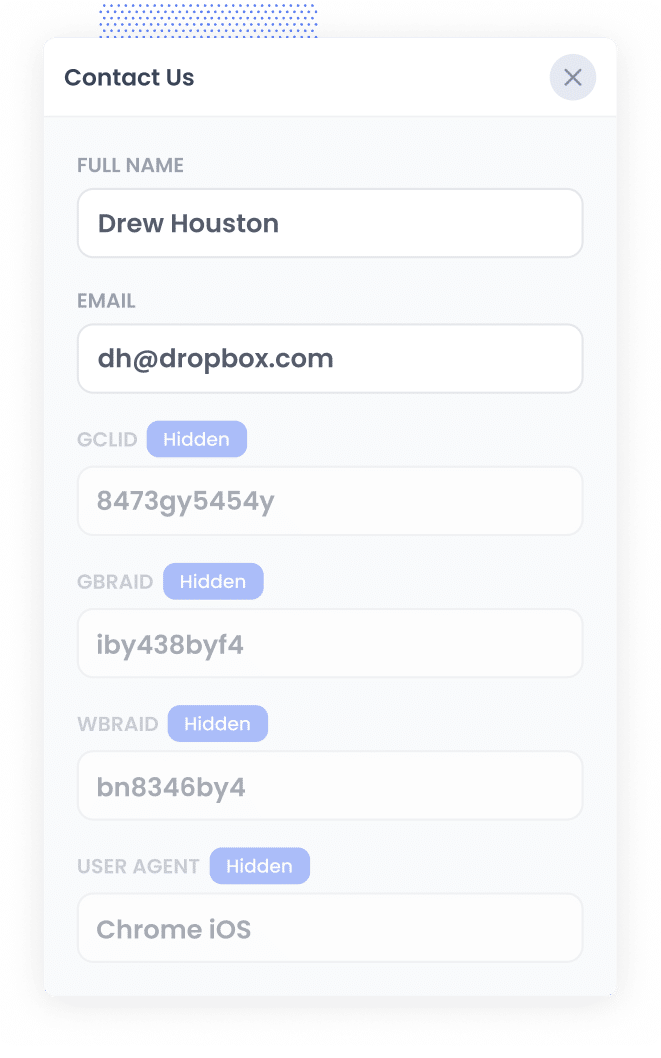
From here, Attributer does the heavy lifting on its own.
The first time someone arrives on your site after clicking a Google Ad, the Attributer script reads the click parameters Google appends to the URL (the GCLID, plus GBRAID and WBRAID if they apply), captures the visitor's User Agent, and saves them all as cookies in the browser.
Those cookies persist while the visitor browses around. When that visitor eventually fills out a Formidable form on your site, writes the values into the hidden fields, and lthey are captured in Formidable Forms alongside all the information the lead entered (like their name, email, etc).
3. Data is sent to your CRM
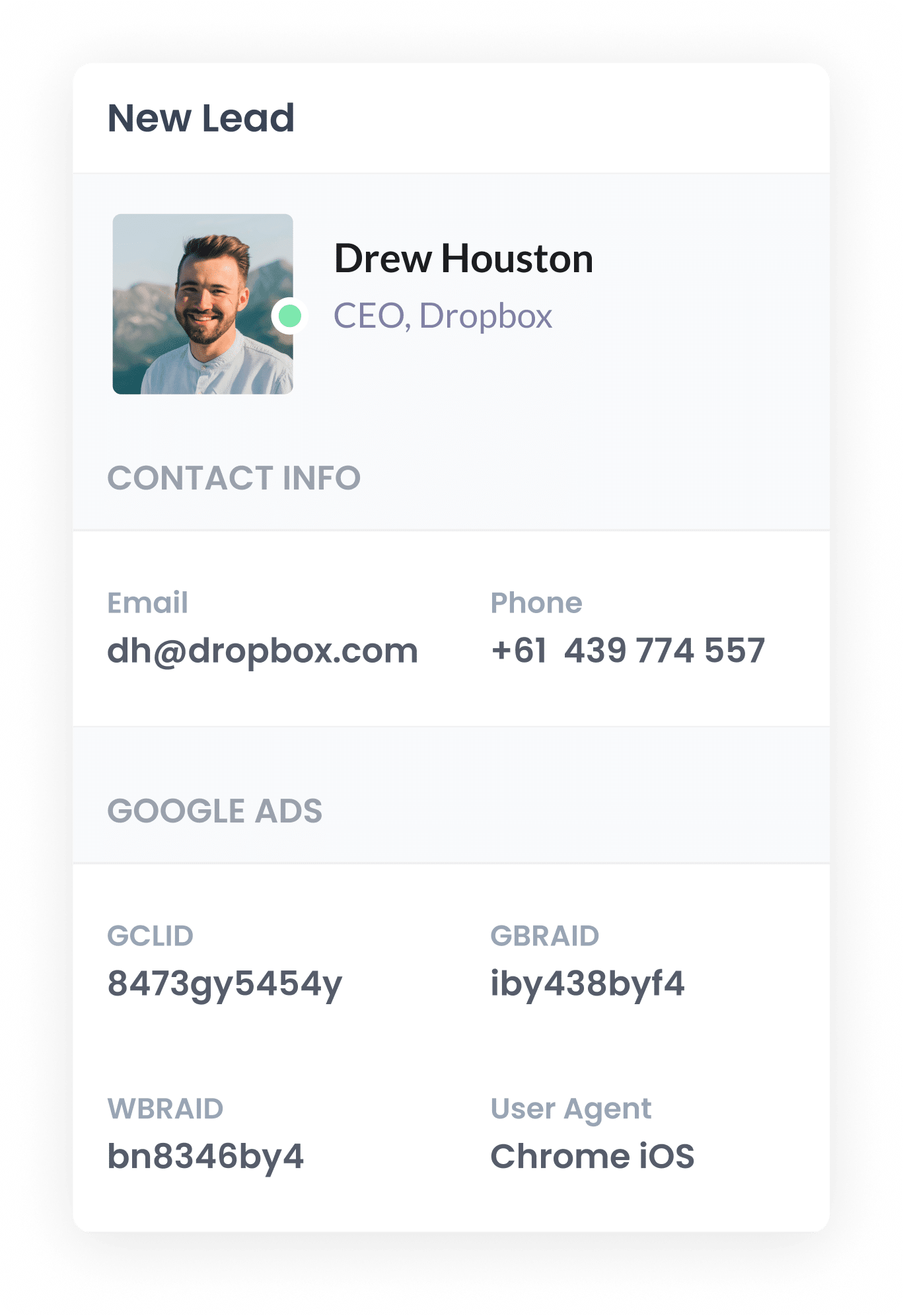
With the identifiers now captured with the form submission, the next step is to push them along to wherever your team manages leads. For most teams that means a CRM (Salesforce, HubSpot, ActiveCampaign, Pipedrive), but it could be a spreadsheet or something else.
Formidable handles this through its add-on integrations. It has direct connections with HubSpot, Salesforce, and ActiveCampaign, or you can use tools like Zapier to send it elsewhere.
Once the data arrives in your CRM, the Google Ads identifiers are stored on the contact or lead record, ready to be used later when it's time to fire the conversion back to Google.
4. Send the data to Google Ads
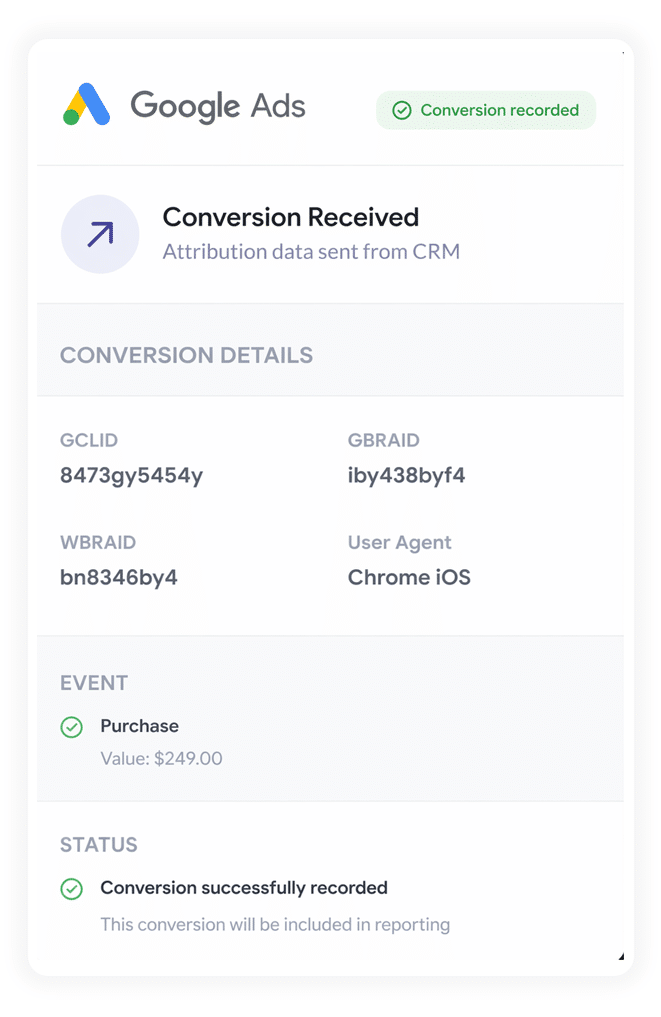
When the lead reaches a specific point in your sales cycle (like opening a deal or becoming a paying customer), you then send their name and email, plus all the information that Attributer passed through, back to Google Ads to mark a conversion.
Zapier and Make are the easiest way to wire this up. Both can listen for events in basically any CRM, and both have the necessary connectors to fire offline conversions back into Google Ads. They give you a visual mapper for taking the GCLID, GBRAID, WBRAID, and User Agent that Attributer captured and feeding them into the right Google Ads fields as well. No code required.
Why sending server side conversions to Google Ads is the best approach
There are a few reasons why sending conversions server-side is the best approach (all of which basically mean you get more accurate conversion numbers):
1. Overcomes ad blockers
Ad blocker adoption keeps climbing. Studies put the share of internet users running one above 30%, and the number is meaningfully higher in tech leaning audiences than in mainstream ones.
Ad blockers don't only hide ads. They also block the tracking scripts your ads depend on. Google Tag Manager, the Google Tag itself, conversion pixels, the lot. If a visitor with an ad blocker clicks your ad and submits your form, the conversion event simply never fires.
When the conversion is generated server side, none of that matters. The conversion gets written to Google Ads outside of the visitor's browser entirely, so no add-on the visitor has installed can stop it.
2. Bypasses Safari & iOS privacy limitations
Safari and iOS keep tightening the screws on third party tracking. The most relevant feature for Google Ads attribution is Intelligent Tracking Prevention, which deletes the cookies that link an ad click to a conversion within a few days, depending on the cookie type and how it was set.
For things like eCommerce purchases that happen the same day, it's mostly a non-issue. But if you have a longer sales cycle where a lead might visit your site but not convert for another few days, then ITP is silently killing your conversion tracking.
Converly gets around this by storing the Google Ads Click ID in a first-party cookie (which doesn't get deleted by privacy features). When a visitor completes a Formidable Form on your website, it grabs the stored GCLID and sends it directly to Google's servers along with the lead's name, email, phone, etc.
This means Google Ads can connect the initial ad click to the conversion, no matter how many days it was between them.
3. Works across devices
Plenty of leads start their journey on a phone (a quick search during a meeting, a click on an ad over lunch) and finish it on a laptop a few hours or a few days later. The phone session is where the ad click happens. The laptop session is where the form gets filled in.
But if you are using browser-based tracking, those are two separate visitors with no relationship.
Server-side tracking can resolve this with the lead's email address. When you pass the email along with the conversion, Google Ads can match it to the original ad click on the other device. The result is your Google Ads get the credit they deserve for generating the initial website visit that led to the conversion.
4. Eliminates duplicate and messy data
Browser based tracking has a longer list of failure modes than just ad blockers and privacy controls. Page refreshes can fire the same conversion twice. Slow connections mean the tracking pixel sometimes loads after the user has already navigated away. Tabs that get closed too quickly never trigger anything at all.
Server-side tracking doesn't have any of these problems. One real form submission produces exactly one event in Google Ads, and the conversion counts in your dashboard start aligning with the lead counts in your CRM.
3 reports you can run when you properly send conversions to Google Ads from Formidable Forms
After 15 years running marketing teams, I've spent a lot of time staring at Google Ads dashboards and trying to figure out which campaigns were actually pulling their weight.
The reports below are the ones I've consistently come back to.
None of them are possible without proper conversion data flowing back into Google Ads though, which is why getting the tracking right matters.
1. Conversions by Keyword
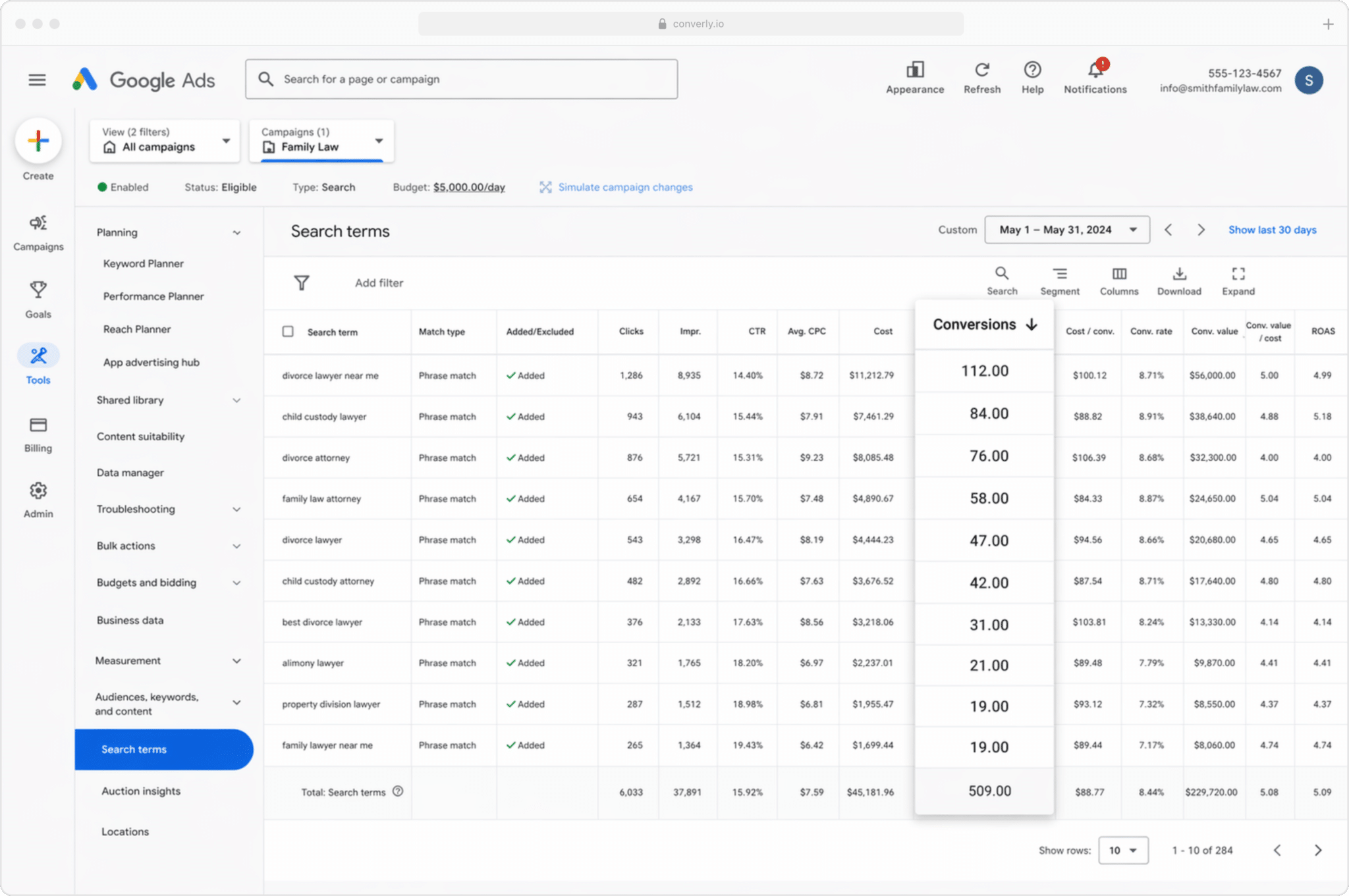
Most Google Ads accounts are running dozens of keywords across a handful of campaigns.
An accounting firm might have one campaign for tax season ('tax filing services Boston', 'CPA Boston', 'business tax preparation'), another for ongoing services ('outsourced bookkeeping', 'fractional CFO services'), and a third for niche audiences ('expat tax preparation', 'crypto tax accountant'). Each one of those keywords is competing for budget, and most of them are not pulling their weight.
This report is the fastest way to figure out which keywords are actually generating conversions versus which ones are just generating clicks to your website that never convert.
2. Conversion Value by Campaign
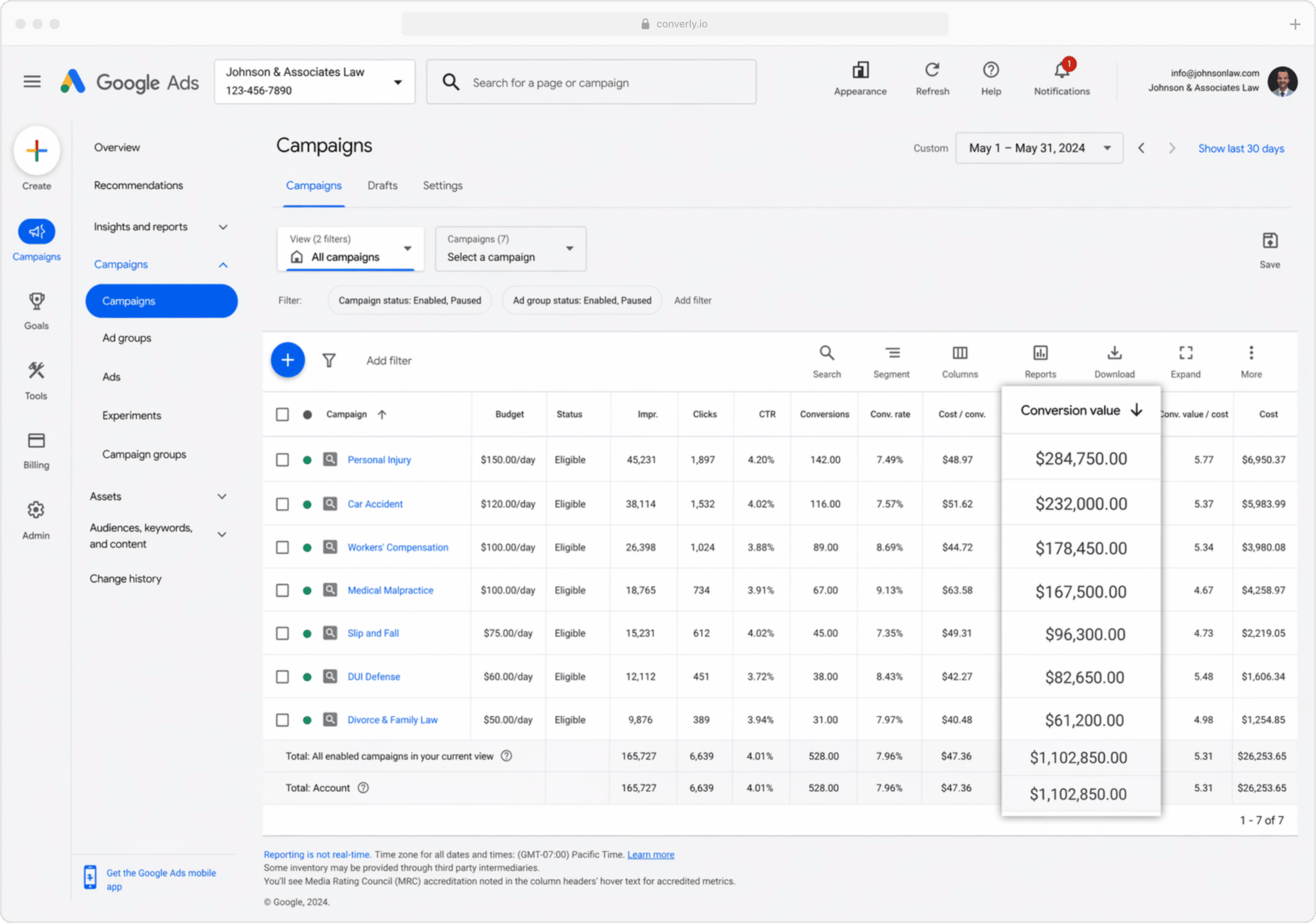
When you fire conversions from your CRM, you can attach a dollar value to each one (pulled from the deal/opportunity value in your CRM). Google Ads then knows not just that a conversion happened, but how much money it represented.
The reason this matters is not all customers are created equal.
An accounting firm running ads for both 'tax return preparation' and 'monthly CFO advisory services' is winning customers from both campaigns. Those aren't the same customer though: a single tax return might be a few hundred dollars, while a monthly CFO advisory engagement might be $50,000 a year and run for several years.
Once the values are attached to your conversions, your campaign comparisons get a whole lot more useful, and you can start funding the campaigns that bring in real revenue.
3. Conversions by Geography
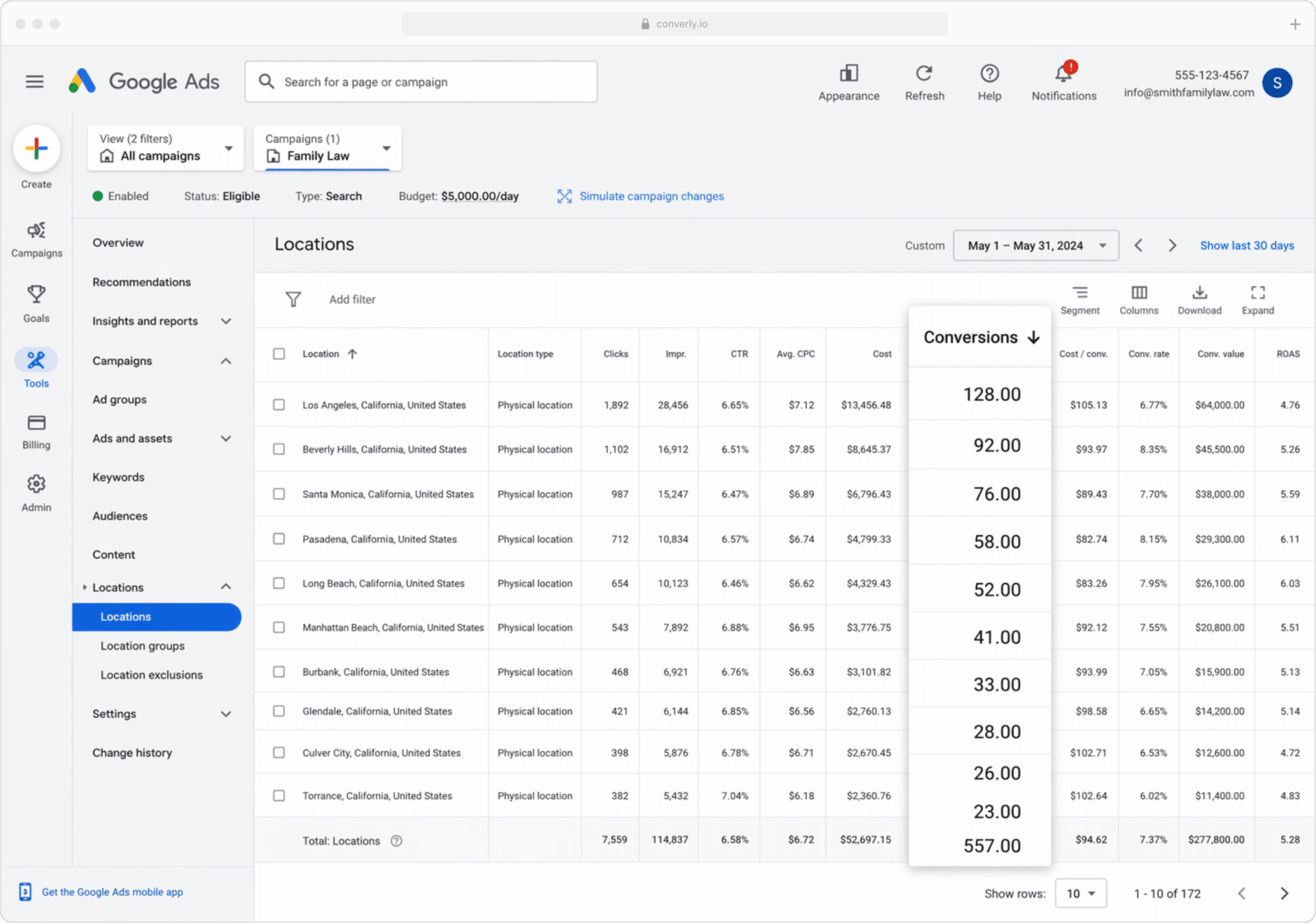
This one is especially useful for businesses that serve a local market (like a boutique accounting firm for instance). It shows how many conversions each geographical region generated.
You can view this at a high level (country, state, or city), or drill down to a specific postcode. That lets you see whether your leads are actually coming from your target service areas, or whether you're wasting budget on clicks from suburbs you wouldn't likely deal with.
Once you've got this data, you can use Google's Location Bid Adjustments to tell Google to bid more aggressively in the postcodes that produce your most profitable customers, and lower bids (or stop spending altogether) in the areas that generate clicks but never fill out your forms.
Wrap up
Sending proper, server-side conversions to Google Ads can really improve the results you get.
It gives you the data you need to make manual adjustments (like bidding higher on certain keywords or geographical areas), and it also gives Google’s algorithms the data they need to make automated bidding adjustments for you.
But it only works well if you are sending accurate conversion data. If you’re doing things like tracking thank you page visits or sending events in the browser (through Google Tag Manager, for instance), then you’re really not sending proper data, and your Google Ads performance will suffer as a result.
So, regardless of how you do it and when you do it (on form submission, when the lead becomes a customer, etc), make sure you’re sending conversions server-side to get the best results!
Get Started For Free
Start your 14-day free trial of Attributer today!

About the Author
Aaron Beashel is the founder of Attributer and has over 15 years of experience in marketing & analytics. He is a recognized expert in the subject and has written articles for leading websites such as Hubspot, Zapier, Search Engine Journal, Buffer, Unbounce & more. Learn more about Aaron here.